Increasing the size of AutoCAD’s command line history

Ever been frustrated when scrolling up in the AutoCAD text window, only to find information from earlier in that session had disappeared? I find this when listing AutoCAD commands and system variables, in particular. The standard command-line history is 400 lines, as far as I can tell, but the good news is that there's a Registry setting allowing you to increase this amount.
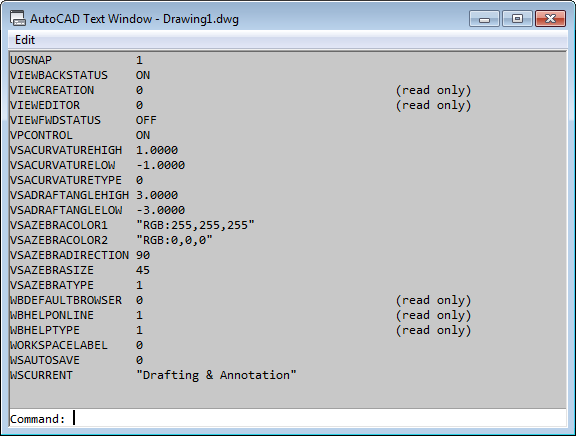
AutoCAD's text window

[Thanks to various people in AutoCAD Engineering for tracking down this information (including Asheem Mamoowala, Karen Mason and Randy Kintzley).]

In AutoCAD R14, we had a Registry setting in the current profile exposed via an option in the old Preferences dialog. While the ability to edit the setting inside the product went away in AutoCAD 2000, the underlying Registry entry is still respected.

It's called CmdHistLines, and is a DWORD setting with a valid range of 25-2048. Here's the .reg file I used to set this to its maximum value for AutoCAD 2012 on my system:

Windows Registry Editor Version 5.00


[HKEY_CURRENT_USER\Software\Autodesk\AutoCAD\R18.2\ACAD-A001:409\Profiles\<<Unnamed Profile>>\General]

"CmdHistLines"=dword:00000800

The results are as you'd expect: using the SETVAR command to list the current system variables no longer fills the history buffer. You should be able to scroll back all the way to the beginning of the session.

[Finally, a complementary tip from Fenton Webb: if you set QAFLAGS to 2, this enables full scrolling, which means you don't have to keep pressing the Return key to see the entire results of "ARX C *" or "SETVAR ? *". Thanks, Fents! :-)]

17 responses to “Increasing the size of AutoCAD’s command line history”

  1. Nice Kean,
    Both of these items are quite helpful, however, I'd love to know more about the QAFLAGS variable. I would love to be able to have it not prompt to "Press Enter to Continue", but I tried the variable set to 8191 as suggested, and it had an unexpected side effect. I have an .MNL file that goes with my menu, so that whenever my menu is loaded, the .dll is netloaded through the .MNL file. This mechanism stopped working when I set the QAFLAGS variable, and started working fine again when I removed the QAFLAGS key from the FixedProfile registry.

    Have you (or Fenton) got an answer for that?

  2. Hi David,

    I should really have mentioned that QAFLAGS is a useful tool for certain circumstances, but should not be set to anything but 0 for long periods of time. It's an undocumented sysvar which could ultimately have unpredictable effects if left set (as you've discovered).

    So feel free to use it when calling specific commands, but please don't rely on it beyond that.

    BTW - there's no need to create a Registry key for this. QAFLAGS can be set (and unset) at the command-line.

    Regards,

    Kean

  3. Thanks Kean,

    FYI, I did not create the Registry Key, AutoCAD did when I set the variable.

    When I discovered I had a problem, I searched the registry to find the setting, so that I could go to my neighbors computer and see what the default setting was supposed to be. His machine did not have the Key, so I deleted mine.

  4. Thanks for the setting, Kean, that's really handy. I've been missing that setting ever since it was removed from the UI.

    But QAFLAGS 8191? Really? 1111111111111 hex? Why turn on 13 bits and put up with undocumented side effects when you could just turn on the bit that matters? QAFLAGS 2 will turn off the scroll stopper and nothing else.

    In the R12 cycle, after the scroll stopper feature was introduced without an off switch and people complained about it (some lessons are apparently never learned, no matter how many times they are repeated), QAFLAGS 2 was made public as a workaround by Autodesk staff on CompuServe. After 19 years of unchanged functionality, it's probably safe to assume that QAFLAGS 2 isn't going to go away or start doing strange things any time soon.

    The following ancient QAFLAGS bits are public knowledge (thanks to Owen Wengerd), but I haven't checked them lately:

    bit 0 (1) : ^C in menu macro cancels grips (acts like keyboard <esc>).
    bit 1 (2) : no pause during text screen listings.
    bit 2 (4) : no "alert" dialogs (text display instead).
    bit 7 (128) : accepts "screen picks" (point lists) via (command) function.

  5. *binary, not hex. Duh.

  6. I just duplicated Fenton's usage of QAFLAGS (something I don't use myself, given the associated risks).

    If I'd been aware it was just that second bit, I'd have stated that, of course (and will adjust the post to reflect that, leaving this comment in place).

    Thanks, Steve!

    Kean

  7. Another tip on the topic of the command-line text window...

    I found a way to maximize the text window by P/Invoking Win32.dll. You can do this using the helper class found here: Win32Handler. Just copy-paste it straight into your code.

    And here's an AutoCAD command to demonstrate:

    [CommandMethod("MaximizeTextScreen")]
    public static void MaximizeTextScreen() {
      &nbsp Autodesk.AutoCAD.Internal.Utils.TextScr()
      &nbsp WindowHandler wh = new WindowHandler()
      &nbsp int windowHandle = wh.GetForegroundWnd()
      &nbsp wh.Maximize(windowHandle)
    }

  8. Cool - thanks, Art.

    Kean

  9. FYI this can also be set using the following COM interop property, i.e.:

    AcadApplication.Preferences.Display.HistoryLines

  10. Interesting - thanks!

    Kean

  11. Doesn't work on 2012 anymore.
    Anyone with new solution?
    Thanks

  12. I personally used AutoCAD 2012 when I tested and wrote about this.

    Kean

  13. I am unable to find the registry eatery you show above. I am using the 64bit version of Autocad 2012. do you know if that makes a difference?

  14. It's likely to simply mean it doesn't exist yet in your Registry hive (you can use the .reg file to create it). I just checked my system and the key isn't there by default.

    If it were a version other that 2012 English, the Registry key would change, but whether it's 64-bit or not doesn't change anything.

    Kean

  15. I have a problem that is related to this discussing, so I would like to add it here. And I don't now how to start a new discussion...

    When using the below autolisp code by doing the next steps:
    1 Load the lisp on the commandline.
    2 Enter F2, so the 'AutoCAD Text Window' is open.
    3 Enter XX on the commandline.
    Result:
    The AutoCAD Text Window will become 'Not Responding' somewhere during printing the counter...
    This can happen on different moments.
    Main question: Is it possible to influence this behavior? Or else is it possible to let AutoCAD go on without the 'Not Responding' happening?

    (defun C:XX (/ Counter)
    (setq Counter 0)
    (repeat 100000
    (print (setq Counter (1+ Counter)))
    (princ)
    )
    (princ)
    )

  16. Hi Kean,

    I could not find the "CmdHistLines" item in my Autocad 2017 registry hive. It appeared gone to me. Is there a way I can retrieve history more than 400 lines now?

    Thank you very much.

    uploads.disquscdn.c...

    1. Kean Walmsley Avatar

      You may have to create it for it to be respected. But honestly I can't help with this: please post follow-up questions via the online forums - someone there will be able to help.

      Kean

Leave a Reply

Your email address will not be published. Required fields are marked *