AU Handouts: Enriching Your DWF™ - Part 1

Introduction

This session focuses on technologies that can be used to view and access DWF content downstream from Autodesk's design products. Yesterday's session focused on DWG – we're going to take the model containing 3D solids that we created during that session and publish it to DWF, adding custom metadata. We can then look at how to harness this data in lightweight applications, whether to access it non-graphically or to view it.

Firstly, why are we using 3D solids in this example? The choice was somewhat arbitrary – the point is really to demonstrate the ability to access properties of objects stored in a DWG file without AutoCAD running – but it does suit our overall purpose for a few reasons:

  1. As 3D entities, 3D solids allow us to evaluate the 3D capabilities of the viewing technologies we're looking at.
  2. While they have precise geometric properties (such as volume), as DWF is not a double-precision format we're going to focus on accessing data of a less precision-oriented nature: the solids' materials.

A quick word on the programming technology used in this demonstration. The code samples are in a mixture of languages: the AutoCAD .NET sample that adds metadata is in C#, the downstream DWF Toolkit sample is in C++ (for the DWF Toolkit component) and in VB.NET (for the user interface), while the Design Review and Freewheel samples are in HTML.

These handouts, along with the sample projects demonstrated within them, have been posted to my blog: http://blogs.autodesk.com/through-the-interface. Only significant portions of code will be highlighted in this document, and even those should not need to be typed back in. 🙂

Creating DWFx files

In AutoCAD 2008, the PUBLISH command creates DWF files. In the future, however, Autodesk will increasingly publish to the DWFx format, one which more based on industry (particularly Microsoft) standard technology. For more information on DWFx, search for it on the Autodesk website, and search for XPS on Microsoft's website.

To create DWFx files from AutoCAD 2008 today, you need to download and install the DWFx Printer Driver, which can then be selected from the PLOT dialog:

http://usa.autodesk.com/adsk/servlet/ps/dl/item?siteID=123112&id=9124615&linkID=9240618

AutoCAD's PLOT mechanism does support multiple sheet printing, but won't let you plot both 2D and 3D sheets to the same file (unlike the PUBLISH command, which does).

The other technique for creating DWFx files is to save DWFs from Design Review 2008 as DWFx. This approach has the benefit of including any 3D and metadata content in the resultant DWFx file.

Publishing DWF and plotting DWFx from AutoCAD

Now we're going to take a quick look at the contents of DWF and DWF files. For the purpose of this example, we'll simply PUBLISH our 2D layout to DWF and PLOT it using the DWFx driver to DWFx.

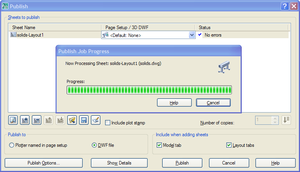
Let's launch PUBLISH and remove the modelspace sheet, and then hit the "Publish" button, selecting a DWF file as the destination (in our case solids-Layout1.dwf):
Plotting_a_single_sheet_dwf_from_au

Figure 1 – publishing a single-sheet DWF file from AutoCAD

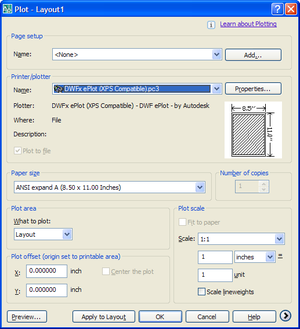
Now we launch the PLOT command and select the DWFx driver, using it to PLOT our 2D layout to a DWFx file (in our case solids-Layout1.dwfx):
Plotting_dwfx_from_autocad

Figure 2 – plotting a single-sheet DWFx file from AutoCAD

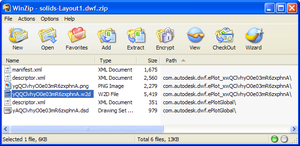
So now we have two files, solids-Layout1.dwf & solids-Layout1.dwfx. To look at their contents, we rename them to .zip and open them with WinZIP (both DWF and DWFx are package formats which are implemented as ZIP files of different types of data):
Contents_of_our_simple_dwf_file

Figure 3 – the contents of our DWF file

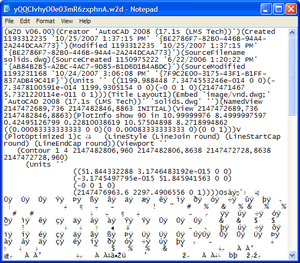
The interesting piece of our 2D DWF file is the .w2d file. If we extract it and open it in Notepad, we can see it's contains both ASCII and binary information:
Contents_of_our_w2d_stream

Figure 4 – the contents of the W2D stream of our DWF

The big change between DWF and DWFx is the move away from the W2D format (which harks back to the days of the Whip! format) and adopting the more modern XML-based XPS format.

Let's take a look at our DWFx file, now:
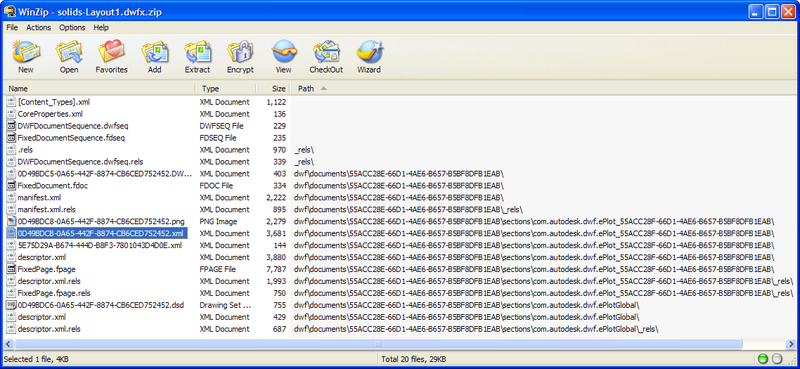
Contents_of_our_simple_dwfx_file

Figure 5 – the contents of our DWFx file

We can see straight away that there's more to it: to start with there are more files included (and the DWFx file is 16KB while our DWF file is 8KB, but the ratio shifts as the files get larger – the overhead in this example is high relative to the amount of content we're storing). The interesting file is the selected XML file – let's load that into Internet Explorer to view it:
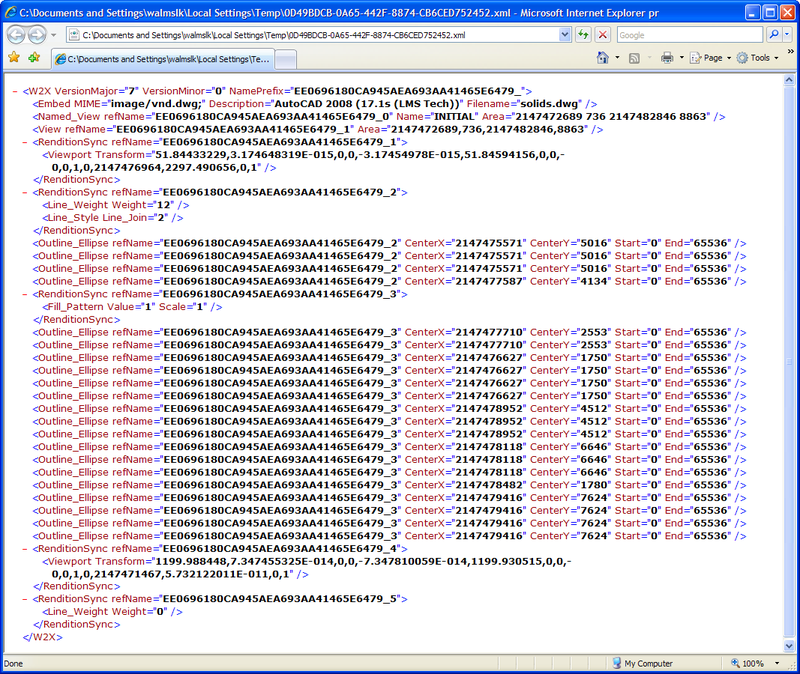
Contents_of_our_w2x_stream

Figure 6 – the contents of the W2X stream of our DWFx

This XML content defines the 2D geometry in our DWFx file, and is read by the XPS Viewer when we load it.

That's it for our brief look at the DWF and DWFx formats. We could certainly go into greater depth – especially when it comes to the storage of metadata and 3D, but this is left as an exercise for the reader.

Publishing additional metadata to DWF files from AutoCAD

Now we're going to take a look at the more advanced capabilities of the PUBLISH command in AutoCAD. Our DWG file contains 3D content in the modelspace and 2D content in its paperspace layout, and we ideally want a DWF file containing both. Not only that, but we'd like to attach metadata to both our 2D and 3D geometry.

We're going to use an AutoCAD .NET module to attach this information. Here's the C# code:

using Autodesk.AutoCAD.ApplicationServices;

using Autodesk.AutoCAD.DatabaseServices;

using Autodesk.AutoCAD.EditorInput;

using Autodesk.AutoCAD.Runtime;

using Autodesk.AutoCAD.Publishing;

namespace DWFMetadata

{

  public class SolidsPublisher : IExtensionApplication

  {

    private bool mbPublishingTo3D = false;

    public SolidsPublisher() {}

    public void Initialize()

    {

      // Register for publishing events

      Publisher pb = Application.Publisher;

      pb.AboutToBeginPublishing +=

        new AboutToBeginPublishingEventHandler(

          OnAboutToBeginPublishing

        );

      pb.BeginEntity +=

        new BeginEntityEventHandler(

          OnBeginEntity

        );

      pb.BeginSheet +=

        new BeginSheetEventHandler(

          OnBeginSheet

        );

    }

    public void Terminate()

    {

      // Unregister from publishing events

      Publisher pb = Application.Publisher;

      pb.AboutToBeginPublishing -=

        new AboutToBeginPublishingEventHandler(

          OnAboutToBeginPublishing

        );

      pb.BeginEntity -=

        new BeginEntityEventHandler(

          OnBeginEntity

        );

      pb.BeginSheet -=

        new BeginSheetEventHandler(

          OnBeginSheet

        );

    }

    // Although an empty handler, responding to

    // this events allows the subsequent ones

    // to fire

    void OnAboutToBeginPublishing(

      object sender,

      AboutToBeginPublishingEventArgs e

    ){}

    // Check whether we're publishing to 2D or 3D

    private void OnBeginSheet(

      object sender,

      PublishSheetEventArgs e

    )

    {

      mbPublishingTo3D = e.PublishingTo3DDwf;

    }

    // This event does the real work

    private void OnBeginEntity(

      object sender,

      PublishEntityEventArgs e

    )

    {

      try

      {

        Solid3d solid = e.Entity as Solid3d;

        if (solid != null)

        {

          if (mbPublishingTo3D)

          {

            // Adding 3D metadata is easy

            e.Add3DDwfProperty(

              "Material",

              "Name",

              solid.Material

            );

            e.Add3DDwfProperty(

              "Identity",

              "Handle",

              solid.Handle.ToString()

            );

          }

          else

          {

            // 2D is more complicated...

            ObjectIdCollection objIds =

              new ObjectIdCollection();

            System.Int32 nodeId =

              e.GetEntityNode(

                e.Entity.ObjectId,

                objIds

              );

            if (nodeId <= 0)

            {

              // Create node with next sequential number

              // and a unique name

              nodeId =

                e.GetNextAvailableNode();

              string strUnique =

                e.UniqueEntityId;

              string nodeName =

                "ASDK" + strUnique;

              DwfNode node =

                new DwfNode(nodeId, nodeName);

              // Create a string property in

              // the Material category

              EPlotProperty matprop =

                new EPlotProperty(

                  "Name",

                  solid.Material

                );

              matprop.Category = "Material";

              matprop.Type = "string";

              // Create a string property in

              // the Identity category

              EPlotProperty handprop =

                new EPlotProperty(

                  "Handle",

                  solid.Handle.ToString()

                );

              handprop.Category = "Identity";

              handprop.Type = "string";

              // Create a property bag, containing

              // the properties and references

              EPlotPropertyBag bag =

                new EPlotPropertyBag();

              // This should set the ID of the property bag,

              // to be used in the property definition

              bag.Id = nodeName;

              // Add it to the object/instance references

              bag.References.Add(nodeName);

              // The properties themselves needs adding

              bag.Properties.Add(matprop);

              bag.Properties.Add(handprop);

              // Add properties and relationships to the DWF

              e.AddPropertyBag(bag);

              e.AddNodeToMap(

                e.Entity.ObjectId,

                objIds,

                nodeId

              );

              e.AddPropertiesIds(bag, node);

            }

          }

        }

      }

      catch (System.Exception ex)

      {

        Document doc =

          Application.DocumentManager.MdiActiveDocument;

        Editor ed = doc.Editor;

        ed.WriteMessage("\nException: " + ex.Message);

      }

    }

  }

}

Once we build this into a managed assembly we can simply load it with NETLOAD – the module initialization takes care of adding the event handlers into the publishing system, so there's no need to call a command.

Now let's launch the PUBLISH command and create our DWF file.

AutoCAD's PUBLISH command allows us to generate DWF files that contain both 2D and 3D data (this is not possible using PLOT – it has to be PUBLISH). All we need to do is set the Model sheet to be a "3D DWF":
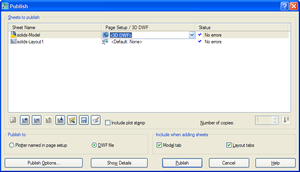
Publish_dwf_from_autocad

Figure 7 – setting 3D content in AutoCAD's PUBLISH dialog

Once we hit the "Publish" button and select our DWF file (solids.dwf, as that's the name our embedded viewing sample will look for later).

We can now load the DWF file in Design Review and take a look at the 3D and 2D content.
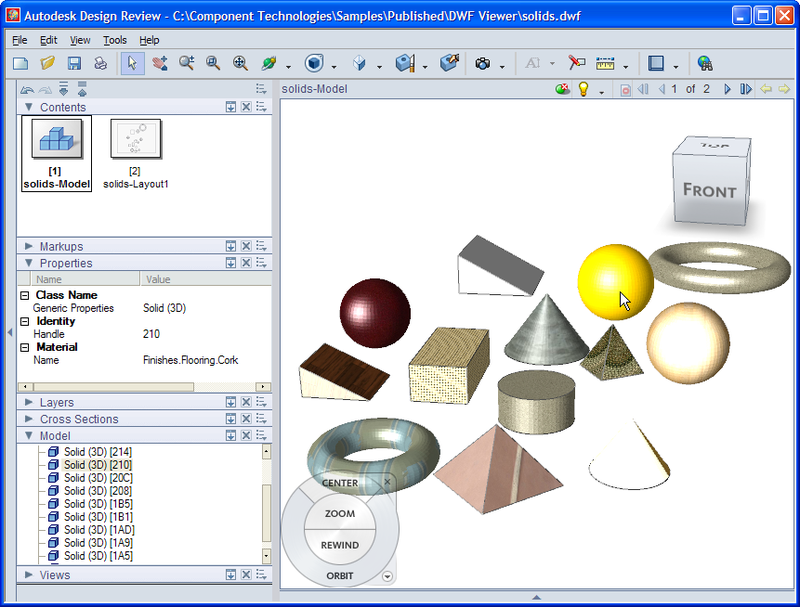
3d_dwf_content_with_metadata

Figure 8 – 3D DWF content with metadata in Design Review

We can see that as we select a spherical object in the model, we can see the associated metadata in the "Properties" view on the left. The key thing for this demo is that we have identical "identity" metadata attached to the 2D content, so we can relate the two views.
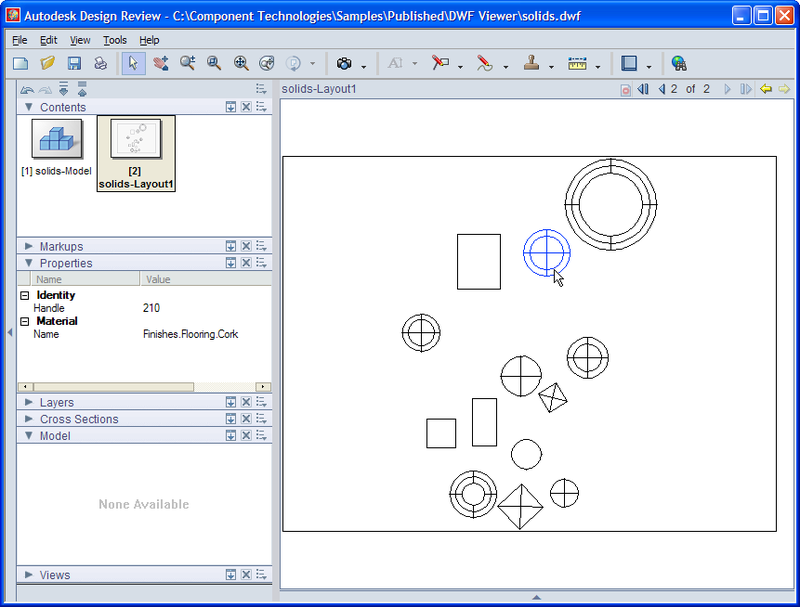
2d_dwf_content_with_metadata

Figure 9 – 2D DWF content with metadata in Design Review

Sure enough, we see the same "material" and 'identity" metadata associated with objects in both 2D and 3D content of the DWF.

Before we move on to using the DWF Toolkit to mine the content, let's quickly Save As DWFx from Design Review 2008 and see the capabilities of the XPS Viewer.
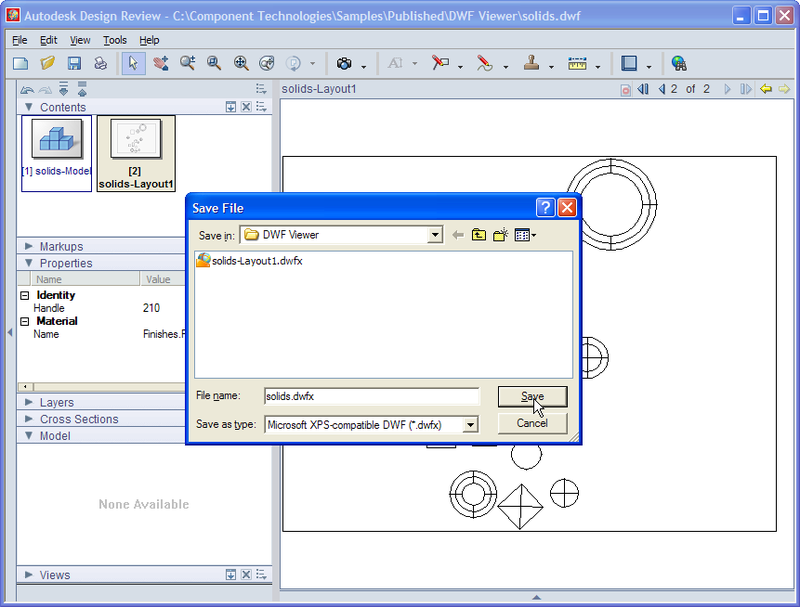
Save_as_dwfx_from_design_review_200

Figure 10 – Save As DWFx from Design Review 2008

The file created (solids.dwfx) is actually about the same size as the equivalent DWF file (solids.dwf), but that's also because the 3D and metadata content is implemented in the same way (as XPS doesn't currently support either).

When we load it into the XPS Viewer (by browsing to it from Internet Explorer, assuming you've installed the XPS Viewer from http://www.microsoft.com/whdc/xps/viewxps.mspx or are using Vista, which has it pre-installed), you see a basic interface for 2D content:
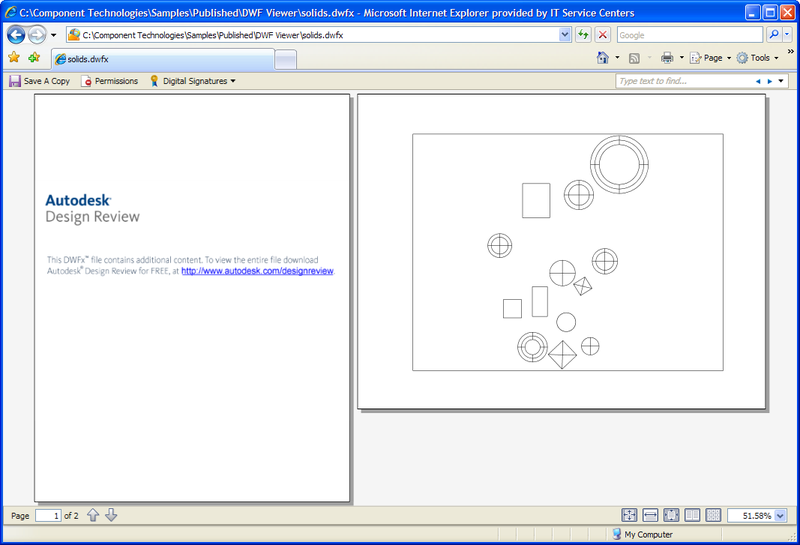
Xps_viewer

Figure 11 – using the XPS Viewer to view our DWFx file

Note that our initial 3D sheet is replaced by one pointing us at the Design Review download location, as the XPS Viewer doesn't currently support 3D content.

  1. Thanks for this article. This was terrific. This is useful information in an easy to understand style.

  2. Thanks, Scott! Part 2 should be posted early next week...

    Kean

  3. Good stuff Kean,
    You've been kicked (a good thing) - Trackback from CadKicks.com
    cadkicks.com/adk...

  4. Hi Kean,

    I've got a small problem with this code. It's working fine on native AutoCAD objects, but I can't get it to extract any data from custom ARX objects based on AcadEntity. Can you kick me in the right direction please?

    Thanks,
    Piotr

  5. Kean Walmsley Avatar

    Hi Piotr,

    This code is set up to work specifically with Solid3d objects, although it's very easy to change it to handle any type of entity. I don't know what modifications you've tried, but this os the line to change:

    Solid3d solid = e.Entity as Solid3d;

    Regards,

    Kean

  6. Kean,

    Is there anyway to change the name of the the object - "Solid(3D)" name in the Model view dialog of the DWF Viewer in dot net? This solid object represents something like a part. I would like to name it "Part" when I pick on the solid.

    Robert

  7. Hi Robert,

    There isn't a way (that I know of) to customize the display of standard metadata (whether property name or value). You could modify the contents of the DWF file using the DWF Toolkit, but this could potentially lead to unpredictable behaviour, should an application depend on standard properties being there.

    If you're using AutoCAD to generate your DWF, I'd recommend using the API hooks (from .NET or ObjectARX) to add additional metadata reflecting the information you want to include.

    Regards,

    Kean

  8. Kean,

    I'm having problems with the code above crashing AutoCAD 2009 when I try to plot anything else (like a PDF). All you have to do is load the code above and then try to plot anything else. It crashes AutoCAD 2009. Any ideas?

    Thanks,

    Robert

  9. Robert,

    I just tested the code in 2009 and it appears to work fine. If you can give me more explicit instructions on how to reproduce the problem, I'll take another look.

    Regards,

    Kean

  10. Kean,

    First off - thanks!

    This problem happens with 2008 & 2009 across 3 different machines - AutoCAD 2008 & 2009 with ObjectARX 2008 & 2009.

    We created a simple project with just the code above (cut & paste) - nothing else. It works great with 3DDWF and the PUBLISH command. If I execute the PLOT command and plot to a PDF with this code loaded via NETLOAD, it crashes (even during the preview). It crashes before it enters the code above - therefore I cannot debug it.

    Thanks again,

    Robert

  11. Robert,

    I finally managed to reproduce the problem: it seems that if I call PUBLISH before PLOT, the problem doesn't appear - you have to call PLOT on its own to see the crash.

    The code shouldn't have any impact on PLOT - only PUBLISH - so I don't fully understand why there's a problem. One suggestion is to add/remove the event handlers on CommandWillStart/CommandEnded.

    Here are updated Initialize/Terminate functions I threw together quickly:

    public void Initialize()
    {
    Document doc =
    Application.DocumentManager.MdiActiveDocument;
    doc.CommandWillStart += delegate(object sender, CommandEventArgs e)
    {
    if (e.GlobalCommandName == "PUBLISH")
    {
    // Register for publishing events

    Publisher pb = Application.Publisher;
    pb.AboutToBeginPublishing +=
    new AboutToBeginPublishingEventHandler(
    OnAboutToBeginPublishing
    );
    pb.BeginEntity +=
    new BeginEntityEventHandler(
    OnBeginEntity
    );
    pb.BeginSheet +=
    new BeginSheetEventHandler(
    OnBeginSheet
    );
    }
    };

    doc.CommandEnded += new CommandEventHandler(doc_CommandEnded);
    doc.CommandFailed += new CommandEventHandler(doc_CommandEnded);
    doc.CommandCancelled += new CommandEventHandler(doc_CommandEnded);
    }

    void doc_CommandEnded(object sender, CommandEventArgs e)
    {
    if (e.GlobalCommandName == "PUBLISH")
    {
    // Unregister from publishing events

    Publisher pb = Application.Publisher;
    pb.AboutToBeginPublishing -=
    new AboutToBeginPublishingEventHandler(
    OnAboutToBeginPublishing
    );
    pb.BeginEntity -=
    new BeginEntityEventHandler(
    OnBeginEntity
    );
    pb.BeginSheet -=
    new BeginSheetEventHandler(
    OnBeginSheet
    );
    }
    }

    public void Terminate()
    {
    }

    Kean

  12. Hi Kean I know this is an old post. Your sample above works well. I have a related question. I am using the DWF view control inside an application to view DWF files. Is there a way in the controller itself to not show the Object Properties Window as well as the Model Window when an object is selected in the Viewer? I have looked everywhere and cannot find it. I have been using the ADR 2010 API

  13. Hi Ed,

    I use this JavaScript function in my HTML apps to reduce the UI to a bare minimum:

    function CleanupUI(Commands)
    {
    // Let's turn off some of the controls
    // to maximize the canvas

    Commands("2DVIEWTOOLBAR").Toggled = false;
    Commands("ANIMATIONTOOLBAR").Toggled = false;
    Commands("CANVASTOOLBAR").Toggled = false;
    Commands("CROSSSECTIONSBAND").Toggled = false;
    Commands("DATABAND").Toggled = false;
    Commands("DATATOOLBAR").Toggled = false;
    Commands("FORMATTOOLBAR").Toggled = false;
    Commands("LAYOUTTOOLBAR").Toggled = false;
    Commands("LAYERSBAND").Toggled = false;
    Commands("OBJECTPROPERTIESBAND").Toggled = false;
    Commands("LISTVIEWBAND").Toggled = false;
    Commands("MARKUPPROPERTIESBAND").Toggled = false;
    Commands("MODELBAND").Toggled = false;
    Commands("PALETTESTOOLBAR").Toggled = false;
    Commands("SEARCHBAND").Toggled = false;
    Commands("SEARCHTOOLBAR").Toggled = false;
    Commands("SECTIONPROPERTIESBAND").Toggled = false;
    Commands("STANDARDTOOLBAR").Toggled = false;
    Commands("TEXTBAND").Toggled = false;
    Commands("THUMBNAILSBAND").Toggled = false;
    Commands("VIEWSBAND").Toggled = false;
    Commands("VIEWTOOLBAR").Toggled = false;
    }

    I call this from one of the load events (such as OnEndLoadItem()) for my viewer object (in this case called "Canvas"):

    CleanupUI(Canvas.ECompositeViewer.Commands);

    Hopefully you'll be able to take the lines you need from the above function...

    Regards,

    Kean

  14. Hi Kean,

    The code from this post was very useful to me so I though I should share my modifications that made it work perfectly for me. I've made 2 small changes to your "command based" approach. First of all during initialization I get a reference to the DocumentManager and than to the subscription on DocumentActivated event. This way it works on all files loaded in this session, even those that were open after the plugin was loaded.
    Second change was adding a subscription to the Publisher.AboutToBeginBackgroundPublishing event. Thanks to that this code works on multi-sheet DWFs.

    Link to the code:
    gist.github.com/351107

    I was also wondering if you wouldn't consider using Gist/Github for embedding code in your future posts.
    Currently reading/copying the code from Typepad is very hard.

    <script src="gist.github.com/3511..."></script>

  15. Kean Walmsley Avatar

    Hi Piotr,

    Thanks for sharing your code changes.

    I've found some browsers to be better than others for copying and pasting code from this blog (Google Chrome works a lot better than IE, for instance, as you don't need to remove additional lines).

    I'll have a think about alternate approaches for posting code: thanks for suggesting Gist/Github.

    Regards,

    Kean

  16. Hi Kean,

    I have next situation:
    I have dwg file(Source). I need publish this file on my site. So I convert it to DWF(Target). Then some time I need change my file DWG(Source) and publish it again. Looks Ok.
    But in dwf file I need doing links from some object to some information webpage.

    So I need have some unique number which will be unchanged from conversion to konvetatsii(conversion) and
    independent of changes in the DWG file. It possible? Or unique id will change every time from conversion to konvetatsii(conversion).

  17. Kean Walmsley Avatar

    Hi Andrej,

    This example adds a "handle" property to the DWF output, which should not change for the same DWG entities when published to different DWFs.

    Cheers,

    Kean

    1. Pedro Liberato Avatar
      Pedro Liberato

      Hi Kean,

      I'm trying to export my DWF to Forge API and I need to know the externalId(Forge property) of each element at the BeginEntity event of Publisher.
      The UniqueEntityId string of PublishEntityEventArgs has the following format: "{guid}EntityHandle".
      In this post thebuildingcoder.typ..., Jeremy explains how translate episodeId guid + UniqueID of Revit element to DWF ID. But it's not feasible in Autocad. Do you have some clue about that?

      1. Hi Pedro,

        Please post your support questions to the relevant online forum.

        Best,

        Kean

        1. Hi Kean,
          Sorry, but I thought question was relevant due Publisher object.. Anyway I have posted it.

          Thank you,

  18. Herman Mayfarth Avatar

    This would be very useful to me if I could get it to work.
    So far, no luck.

    I d/l ed your original code & compiled it as posted with VS2008. Compiled OK.

    NETLOADed the dll into ACAD 2011.

    I extracted about 16 3D Solids from an existing file & assigned materials to them, then ran Publish on the saved dwg with the assembly apparently loaded.

    The resulting 3DDWF has no Material or Handle properties for any of the entities in the DWF.

    Running PLOT before PUBLISH with the assembly loaded did not crash AutoCAD 2011 running under WinXP SP2.

    Any insight would be appreciated.

    I should note I am a complete novice at C# & .NET but am eager to learn.

    Thx,

  19. The best suggestion I have is to launch AutoCAD 2011 from a debug session from VS2008 (you will need to set it as the Executable to launch during a debug session from the project's Debug Properties). If you then set a breakpoint on the Initialize() and OnBeginEntity() methods, you should see whether they are being called by AutoCAD or not.

    Kean

  20. Herman Mayfarth Avatar

    OK, thanks, Kean, I'll try it later & let you know.

Leave a Reply to Piotr Cancel reply

Your email address will not be published. Required fields are marked *