Different ways to display balloon notifications in AutoCAD using .NET

In this previous post I showed some code to display balloon notifications via InfoCenter in AutoCAD 2009 (and, it seems, in AutoCAD 2008, albeit with a different look & feel).

In a comment on that post, I promised to take a look at another way to show user notification balloons in AutoCAD, by displaying balloons (or maybe it's "blowing bubbles"? 🙂 on the application status bar. It's really up to you to decide which style of balloon is more appropriate for your application notifications... I personally find the InfoCenter balloons less intrusive (and more modern-looking), but the choice is yours. The duration during which the balloons are displayed is also controlled differently: the status bar "tray settings" controls the status bar balloons, the duration of the InfoCenter balloons is decided more directly by the application.

From a programmatic perspective, status bar balloon notifications are also different in nature from their InfoCenter equivalents: we need to create a balloon window and have a status bar tray item display it.

In the below code we create a tray item on the fly, just for the purposes of displaying the balloon, but you may actually have your own tray icon that you provide for your users to access your application features & settings (which would be a great topic for a follow-up post, thinking about it).

Rather than me creating and providing a custom icon, this code takes the lazy option and picks up the first icon that is available in the current document's status bar (which happens to be the annotation scaling icon, on my system at least). The right way to do this is to create a custom icon file (or resource) and load it into a System.Drawing.Icon. This is left as an exercise for the reader or to be addressed in a future post (we'll see :-).

Here's the C# code:

using Autodesk.AutoCAD.ApplicationServices;

using Autodesk.AutoCAD.Runtime;

using Autodesk.AutoCAD.AcInfoCenterConn;

using Autodesk.AutoCAD.Windows;

namespace BalloonsAndBubbles

{

  public class Commands

  {

    const string title =

      "Custom Application Notification";

    const string hlink =

      "http://blogs.autodesk.com/through-the-interface";

    const string htext =

      "Link to Kean's blog";

    const string msg =

      "Kean has some information for you...";

    const string msg2 =

      "Some additional text";

    [CommandMethod("icb")]

    public void infoCenterBalloon()

    {

      InfoCenterManager icm =

        AcInfoCenterConn.InfoCenterManager;

      Autodesk.InfoCenter.PaletteMgr pm =

        icm.PaletteManager;

      pm.ShowBalloon(

        title,

        msg,

        null, // Don't provide an icon

        new System.Uri(hlink),

        5,    // Show the balloon for 5 seconds

        1    // Make it relatively slow to fade in

      );

    }

    [CommandMethod("sbb")]

    public void statusBarBalloon()

    {

      const string appName =

        "Kean's application";

      Document doc =

        Application.DocumentManager.MdiActiveDocument;

      TrayItem ti = new TrayItem();

      ti.ToolTipText = appName;

      ti.Icon =

        doc.StatusBar.TrayItems[0].Icon;

      Application.StatusBar.TrayItems.Add(ti);

      TrayItemBubbleWindow bw =

        new TrayItemBubbleWindow();

      bw.Title = title;

      bw.HyperText = htext;

      bw.HyperLink = hlink;

      bw.Text = msg;

      bw.Text2 = msg2;

      bw.IconType = IconType.Information;

      ti.ShowBubbleWindow(bw);

      Application.StatusBar.Update();

      bw.Closed +=

        delegate(

          object o,

          TrayItemBubbleWindowClosedEventArgs args

        )

        {

          // Use a try-catch block, as an exception

          // will occur when AutoCAD is closed with

          // one of our bubbles open

          try

          {

            Application.StatusBar.TrayItems.Remove(ti);

            Application.StatusBar.Update();

          }

          catch

          {}

        };

    }

  }

}

The ICB command is basically the same as the one shown in the previous post (with just the strings factored out into constants that are shared with the new command), and displays a notification like this from the top right of the screen (or wherever you've configured your InfoCenter to display):
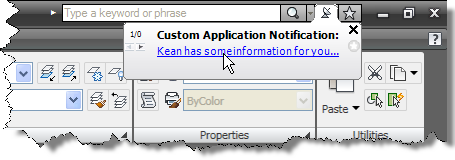
Custom balloon notification

The SBB command shows a balloon notification at the bottom right of the application frame:
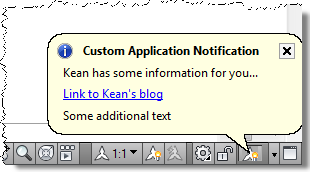
Status bar balloon notification

As a temporary tray item is created for each notification, if you call the SBB command repeatedly without closing the balloons, you'll see one tray item per notification. This may or may not be what you want, of course, and it's easy enough to adjust the behaviour.
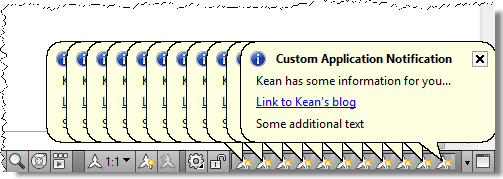
Status bar balloon notifications

A note about the code in the SBB command: after watching the C# Whirlwind on Anonymous Methods, I implemented the "closed" event handler as an inline delegate. This code is compatible with Visual Studio 2005 and onwards, so users of Visual Studio .NET 2002 and 2003 will have to modify this. This callback removes the temporary tray item we added to the status bar.

A word of warning about a little quirk I found: if you run the SBB command twice in a row, without calling another command in-between, the notification that is displayed may lose its border:
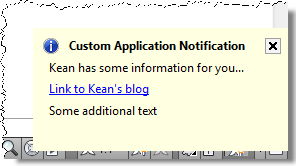
Status bar balloon notification - no border

Now this doesn't happen if you run another command in-between, so I suspect this is a non-issue for two reasons: the balloon functions just fine (it just doesn't look as pretty), and it's very unlikely you'll want to spam your users with repeated balloon notifications from consecutive commands, so it's unlikely to occur in the first place. Which is probably why this hasn't been spotted before.

22 responses to “Different ways to display balloon notifications in AutoCAD using .NET”

  1. Cool thx for the update. One more question. 🙂
    Does hlink have to be a URL, or can it execute anther function whe nit's clicked (sorry if this is too basic of a question)?

  2. Autocad designer Avatar
    Autocad designer

    Very nice and useful topic. Well-written. Keep it up! :3

  3. Barry - a great question!

    The link does need to be a hyperlink (a URL, although presumably that could contain a link to a local file... you might want to play around with it to see what you can make it do), and the only notification you get is the Closed event (for the status bar version) - as shown in this example.

    You'd have to implement your own balloon mechanism to call into your own code, right now, and it's not clear to me how much of the existing feature could be re-used or whether you'd be starting from scratch.

    Kean

  4. Kean,

    How can I handle the closed event on the TrayItemBubbleWindow in VB.Net 2005 and AutoCAD 2008? I don't believe VB.Net 2005 has inline delegates.

  5. Jim,

    That was just a choice of mine - there's no particular need to create the delegate inline. Just create your event handler as you would normally in VB (hitting tab a few times after writing "bw.Closed += " should do it).

    Cheers,

    Kean

  6. Hi Kean,

    I have tried both of these methods but I am experiencing a problem with the SBB command (which is the one I prefer). When the command is run in 2008 or 2009, the icon appears on the status bar but the bubble does not show. I have the tray settings set to display notification. The ICB command behaves corectly. Any ideas?

    Steve

  7. Hi Kean (again),

    Further to my earlier post. Seems the problem occurs because I have a two monitor display and AutoCAD is not in the main monitor. Once I swapped it over, everything worked fine.

    Steve

  8. hi how do i close within requredon time like in autocad
    Tray setting ->> display time like 5 sec, 10 sec

    StatusBar sb = Application.StatusBar;
    sb.CloseBubbleWindows();

  9. The SBB command, above, will respect the "Tray Settings" that the user has, whether "show until closed" or "show for 5 seconds", etc.

    Kean

  10. The bubble window does not display until the mouse is moved or some other various window events are fired. So in my case the user enters a command, on the command line, that should create a notification. They don't see one and decide to type exit on the command line. There is a brief outline of the bubble as AutoCad exits, but the user is basically unaware that a notification existed. Folks driving the mouse around obviously don't encounter this issue. Might there be a way to force that notification to appear?

  11. I tried using SendMessage() with WM_MOUSEMOVE to stimulate the notification, but didn't have any luck.

    It ended up with a much simpler "solution" - just setting the cursor position:

    System.Drawing.Point pt =
    Application.MainWindow.Location;
    pt.Offset(300, 300);
    System.Windows.Forms.Cursor.Position = pt;

    There's some risk of confusing the user, of course, but hopefully they'll be suitably distracted by the bubble notification. 😉

    Kean

  12. I found that offsetting the cursor by a tiny amount and then calling Utils.SetFocusToDwgView() works well. Don't think the small mouse move would concern anyone to much 🙂

    System.Drawing.Point pt =
    System.Windows.Forms.Cursor.Position;
    pt.Offset(1, 0);
    System.Windows.Forms.Cursor.Position = pt;
    Utils.SetFocusToDwgView();

    Art

  13. Cool - that's indeed less confusing.

    Thanks!

    Kean

  14. Kean,
    As the info center has been replaced in 2012, is this still applicable?
    cheers
    TMG

  15. TMG,

    I had a quick look: it seems there are no longer separate InfoCenter assemblies to reference - you have to include AcWindows.dll in your project.

    And the ICB command can be reimplemented as follows:

    [CommandMethod("icb")]
    public void infoCenterBalloon()
    {
    InfoCenterManager icm = new InfoCenterManager();

    Autodesk.Internal.InfoCenter.PaletteMgr pm =
    icm.PaletteManager;

    Autodesk.Internal.InfoCenter.ResultItem ri =
    new Autodesk.Internal.InfoCenter.ResultItem();

    ri.Title = title;
    ri.Category = msg;
    ri.Uri = new System.Uri(hlink);

    pm.ShowBalloon(ri);
    }

    At least that's what worked for me.

    Regards,

    Kean

  16. Which library contains Autodesk.AutoCAD.Internal.Utils.SetFocusToDwgView() method for AutoCAD 2009?

    Regards

  17. I unfortunately don't have any way of checking (at least not one that I have time for, at the moment). Have you looked at acmgdinternal.dll? If not I suggest posting to ADN or to the AutoCAD .NET Discussion Group.

    Regards,

    Kean

  18. Hi Kean,

    In SBB command, I want to invoke another Custom Command if user click on Hyperlink.

    Is it possible to do this?

    Regards,
    Vipul Vyas

  19. Hi Vipul,

    Not that I'm aware of.

    Regards,

    Kean

  20. Hi,

    I have a slightly unrelated question with regards to the IC Balloons. I've created a custom bundle and everytime Autocad launches there is a balloon confirming that the plugin has loaded. Is there any way to get rid of this notification or at least have it only display the first time the plugin is loaded?

    Thanks,
    John

  21. Hi John,

    Sorry - I don't know whether there's a way to disable these specific balloon notifications.

    I suggest contacting either ADN or posting to the AutoCAD .NET Discussion Group.

    Regards,

    Kean

  22. Thank you sir for this post!

Leave a Reply to Steve Rudd Cancel reply

Your email address will not be published. Required fields are marked *