The New RibbonBar API in AutoCAD 2009

Thank you to Sreekar Devatha, from DevTech India, for writing this article for the recently published ADN Platform Technologies Customization Newsletter. This article talks about the new Ribbon API referenced in this overview of the new APIs in AutoCAD 2009. A complete sample demonstrating the use of this API is provided as part of the ObjectARX 2009 SDK, under samples/dotNet/Ribbon.

Introduction

Most of the AutoCAD® UI was redesigned in this release. Ribbon, Menu browser and Tooltips are some of the prominent UI features to list. As you might already know the UI enhancements are based on the new Windows® Presentation Foundation (WPF) programming model introduced by Microsoft. So, let's start with a small introduction to WPF and then we'll move on to the finer points of customizing the Ribbon bar.

What is WPF?

Windows Presentation Foundation (WPF) is a programming model introduced by Microsoft to build rich Windows client applications.

This graphical subsystem introduced in .NET Framework 3.0 provides a clear separation between appearance and behavior of applications. You generally use eXtensible Application Markup Language (XAML) to implement the appearance of an application while using managed programming languages (code-behind) to implement its behavior. XAML is the new XML-based UI definition language from Microsoft, and as such is a core part of WPF.

Without wasting too much time on WPF let us move quickly on to the Ribbon APIs. If you are new to WPF then you could go through the basics of WPF using the links below before starting with the Ribbon APIs.

Windows Presentation Foundation - MSDN

Windows Presentation Foundation - CodeProject

Microsoft WindowsClient.NET

AutoCAD Ribbon

Before diving into the Ribbon APIs it's necessary to understand the Ribbon layout and its terminology which are covered in this and the following section.

The AutoCAD Ribbon provides a single, compact placement for operations that are relevant to the current workspace. It overcomes the need to display multiple toolbars, reducing clutter in the application window. The Ribbon maximizes the area available for work using a single compact interface.

The Ribbon was built using WPF (part of .NET Framework 3.0) and a comprehensive set of APIs have been provided by Autodesk to help external developers customize it.

Ribbon Layout

The different components of the AutoCAD Ribbon are shown below. Also, depicted in the snapshot are the classes corresponding to each component.

Ribbon layout

Figure: the AutoCAD Ribbon and its layout

The Ribbon control is the top level control which contains everything in the Ribbon. It is composed of a series of panels, which are organized into tabs labeled by task.

Ribbon tabs control the display and order of Ribbon panels on the Ribbon. You add Ribbon tabs to a workspace to control which Ribbon tabs are displayed on the Ribbon. Ribbon tabs do not contain any commands or controls like a Ribbon panel does; instead, they manage the display of Ribbon panels on the Ribbon. Once a Ribbon tab is created, a panel can then be added to it. Ribbon tabs are of two types, standard and contextual. Standard tabs are always displayed while contextual tabs are displayed based on a particular context: for instance a Block Editor Tab is displayed while editing a Block.

Contextual tabs can appear in two modes:

Replace mode: In this mode the contextual tab gets added to the standard tabs as a regular tab. When the contextual tab is clicked it becomes active and the panels in the contextual tabs replace the panels in the previously active tab.

Append mode: In this mode contextual tabs form another tab set similar to the standard tab set and is displayed side-by-side with the standard tabs and panels. There are two tabs active any time and activating a tab in one tab set does not affect active tab in the other tab set.

Ribbon panels are organized by rows, sub-panels, and panel separators. Rows and sub-panels are used to organize how commands and controls are displayed on the Ribbon panel. A row, similar to a toolbar, determines the order and position that commands and controls appear on the Ribbon panel. Rows run horizontally on a Ribbon panel. If all the commands and controls cannot be displayed on the Ribbon panel, a gray down arrow is displayed for expanding the Ribbon panel. Rows can be divided using a sub-panel which, holds rows to order and position commands and controls. Commands and controls can be added to rows and sub-panels, you can remove the commands and controls that you use infrequently, and rearrange the order of commands and controls. Along with commands and controls, you can also create flyouts that contain multiple commands and only take up the space of a single command.

Prerequisites
Modules, Namespaces & Classes

The core UI framework for AutoCAD is present in AdWindows and AcRibbon contains the Ribbon specific implementation. These are managed UI class libraries developed using .NET 3.0 and WPF. Only .NET APIs are available and no C++ wrappers are provided.

AdWindows.dll

This library implements the framework for the following Autodesk UI features.

  • Ribbon classes
  • Autodesk controls
  • Tooltips
  • Menu browser
  • Task dialog, etc.

These are the Ribbon-specific classes under the Autodesk.Windows namespace of this DLL.

  • RibbonControl
  • RibbonTab
  • RibbonPanel
  • RibbonPanelSource
  • RibbonRow
  • RibbonItem
  • RibbonButton
  • RibbonDropDownButton
  • RibbonSeperator
  • RibbonForm
  • RibbonHwnd
  • RibbonRowPanel, etc.

For more details regarding these classes refer the ObjectARX® Managed Reference guide available in the ObjectARX 2009 SDK.

AcRibbon.dll

This library was actually meant to be an internal-only DLL except for the very few APIs which are  discussed in this article below. All other APIs included in the DLL should be considered as internal-only.

Classes

  • Palette that hosts the AutoCAD Ribbon control
    • Autodesk.AutoCAD.Ribbon.RibbonPaletteSet

  • AutoCAD Ribbon control
    • Autodesk.AutoCAD.Ribbon.RibbonServices. RibbonPaletteSet.RibbonControl

Properties

  • Property to access the default Ribbon host window which is a palette
    • Autodesk.AutoCAD.Ribbon.RibbonServices. RibbonPaletteSet

Note: You are advised not to use any of the internal APIs as they are unsupported and could be changed or dropped without prior notice.

Custom Ribbon Tab

As discussed above in the Ribbon Layout section, we need to create panels with Ribbon items placed on them. Then, these panels should be categorized based on their usage and hosted on your application-specific Ribbon tabs. To demonstrate this we'll now look into the finer points of the API by adding a simple button to a panel and then host the panel on a tab (Custom Tab).

Button

In this section we'll add a button to the ribbon bar. If we take a look at the classes listed above we have the RibbonButton class which can be used to create a button to be placed on the Ribbon. So, let's start with the creation of a RibbonButton instance as below:

RibbonButton button = new RibbonButton();

button.Text = "Click Me";

// resourceDictionary

// A XAML resource dictionary that defines a ButtonImage

button.LargeImage =

  resourceDictionary["ButtonImage"] as BitmapImage;

button.Orientation = Orientation.Vertical;

button.Size = RibbonItemSize.Large;

button.ShowText = true;

button.ShowImage = true;

button.Id = "ClickMe_1";

Now, this button instance should be placed on a panel that can then be hosted by a tab. But before actually creating the panel we need a row in which to place the button, as discussed earlier.

// Create a Row to add the RibbonButton

RibbonRow row = new RibbonRow();

row.Items.Add(button);

// Create a Ribbon panel source in which to

// place ribbon items

RibbonPanelSource panelSource =

  new RibbonPanelSource();

panelSource.Title = "Custom Panel";

panelSource.Rows.Add(row);

// Create a panel for holding the panel

// source content

RibbonPanel panel = new RibbonPanel();

panel.Source = panelSource;

The panel should be hosted on the tab which in turn should be added to the Ribbon control and the equivalent code to achieve this is below:

// Create a tab to manage the above panel

RibbonTab tab = new RibbonTab();

tab.Title = "Custom Tab";

tab.Id = "CustomTab";

tab.IsContextualTab = false;

tab.Panels.Add(panel);

// Now add the tab to AutoCAD Ribbon bar...

RibbonControl ribbonControl =

  Autodesk.AutoCAD.Ribbon.RibbonServices.

    RibbonPaletteSet.RibbonControl;

ribbonControl.Tabs.Add(tab);

// ... and activate the tab

ribbonControl.ActiveTab = tab;

The below snapshot shows the button added to AutoCAD's Ribbon.
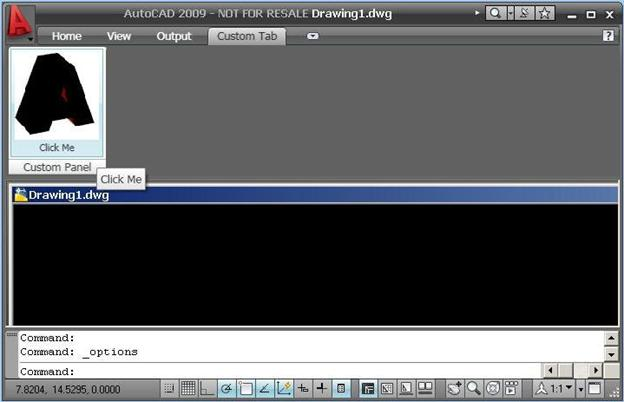
Custom ribbon panel inside AutoCAD 2009

Figure: the button added to the Ribbon bar

One more item that was missing in the above code was an event to identify the click of the button. The following code implements the click event.

button.Click += new RoutedEventHandler(button_Click);

private static void button_Click(

  object sender, RoutedEventArgs e)

{

  RibbonButton button = sender as RibbonButton;

  if (button != null && (button.Id == "ClickMe_1")

  {

    MessageBox.Show("Click Me clicked ", "Click Me");

    e.Handled = true;

  }

}

The above code might also be implemented using a combination of XAML and C# code-behind as shown below.

XAML that defines the RibbonTab

  <adw:RibbonTab

    x:Key="TabXaml" Title="Custom Tab XAML" Id="CustomTabXaml">

    <adw:RibbonPanel >

      <adw:RibbonPanelSource Title="Custom Panel XAML" >

        <!--Add a ribbon row-->

        <!--Note: You could add only rows

                  to the panel source content-->

        <adw:RibbonRow x:Uid="adw:RibbonRow_1">

          <!--Add Ribbon Items here-->

          <!--The items could be any RibbonItem derived classes-->

          <!--Like RibbonButton

              RibbonDropDownButton,

              RibbonForm,

              RibbonHwnd,

              RibbonLabel

              RibbonMenuButton,

              RibbonRowPanel,

              RibbonSeperator,

              RibbonToggleButton

              or any RibbonItem derived custom controls-->

          <adw:RibbonButton Id="ClickMe_2" ShowText="true">

            <adw:RibbonButton.Orientation>

              <Orientation>

                Vertical

              </Orientation>

            </adw:RibbonButton.Orientation>

            <adw:RibbonButton.Image>

              <BitmapImage

                UriSource="Images/bitmap1.bmp"/>

            </adw:RibbonButton.Image>

            <adw:RibbonButton.LargeImage>

              <BitmapImage

                UriSource="Images/bitmap1.bmp"/>

            </adw:RibbonButton.LargeImage>

            <adw:RibbonButton.Size>

              <adw:RibbonItemSize>

                Large

              </adw:RibbonItemSize>

            </adw:RibbonButton.Size>

            <adw:RibbonButton.Text>

              Click Me

            </adw:RibbonButton.Text>

            <adw:RibbonButton.ToolTip>

              <src:RibbonToolTip

                BasicText = "Click Me basic help"

                CommandName = "ClickMe"

                ExtendedURISource =

                  "/MyRibbon;component/Dictionary1.xaml"

                ExtendedURISourceKey = "ClickMe_ToolTip"

                HelpSource = "./Help/readme.chm"

                HelpTopic =

                  "WS1a9193826455f5ff1dbc298511635bea8752e2f"/>

            </adw:RibbonButton.ToolTip>

          </adw:RibbonButton>

        </adw:RibbonRow>

      </adw:RibbonPanelSource>

    </adw:RibbonPanel>

  </adw:RibbonTab>

C# code-behind to add a button to the ribbon bar using the tab defined in XAML

[CommandMethod("AddButtonXAML")]

public static void AddButtonXAML()

{

  // Create a RibbonTab using the resourceDictionary

  RibbonTab tab =

    resourceDictionary["TabXaml"] as RibbonTab;

  // Find the ribbon button and add the event

  RibbonRow row = tab.Panels[0].Source.Rows[0];

  RibbonItemCollection coll = row.Items;

  foreach (RibbonItem item in coll)

  {

    if (item is RibbonButton)

    {

      RibbonButton button = (RibbonButton)item;

      if (button.Id == "ClickMe_2")

      {

        button.Click +=

          new RoutedEventHandler(button_Click);

      }

    }

  }

  // Now add the tab to AutoCAD Ribbon bar and activate it

  ribbonControl.Tabs.Add(tab);

  ribbonControl.ActiveTab = tab;

}

ToolTip

The next thing you would want to do once you add your objects to the Ribbon bar is to display a tooltip for these objects.

The ToolTip property of the RibbonItem class accepts an object so, we could assign a control object to it to display the control's content as a tooltip. In this example here we define a Grid control. The control intern uses the Autodesk.Windows.ProgressivePanel class to implement the extended tooltip feature that is available with the AutoCAD tooltips.

XAML

<Grid x:Key="ClickMe_ToolTip">

  <StackPanel>

    <!--Header Part-->

    <StackPanel Orientation="Horizontal" Margin="5,5,5,5">

      <TextBlock Text="ClickMe">

        <TextBlock.FontWeight>

          <FontWeight>

            Bold

          </FontWeight>

        </TextBlock.FontWeight>

      </TextBlock>

    </StackPanel>

    <!--Basic help information -->

    <StackPanel Margin="5,5,5,5">

      <TextBlock

        Text="This is basic help of click me command">

        <TextBlock.TextWrapping>

          <TextWrapping>

            Wrap

          </TextWrapping>

        </TextBlock.TextWrapping>

      </TextBlock>

    </StackPanel>

    <!--Extended help information -->

    <adw:ProgressivePanel Margin="5,5,5,5">

      <StackPanel/>

      <!--Click Me Extended Tooltip-->

      <Grid>

        <StackPanel Orientation="Vertical" Margin="0,0,0,0">

          <TextBlock>

            Click Me extended ToolTip

          </TextBlock>

          <Image Margin="40,10,0,0" 

            Width="150" Height="150" 

            Source="/MyRibbon;component/Images/Smiley.png" />

        </StackPanel>

      </Grid>

    </adw:ProgressivePanel>

    <!-- Footer Part -->

    <Line Stroke="Black" StrokeThickness="2" X2="250"/>

    <StackPanel Orientation="Horizontal" Margin="5,5,5,5">

      <Grid VerticalAlignment="Center"

            HorizontalAlignment="Left">

        <Grid.ColumnDefinitions>

          <ColumnDefinition Width="21" />

          <ColumnDefinition Width="179" />

        </Grid.ColumnDefinitions>

        <Image HorizontalAlignment="Left" Grid.Column="0"

              Width="16" Height="16">

          <Image.Source>

            /MyRibbon;component/Images/Help.gif

          </Image.Source>

        </Image>

        <TextBlock HorizontalAlignment="Left" Grid.Column="1"

                  FontWeight="Bold">

          Press F1 for more help

        </TextBlock>

      </Grid>

    </StackPanel>

  </StackPanel>

</Grid>

button.ToolTip = resourceDictionary["ClickMe_ToolTip"];

We can do away with this statement above if we define the button in the XAML file by adding the tooltip to RibbonButton in the XAML as below:

<adw:RibbonButton.ToolTip>

  <!-- Define tooltip here, above XAML without

      x:Key value could be used -->

</adw:RibbonButton.ToolTip>

Here's a snapshot of the extended tooltip:
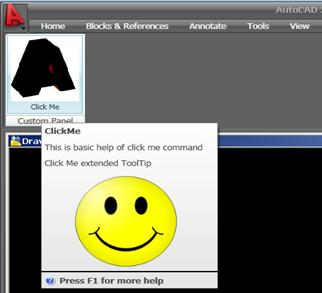
Custom extended tooltip in AutoCAD 2009

Figure: Ribbon object tooltip

Although we can display tooltip using a control as done above, we will not be able to implement the F1 event-handling mechanism using this approach. The ToolTip UI controls like Autodesk.Windows.ToolTip or System.Windows.Controls.ToolTip with F1 event handlers will not help us here because the Ribbon bar does not accept them similar to the way we could not use the Button class to add a button to the Ribbon bar. This particular feature could easily run into an article in itself, so we'll stop at this point to continue in a future article.

3 responses to “The New RibbonBar API in AutoCAD 2009”

  1. An Excellent in-sight to the API's of AutoCAD. Keep up the good blogging Kean!

    (Through the Interface is the #1 Site for AutoCAD API!!!)

  2. Hi Kean, a useful insight as always!!
    I've been experimenting with the XAML interface and I was wondering what you thought of the posts) here: -

    tinyurl.com/3hyt37 (a post from the Autodesk discussion forums)

    In particular I wanted your opinion on whether it would be possible to implement (as Colin French in the above post suggests) a gallery of Dimension styles that, on "mouse-over" updates the current view, and how useful you think this might prove?

  3. Kean Walmsley Avatar

    I don't see a way of safely doing "preview" modifications of styles without some replumbing work (i.e. not through an external API, which would actually effect the modification, not just preview it).

    Kean

  4. I guess it'll just have to go on my wish list for a future version then. 🙂

    Incidentally, do you happen to have any links/documentation about what exactly the Extended Tooltips can show/limitations on size etc? - the documentation provided with 2009 is sketchy at best. I've downloaded the objectarx samples but they are pretty sparse as far as useable information goes.

  5. Kean Walmsley Avatar

    I haven't, I'm afraid: I haven't yet spent much time with this API, either - this post was provided by a member of my team, so I really only provided editing services. 🙂

    Kean

  6. Ok, not to worry then.

  7. Trevor Templeton Avatar

    Hi Kean:
    I see that there is a ribboncombobox but I can not seem to get it to work.

    this works:
    RibbonComboBox cmb1 = new RibbonComboBox;

    this causes an error:
    row1.Items.Add(cmb1);

  8. Hi Trevor,

    Sorry - I didn't write this article, and am not familiar with the code. I suggest posting your question to the ADN website, if you're a member, or to the AutoCAD .NET Discussion Group, if not.

    Regards,

    Kean

  9. Hello,

    thank you for all these usefull informations (and not only this article 🙂 )

    I use Ribbon, in an application, thanks to AdWindows.dll, acRibbon.dll (and also acdbmgb.dll and acmdg.dll)

    I tried to make my app runs on Autocad 2010 and I saw that there is no ribbon dll anymore ?

    Do you know a way to make an application using Ribbon, working on both 2009 and 2010 ?

  10. Hi Willhelm,

    I'm pretty sure the functionality in AcRibbon.dll has been combined into AdWindows.dll (or perhaps AcWindows.dll).

    You will also need to migrate your code, as there are differences in the way AutoCAD 2010's ribbon has been implemented. More on that in an upcoming post (the information provided via ADN will be able to help in the meantime, if you're a member).

    Regards,

    Kean

  11. Hi,

    thank you for your help.
    I succed making my application compile, using adWindows.dll and acWindows.dll

    I had to change RibbonRow to RibbonRowPanel.
    The only thing I can't do (for the moment^^) is Clicking on a RibbonButton. They removed the "Click" event.

    Thank again

    Regards,

    Wilhelm

  12. Hello Kean,
    I applied the first method in your article. Everything works fine, but I can't figure out how to open the custom ribbon tab at the start of autocad 2009. I can open the tab when I manually run the command. I applied the IExtension application and Initialize() function, imported ads_queueexpr, and have this line in Initialize function: ads_queueexpr("(command \"Ribbon\")") before I run the function to create the tab. But it seems Ribbon can't be edited before autocad starts fully. Is there a solution to this? Thnaks.

  13. I'm afraid I don't know the answer to this: this post was for AutoCAD 2009 and was provided by a guest author.

    In AutoCAD 2010 I know you can use the CUIX API to have your custom ribbon tab loaded on startup - perhaps someone on the discussion groups knows how to do this for 2009.

    Kean

  14. Hello Kean,
    do you have in plan to write an article about AutoCAD 2010 Ribbon like this one? As Wilhelm mentioned, the Click event is missing. How do we make the button work?

  15. Kean Walmsley Avatar

    Yes, it's getting higher up my list...

    Kean

  16. Hi Kean,

    Any thoughts to what can be done to make up for the missing Click event in RibbonButton.

  17. Kean Walmsley Avatar

    For those of you who are ADN members, you can find a technical solution on the ADN site which should help: TS88988 - Adding a Ribbon Tab at runtime (non CUIx file).

    I will publish something based on this when I have the time to research it myself, but in the meantime this is the approach, from what I can tell:

    When you create your button, it needs to have a command string and a handler:

    Autodesk.Windows.RibbonButton ribButton1 = new RibbonButton();
    ribButton1.Text = "Register me!";
    ribButton1.CommandParameter = "REGISTERME ";
    ribButton1.ShowText = true;
    ribButton1.CommandHandler = new AdskCommandHandler();

    The command handler class, derived from ICommand, then takes care of executing the command using SendStringToExecute:

    public class AdskCommandHandler: System.Windows.Input.ICommand 
    {
    public bool CanExecute(object parameter)
    {
    return true;
    }
    public event EventHandler CanExecuteChanged;
    public void Execute(object parameter)
    {
    //is from a Ribbon Button?
    RibbonButton ribBtn = parameter as RibbonButton;
    if (ribBtn != null)
    Application.DocumentManager.MdiActiveDocument.SendStringToExecute(
    (String)ribBtn.CommandParameter, true, false, true
    );
    //is from s Ribbon Textbox?
    RibbonTextBox ribTxt = parameter as RibbonTextBox;
    if (ribTxt != null)
    System.Windows.Forms.MessageBox.Show(ribTxt.TextValue);
    }
    }

    I hope this is enough to get you going,

    Kean

  18. Kean Walmsley Avatar

    An additional comment Fenton Webb on this:

    It is actually possible to specify the controlling class (the System.Windows.Input.ICommand) of the raw RibbonButton using the x:Class property... This is referred to as “code behind”. Something like this, where CsMgdAcad8.AdskCommandHandler is the class derived from System.Windows.Input.ICommand:

    <ResourceDictionary x:Class="CsMgdAcad8.AdskCommandHandler">

    Kean

  19. HI,
    Where can i get visual studio 2005/2008 VB.net template(wizard) to create WPF application inside autoCAD 2009?

  20. Sorry - I don't believe such a thing exists... and as the RibbonBar implementation was reworked for AutoCAD 2010, I doubt one will get created, at this stage.

    Kean

  21. Hi,

    I'm trying to take parts of your code above to automatically add my tab into the 2010 ribbon (the tab has been loaded as a partial CUIx file, I just want to add it).

    I was looking to use something like:

    RibbonControl ribbonControl = Autodesk.AutoCAD.Ribbon.RibbonServices.RibbonPaletteSet.RibbonControl;

    ribbonControl.Tabs.Add(tab);

    I've referenced AcWindows.dll.

    I can't get this to work, am I going along the right lines?

    Cheers.
    Kevin.

  22. Hi Kevin,

    Unfortunately I don't know, off the top of my head. Please try checking/asking your question via the ADN website, if you're a member, or otherwise the AutoCAD .NET Discussion Group.

    Regards,

    Kean

  23. in my autocad 2009 when i type 'pr'for properties, the properties tab is not displayed
    what should i do for to display it

  24. This is off topic: please resubmit your question to one of our online discussion groups.

    Kean

  25. Thiago Mendonça Avatar

    Ola Kean Walmsley,

    My name is Thiago Mendonça and working in a software company here in Brazil inexpensive consumer ObjectARX 2010
    and I wonder if it is possible to create a RibbonButton studio2008 used in the visual language c + +?
    What are the steps?

    A big hug.

    Thiago Mendonça

  26. Ola Thiago,

    It should be possible - you may want to post your question in a bit more detail on the appropriate online discussion group.

    Regards,

    Kean

  27. Is it possible to create a row of buttons (Copy,rotate,stretch) inside the Modify panel located in the Home tab of Autocad 2010 through code in C#? The buttons display only images and no text and are grouped together in a row of a panel.

    Thanks,
    S

  28. Just wanted to clarify the question a little bit more. I need to create buttons having the similar look and feel of the buttons in Modify panel in my custom tab /panel in Autocad 2010.

  29. This isn't a forum for support.

    Your comment doesn't appear to relate directly to this post, so please submit your question to the ADN team, if you're a member, or otherwise the AutoCAD .NET Discussion Group.

    Kean

  30. Hi Kean
    Thanks for such a great article.
    i have successfully created the ribbon tab in Autocad2010 and loading it on startup. When i change my workspace my tab disapear is there any way i can make available my tab in all workspaces.

    Thanks

  31. Hi nav,

    Unfortunately this isn't my application, as the article was contributed by someone else.

    I suggest posting your question to the ADN team, if you're a member, or otherwise the AutoCAD .NET Discussion Group.

    Regards,

    Kean

  32. sorry,i am a Chinese,and my english is poor.i very create a WPF custome library and add your code like below,but when i input test autocad 2010(i have load the dll),there nothing happens.why? wait for your answer and sorry to trouble you

    [CommandMethod("test")]
    void test()
    {
    //创建一个按钮
    RibbonButton button = new RibbonButton();
    button.Text = "ClickMe";
    button.Orientation = Orientation.Vertical;
    button.Size = RibbonItemSize.Large;
    button.Id = "ClickMe_1";

    //创建RibbonRow用来放置按钮
    RibbonRow row = new RibbonRow();
    row.Items.Add(button);

    //创建RibbonPanelSource,用来放置RibbonRow
    RibbonPanelSource panelSource = new RibbonPanelSource();
    panelSource.Title = "Custom Panel";
    panelSource.Rows.Add(row);

    //再创建一个RibbonPanel来放置上面的RibbonSource
    RibbonPanel panel = new RibbonPanel();
    panel.Source = panelSource;

    //创建AutoCAD菜单标签,放置RibbonPanel
    RibbonTab tab = new RibbonTab();
    tab.Title = "Custom Tab";
    tab.IsContextualTab = false;
    tab.Panels.Add(panel);

    //RibbonControl是所有AutoCAD控制按钮的基础
    RibbonControl ribbonControl = Autodesk.AutoCAD.Ribbon.RibbonServices.RibbonPaletteSet.RibbonControl;
    ribbonControl.Tabs.Add(tab);

    //激活标签,响应事件
    ribbonControl.ActiveTab = tab;
    button.Click += new RoutedEventHandler(button_Click);
    }

    private static void button_Click(Object sender, RoutedEventArgs e)
    {
    RibbonButton button = sender as RibbonButton;
    if (button != null && (button.Id == "ClickMe_1"))
    {
    MessageBox.Show("click");
    e.Handled = true;
    }
    }

  33. The API changed in AutoCAD 2010, I believe (this was not my post, so I don't know the specifics).

    I suggest posting your question to ADN, if you're a member, or otherwise trying the AutoCAD .NET Discussion Group.

    Kean

  34. Thank you Kean,you have help me a lot,best wishes to you

  35. Felipe Mesquita Avatar
    Felipe Mesquita

    Kean,

    I've just watched the 'DevTV – Creating a Partial CUI', about integrating AutoCAD Plugin to the Ribbon, but i've been creating my Ribbon interface through .NET API.
    In terms of performance, is there any diffrence?

    Thank you very much, and congratulations for your great 5-years work!

  36. Felipe,

    Thanks! 🙂

    Performance-wise, I don't expect there to be any noticeable difference.

    In terms of simplicity and maintainability (across versions) I prefer CUI. The 2009 Ribbon API is now different in 2010, for instance, where CUI is much less likely to change.

    Regards,

    Kean

  37. Hi,

    I am using Autodesk.Windows functionality with AutoCad 2011 to create a Ribbon Tab. Ribbon tab is appearing in Autocad but it is not staying permanently in AutoCAD.

    How can I save Autodesk.Windows.Ribbontab permanently in a cui file.

    Please help me in this regard I will be very thankful.

  38. Kean Walmsley Avatar

    Why don't you just create a CUIx file using the CUI editor and load that? It's actually the cleaner way to create and deploy ribbon tabs, IMO.

    Kean

  39. Have you had time to research this yet? This is surprisingly difficult. I work mostly with Revit and adding a Ribbon with working commands is easy. Can you post an example of a ribbon in AutoCAD 2012 using C#, including required library's and using statements, that executes a custom command? Thanks.

  40. I agree - it was always too complicated to do this to create a simple command.

    In fact, we really recommend you simply use a partial CUIx file with your ribbon tabs/panels pre-configured:

    keanw.com/2011/09/autodesk-exchange-preparing-your-autocad-application-for-posting.html

    If you need to load it manually (rather than via the Autoloader) then you might find this post helpful:

    keanw.com/2007/05/creating_a_part.html

    Is there a reason you're not able to use this approach? If not then I'll put something simple together.

    Kean

  41. I wasn't aware of the autoloader, pretty slick, i'll defiantly look into that. And a cuix file would take care of the commands and images nicely.

    But simply to finish what I started, I was able to get the commands working with the code from the post I originally responded too. As far as the images go, I was working from your 'The New RibbonBar API in AutoCAD 2009'. I have a Resource file with the images defined. You say...

    // resourceDictionary
    // A XAML resource dictionary that defines a ButtonImage

    ... can you clarify. I'm probably not referencing the file correctly. I'm getting the 'System.Drawing.Bitmap' to 'System.Windows.Media.ImageSource' error.

    Is the best way to load the .dll with a lisp?

    (command "netload" "C:\\path\\ribbon.dll)?

    and is that the bast way to get the commands the ribbon buttons reference loaded too? (I haven't totally explored the autoloader yet to see how it's doing it)

    Thank you for your reply.

  42. I didn't actually write this article, but I believe the idea is that there's a XAML file containing references to the bitmap images you want to include. Not sure exactly how you do that, off the top of my head, but it should be something you can Google easily enough.

    Overall (and I'm sorry if I'm repeating myself) I'd still recommend creating a CUIX with a resource-only DLL (which is something different than a XAML resource dictionary). Resource-only DLLs should be placed in the same folder as the CUIX file - and have the same root filename, just with a .DLL extension - for AutoCAD to find them.

    Kean

  43. Thanks for this excellent example, but how to add video in tool tip. Like in civil 3D.

  44. Hello,

    I don't have such a sample, right now, but will add it to my list of topics to cover, when I get the chance.

    Kean

  45. How to change ribbon button text size

  46. Please head on over to the AutoCAD .NET Discussion Group - someone there should be able to help (if you provide a bit more context info).

    Kean

  47. Hi Kean,
    Based on this code, the tab was created in the opened AutoCAD session. When I closed AutoCAD then re-opened it, the created tab disappeared. Please advise how can I create the tab & keep it always loaded in AutoCAD & added to the main cuix & workspace.

    Thanks,
    Mona

  48. Hi Mona,

    If you want it to be persistent, you should use the CUI API to generate it in the CUIX file:

    keanw.com/2007/05/creating_a_part.html

    Or you could load an existing, partial CUIX:

    keanw.com/2006/11/loading_a_parti.html

    Or you could run the above code whenever your application loads, of course.

    Regards,

    Kean

  49. Hi Kean,

    Thanks for the reply. Please can you support me with a sample code on how to add my custom tab to the main cuix file for AutoCAD. In this way, the tab will always appear on startup.

    Thanks,

  50. Hi Mona,

    You shouldn't do that. The best thing is to create a partial CUIX file and add it to an Autoloader bundle which will load on startup.

    Regards,

    Kean

    1. Hi Kean,

      I'm new here and just started learning customise ACAD 2016. I have learned how to add custom tab and ribbon panel and there some pulldown buttons. I can add also some custom command to buttons there like: ^C^Cfiledia;0;insert;U-Bolt_DN150_F.dwg;\;;\filedia;1;explode;L;
      But I have many different parts and maybe more coming in future and I thinking is it better way learn VB.NET and add those parts to ribbon panel. Or can I continue my project to adding all my parts and custom command like above. Parts are about 100 or more.
      I thinking is it bad if many custom command are done to ACAD command library. So what you recommend for my project. See my screenshots of my project. And sorry my bad english.

      Petri

      1. Hi Petri,

        Welcome!

        I do suggest investigating CUIx files - this is a much simpler/cleaner way of managing your customizations than using the ribbonbar API...

        Kean

  51. Hi,

    I am using AutoCAD 2014 / Visual Studio 2012 and able to add New "Custom Tab => Panel => Button" in one row. But i am not able to add in multiple rows of the Ribbon.

    Got a DLL acRibbon.dll in objectARX2009 but did not get the same in ObjectARX2014. Please let me know what is the replacement of this dll in 2014.

    taken the acRibbon.dll from 2009 and placed to 2014 with below code changes.

    Did not find the code
    RibbonRow row = new RibbonRow();
    and used replaced it with below code
    Dim row As RibbonRowPanel = New RibbonRowPanel()

    same did not find the below code

    panelSource.Rows.Add(row);
    and replaced it with below code
    panelSource.Items.Add(row)

    Please suggest me what other options.

  52. At this stage I'd suggest using CUIx files - whether created dynamically or not - to do as much as you possibly can.

    Kean

  53. Thanks Kean...
    I will analyze more on CUIx files..

  54. Hi
    i have AutoCAD 2014 plug in developed in .NET. I want it be made available in the ribbon interface of the AutoCAD.
    I appreciate if anybody could help me on this.

    1. Kean Walmsley Avatar

      I suggest creating a partial CUIX file for your plug-in.

      Kean

  55. VINOTH KUMAR RAVI Avatar
    VINOTH KUMAR RAVI

    Hi Kean,
    Can you please explain me how to add Revit references to WPF XML tags. Because I want to design a custom Ribbon Bar in Revit using WPF.

    1. Please post your support questions to the appropriate online forum. Especially Revit questions (when was the last time you saw me post about Revit?).

      Kean

  56. Pankaj Potdar Avatar

    Hello Kean,

    I don't find adwindows.dll and AcRibbon.dll files on my pc.
    Can you please suggest from where we can get that?
    I am using Autocad 2012

    Thanks,
    Pankaj

    1. Kean Walmsley Avatar

      Hi Pankaj,

      They should be there somewhere. Have you tried searching the hard-drive?

      Regards,

      Kean

      1. Pankaj Potdar Avatar

        Yes searched whole hard drive, Is it come with some custom package? I work with one MNC, is it possible they have not installed them?

        1. Kean Walmsley Avatar

          Looking at the comments, it seems that AcRibbon.dll was combined with another DLL, at some point. So no surprises you haven't found that one. AdWindows.dll has to be there, though - AutoCAD won't run without it.

          Kean

          1. Pankaj Potdar Avatar

            Hello Kean,
            Okay I will try to locate it, may be they are on server.
            Always thanks for replying so quickly. You always been helpful independent of how silly question is!, really appreciated

            Thanks,
            Pankaj

  57. Alain Holloway Avatar
    Alain Holloway

    Hi Kean, tell me, is there any way to create a group button (Decline) like shown in the picture below but without the group button as an option, I haven't found a way so far.

    What I have today : uploads.disquscdn.c...

    What I would like to have :
    uploads.disquscdn.c...

    Thank you 🙂

    Oh yea... by the way, I'm writing this in C# for AutoCAD 2018 Mechanical

    1. Kean Walmsley Avatar

      Hi Alain,

      I'm no longer working with AutoCAD. Please post your questions to the AutoCAD .NET forum.

      Thanks,

      Kean

      1. Alain Holloway Avatar
        Alain Holloway

        Ohh, ok Kean, thank you 🙂

Leave a Reply

Your email address will not be published. Required fields are marked *