This post carries directly on from the last one, which implemented a rudimentary "Quick SaveAs" capability in AutoCAD. Much of the explanation behind the design of today's code is there, so please do read it first (if you haven't already).
Today we're taking the code further by automatically creating an item on a tool palette with the thumbnail of the recently-saved drawing which, when used, will run a script created when we saved the drawing.
Here's the updated code with the new or modified lines in red. You can download the C# source file from here.
1 using Autodesk.AutoCAD.ApplicationServices;
2 using Autodesk.AutoCAD.DatabaseServices;
3 using Autodesk.AutoCAD.EditorInput;
4 using Autodesk.AutoCAD.Runtime;
5 using Autodesk.AutoCAD.Windows.ToolPalette;
6 using System.Runtime.InteropServices;
7 using System.IO;
8 using System;
9
10 namespace QuickSaveAs
11 {
12 public class Commands
13 {
14 // Set up static variable for the path to our folder
15 // of drawings, as well as the base filename and a
16 // counter to make the unique filename
17
18 static string _path = "",
19 _base = "";
20 static int _count = 0;
21
22 // Various filename and path-related constants
23
24 const string sfxSep = " ",
25 extSep = ".",
26 pthSep = "\\",
27 lspSep = "/",
28 dwgExt = ".dwg",
29 scrExt = ".txt",
30 bmpExt = ".bmp",
31 bmpLoc = "Images",
32 scrLoc = "Scripts";
33
34 // Our QuickSaveAs command
35
36 [CommandMethod("QSAVEAS")]
37 public void QuickSaveAs()
38 {
39 Document doc =
40 Application.DocumentManager.MdiActiveDocument;
41 Editor ed = doc.Editor;
42 Database db = doc.Database;
43
44 // If this is the first time run...
45
46 if (_path == "" || _base == "")
47 {
48 // Ask the user for a base file location
49
50 PromptSaveFileOptions opts =
51 new PromptSaveFileOptions(
52 "Select location to save first drawing file"
53 );
54 opts.Filter = "Drawing (*.dwg)|*.dwg";
55 PromptFileNameResult pr =
56 ed.GetFileNameForSave(opts);
57
58 // Delete the file, if it exists
59 // (may be a problem if the file is in use)
60
61 if (File.Exists(pr.StringResult))
62 {
63 try
64 {
65 File.Delete(pr.StringResult);
66 }
67 catch { }
68 }
69
70 if (pr.Status == PromptStatus.OK)
71 {
72 // If a file was selected, and it contains a path...
73
74 if (pr.StringResult.Contains(pthSep))
75 {
76 // Separate the path from the file name
77
78 int idx = pr.StringResult.LastIndexOf(pthSep);
79 _path =
80 pr.StringResult.Substring(0, idx);
81 string fullname =
82 pr.StringResult.Substring(idx+1);
83
84 // If the path has an extension (this should always
85 // be the case), extract the base file name
86
87 if (fullname.Contains(extSep))
88 {
89 _base =
90 fullname.Substring(
91 0,
92 fullname.LastIndexOf(extSep)
93 );
94
95 // Create folders for our icons and our scripts
96
97 Directory.CreateDirectory(
98 _path + pthSep + bmpLoc
99 );
100 Directory.CreateDirectory(
101 _path + pthSep + scrLoc
102 );
103 }
104 }
105 }
106 }
107
108 // Assuming the path and name were set appropriately...
109
110 if (_path != "" && _base != "")
111 {
112 string name = _base;
113
114 // Add our suffix if not the first time run
115
116 if (_count > 0)
117 name += sfxSep + _count.ToString();
118
119 // Our drawing is located in the base path
120
121 string dwgPath = _path + pthSep + name + dwgExt;
122
123 // While our script is in a sub-folder
124
125 string scrPath =
126 _path + pthSep + scrLoc + pthSep + name + scrExt;
127
128 // Create a dummy script, so we can make sure we pick
129 // up the contents in our dummy execute command
130
131 File.WriteAllText(
132 scrPath,
133 "This is a dummy script for " + name + "."
134 );
135
136 // Now we want to save our drawing and use the image
137 // for our tool icon
138
139 // Using either COM or .NET doesn't generate a
140 // thumbnail in the resultant file (or its Database)
141
142 // .NET:
143 // db.SaveAs(dwgPath, false, DwgVersion.Current, null);
144
145 // COM:
146 // AcadDocument adoc = (AcadDocument)doc.AcadDocument;
147 // adoc.SaveAs(dwgPath, AcSaveAsType.acNative, null);
148
149 // So we'll send commands to the command-line
150 // We'll use LISP, to avoid having to set FILEDIA to 0
151
152 object ocmd = Application.GetSystemVariable("CMDECHO");
153 string dwgPath2 = dwgPath.Replace(pthSep, lspSep);
154 string scrPath2 = scrPath.Replace(pthSep, lspSep);
155
156 string c1 =
157 "(setvar \"CMDECHO\" 0)" +
158 "(command \"_.SAVEAS\" \"\" \"" + dwgPath2 + "\")";
159 string c2 =
160 "(setvar \"CMDECHO\" " + ocmd.ToString() + ")" +
161 "(tp-create \"" + name + "\" \"" + scrPath2 + "\")" +
162 "(princ) ";
163 string cmd = c1 + c2;
164
165 if (cmd.Length <= 255)
166 {
167 doc.SendStringToExecute(cmd, false, false, false);
168 }
169 else
170 {
171 doc.SendStringToExecute(c1+" ", false, false, false);
172 doc.SendStringToExecute(c2, false, false, false);
173 }
174
175 // Print a confirmation message for the DWG save
176 // (which actually gets displayed before the queued
177 // string gets executed, but anyway)
178
179 ed.WriteMessage("\nSaved to: \"" + dwgPath + "\"");
180
181 _count++;
182 }
183 }
184
185 // Our LISP-registered continuation function to create a
186 // command tool on our tool palette
187
188 [LispFunction("TP-CREATE")]
189 public ResultBuffer CreateToolPaletteCommand(
190 ResultBuffer rb
191 )
192 {
193 const int RTSTR = 5005;
194
195 Document doc =
196 Application.DocumentManager.MdiActiveDocument;
197 Editor ed = doc.Editor;
198
199 if (rb == null)
200 {
201 ed.WriteMessage("\nError: too few arguments.");
202 }
203 else
204 {
205 // We're only interested in the first two arguments
206
207 Array args = rb.AsArray();
208 if (args.Length != 2)
209 {
210 ed.WriteMessage(
211 "\nError: wrong number of arguments."
212 );
213 }
214 else
215 {
216 // First argument is the name, second is the path
217 // to the script
218
219 TypedValue tv1 = (TypedValue)args.GetValue(0);
220 TypedValue tv2 = (TypedValue)args.GetValue(1);
221
222 if (tv1 != null && tv1.TypeCode == RTSTR &&
223 tv2 != null && tv2.TypeCode == RTSTR)
224 {
225 string name = Convert.ToString(tv1.Value);
226 string lspScrPath = Convert.ToString(tv2.Value);
227 string scrPath =
228 lspScrPath.Replace(lspSep, pthSep);
229 bool success =
230 CreateCommand(doc.Database, name, scrPath);
231 return
232 (success ?
233 new ResultBuffer(
234 new TypedValue(RTSTR, tv1.Value)
235 )
236 : null);
237 }
238 }
239 }
240 return null;
241 }
242
243 // Function to add a command tool to our tool palette to
244 // execute the script
245
246 private bool CreateCommand(
247 Database db,
248 string name,
249 string scrPath
250 )
251 {
252 const string catName = "ScriptCatalog";
253 const string palName = "Scripts";
254
255 ToolPaletteManager tpm = ToolPaletteManager.Manager;
256
257 // Get the GUID of our dummy custom tool
258
259 Type t = typeof(DummyTool);
260 GuidAttribute ga =
261 (GuidAttribute)t.GetCustomAttributes(
262 typeof(GuidAttribute), false)[0];
263 Guid g = new Guid(ga.Value);
264
265 // Instanciate our dummy tool - this will allow us to use
266 // its helper functions
267
268 DummyTool tool = new DummyTool();
269 Catalog cat;
270 Palette pal = null;
271
272 // First we check whether our GUID is in a catalog
273
274 CatalogItem ci = tpm.StockToolCatalogs.Find(g);
275 if (ci != null)
276 {
277 // If it is, search each catalog for our palette
278
279 foreach(CatalogItem ci2 in tpm.Catalogs)
280 {
281 for (int i = 0; i < ci2.ChildCount; i++)
282 {
283 CatalogItem ci3 = ci2.GetChild(i);
284 if (ci3 != null && ci3.Name == palName)
285 {
286 pal = ci3 as Palette;
287 break;
288 }
289 }
290 if (pal != null)
291 break;
292 }
293 }
294
295 // If we didn't find our palette, create it
296
297 if (pal == null)
298 {
299 cat = tool.CreateStockTool(catName);
300 pal = tool.CreatePalette(cat, palName);
301 }
302
303 // To add our command tool instance we need an icon
304
305 ImageInfo ii = new ImageInfo();
306 if (db.ThumbnailBitmap != null)
307 {
308 // Which we create from the Database's thumbnail
309
310 string bmpPath =
311 _path + pthSep + bmpLoc + pthSep + name + bmpExt;
312 db.ThumbnailBitmap.Save(bmpPath);
313 ii.ResourceFile = bmpPath;
314 }
315 ii.Size = new System.Drawing.Size(65, 65);
316
317 // And then we use our dummy tool to create the
318 // command tool
319
320 tool.CreateCommandTool(
321 pal,
322 name,
323 ii,
324 "_EXECSCR \"" + scrPath.Replace(pthSep, lspSep) + "\""
325 );
326
327 // Finally we reload the catalogs to display the change
328
329 tpm.LoadCatalogs();
330
331 return true;
332 }
333
334 // A dummy command to simulate the execution of our script
335 // (which simply reads the contents and displays them on
336 // the command-line)
337
338 [CommandMethod("EXECSCR")]
339 public void ExecuteScript()
340 {
341 Document doc =
342 Application.DocumentManager.MdiActiveDocument;
343 Editor ed = doc.Editor;
344
345 PromptResult pr =
346 ed.GetString(
347 "\nEnter location of script to execute: "
348 );
349 if (pr.Status == PromptStatus.OK)
350 {
351 string path =
352 pr.StringResult.Replace(lspSep, pthSep);
353 if (File.Exists(path))
354 {
355 string contents = File.ReadAllText(path);
356 ed.WriteMessage(
357 "\nDummy script contained: \"{0}\"",
358 contents
359 );
360 }
361 }
362 }
363 }
364
365 // Our dummy tool which simply derives from CustomToolBase
366 // (there may be a more straightforward way to get access
367 // to the helpers in CustomToolBase, but anyway)
368
369 [Guid("3B725500-0451-4081-A1BB-B37CE6A65767")]
370 [Tool("MyDummyTool", "IDB_TOOL")]
371 [ClassInterface(ClassInterfaceType.AutoDual)]
372 public class DummyTool : CustomToolBase
373 {
374 }
375 }
Some notes on the changes:
- Lines 5, 6 and 8 add some additional namespaces.
- It's worth noting that you'll need to add an assembly reference to AcTcMgd (depending on the version of AutoCAD you're using), for the updated code to build.
- Lines 28-32 add some additional constants related to scripts and icon images.
- Lines 95-102 create additional directories for our scripts and images.
- Lines 123-134 create a dummy script when we save a drawing.
- Lines 154-173 deal with a limitation we have with sending strings to the command-line:
- AutoCAD's command-line input buffer is only 255 characters in size, so if our string is longer (because of a deep file path), we send it in two pieces, terminating the first with a space character. It's still possible that really deep paths could cause a problem with this code, but splitting the string further is left as an exercise for the reader. 🙂
- The string also calls a new continuation function (registered via LISP, see below) to create an item on our tool palette.
- The command simply reads in the contents of the "script" file and prints the contents to the command-line.
Now let's take a look at the results of running this. In the last post we saw an example where a number of drawings get created in a particular folder. If we perform the same operations with this code, the same things happen (no need to show the drawings or the command-line output, they should be the same), but in addition we see a tool palette populated with images of our model at various stages:
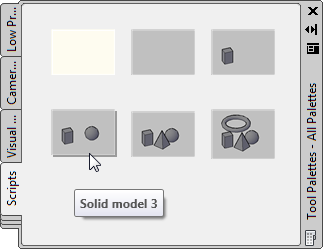
You may have to right-click the stacked tool palette tabs to locate the "Scripts" tool palette (I haven't found a way of doing this automatically, as it wasn't really essential for my particular application).
When we select the items on the tool palette in sequence, we see our EXECSCR command is called with the location of the script created for each DWG file, which then gets read and printed to the command-line:
Command: _EXECSCR
Enter location of script to execute:
"C:/QSaveAs Test/Scripts/Solid model.txt"
Dummy script contained: "This is a dummy script for Solid model."
Command: _EXECSCR
Enter location of script to execute:
"C:/QSaveAs Test/Scripts/Solid model 1.txt"
Dummy script contained: "This is a dummy script for Solid model 1."
Command: _EXECSCR
Enter location of script to execute:
"C:/QSaveAs Test/Scripts/Solid model 2.txt"
Dummy script contained: "This is a dummy script for Solid model 2."
Command: _EXECSCR
Enter location of script to execute:
"C:/QSaveAs Test/Scripts/Solid model 3.txt"
Dummy script contained: "This is a dummy script for Solid model 3."
Command: _EXECSCR
Enter location of script to execute:
"C:/QSaveAs Test/Scripts/Solid model 4.txt"
Dummy script contained: "This is a dummy script for Solid model 4."
Command: _EXECSCR
Enter location of script to execute:
"C:/QSaveAs Test/Scripts/Solid model 5.txt"
Dummy script contained: "This is a dummy script for Solid model 5."
While clearly not actually doing anything useful, the script file that we've created (and I don't mean script in the AutoCAD sense of the term – I'm using it in a more generic sense) could actually be regenerating the drawing contents (for instance). With a little more work. 🙂
Update:
This post shows a streamlined approach for this application for AutoCAD 2010 and above.


Leave a Reply to imvivs Cancel reply