Implementing a “Quick SaveAs” command in AutoCAD using .NET

I had a fun request, earlier in the week, that I thought worth turning into a couple of blog posts. The problem itself is quite specific, but some of the techniques shown – especially in the second of the two posts – seemed worth sharing.

The basic request was this: to implement a "quick SaveAs" command which will – the first time it's run – ask for a file location and name and will then – each time it's called subsequently – simply save the current drawing into the same folder with a filename based on the original with a incrementing suffix.

An example: the first time you run QSAVEAS you get presented with a SaveAs dialog and choose "c:\temp\Test.dwg". Each time you call QSAVEAS afterwards a new drawing gets created in the temp folder: "Test 1.dwg", "Test 2.dwg", "Test 3.dwg", etc.

This is likely to be a handy technique for people who want to take regular snapshots of their designs as they're working.

There's another dimension to this particular problem, however, which is why we're looking at it over the course of two posts: imagine we're in an environment where some kind of script or external data-file is being generated automatically for later recreation of the model. You can think of the mechanism as being a little like AutoCAD's action recorder, although this is not about capturing user operations as much as it is about storing the information needed to recreate at a later point in time the model being worked upon.

We still want to save our DWG file – as this is a "snapshot" of the model that we can use in other systems taking AutoCAD drawings as inputs – but we also want to save our script/data-file, which is really the file that will be used to recreate the model. And at the same time we want to create an item on a special tool palette which will call a command to execute our script (or interpret our data-file). And this command tool needs to have the icon of the drawing we've just saved. Fun stuff! 🙂

Anyway, before we get too carried away on the tool palette manipulation code – which will come in the next post – we're going to look at our simple QSAVEAS command. I did want to set the stage appropriately, though, as the need to save the DWG and have its thumbnail preview available has driven some implementation decisions in today's code.

One thing I should add, quickly: I'm not going to look at how we recreate our model from the script/data-file. That is really a much bigger problem and beyond the scope of these posts, which focus more on defining the QSAVEAS command and the steps needed to populate our tool palette. In the next post we will create a dummy script, but only to show how this can be picked up when our tool palette is used.

Here's the C# code implementing our QSAVEAS command:

using Autodesk.AutoCAD.ApplicationServices;

using Autodesk.AutoCAD.DatabaseServices;

using Autodesk.AutoCAD.EditorInput;

using Autodesk.AutoCAD.Runtime;

using System.IO;


namespace QuickSaveAs

{

  public class Commands

  {

    // Set up static variable for the path to our folder

    // of drawings, as well as the base filename and a

    // counter to make the unique filename


    static string _path = "",

                  _base = "";

    static int _count = 0;


    // Various filename and path-related constants


    const string sfxSep = " ",

                extSep = ".",

                pthSep = "\\",

                lspSep = "/",

                dwgExt = ".dwg";


    // Our QuickSaveAs command


    [CommandMethod("QSAVEAS")]

    public void QuickSaveAs()

    {

      Document doc =

        Application.DocumentManager.MdiActiveDocument;

      Editor ed = doc.Editor;

      Database db = doc.Database;


      // If this is the first time run...


      if (_path == "" || _base == "")

      {

        // Ask the user for a base file location


        PromptSaveFileOptions opts =

          new PromptSaveFileOptions(

            "Select location to save first drawing file"

          );

        opts.Filter = "Drawing (*.dwg)|*.dwg";

        PromptFileNameResult pr =

          ed.GetFileNameForSave(opts);


        // Delete the file, if it exists

        // (may be a problem if the file is in use)


        if (File.Exists(pr.StringResult))

        {

          try

          {

            File.Delete(pr.StringResult);

          }

          catch { }

        }


        if (pr.Status == PromptStatus.OK)

        {

          // If a file was selected, and it contains a path...


          if (pr.StringResult.Contains(pthSep))

          {

            // Separate the path from the file name


            int idx = pr.StringResult.LastIndexOf(pthSep);

            _path =

              pr.StringResult.Substring(0, idx);

            string fullname =

              pr.StringResult.Substring(idx + 1);


            // If the path has an extension (this should always

            // be the case), extract the base file name


            if (fullname.Contains(extSep))

            {

              _base =

                fullname.Substring(

                  0,

                  fullname.LastIndexOf(extSep)

                );

            }

          }

        }

      }


      // Assuming the path and name were set appropriately...


      if (_path != "" && _base != "")

      {

        string name = _base;


        // Add our suffix if not the first time run


        if (_count > 0)

          name += sfxSep + _count.ToString();


        // Our drawing is located in the base path


        string dwgPath = _path + pthSep + name + dwgExt;


        // Now we want to save our drawing and use the image

        // for our tool icon


        // Using either COM or .NET doesn't generate a

        // thumbnail in the resultant file (or its Database)


        // .NET:

        // db.SaveAs(dwgPath, false, DwgVersion.Current, null);


        // COM:

        // AcadDocument adoc = (AcadDocument)doc.AcadDocument;

        // adoc.SaveAs(dwgPath, AcSaveAsType.acNative, null);


        // So we'll send commands to the command-line

        // We'll use LISP, to avoid having to set FILEDIA to 0


        object ocmd = Application.GetSystemVariable("CMDECHO");

        string dwgPath2 = dwgPath.Replace(pthSep, lspSep);


        doc.SendStringToExecute(

          "(setvar \"CMDECHO\" 0)" +

          "(command \"_.SAVEAS\" \"\" \"" + dwgPath2 + "\")" +

          "(setvar \"CMDECHO\" " + ocmd.ToString() + ")" +

          "(princ) ",

          false,

          false,

          false

        );


        // Print a confirmation message for the DWG save

        // (which actually gets displayed before the queued

        // string gets executed, but anyway)


        ed.WriteMessage("\nSaved to: \"" + dwgPath + "\"");


        _count++;

      }

    }

  }

}

A few further comments on the implementation:

There are various ways to save a DWG file from .NET, but the requirement to have a thumbnail preview image created with the file (which is then accessible from its editor-resident Database) has limited our choice somewhat: neither Database.SaveAs() nor AcadDocument.SaveAs() (the .NET and COM methods) generate and save a thumbnail.

So we're calling the SAVEAS command, which does generate the thumbnail. We could call this in a number of ways - COM's AcadDocument.SendCommand() would call SAVEAS synchronously, for instance – but I've decided to use Document.SendStringToExecute() to fire off our SAVEAS and (eventually) launch a continuation function to update the tool palette.

We're setting CMDECHO to keep the noise down on the command-line, but we've managed to avoid having to set FILEDIA to zero by wrapping the call in a LISP (command) call (which AutoCAD knows prefers command-line input).

Here's what happens when we run the QSAVEAS command at regular intervals during an editing session:

Command: NETLOAD

Command: QSAVEAS

[Selected initial location via file selection dialog...]

Saved to: "C:\QSaveAs Test\Solid model.dwg"

[Various editing operations...]

Command: QSAVEAS

Saved to: "C:\QSaveAs Test\Solid model 1.dwg"

[Various editing operations...]

Command: QSAVEAS

Saved to: "C:\QSaveAs Test\Solid model 2.dwg"

[Various editing operations...]

Command: QSAVEAS

Saved to: "C:\QSaveAs Test\Solid model 3.dwg"

[Various editing operations...]

Command: QSAVEAS

Saved to: "C:\QSaveAs Test\Solid model 4.dwg"

[Various editing operations...]

Command: QSAVEAS

Saved to: "C:\QSaveAs Test\Solid model 5.dwg"

And here are the files, shown in Explorer:
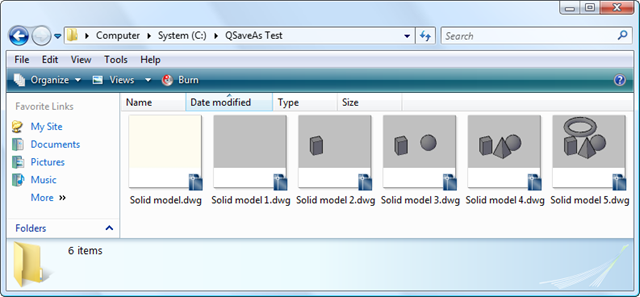
QSaveAs results

Update:

This post shows a streamlined approach for this application for AutoCAD 2010 and above.

  1. Very cool idea.

  2. J. Daniel Smith Avatar

    Obviously, writing your own code is all kinds of fun...but...

    You could achieve many of the same results by using Autodesk Vault and doing periodic check-ins.

  3. Thanks, Dan - you've raised a very good point: this is not a replacement for a document management system providing version control, etc.

    This code was developed for a very specific project (people visiting AU this year may end up seeing it, but I won't say more, for now 🙂 and for the purposes of this particular activity we needed something more tailored than Vault (version control was a small piece of the pie, all told).

    So yes, the implementation is somewhat specific to the requirements I was presented with, but there may be something of use for people, somewhere down in the details.

    Kean

  4. This is very useful! Using a document mgmt system is not a valid option in a lot of circumstances. For instance, I have one client that has their catalog application running in SilverLight so nothing is installed locally [technically, yes, there are a few files inside the users' local isolated storage].

    When they approached me, they wanted a cad interface to their system. The user downloads or creates the drawing which is then uploaded to the system. They wanted to be able to save off incremental versions of the drawing [and the local xml data storage file] as a lot of their work is planning and layout of the equipment. This is a perfect fit for just such a scenario [better than the one I came up with!]

    Very good article, Kean! Can't wait for part 2.

    Mike

  5. Thanks, Mike.

    Another thing to bear in mind...

    This code currently keeps a single global name/path/counter, so saving from different documents in the same session will save to the same location. It should be reasonably simple to change this to work on a per document basis, should anyone need that behaviour.

    Kean

  6. Hi Kean,

    Few months back, I had a request from one friend from Rand.com, about adding Save As Command in QAT - So I did a tedious process - cadprofessor.in/2009/08/adding-save-as-command-in-quick-access-tool-bar/

    Is there a method or coding where in I add commands that are not available in Ribbon Bar but still add them to QAT - Autodesk Inventor 2010

    Thanks

  7. Hi Sunith,

    There may be a way via the Inventor API, but I'm unfortunately not familiar with it. I suggest posting your question via ADN, if you're a member, or otherwise the Inventor Customization Discussion Group.

    Regards,

    Kean

  8. Hi Kean,
    Thanks very much, this is of great interest to me.
    You mention "COM’s AcadDocument.SendCommand() would call SAVEAS synchronously" but you decided to use .NET's Document.SendStringToExecute().
    I am curious about your decision. Since synchronicity is a fine album by the Police . . . sorry, I mean since synchronicity is an issue whenever sendcommand is used wouldn't it be advantageous to use the COM version?
    For example what if I found a use for "QSAVEAS" as part of a script or macro. It would be important to know that it finished it's save before proceeding with the script.
    As a tiny added benefit the confirmation message wouldn't be printed to the command line until it was true.

    I am just looking for some insight since I've struggled with this decision a number of times.

  9. "There are various ways to save a DWG file from .NET, but the requirement to have a thumbnail preview image created with the file (which is then accessible from its editor-resident Database) has limited our choice somewhat: neither Database.SaveAs() nor AcadDocument.SaveAs() (the .NET and COM methods) generate and save a thumbnail."

    Database db = ....

    db.RetainOriginalThumbnailBitmap = true;

    db.SaveAs("Thanks For A Good Laugh.dwg");

  10. Hi Mark. I've never struggled with ths, because in most real-world scenarious, there is nothing wrong with P/Invoking acedCmd() to run AutoCAD commands synchronously, provided you can be sure that your command implementation is not being scripted by another script that is itself being scripted by yet another script, ad nausium.

    The truth of the matter is that since Autodesk made a deliberate decision to not address the 'command nesting depth' problem, we must always be concious of it when deciding to use acedCmd() as opposed to some of the horrifying kludges we've seen some resort to, in order to avoid it.

    In practicle application, command invocations are rarely nested deeply enough to exceed the depth of nesting limit, so for example, if someone writes a LISP macro that runs Kean's 'QSAVEAS' command using the (command) function, it could still call the SAVEAS command via acedCmd() without problem.

    Another way to minimize the chance that a managed command that P/Invokes acedCmd() does not exceed the maximum depth of command nesting, is to expose it via the [LispFunction] attribute with a "C:" prefix. That still makes it available to both scripting and to the user as a command, but prevents it from being invoked via the LISP (command) function, as that is what technically constitutes a 'nested' command invocation.

  11. Well, ok. You want an updated thumbnail rather than the original thumbnail (which RetainOriginalThumbnailBitmap will not give you).

    There is an undocumented API that will update the current drawing's thumbnail that can be called from .NET, but I don't see what point there is to jumping through so many hoops to begin with, because using .NET to solve a relatively simple scripting problem like this is not too much unlike trying to swat a fly with a sledge hammer.

    I posted a link to this back in 2006 on the Autodesk discussion groups:

    caddzone.com/VSAVE.LSP

    The file at that link along with this post, serves as a good example of why one should use the best or most suitable tool for a given job. In this case, I think it's quite clear that LISP wins, hands-down, as your kludge clearly demonstrates.

  12. Today's follow-on post should hopefully explain more why I chose to write my "kludge" in .NET rather than LISP: the tool palette modification would have been much harder, in particular.

    I'll just reiterate a point I've been trying to make about this particular coding project: this is a small application with quite specific requirements. I decided to use SendStringToExecute() because it avoided me having to use COM or P/Invoke and it also gave me an opportunity to show how to use a continuation-passing style approach with SendStringToExecute().

    Using COM to call SendCommand() or P/Invoking acedCmd() have other advantages around synchronicity, none of which were of particular significance to my situation (so I decided to avoid both COM and P/Invoke). If you prefer to use those approaches, that's fine.

    I decided to share this particular project because I was working on it anyway, and felt it showed some techniques that may be of interest to people. But they ultimately remain just one way of doing things, and one that met the quite limited requirements with which I was provided.

    Kean

  13. "Today's follow-on post should hopefully explain more why I chose to write my "kludge" in .NET rather than LISP: the tool palette modification would have been much harder, in particular"

    I respectfully disagree.

    In fact, it would have been much easier to write the 'QSAVEAS' command in LISP, and after it saves the file, just have it call a LispFunction method to do whatever needs to be done in managed code.

    The other downside of your approach that you may have overlooked, is that your QSAVEAS is not scriptable from LISP. So for example, if a user wanted to zoom to the extents before running QSAVEAS, and then zoom back to the previous view after it finishes, they are SOL.

    In any event that is all moot, because the AutoCAD 2010 API exposes a method on the Document class that allows you to generate a new thumbnail preview with one line of code.

    See this file for how:

    caddzone.com/vsave.cs

  14. It wasn't a requirement that my code be callable from LISP, but it's an important point for other people to be aware of.

    Once I'm done with my AU prep I'll take a look at reworking the code to use the new API in AutoCAD 2010 (now that you've mentioned it I vaguely recall something about it, but unfortunately my internal garbage collection is at times just too efficient). That would, indeed, make this discussion irrelevant for this particular task, although possible useful for others facing similar decisions.

    And thanks for disagreeing respectfully, Tony - it's much easier that way. 🙂

    Kean

  15. Hi Kean,

    I have a problem with autocad 2011, qsaveas command is not saved.
    autocad closed it each time I recharge with Netload.
    how can I get each time you start autocad command automatically qsaveas?

    thanks.
    Federico

  16. Kean Walmsley Avatar

    Hi Frederico,

    You might try creating demand-loading entries in the Registry (which you can even do programmatically).

    Regards,

    Kean

  17. Hi Kean, my question is not really about your article, but is concerning the SAVEAS .NET command. I use it in my vb program in this way
    Dim doc As Document = Application.DocumentManager.Open("c:\test.dwg", False)
    Dim acDoc As Document = Application.DocumentManager.MdiActiveDocument
    acDoc.Database.SaveAs("c:\pippo.dwg", True, DwgVersion.AC1015, acDoc.Database.SecurityParameters)
    doc.CloseAndDiscard()

    But what I obtain is a corrupted file. Can you help me?
    In this post you spoke about a problem of sincronicity using .NET method SAVEAS. Could it be the reason of this strange situation?

  18. Hi Gianni,

    Sorry - this is really a support request, and as such should be directed to the ADN team or posted to the AutoCAD .NET Discussion Group.

    Regards,

    Kean

  19. You're right
    Thanks anyway for yout answer

  20. how to pring autocade file using c#

  21. Kean Walmsley Avatar

    This isn't a forum for support.

    Your comment doesn't appear to relate to this post, so please submit your question to the ADN team, if you're a member, or otherwise the AutoCAD .NET Discussion Group.

    Kean

  22. Hello Kean

    The information you share is excellent, I have a question, I can give the path and file name from the command line and prevent the user changes.
    The idea is to give a default name and path of the file created, the user only need to save and not to modify the name and path.

    Thanks for your help ...

  23. Hello Blad,

    I'm afraid I don't fully understand your question... do you simply want to specify the initial path and name via the command-line rather than via a dialog box?

    Please clarify,

    Kean

  24. Hello Kean,

    Thanks for responding and also forgive my English:-p,
    What I want to do is set the path and file name from another application (in vb. NET 2010) according to the user's role. when the user save, my application will send the path and file name according to your session, which is why we do not need the user to change it or displaying the window of dialog.

    thank you very much for your help

  25. Hello Blad,

    What you're asking is altogether possible. There are lots of ways to get the information to the AutoCAD-resident app: you could write it to the Registry or a text file, in the most basic case.

    Then you just rip out the code that calls the file open dialog.

    I hope this helps,

    Kean

  26. Thank Kean, served me well..!!

    success

  27. Hi Kean,

    Is there a way in autocad to save the current version of autocad drawing to previous release of autocad?

    Thanks and regards,
    Sherwin

  28. Hi Sherwin,

    This is really a support question: please go to the appropriate online discussion group in future.

    The SAVEAS command saves back to various versions of the DWG format, as does Database.SaveAs().

    Hopefully that answers your question, if not please provide more information via the forum.

    Regards,

    Kean

Leave a Reply to Federico Cancel reply

Your email address will not be published. Required fields are marked *