A big thanks to Tony Tanzillo for providing some tips to help improve the implementation of the application we saw in these previous posts: in particular Tony pointed out the ability of AutoCAD 2010 to generate a thumbnail image for a document in the editor programmatically (something I had forgotten was possible… at least I think I knew it existed – it certainly seemed familiar once I saw it :-S). Anyway, the version of the code in this post will only work from AutoCAD 2010 onwards because of the use of this function, Document.CapturePreviewImage().
Tony's code also showed some interesting capabilities of the .NET Framework related to filename and path manipulation, so I also borrowed some of those techniques to avoid some ugly string parsing/manipulation.
Because of this ability to generate thumbnails – something I really wanted from the beginning – we can avoid the use of SAVEAS and simply use Document.SaveAs(), which will save a copy of the drawing without renaming the version in the editor (which in my particular situation is desirable). And clearly there's no longer any need for a continuation function (whether or not you believe that was an appropriate way to implement the application in the first place).
Here's the updated C# code:
using Autodesk.AutoCAD.ApplicationServices;
using Autodesk.AutoCAD.DatabaseServices;
using Autodesk.AutoCAD.EditorInput;
using Autodesk.AutoCAD.Runtime;
using Autodesk.AutoCAD.Windows.ToolPalette;
using System.Runtime.InteropServices;
using System.Drawing;
using System.IO;
using System;
namespace QuickSaveAs
{
public class Commands
{
// Set up static variable for the path to our folder
// of drawings, as well as the base filename and a
// counter to make the unique filename
static string _path = "",
_base = "";
static int _count = 0;
// Various filename and path-related constants
const string sfxSep = " ",
pthSep = "\\",
lspSep = "/",
dwgExt = ".dwg",
scrExt = ".txt",
bmpExt = ".bmp",
bmpLoc = "Images",
scrLoc = "Scripts";
// Our QuickSaveAs command
[CommandMethod("QSAVEAS")]
public void QuickSaveAs()
{
Document doc =
Application.DocumentManager.MdiActiveDocument;
Editor ed = doc.Editor;
Database db = doc.Database;
// If this is the first time run...
if (_path == "" || _base == "")
{
// Ask the user for a base file location
PromptSaveFileOptions opts =
new PromptSaveFileOptions(
"Select location to save first drawing file"
);
opts.Filter = "Drawing (*.dwg)|*.dwg";
PromptFileNameResult pr =
ed.GetFileNameForSave(opts);
if (pr.Status == PromptStatus.OK)
{
// If a file was selected, and it contains a path...
// Separate the path from the file name
_base =
Path.GetFileNameWithoutExtension(pr.StringResult);
_path =
Path.GetDirectoryName(pr.StringResult);
// Create folders for our icons and our scripts
Directory.CreateDirectory(
_path + pthSep + bmpLoc
);
Directory.CreateDirectory(
_path + pthSep + scrLoc
);
}
}
// Assuming the path and name were set appropriately...
if (_path != "" && _base != "")
{
string name = _base,
dwgFile;
// Add our suffix if not the first time run
do
{
if (_count > 0)
name += sfxSep + _count.ToString();
// Our drawing is located in the base path
dwgFile = _path + pthSep + name + dwgExt;
_count++;
}
while (File.Exists(dwgFile));
// While our script is in a sub-folder
string scrPath =
_path + pthSep + scrLoc + pthSep + name + scrExt;
// Create a dummy script, so we can make sure we pick
// up the contents in our dummy execute command
File.WriteAllText(
scrPath,
"This is a dummy script for " + name + "."
);
// Now we want to save our drawing and use the image
// for our tool icon
if (!string.IsNullOrEmpty(dwgFile))
{
Bitmap thumb = doc.CapturePreviewImage(320, 240);
doc.Database.ThumbnailBitmap = thumb;
doc.Database.SaveAs(dwgFile, DwgVersion.Current);
ed.WriteMessage(
"\nCopy of current document saved to {0}",
Path.GetFileName(dwgFile)
);
CreateCommand(thumb, name, scrPath);
}
}
}
// Function to add a command tool to our tool palette to
// execute the script
private void CreateCommand(
Bitmap thumb,
string name,
string scrPath
)
{
const string catName = "ScriptCatalog";
const string palName = "Scripts";
ToolPaletteManager tpm = ToolPaletteManager.Manager;
// Get the GUID of our dummy custom tool
Type t = typeof(DummyTool);
GuidAttribute ga =
(GuidAttribute)t.GetCustomAttributes(
typeof(GuidAttribute), false)[0];
Guid g = new Guid(ga.Value);
// Instanciate our dummy tool - this will allow us to use
// its helper functions
DummyTool tool = new DummyTool();
Catalog cat;
Palette pal = null;
// First we check whether our GUID is in a catalog
CatalogItem ci = tpm.StockToolCatalogs.Find(g);
if (ci != null)
{
// If it is, search each catalog for our palette
foreach(CatalogItem ci2 in tpm.Catalogs)
{
for (int i = 0; i < ci2.ChildCount; i++)
{
CatalogItem ci3 = ci2.GetChild(i);
if (ci3 != null && ci3.Name == palName)
{
pal = ci3 as Palette;
break;
}
}
if (pal != null)
break;
}
}
// If we didn't find our palette, create it
if (pal == null)
{
cat = tool.CreateStockTool(catName);
pal = tool.CreatePalette(cat, palName);
}
// To add our command tool instance we need an icon
ImageInfo ii = new ImageInfo();
if (thumb != null)
{
// Which we create from the Database's thumbnail
string bmpPath =
_path + pthSep + bmpLoc + pthSep + name + bmpExt;
thumb.Save(bmpPath);
ii.ResourceFile = bmpPath;
}
ii.Size = new System.Drawing.Size(65, 65);
// And then we use our dummy tool to create the
// command tool
tool.CreateCommandTool(
pal,
name,
ii,
"_EXECSCR \"" + scrPath.Replace(pthSep, lspSep) + "\""
);
// Finally we reload the catalogs to display the change
tpm.LoadCatalogs(
CatalogTypeFlags.Catalog,
LoadFlags.LoadImages
);
}
// A dummy command to simulate the execution of our script
// (which simply reads the contents and displays them on
// the command-line)
[CommandMethod("EXECSCR")]
public void ExecuteScript()
{
Document doc =
Application.DocumentManager.MdiActiveDocument;
Editor ed = doc.Editor;
PromptResult pr =
ed.GetString(
"\nEnter location of script to execute: "
);
if (pr.Status == PromptStatus.OK)
{
string path =
pr.StringResult.Replace(lspSep, pthSep);
if (File.Exists(path))
{
string contents = File.ReadAllText(path);
ed.WriteMessage(
"\nDummy script contained: \"{0}\"",
contents
);
}
}
}
}
// Our dummy tool which simply derives from CustomToolBase
// (there may be a more straightforward way to get access
// to the helpers in CustomToolBase, but anyway)
[Guid("3B725500-0451-4081-A1BB-B37CE6A65767")]
[Tool("MyDummyTool", "IDB_TOOL")]
[ClassInterface(ClassInterfaceType.AutoDual)]
public class DummyTool : CustomToolBase
{
}
}
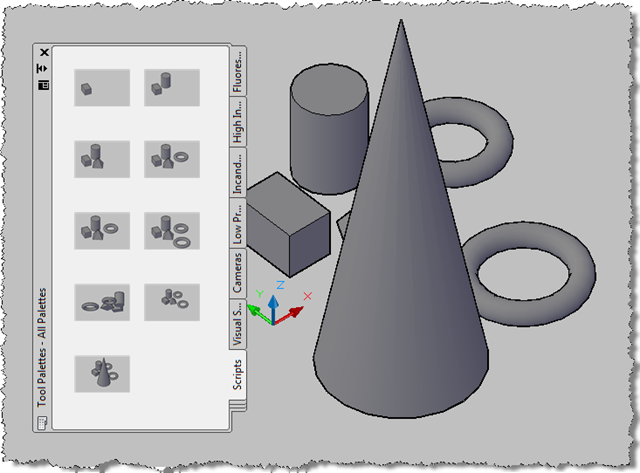
The QSAVEAS command executes more quickly and cleanly, providing results comparable to the previous version's:


Leave a Reply to CAD Cancel reply