A philosophical question regarding the Layer Reporter tool came up in a recent discussion with Tony Tanzillo. Tony suggested that using XML and XSLT would have been a better way to implement the tool, and in many ways I agree with him (I've been an advocate of XML for many years… during my interview to join Autodesk back in 1995 I presented a session on "Electronic Publishing Formats", which covered HTML generation from SGML – a pre-cursor to XML – and since then I've used XML regularly and on quite significant projects, such as during the redesign of the ADN website in 1999-2000, when I implemented an offline process to transform XML documents into HTML using XSLT and an early version of the MS XML component). Anyway, I love XML and think it's absolutely a great way to go for many problems. Including this one.
That said, I stand by the decision (which admittedly was Terry Dotson's, as he developed this tool) to use HTML directly. There are times when the overhead of implementing XML & XSLT isn't worth the additional effort (and XSLT can be very complicated), and I see this as being one of those cases. One of the design tenets behind the "Plugin of the Month" initiative is simplicity: the applications clearly need to be functional but also simple enough for people to look at and say "I could have done that" or "I could extend that myself with a little effort". Now that's not to say that an XML implementation wouldn't give people more flexibility to work with the data – it probably would – but that just wasn't part of the original design.
As there's obviously value in being able to work with the layer report data in other applications, especially Excel (and in a way where you have actual data inside cells rather than images, which is what happens if you import an MHT file), I did some experimenting and found a pretty workable solution. If we write an "alt" attribute to our <img> tags in the HTML output to provide alternative text, this text will then be used when importing the content to Excel using the right-click menu on the layer report.
The below C# code (from Report.vb) adds alternative text for all the images in the HTML output:
Imports Autodesk.AutoCAD.DatabaseServices
Imports Autodesk.AutoCAD.ApplicationServices
Imports Autodesk.AutoCAD.Colors
Imports System.Text
Imports System.Drawing
Public Class Report
Private _init As Boolean
Private _bmps As New Dictionary(Of String, String)
Private _tmpHtm As String = ""
Private Const kApp = "ADNPlugin-LayerReporter"
Private Const kSec = "GenerateReport"
Private Const kFontName = "FontName"
Private Const kFontSize = "FontSize"
Private Const kRetainBmps = "RetainBitmaps"
Private Const kFieldFlags = "FieldFlags"
Private Sub AppReport_FormClosing( _
ByVal sender As < /span>Object, _
ByVal e As System.Windows.Forms.FormClosingEventArgs) _
Handles Me.FormClosing
Dim flags As Int32 = 0
If statusFld.Checked Then flags += 1
If onFld.Checked Then flags += 2
If freezeFld.Checked Then flags += 4
If lockFld.Checked Then flags += 8
If colorFld.Checked Then flags += 16
If ltypeFld.Checked Then flags += 32
If lweightFld.Checked Then flags += 64
If pstyleFld.Checked Then flags += 128
If plotFld.Checked Then flags += 256
If descFld.Checked Then flags += 512
If xrefsFld.Checked Then flags += 1024
SaveSetting(kApp, kSec, kFontName, fontName.Text)
SaveSetting(kApp, kSec, kFontSize, fontSize.Text)
SaveSetting(kApp, kSec, kRetainBmps, bmpsFld.Checked)
SaveSetting(kApp, kSec, kFieldFlags, flags)
' Clean up temporary bitmaps?
If Not bmpsFld.Checked Then
For Each kv As KeyValuePair(Of String, String) In _bmps
If File.Exists(kv.Value) Then
File.Delete(kv.Value)
End If
Next
End If
If
File.Delete(_tmpHtm)
End If
End Sub
Private Sub AppReport_Load( _
ByVal sender As System.Object, _
ByVal e As System.EventArgs) _
Handles MyBase.Load
_init = True
' Export bitmaps to Temp folder and store in dictionary.
' This lets us easily refer to the bitmap file by key name
' later and get the files when it's time to clean up.
Dim tmpLoc As String = Path.GetTempPath
Dim bmps() As String = _
{"frz", "loc", "nop", "off", "onn", "plt", _
"thw", "unl", "use", "unu"}
For Each key As String In bmps
Dim resname As String = "lay" & key
Dim fname As String = tmpLoc & resname & ".bmp"
_bmps.Add(key, fname)
Using tmpBmp As Bitmap = _
My.Resources.ResourceManager.GetObject(resname)
tmpBmp.Save(fname)
End Using
Next
' Put font names in popdown list
For Each fntFam As FontFamily In FontFamily.Families
fontName.Items.Add(fntFam.Name)
Next
fontName.Text = _
GetSetting(kApp, kSec, kFontName, "Arial")
fontSize.Text = _
GetSetting(kApp, kSec, kFontSize, "medium")
bmpsFld.Checked = _
GetSetting(kApp, kSec, kRetainBmps, False)
Dim flags As Int32 = _
GetSetting(kApp, kSec, kFieldFlags, 1023)
statusFld.Checked = flags And 1
onFld.Checked = flags And 2
freezeFld.Checked = flags And 4
lockFld.Checked = flags And 8
colorFld.Checked = flags And 16
ltypeFld.Checked = flags And 32
lweightFld.Checked = flags And 64
pstyleFld.Checked = flags And 128
plotFld.Checked = flags And 256
descFld.Checked = flags And 512
xrefsFld.Checked = flags And 1024
Call GenerateReport()
_init = False
End Sub
' The SelectedIndexChanged event fires when the user changes
' a value in the related popdown menu at the top of the form.
Private Sub fontName_SelectedIndexChanged( _
ByVal sender As Object, _
ByVal e As System.EventArgs) _
Handles fontName.SelectedIndexChanged
If Not _init Then
Call GenerateReport()
End If
End Sub
Private Sub fontSize_SelectedIndexChanged( _
ByVal sender As Object, _
ByVal e As System.EventArgs) _
Handles fontSize.SelectedIndexChanged
If Not _init Then
Call GenerateReport()
End If
End Sub
' Shared Sub handles all Options toggles to regenerate
' the report, note that each click event is included and
' separated by commas.
Private Sub MenuReact( _
ByVal sender As System.Object, _
ByVal e As System.EventArgs) _
Handles statusFld.Click, onFld.Click, freezeFld.Click, _
lockFld.Click, colorFld.Click, ltypeFld.Click, _
lweightFld.Click, pstyleFld.Click, plotFld.Click, _
descFld.Click, xrefsFld.Click
Call GenerateReport()
End Sub
Private Sub GenerateReport()
' Dimension some variables as placeholders for repeatedly
' used strings for smaller more readable code below.
Dim dwg As String = _
Application.GetSystemVariable("DWGPREFIX") & _
Application.GetSystemVariable("DWGNAME")
Dim stylePre As String = _
"style='font-family: " & fontName.Text & _
"; font-size: " & fontSize.Text
Dim headPre As String = "<th> "
Dim headSuf As String = " </th>"
Dim imgPre As String = "<td align='center'> <img src='"
Dim imgMid As String = "' alt='"
Dim imgSuf As String = "'/> </td>"
Dim txtPre As String = "<td> "
Dim txtSuf As String = " </td>"
' Get an instance of the database and layer table and create
' a transaction by using 'Using' instead of 'Dim' the instance
' will be automatically disposed after execution is complete.
Using db As Database = _
Application.DocumentManager.MdiActiveDocument.Database
Using tr As Transaction = _
db.TransactionManager.StartTransaction
Using lt As LayerTable = _
db.LayerTableId.GetObject(OpenMode.ForRead)
' Loop through the layer table and build a list of
' qualifying layer names so we can sort it for output.
' The default order is likely the order created.
Dim lays As New List(Of String)
For Each layId As ObjectId In lt
Dim ltr As LayerTableRecord = _
tr.GetObject(layId, OpenMode.ForRead)
If xrefsFld.Checked Then
lays.Add(ltr.Name)
Else
If Not ltr.IsDependent Then
lays.Add(ltr.Name)
End If
End If
Next
lays.Sort()
' The System.Text.StringBuilder is an extremely fast way
' of concatenating strings, see the .NET help for more
' details on this versatile object!
Dim sb As New StringBuilder(100000)
sb.Append("<html><head><title>")
sb.Append(dwg)
sb.Append("</title></head><body><center><div ")
sb.Append(stylePre)
sb.Append("'><b>Layer Report</b><br/><b>")
sb.Append(dwg)
sb.Append("</b><br/>")
sb.Append(Format(Now, "Long Date"))
sb.Append(" ")
sb.Append(Format(Now, "Long Time"))
sb.Append("<br/><table ")
sb.Append(stylePre)
sb.Append(";border-collapse: collapse; border='0' ")
sb.Append("cellpadding='0'><tr>")
&#
160; If statusFld.Checked Then
sb.Append(headPre)
sb.Append("Status")
sb.Append(headSuf)
End If
sb.Append(headPre)
sb.Append("Name")
sb.Append(headSuf)
If onFld.Checked Then
sb.Append(headPre)
sb.Append("On")
sb.Append(headSuf)
End If
If freezeFld.Checked Then
sb.Append(headPre)
sb.Append("Freeze")
sb.Append(headSuf)
End If
If lockFld.Checked Then
sb.Append(headPre)
sb.Append("Lock")
sb.Append(headSuf)
End If
If colorFld.Checked Then
sb.Append(headPre)
sb.Append("Color")
sb.Append(headSuf)
End If
If ltypeFld.Checked Then
sb.Append(headPre)
sb.Append("Linetype")
sb.Append(headSuf)
End If
If lweightFld.Checked Then
&#
160; sb.Append(headPre)
sb.Append("Lineweight")
sb.Append(headSuf)
End If
If pstyleFld.Checked Then
sb.Append(headPre)
sb.Append("Plotstyle")
sb.Append(headSuf)
End If
If plotFld.Checked Then
sb.Append(headPre)
sb.Append("Plot")
sb.Append(headSuf)
End If
If descFld.Checked Then
sb.Append(headPre)
sb.Append("Description")
sb.Append(headSuf)
End If
sb.Append("</tr><tr><td> </td></tr>")
' The title and header section is done, time to fill in
' the layer rows.
For Each lay As String In lays
' Get the layer record by its key name string using the
' transactions.GetObject()
Dim ltr As LayerTableRecord = _
tr.GetObject(lt(lay), OpenMode.ForRead)
sb.Append("<tr>")
If statusFld.Checked Then
sb.Append(imgPre)
If ltr.IsUsed Then
sb.Append(_bmps("use"))
sb.Append(imgMid)
sb.Append("Used")
Else
sb.Append(_bmps("unu"))
sb.Append(imgMid)
sb.Append("Unused")
End If
sb.Append(imgSuf)
End If
sb.Append(txtPre)
sb.Append(ltr.Name)
sb.Append(txtSuf)
If onFld.Checked Then
sb.Append(imgPre)
If ltr.IsOff Then
sb.Append(_bmps("off"))
sb.Append(imgMid)
sb.Append("Off")
Else
sb.Append(_bmps("onn"))
sb.Append(imgMid)
sb.Append("On")
End If
sb.Append(imgSuf)
End If
If freezeFld.Checked Then
sb.Append(imgPre)
If ltr.IsFrozen Then
sb.Append(_bmps("frz"))
sb.Append(imgMid)
sb.Append("Frozen")
Else
sb.Append(_bmps("thw"))
sb.Append(imgMid)
sb.Append("Thawed")
End If
sb.Append(imgSuf)
End If
If lockFld.Checked Then
sb.Append(imgPre)
If ltr.IsLocked Then
sb.Append(_bmps("loc"))
sb.Append(imgMid)
sb.Append("Locked")
Else
sb.Append(_bmps("unl"))
sb.Append(imgMid)
sb.Append("Unlocked")
End If
sb.Append(imgSuf)
End If
If colorFld.Checked Then
' Used so we can show the square bullet in the
' layers color
sb.Append("<td> <span style='font-family: ")
sb.Append("Wingdings; color: ")
sb.Append(Col2Str(ltr.Color))
sb.Append("'>n</span> ")
sb.Append(ltr.Color.ColorNameForDisplay)
sb.Append(" </td>")
End If
If ltypeFld.Checked Then
' The layer record stores the linetype as an ObjectId,
' not a string. This means we need to look up the
' linetype in that table to get it's string name.
Dim ltt As LinetypeTable = _
db.LinetypeTableId.GetObject(OpenMode.ForRead)
Dim lttr As LinetypeTableRecord = _
tr.GetObject(ltr.LinetypeObjectId, OpenMode.ForRead)
sb.Append(txtPre)
sb.Append(lttr.Name)
sb.Append(txtSuf)
End If
If lweightFld.Checked Then
sb.Append(txtPre)
sb.Append(Wght2Str(ltr.LineWeight))
sb.Append(txtSuf)
End If
If pstyleFld.Checked Then
' The plot style is stored as a string, we can simply
' include it
sb.Append(txtPre)
sb.Append(ltr.PlotStyleName)
sb.Append(txtSuf)
End If
If plotFld.Checked Then
sb.Append(imgPre)
If ltr.IsPlottable Then
sb.Append(_bmps("plt"))
sb.Append(imgMid)
sb.Append("Plottable")
Else
&
#160; sb.Append(_bmps("nop"))
sb.Append(imgMid)
sb.Append("Not plottable")
End If
sb.Append(imgSuf)
End If
If descFld.Checked Then
sb.Append(txtPre)
sb.Append(ltr.Description)
sb.Append(txtSuf)
End If
sb.Append("</tr>")
Next
sb.Append("</table></div></center></body></html>")
' Write the HTML content to a file and then load it
If _tmpHtm = "" Then
_tmpHtm = Path.GetTempFileName() + ".htm"
End If
Using file As StreamWriter = _
New StreamWriter(_tmpHtm, False, Encoding.Default)
file.Write(sb.ToString)
file.Close()
End Using
webWin.SuspendLayout()
webWin.Navigate(_tmpHtm)
' Wait for the control to finish
While webWin.IsBusy
System.Windows.Forms.Application.DoEvents()
End While
webWin.ResumeLayout()
statTxt.Text = _
lays.Count.ToString & " layer" & _
IIf(lays.Count = 1, "", "s") & " listed"
End Using
End Using
End Using
End Sub
Private Sub printBut_Click( _
ByVal sender As System.Object, _
ByVal e As System.EventArgs) Handles printBut.Click
webWin.ShowPrintDialog()
End Sub
Private Sub prevBut_Click( _
ByVal sender As System.Object, _
ByVal e As System.EventArgs) Handles prevBut.Click
webWin.ShowPrintPreviewDialog()
End Sub
Private Sub saveBut_Click( _
ByVal sender As System.Object, _
ByVal e As System.EventArgs) Handles saveBut.Click
webWin.ShowSaveAsDialog()
End Sub
Private Sub setupBut_Click( _
ByVal sender As System.Object, _
ByVal e As System.EventArgs) Handles setupBut.Click
webWin.ShowPageSetupDialog()
End Sub
' Helper function for the square bullet displayed, takes an _
' AutoCAD color as input as returns a string like #00FF00.
Private Function Col2Str( _
ByVal c As Autodesk.AutoCAD.Colors.Color) As String
Dim col As Int32
If c.ColorMethod = ColorMethod.ByAci Then
Dim bytes() As Byte = _
BitConverter.GetBytes( _
EntityColor.LookUpRgb(c.ColorIndex))
col = RGB(bytes(0), bytes(1), bytes(2))
Else
col = RGB(c.Blue, c.Green, c.Red)
End If
Return ColorTranslator.ToHtml( _
System.Drawing.Color.FromArgb(col))
End Function
' Helper function for lineweights, takes the stored value
' and returns a string similar to AutoCAD's layer dialog
' (in the current units).
Private Function Wght2Str(ByVal weight As Single) _
As String
Select Case weight
Case -3
Return "Default"
Case -2
Return "ByBlock"
Case -1
Return "ByLayer"
Case Else
If Application.GetSystemVariable("LWUNITS") = 1 Then
Return Format(weight / 100.0, "0.00") & "mm"
&#
160; Else
Return Format(weight / 25.4 / 100.0, "0.000") & Chr(34)
End If
End Select
End Function
End Class
When we right-click the layer report shown by AutoCAD we have the option to "Export to Microsoft Excel":
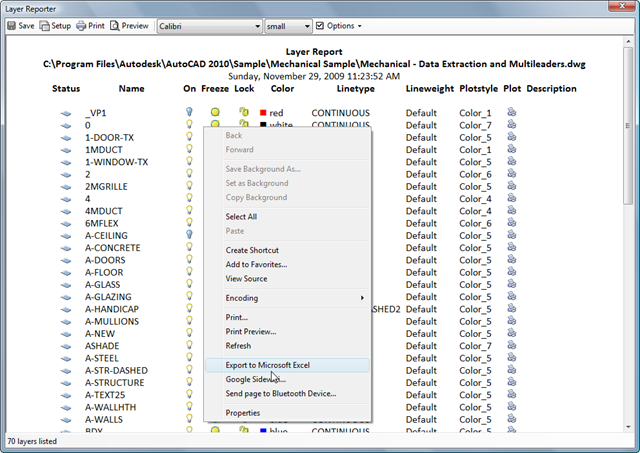
We then get asked to provide import options (note that the behaviour appears to be different whether you right-clicked on the text preceding the table or the table itself: if on the table you don't see the options, as you're presumably just bringing across the table rather than the whole document).

Selecting the default values by pressing Import and OK to the following dialog, we then get our data inside Excel:
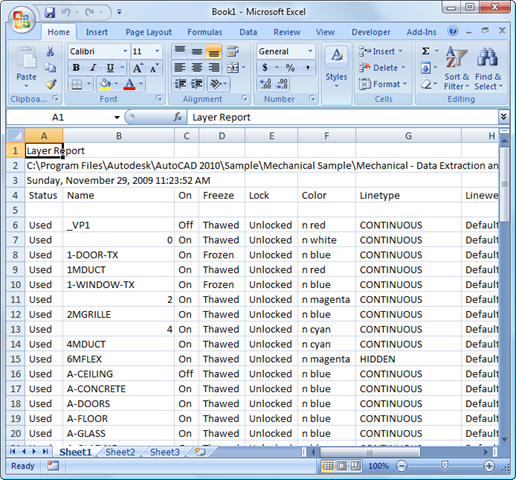
We see the "Color" values have an "n" in front, because we actually use the Wingdings letter 'n' ('n') for our colored square representing the color, but that should be simple enough to search & replace away.
My current plan is for this version to go live in the next few days, but I do need to check in with Scott Sheppard while in Vegas, to make sure he has the time to help get it posted.


Leave a Reply to Kean Walmsley Cancel reply