This is a really fun one: a new technology preview on Autodesk Labs that integrates powerful sketching – such as that available in SketchBook Pro and SketchBook Mobile (both of which I've played around with, at one point or another) – into AutoCAD 2010. Now it's not immediately apparent what the benefits are for having this kind of sketching integrated directly into AutoCAD, but for sure it saves application switching and is likely to make it easier to share marked-up models.
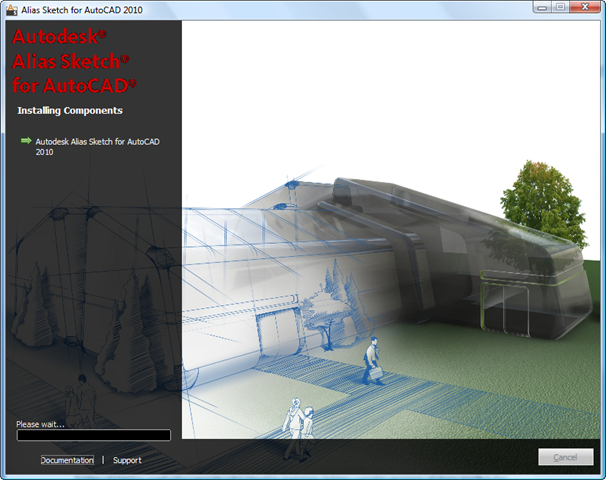
The first thing I did was to install the application:
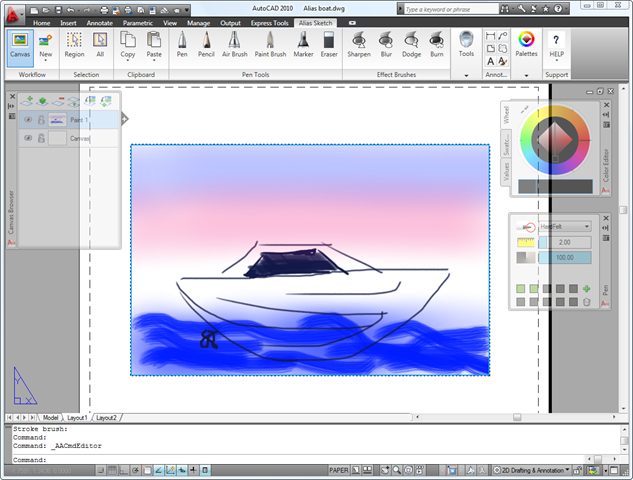
To sketch you need to be in a layout, and create a new Canvas object upon which you can start sketching. I'm no artist, but certainly had some fun playing with the various types of brushes and effects.
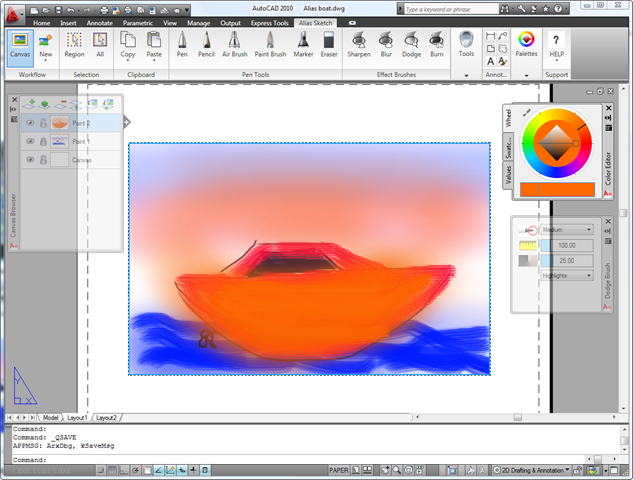
Then I discovered layers and the ability to lock them and make them invisible. Nice! Again – I've never really PhotoShopped in earnest (only the odd bit of red-eye reduction and humorous-speech-bubble addition 😉 so much of this is new to me, I'm somewhat ashamed to say.
And now let's take a little look under the hood, to see what's being stored in the drawing.
My favourite tool for this is ArxDbg – one I've mentioned once or twice – which can be compiled from the ObjectARX SDK for the AutoCAD release of your choice (you'll need the appropriate Visual C++ compiler to do so).
Using the SNOOPDB command, we can take a look at the contents of the paper-space layout:
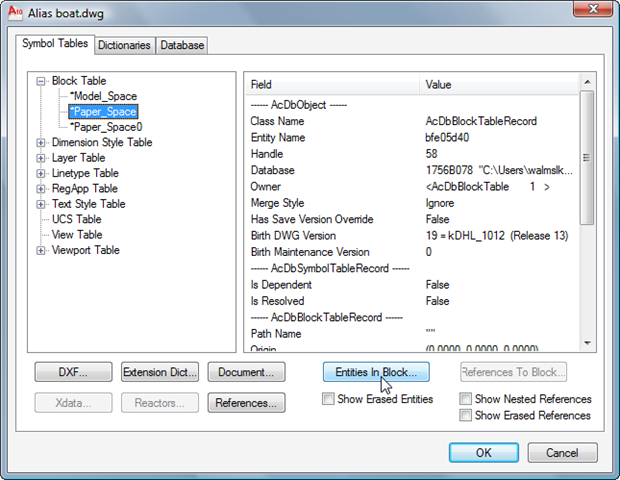
The paper-space block table record contains two entities, one of which (the AliasIllustrationImage) is of interest for what we've been working on and presumably corresponds to our Canvas object:
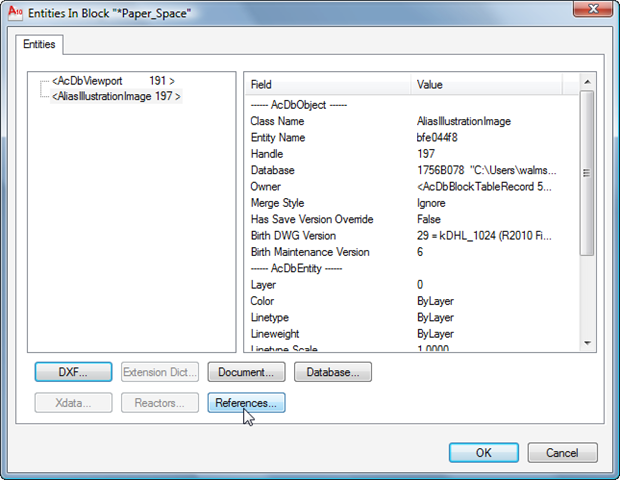
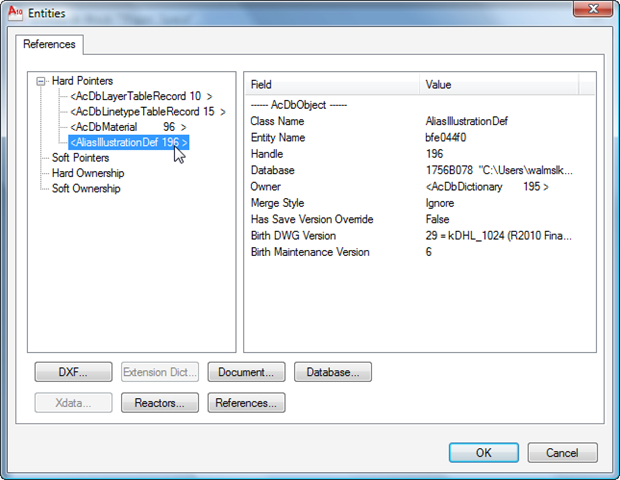
Looking at the AliasIllustrationImage object's references, we can see that it points to the standard entity property objects (Layer, Linetype, Material) as well as an AliasIllustrationDef object:
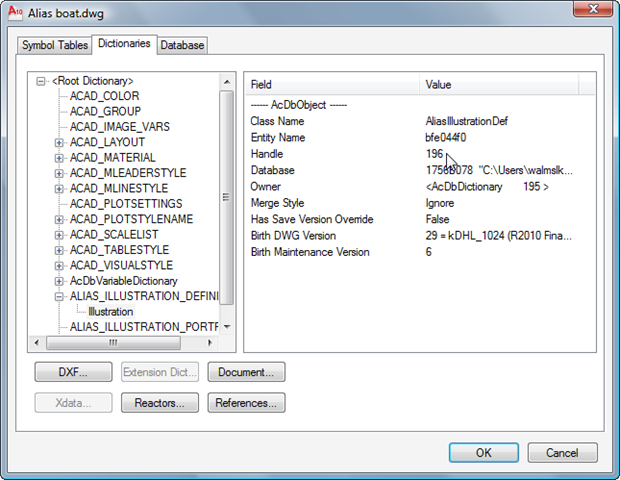
If we then cancel out to the top-level dialog and look at the Dictionaries tab, we can browse to where this definition object resides:
And then we can look at the object's DXF codes, which sometimes sheds some light on the data stored in the DWG (although if DXF is not a supported format – as for AutoCAD Architecture entities – then this won't give the whole picture):
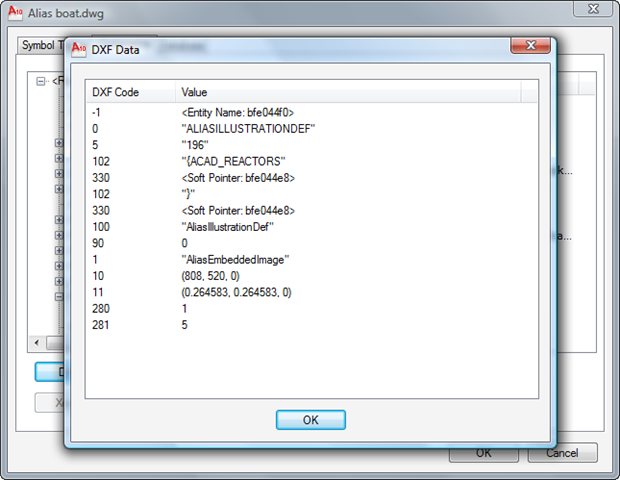
So we can see we have an AliasEmbeddedImage in there, although with admittedly very little information filed out to DXF, at least. It'd easy to see that the DXF output differs from the DWG: if you try saving a drawing to DXF and reopening it, you'll see a blank canvas.
Looking at this application from a programmability perspective: it clearly adds a number of new commands to AutoCAD – their names are currently dumped to the command-line when the application loads – but I don't have any information on how it might either be able to drive these commands programmatically or hook into the actions a user might take when using the tool. If any of you can see an interesting opportunity for driving/accessing this application's functionality via a programming interface, please let me know. I'll be sure to pass the information on to the team providing this technology preview.


Leave a Reply to Scott Sheppard Cancel reply