I received a few comments by email and otherwise regarding the preview capability added to the Clipboard Manager Plugin of the Month in the last post. Basically it's useful, but only to a point: the bitmap created on the clipboard is the same size as AutoCAD's screen, with the copied objects in their location relative to the screen. This means that if you're working on a drawing like this:
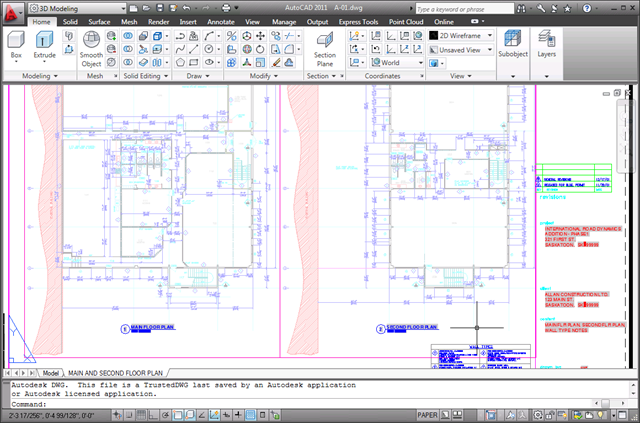 And you want to copy the leader to the left of the cursor to the clipboard, the preview you'll end up with will be something like this:

Which – when scaled down to be placed at the bottom of a palette window – makes it very hard to see the geometry.
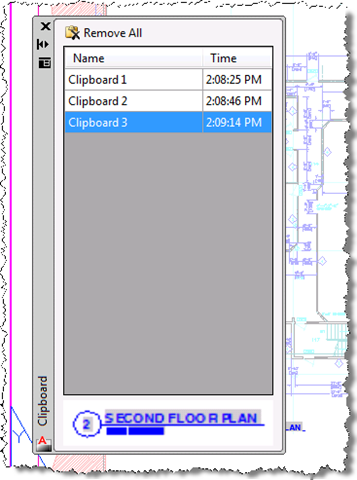
This feedback prompted me to think about auto-cropping the preview bitmap, so that we effectively "zoom in" on the geometry.
It turned out to be relatively straightforward to create a basic implementation. We loop through each pixel and check it against the background colour: if it's not the same then we check to see whether it's the left-/right-/bottom-/top-most, and, if so, we store it's x and/or y coordinate to help define the limits of the cropped area.
Here are the helper functions I created to do this (in VB.NET, as that's what the Clipboard Manager was originally written in):
Function SameColor(ByVal a As Color, ByVal b As Color) As Boolean
Return (a.R = b.R And a.G = b.G And a.B = b.B)
End Function
Function MostCommonColor(ByVal cols() As Color) As Color
' Use a dictionary to count our colors
Dim cd As Dictionary(Of Color, Integer) = _
New Dictionary(Of Color, Integer)
' Loop through the array, adding them one by one
For Each col In cols
If cd.ContainsKey(col) Then
cd.Item(col) += 1
Else
cd.Add(col, 1)
End If
Next
' Now go through the dictionary and get the
' most popular color
Dim max As Integer = 0
Dim mostCommon As Color = Color.Black
For Each kv In cd
If kv.Value > max Then
max = kv.Value
mostCommon = kv.Key
End If
Next
Return mostCommon
End Function
Function Crop(ByVal b As Bitmap, ByVal bg As Color) As Bitmap
' Variables for the area to crop down to
Dim left As Integer = b.Width
Dim top As Integer = b.Height
Dim right As Integer = 0
Dim bottom As Integer = 0
' Indeces and the current pixel
Dim x, y As Integer
Dim c As Color
If bg = Nothing Then
' If we don't have a background passed in, get the four
' corners' colors and find the most common of them
Dim cols() As Color = { _
b.GetPixel(0, 0), _
b.GetPixel(0, b.Height - 1), _
b.GetPixel(b.Width - 1, 0), _
b.GetPixel(b.Width - 1, b.Height - 1)}
bg = MostCommonColor(cols)
End If
' Loop through each pixel
For y = 0 To b.Height - 1
For x = 0 To b.Width - 1
c = b.GetPixel(x, y)
' If it's not the same as the background color
If Not SameColor(c, bg) Then
' Then we update our variables, as appropriate
If x < left Then left = x
If y < top Then top = y
If x > right Then right = x
If y > bottom Then bottom = y
End If
Next x
Next y
' Now calculate the dimensions of the cropped output
Dim width As Integer = (right - left)
Dim height As Integer = (bottom - top)
' Add a buffer of 5% of the largest dimension (a little padding)
Dim buffer As Integer = Math.Max(width, height) * 0.05
width += 2 * buffer
height += 2 * buffer
' Create the new bitmap and the graphics object to draw to it
Dim cropped As New Bitmap(width, height)
Dim gfx As Graphics = Graphics.FromImage(cropped)
Using gfx
' Set the color of the bitmap to our background
gfx.Clear(bg)
' Draw the portion of the original image that we want to
' the new bitmap
gfx.DrawImage( _
b, New Rectangle(buffer, buffer, width, height), _
New Rectangle(left, top, width, height), _
GraphicsUnit.Pixel)
End Using
Return cropped
End Function
One approach that was a little different: assuming no background colour is specified – which we could do, but I didn't want to get the preferences object from AutoCAD and introduce a COM dependency on the project – we get the colours of the four corner pixels and then count the most popular. Unless very unlucky this will usually be the background color (and if we are, indeed, unlucky the image will simply not be cropped).
Now, overall, this approach to reading bitmap data is *slow* – it takes about a second to crop a preview using the above code on my system – but it does prove the concept effectively. To give it a try, here's an updated version of the project using the above code. This one is definitely not going to be posted to Autodesk Labs: one way or another I intend to optimise this implementation, whether using Bitmap.LockBits()/UnlockBits() with lower-level memory access code or some simple file caching to make sure the copping only happens once per entry. I'm hoping that the first option will work out well, as it saves us having to clean up temporary files and is (hopefully) effective even the first time run - but we'll see that in the next post.
At least the results are good from a visual perspective:


Leave a Reply to Anonymous Cancel reply