Installing an SSD in my MacBook Pro

I arrived safely in Las Vegas for AU2012 and spent the day yesterday indulging in a little retail therapy to help get over my jetlag. I'm certainly feeling all the better for it. πŸ™‚

As we're yet to start the conference itself, I decided to focus today's post on some general preparation I made for this year's conference: how I upgraded my main system to get it ready – in particular – for the rigours of running various OS installations and the tools I need for my "cloud & mobile" session.

A few weeks ago, I finally succumbed to a nagging temptation and installed a Solid State Drive (SSD) in my MacBook Pro. Newer models apparently include these as standard, which frankly makes a huge amount of sense: at around (probably less, now) a dollar per gigabyte, this hardware is finally getting affordable for decent-sized drives.

I ended up getting a 480 GB Intel SSD, but rather than simply replacing the HDD in my Mac, I bought one of these rather nifty caddies that can be used to mount a secondary drive (whether HDD or SDD) in the bay used by the optical drive. The optical drive – they're called SuperDrives, probably because they're now largely superfluous πŸ˜‰ – can then be mounted in a separate USB enclosure, in case you really need to access something on a CD or DVD. You still have a slot for a CD/DVD in the Mac's unibody casing, but obviously you won't get very far if you try to insert a disk after the upgrade process is completed.

Here's the caddy with the SDD mounted:
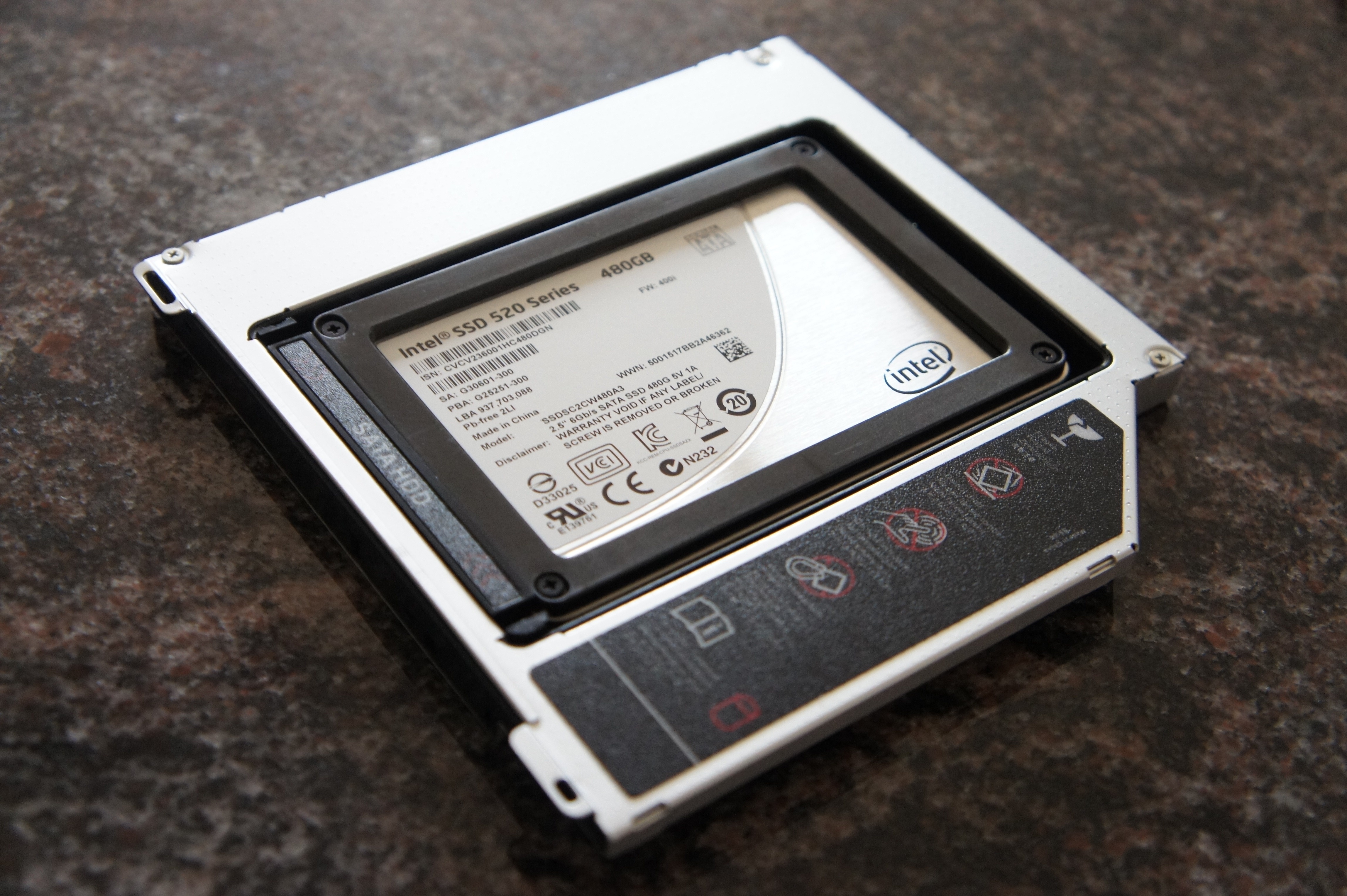
SSD in MacBook Pro caddy

I ended up not mounting the SSD using this caddy, after all: apparently it's best to put the primary drive (in my case the SDD) in the main drive bay and the secondary drive (my HDD) mounted via the caddy in the SuperDrive bay.

The hardware upgrade as a little fiddly, but nothing very challenging (there were lots of little screws that were quite tricky to remove and replace without a magnetic screwdriver of the right gauge, but I managed).

As part of the system upgrade, I decided to go ahead and install OS X Mountain Lion as the primary OS: I installed this directly on the SDD and – when prompted whether to copy the data and programs from somewhere else – I chose that everything should get sucked out of the Lion installation on the HDD. And – quite amazingly to me, after my years of fighting this issue with Windows – it actually worked perfectly: even my apps came across to the new OS installation and worked with only the occasional need to upgrade to a newer version.

So at this point I now have a complete Mountain Lion installation – with my working apps and data – on my SSD, and an older Lion installation – with older apps and data – on my HDD in the secondary bay. At some point I'll flatten the secondary drive and start using it for archival.

My initial experience has been extremely positive: especially after the initial copy of the Parallels VMs to the new system, I found they just flew – opening in a few short seconds rather than around a minute. Apps launch and run more quickly and more smoothly. Life is good!

It continues to surprise me that technology has progressed to the point that local disk I/O can be the performance bottleneck in a system, but it's clearly often the case. If you haven't already considered getting an SSD – at least for your OS, but these days its affordable to go "the whole hog", as I have done – then I strongly recommend you do so.

6 responses to “Installing an SSD in my MacBook Pro”

  1. Constantin Gherasim Avatar
    Constantin Gherasim

    Hi Sean,

    I don't want to wreck your enthusiasm, but I feel like sharing my conclusions on this matter.

    As far as my personal experience goes, it seems that these SSD dives are not yet fully mature as technology (my IT guys don't want to hear about), and they are prone to strange and unpredictable behavior once in a while.

    I have one of those for a little more than one year now (running under Windows 7) and although it's amazing how fast the system boots and the applications load and run, I had a few little surprises here and there, like crashing when switching users or just out of the blue and rebooting through the night with a β€œNon-system disk or disk error;
    Replace and strike any key when ready” message, which disappears if I reboot the system one more time!

    This is why I keep it strictly as a boot and apps drive, saving and archiving anything else on a second HDD.

    And maybe it's not bad to mention also that among other issues, SSD failures are often catastrophic, with total data loss, because unlike the HDD, they don't really give warnings about imminent failure, so don't forget to save and to back-up on a regular basis πŸ™‚
    I thought it's not bad a bad idea to mention all these issues, just in case πŸ™‚

    Constantin

  2. Hi Constantin,

    That's fair to mention - thanks for bringing this up.

    This is certainly one area where it makes sense to pay a bit more for a reputable brand (one of the reasons I ended up going with Intel). I haven't personally seen any issues, as yet, but will certainly report back if I do.

    You always need a solid backup strategy - irrespective of whether you rely on SSD or not - I would hope that's considered a given, at this stage.

    Cheers,

    Kean

  3. I've been running SSDs for years now in *everything* and I've found them no less reliable than spinning rust. I had one die on me out of the 6 or so I run. It was straight after a backup so I lost nothing. You back up often, right? Your code repos are in the cloud, right? Dropbox, right?

    I still run the original gen1 Intels I bought a few years ago. It was an OCZ Vertex that died on me but I have another 4 that haven't had any issues.. OCZ replaced it with a brand new one within 10 days over Xmas-NYE to Australia.

    Stick to the good brands and back up regularly and all will be well. And fast. They really are the biggest improvement you can make to any computer. Anandtech is a great source of info if you are researching.

    VirtualBox etc are awesome on an SSD.

  4. Kean, thx for the article, I had not noticed the caddy idea and am now going to do that on my laptop.

    I have a question, slightly off topic. I rarely go off topic, right? πŸ™‚ I want to get the lightest computer that will let me program in visual studio. What is the smallest machine you have run into that will run visual studio? Could be a tablet, that is ok.
    thanks

  5. Hi James,

    I've seen VS2012 being run on dockable slates (presumably with Intel chips) - something Microsoft were keen to demonstrate, of course. πŸ™‚

    I'd look at the current and upcoming "Pro" tablets that support desktop apps, if you're looking for something similar.

    Cheers,

    Kean

  6. I would def recommend this ssd - amazon.com/dp/B0... to anyone looking to replace their mechanical hard drive. I love it and it is so much faster than my old Hard Drive.

Leave a Reply to Constantin Gherasim Cancel reply

Your email address will not be published. Required fields are marked *