New pink theme for AutoCAD 2015

During the AutoCAD team's efforts to introduce the dark theme in the 2015 version, work was done to more easily support additional themes. A lot of work was needed to create the underlying mechanism but now it's really easy to add your own themes.

To test the mechanism, the AutoCAD team has created a sample theme that turns AutoCAD into various shades of pink. It works programmatically by adjusting the various UI elements, so you really don't need much code of your own to implement it.
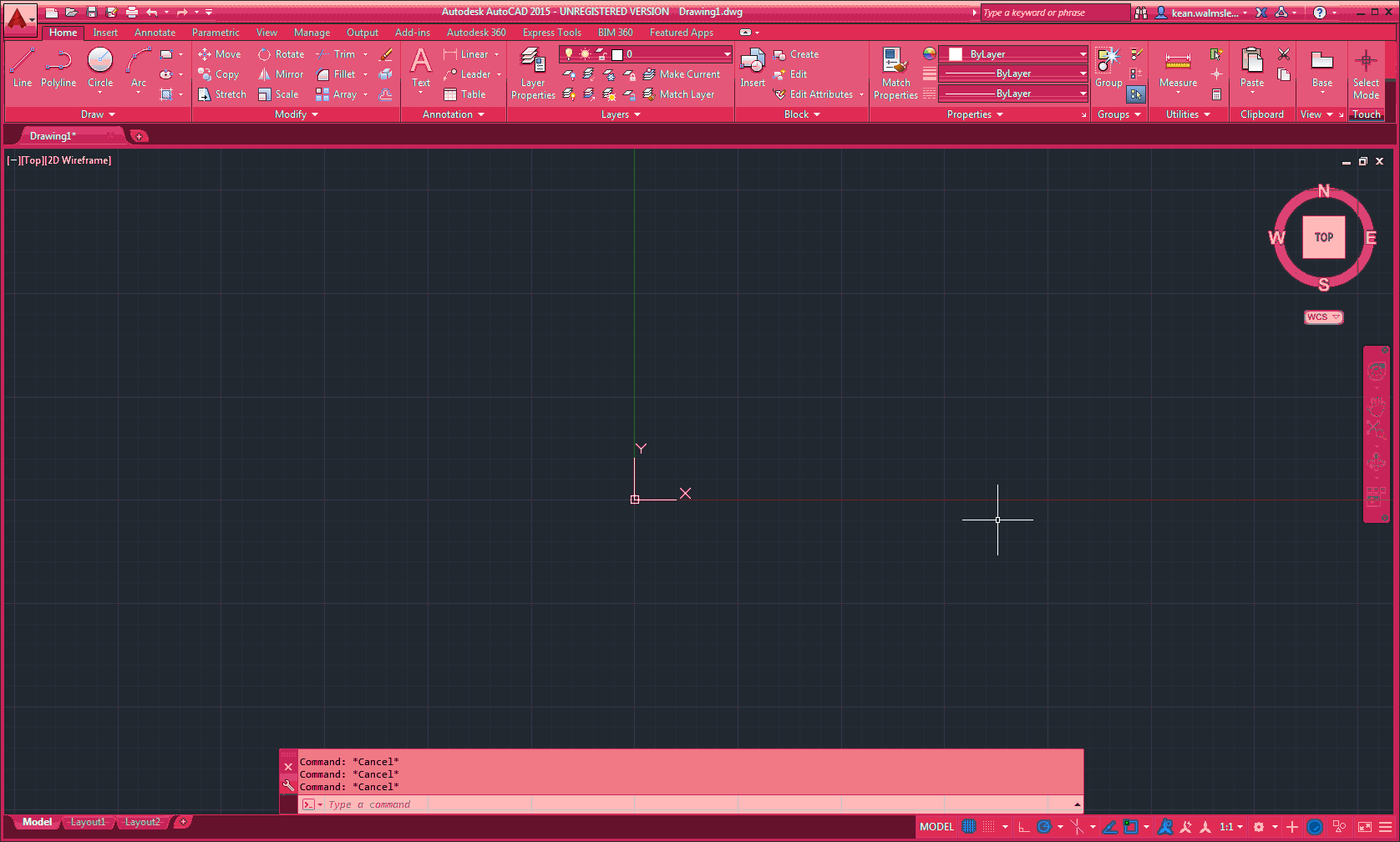
Pink theme

My 5-year old daughter absolutely loves it – she's extremely interested in what I do for work, all of a sudden. I wouldn't go as far as saying it's a way to increase female representation in STEM fields – there are lots of women who detest pink just as there are plenty of men who like it – but I dare say it won't hurt.

To make it really easy to install this new theme on your system, we've added it to the Exchange Apps Store (it may take a day or two to appear up there – we have a backlog of 2015-compatible apps to publish, it seems).

If you can't wait for the app to be posted, here's the C# code that implements it. Once compiled and NETLOADed, simply run the PRETTYINPINK command to enable the new theme.

It should be simple enough to take this code and adjust the various parameters to support a different colour, should you want to see AutoCAD in red or blue, for instance.

using System.Drawing;

using System.Linq;

using System.Windows.Forms;

using Autodesk.AutoCAD.Runtime;


namespace ThemeChange

{

  public class AdjustTheme : Form

  {

    const int bdrPrc = 20;   

    string _message = "";

    Brush _brush = null;


    public AdjustTheme(Brush brush, string message)

    {

      _brush = brush;

      _message = message;


      TopMost = true;

      ShowInTaskbar = false;

      FormBorderStyle = FormBorderStyle.None;

      BackColor = Color.Plum;

      TransparencyKey = Color.Plum;

      Width = Screen.PrimaryScreen.Bounds.Width;

      Height = Screen.PrimaryScreen.Bounds.Height;


      Paint +=

        (s, e) =>

        {

          int bdrWid = Height * bdrPrc / 100;

          var border = new Rectangle(0, 0, Width, Height);

         
e.Graphics.DrawRectangle(
new Pen(_brush, bdrWid), border);

          var f = new Font("Arial", bdrWid / 2.5f);

          var sz = e.Graphics.MeasureString(_message, f);

          int wid = (int)sz.Width;

          int hgt = (int)sz.Height;

          var rect =

            new Rectangle(

              (Width - wid) / 2, (Height - hgt) / 2,

              (int)(wid * 1.2), hgt

            );

          e.Graphics.DrawString(_message, f, _brush, rect);

        };

    }

  }


  public class ThemeChanger

  {

    private static AdjustTheme _form = null;

    private static Timer _timer = null;

    private static int _times = 0;

    private static int _maxTimes = 0;


    public static void ChangeTheme(

      Brush brush, string message, int times, double secs

    )

    {

      _form = new AdjustTheme(brush, message);

      _form.Show();

      _maxTimes = (times * 2) - 1;

      _timer = new Timer()

      {

        Interval = (int)(secs * 1000),

        Enabled
=
true

      };

      _timer.Tick +=

        (s, e) =>

        {

          if (_times++ >= _maxTimes)

          {

            _form.Hide();

            _form.Dispose();

            _form = null;

            _timer.Stop();

            _timer.Dispose();

            _timer = null;

            _times = 0;

          }

          else

          {

            if (_form.Visible)

              _form.Hide();

            else

              _form.Show();

          }

        };

    }


    public class Commands

    {

      [CommandMethod("PRETTYINPINK")]

      public void PinkTheme()

      {

        ThemeChanger.ChangeTheme(

          Brushes.HotPink,

          new string(

            new double[]{

              17.25,27.5,26.5,27.75,30.25,8,16.25,28,28.5,26.25,27,

              8,17.5,27.75,27.75,27,28.75,36.5,8,17,24.25,30.25,8.25

            }.Select<double,char>(x =>(char)(int)(x*4)).

            ToArray<char>()), 4, 2

          );

      }

    }

  }

}


Enjoy! πŸ™‚

Update:

Now that my favourite blogging day of the year has passed: for thos
e of you unable (or understandably unwilling) to run the above code, here's what happens when you do. Did anyone fall for it long enough to run it?

2 responses to “New pink theme for AutoCAD 2015”

  1. Nice! People who criticized the dark theme will be delighted!

    1. I see what you did there

  2. This just might be the absolute best improvement that AutoCAD has introduced in years πŸ˜‰ I will see if my 5 yr old likes it as well...

    1. Kean Walmsley Avatar

      Looks like she could use some cheering up, now that someone's stolen her tricycle. πŸ™‚

      Kean

  3. It doesn't work ??? It only changed icon colors ? : )

    1. Kean Walmsley Avatar

      Ooo - that's actually a theme I could use! πŸ™‚

      Kean

  4. James Maeding Avatar

    hey, that code works for previous versions too. Who would have thought?

    1. Kean Walmsley Avatar

      Indeed... an impressive bit of retrofitting. πŸ™‚

      Kean

  5. Pink Theme… Finally, someone's listening! πŸ™‚

  6. Hi Kean! Nice work!

    I've done my own version which avoids the annoying flickering text. :p
    -It's not as complete as yours though. The combo's and toggle buttons needs some more work.

    [CommandMethod("PrettyInPink")]
    public static void PrettyInPink()
    {
    RibbonControl ribCntrl =
    RibbonServices.RibbonPaletteSet.RibbonControl;
    foreach (RibbonTab tab in ribCntrl.Tabs)
    {
    tab.Theme = new TabTheme
    {
    PanelBackground = new LinearGradientBrush(Colors.SaddleBrown, Colors.Plum, 90),
    OverflowTabPanelBackground = new LinearGradientBrush(Colors.Plum,Colors.Purple,90)
    };
    foreach (RibbonPanel panel in tab.Panels)
    {
    panel.CustomPanelBackground= new LinearGradientBrush(Colors.Purple,Colors.Plum,90);
    panel.CustomSlideOutPanelBackground = new LinearGradientBrush(Colors.Plum, Colors.SlateBlue, 90);
    panel.CustomPanelTitleBarBackground = new LinearGradientBrush(Colors.Plum, Colors.MediumVioletRed,90);
    }
    }
    }

    1. Kean Walmsley Avatar

      Ha ha - very nice! πŸ™‚

      Kean

  7. James Maeding Avatar

    oh, wow. I just assumed it was a joke so never tried it or even looked close at the code.
    It actually does work in previous versions then, what a crack up.
    I did this kind of thing during Christmas using grdraw in lisp so time to upgrade that routine!

  8. Kean Walmsley Avatar

    The code was actually based on this old code, but I played around with it to obscure what it would actually do:

    keanw.com/2011/12/implementing-an-autocad-command-to-print-graphics-to-the-screen-using-net.html

    Preparing the post kept me amused for an hour or so, anyway. πŸ™‚

    Kean

  9. Interesting article and seems like fun (If it really works).
    I have been trying to get this working but have a compile error..
    The type or namespace name 'CommandMethod' could not be found
    I have also been trying to locate the app on the Autodesk exchange site without luck.
    I enjoy this sort of stuff, I use it as learning aid...
    Thanks Kean

    1. Kean Walmsley Avatar

      The code should run, but it won't make the UI pink (this was an April Fools' gag, after all).

      Kean

      1. Bummer...
        I was hoping it would work and change the theme as I was going to have some fun with a colleague during the football finals...

  10. This is available for Windows?

    1. This was an April Fools' joke. Sorry.

      Kean

      1. So bad. It's a great idea. Jaja

  11. Lorenzo Salmoiraghi Avatar
    Lorenzo Salmoiraghi

    Cercando per il web qualche custom theme mi sono imbattuto in questo, e dopo ore e ore per risolvere diversi errori/reference etc. in visual studio per buildarlo e ottenere il dll, lo carico su autocad e scopro che Γ¨ un pesce d'aprile... media0.giphy.com/me...

    1. Kean Walmsley Avatar
      Kean Walmsley

      Scusa!

Leave a Reply to Andrea Cumare Cancel reply

Your email address will not be published. Required fields are marked *