Using environment variables inside AutoCAD file path options

Operating System-level environment variables are a handy way to reduce redundancy or to simplify providing support for per-user settings. (I'm sure they're good for other things, too, but these are the ones that spring to my mind, at least. ๐Ÿ™‚

One thing I only discovered recently โ€“ and thanks to Tekno and Dieter for discussing this โ€“ is that you can use environment variables in a number of places in the file path settings accessed via AutoCAD's OPTIONS command. The topic came up in the specific context of the TRUSTEDPATHS settings, but it seems to have more general support than that.

In this post we're going to look at how you can test this capability, to see for ourselves how it might be used. For many of you the information in this post will be considered very basic, but it seemed worth covering, nonetheless.

Let's take a module โ€“ available at C:\Program Files\MyCompany\MyProduct\MyApplication.dll โ€“ for which we have demand-loading entries set up in the Registry:
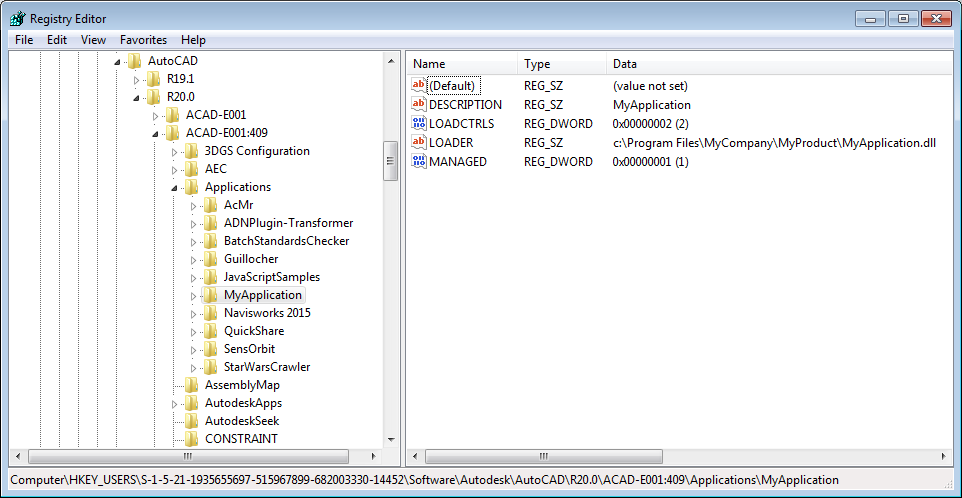
Demand loading settings

This module gets loaded as AutoCAD launches, but always brings up the "secure load" dialog:
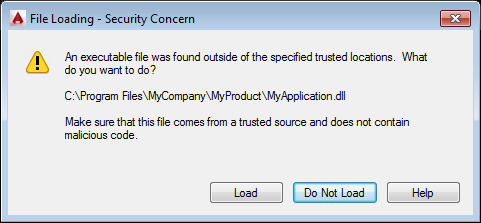
Secure load request

The right way to avoid this warning is to add the application's folder โ€“ C:\Program Files\MyCompany\MyProduct โ€“ to the TRUSTEDPATHS system variable. We could do this explicitly, of course, but let's see how we might also do this with an environment variable.

Inside a Command Prompt, we're going to type "set myproddir=C:\Program Files\MyCompany\MyProduct". We can then test this by echoing โ€“ or using dir to check the contents of โ€“ the directory referenced in %myproddir%.
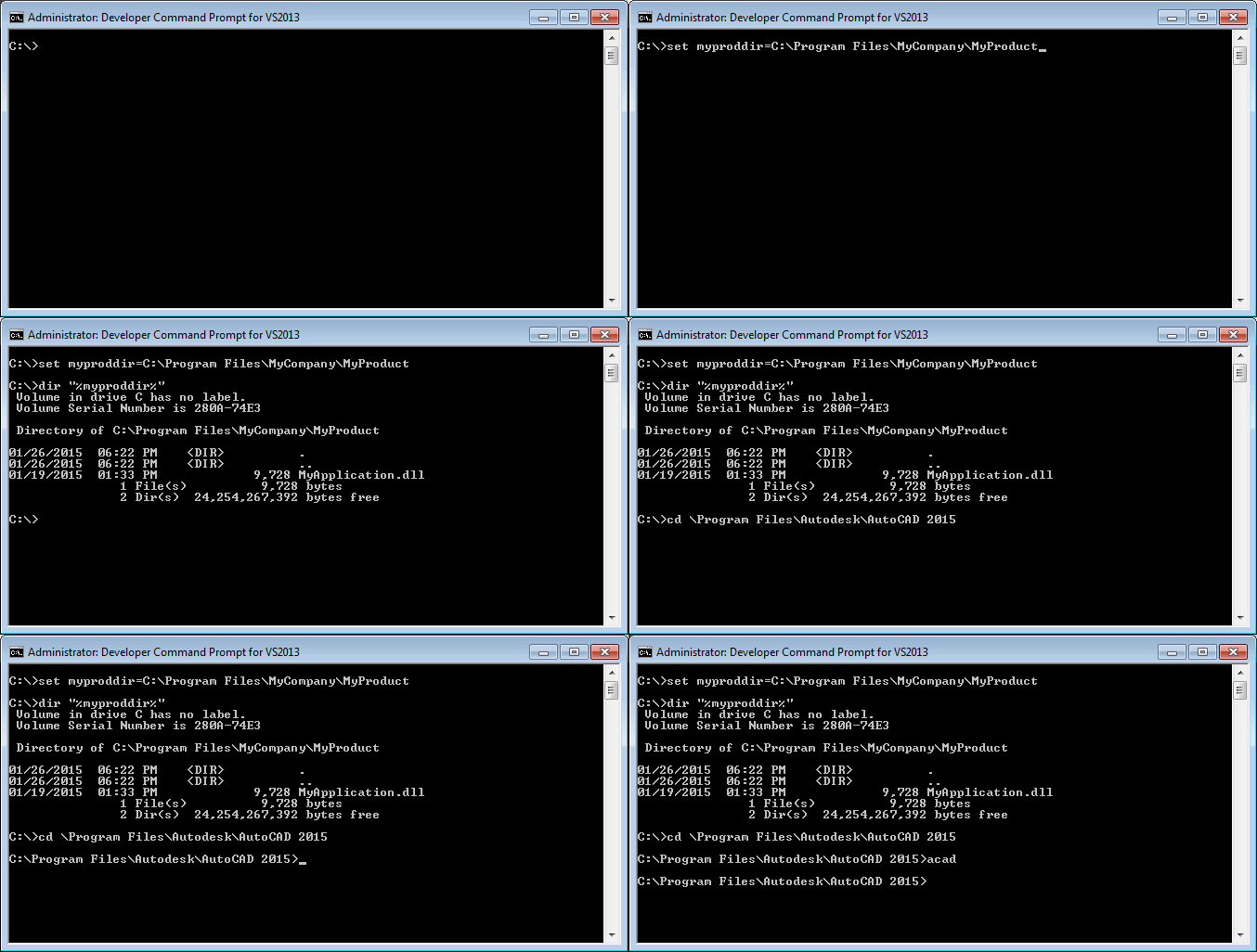
Setting an environment variable

This will only be set for processes that are children of this command-prompt, so after this we go to the AutoCAD Program Files folder and launch acad.exe from there. We could, of course, set this as a system-wide setting either via the Control Panel or using setx from the command-line, but for testing purposes we'd actually like to see what happens when the variable isn't defined.

Once AutoCAD has come up, we can reference the environment variable using %myproddir% in the Trusted Paths setting:
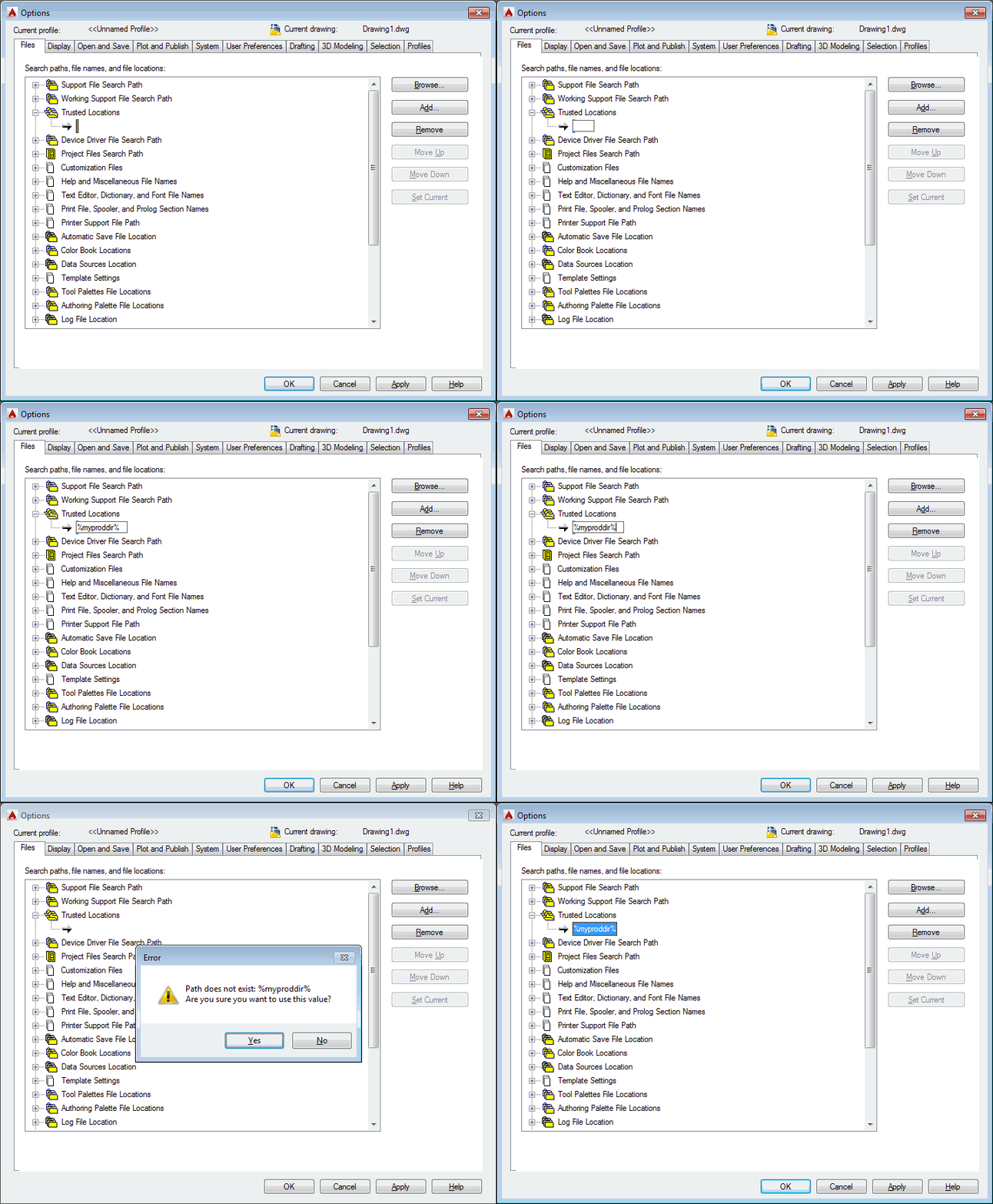
Using the environment variable inside our options

If you close the OPTIONS dialog and reopen it, you'll see the path has been resolved and displays as the actual location:
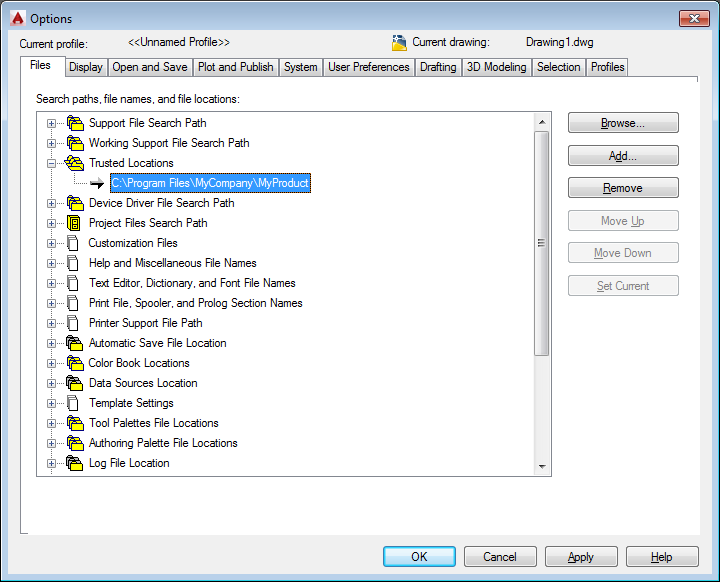
Reopening the OPTIONS dialog shows the resolved value

When you relaunch AutoCAD via our Command Prompt, you should no longer see the load warning for our custom module. However, if you launch AutoCAD from the usual shortcut โ€“ without having set the variable at the system level โ€“ you'll see %myproddir% in the list as it remains unresolved. Which means we're storing the name of the variable โ€“ rather than the resolved value โ€“ and attempting to resolve it on launch.

In case you want to access this system variable from the command-line, you can do so using (getenv):

Command: (getenv "myproddir")

"C:\\Program Files\\MyCompany\\MyProduct"

That's it for this basic introduction to using environment variables. I'd be curious to hear from people on how they use them in their own applications. Please post a comment, if you have scenarios you'd like to share.

Update:

Thanks to Glenn Ryan for mentioning the possibility to use the REG_EXPAND_SZ type to allow environment variables in Registry keys to be expanded. I tried it with the above demand-loading keys and it works perfectly (assuming you've used the Control Panel or setx to give the myproddir variable a broader scope):
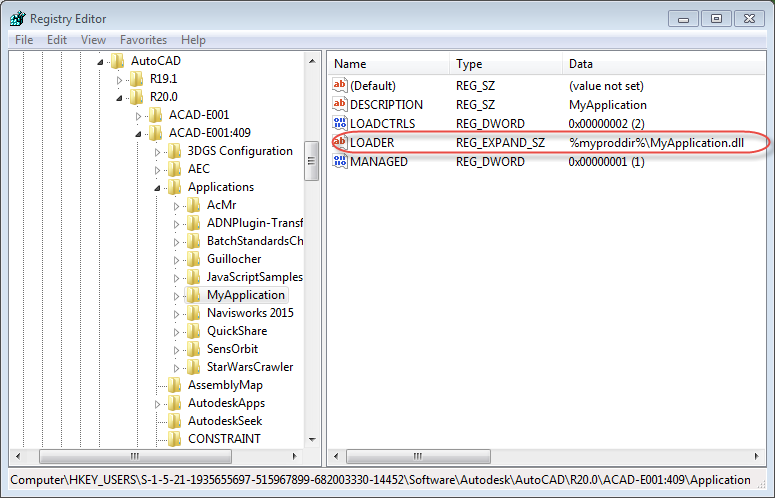
Modified demand-loading settings

This is really what you want, to be able to use the environment variable for your application's path in multiple places whether inside or outside AutoCAD. Thanks, Glenn!

11 responses to “Using environment variables inside AutoCAD file path options”

  1. Hi Kean
    I hope this finds you well. Your post is interesting and reminds me of what I was trying to accomplish 5 or more years ago, as I think system environment variables are often forgotten and completely underrated. A common practice in companies I had seen was to import an .ARG file at startup to stop people from messing with the ACAD search paths; a clean slate if you will.
    I thought this would be a prime example to use some environment variables, but it never seemed to stick. From a hazy memory (and no ACAD to check), I think I came to the conclusion that it was because the reg keys in acad's search path hive, were REG_SZ, not REG_EXPAND_SZ....or something along those lines.
    Anyway, I hope this adds a bit to the discussion.
    Regards
    Glenn Ryan

    1. Hi Glenn,

      Great to hear from you. ๐Ÿ™‚

      Interesting...

      I renamed an existing demand-loading LOADER key, replacing it with one that was REG_EXPAND_SZ containing %myproddir%\MyApplication.dll (after setting myproddir as a system-wide variable) and it worked really well.

      That's a great suggestion: you can remove redundancy even further by having everything hang off the same env vars.

      Very cool!

      Kean

      1. Hi Kean
        That was the idea - one master root path that everything hangs off and is easily changed by logon scripts/policies etc. Glad I could help.
        Take care.
        Cheers
        Glenn.

  2. Hi Kean,

    Thank you for a thought provoking post.

    I have a need to set user print support paths to the original install location and thought I would try environment variables.

    For example, using the Options/Files dialog I tried to set the plot style path using: %USERPROFILE%\appdata\roaming\autodesk\autocad 2013 - english\r19.0\enu\plotters\plot styles

    This produces a "Path does not exist:" error.

    This same string can be used successfully from a dos prompt. For example "cd %USERPROFILE%\appdata\roaming\autodesk\autocad 2013 - english\r19.0\enu\plotters\plot styles".

    I can pull the environment value and concatenate the path in my code to solve the problem. I just thought I would mention this behavior.

    1. Hi Mark,

      With AutoCAD 2015 it says "Path does not exist: ... Are you sure you want to use this value?"

      It's possible that 2013 is more rigid about such things...

      Regards,

      Kean

      1. 2013 also says "Are you sure you want to use this value?"
        But if I answer yes, then close the dialog as shown, then re-open and examine the path, it does not resolve and the path error remains.

        1. For the plot files I need to reopen AutoCAD to see the path resolved (this was not the case for Trusted Locations). I know it's resolving because when I used %appdata% as the root, the folder names were capitalicised.

          But yes... knowing when things are working here is admittedly a bit confusing.

          Kean

  3. First thing let me apologize for not thanking you more often over the years for this blog. I wrapped up the file options in a class to help handle them but found it easiest to just use
    Environment.ExpandEnvironmentVariables(string path) on each path passed in and resolve it there.

    1. Useful information, Jeff. Thanks for sharing this.

      Kean

  4. Thanks for the article. I install AutoCAD LT throughout the office & use the %USERNAME% variable as a way of reusing profiles.
    I typically install it first on my PC, run it a few months to set it up & see if our macros still work. LT doesn't have a profile export option, so I have to do it via a registry export. Just before exporting, I replace my login name with %USERNAME%, then export the registry. It used to work perfectly, but with LT 2014, some of the entries default back to my name rather than the variable. I usually roll a new version out to the office after the service pack is released.

  5. Chuck Rheault Avatar

    Looking in the registry, many of the paths in the Profiles key are REG_EXPAND_SZ types which seems to indicate his method will work for any of those.

Leave a Reply to JeffH Cancel reply

Your email address will not be published. Required fields are marked *