Disabling AutoCAD’s complete UI using .NET

In the first post in this series, we saw how to disable AutoCAD's ribbon. In the second post, we saw how to make (with some caveats) AutoCAD's toolbars disappear. In this post we're going to throw all that away and show how to get better results with a single line of code. <sigh>

But before all that, a big "thanks" to both James Meading and Alexander Rivilis, who have helped us get to this point.

James pointed out a fairly significant flaw in yesterday's toolbar-hiding code (hence the mention of caveats, above), in that it didn't place toolbars on multiple rows at exactly the same position when they're made visible, once again. I started to work around this by making toolbars visible in the order of their "top" index: this seemed to work well enough in my cursory tests, but I didn't see a little strangeness that I was planning on dealing with today.

But, overnight, Alexander provided some MFC code that disables AutoCAD's UI at a more basic level: disabling the complete AutoCAD frame with all of its user interface elements, avoiding us having to hide anything.

I took Alexander's code and found a simple way to make it work from C# using P/Invoke. And that's the code we're going to see today:

using Autodesk.AutoCAD.ApplicationServices;

using Autodesk.AutoCAD.Runtime;

using System;

using System.Runtime.InteropServices;


namespace UserInterfaceManipulation

{

  public class Commands

  {

    [DllImport("user32.dll")]

    static extern bool EnableWindow(IntPtr hWnd, bool bEnable);


    [CommandMethod("DU")]

    public static void DisableUICommand()

    {

      EnableUI(false);

    }


    [CommandMethod("EU")]

    public static void EnableUICommand()

    {

      EnableUI(true);

    }


    public static void EnableUI(bool enable)

    {

      EnableWindow(Application.MainWindow.Handle, enable);

    }

  }

}


Here are the updated DU and EU commands in action, disabling and enabling the AutoCAD UI, respectively.
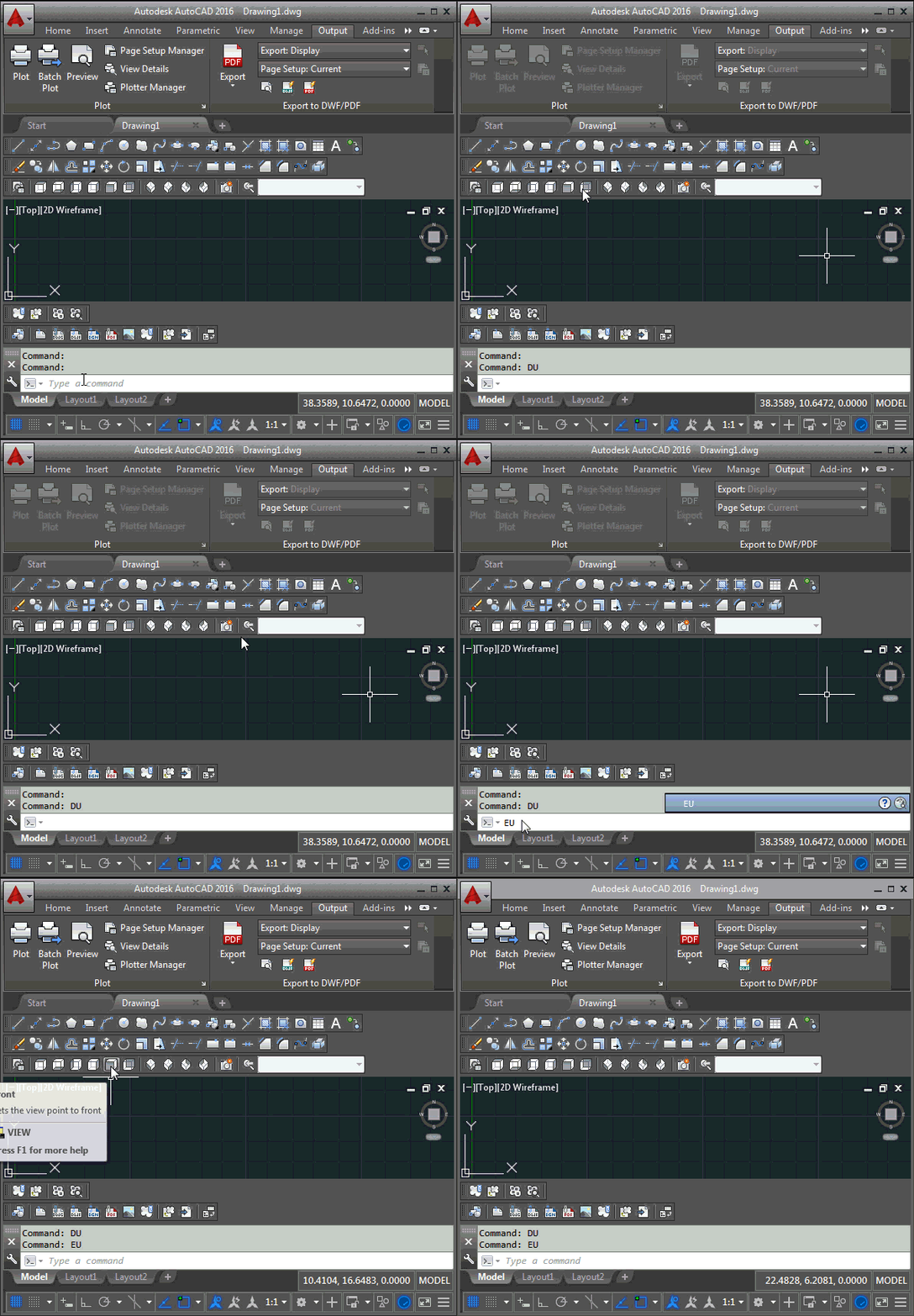
Disabling the full UI

You'll notice that disabling leaves the toolbars in their place and doesn't grey them out, but that hovering over them shows that they're properly disabled. While disabled, the ribbon is greyed out in much the way we saw at the beginning of the week.

11 responses to “Disabling AutoCAD’s complete UI using .NET”

  1. Fortunately it doesn't disable the Command Line...

    1. Ah yes - good point.

      So maybe not the "complete" UI, after all. ๐Ÿ™‚

      Kean

    2. Alexander Rivilis Avatar

      In my case (AutoCAD 2015 & 2016) command DU disable also Command Line, so it is impossible to start EU command. That is why in my sample there is a one command, in which:
      1. Disable UI
      2. Performed some work
      3. Enable UI

      1. Strange: for me (with AutoCAD 2016, as you can see in the post) the command-line still worked. I couldn't select it, but I could type and the characters would appear there.

        But you would never do this from separate commands, of course, so hopefully this is a non-issue.

        Kean

        1. Alexander Rivilis Avatar

          I checked it and found that it depends on whether the command line is floating or docked: knowledge.autodesk....

          1. Ah - that makes sense.

            Kean

  2. wish I had something to make tooltips disappear when needed. I like them on for many things, but then they get in the way sometimes, and you have to cancel all you are doing to turn them off. If only I could toggle them transparently with some command...maybe its easy I just have not thought about it too much.
    BTW, I am loving the "ctrl-v always paste to command line if cboard has text" thing you did a while back!

    1. Oh, you mean this? keanw.com/2012/12/hooking-into-autocad-copy-paste-via-ctrl-c-and-v-using-net.html

      I had to search for it - I'd forgotten all about it. This is happening all too often, these days. ๐Ÿ™

      Also, I've found a way to disable tooltips - I'll write up a quick post. ๐Ÿ™‚

      Kean

  3. Kean, a blog housekeeping comment here...the comments item always shows 0 on the compressed view you see when opening your blog first page. I actually use that so noticed it. And I personally ussure its never reall 0...ha ha...thx

    1. That may be because I'm sharing Disqus comments between this blog and the new one I'm working on... I'll see if there's a way I can make it work. Thanks for spotting it!

      Kean

    2. OK, I think it's fixed, for now.

      Thanks again,

      Kean

Leave a Reply to Kean Walmsley Cancel reply

Your email address will not be published. Required fields are marked *