It turns out that the forum request I attempted to cover in the last post – handily re-interpreted to deal with something I knew how to do 😉 – was in fact about toolbars, rather than the ribbon. In this post we're going to look at how to disable toolbars – and re-enable them – using .NET, so that Pete's original request is dealt with.
To start with, there's no real way to grey out toolbars via the API – at least not at the toolbar level, perhaps it can be done per toolbar item – so I've opted just to make them invisible. We're going to do so via the COM API, but we'll use the handy dynamic object in C# to avoid the project reference to the AutoCAD type library.
My first attempt was pretty funny: I went through all the menu groups and turned on all the toolbars contained within. A great way to mess with your colleagues, if you're into that kind of thing. 🙂
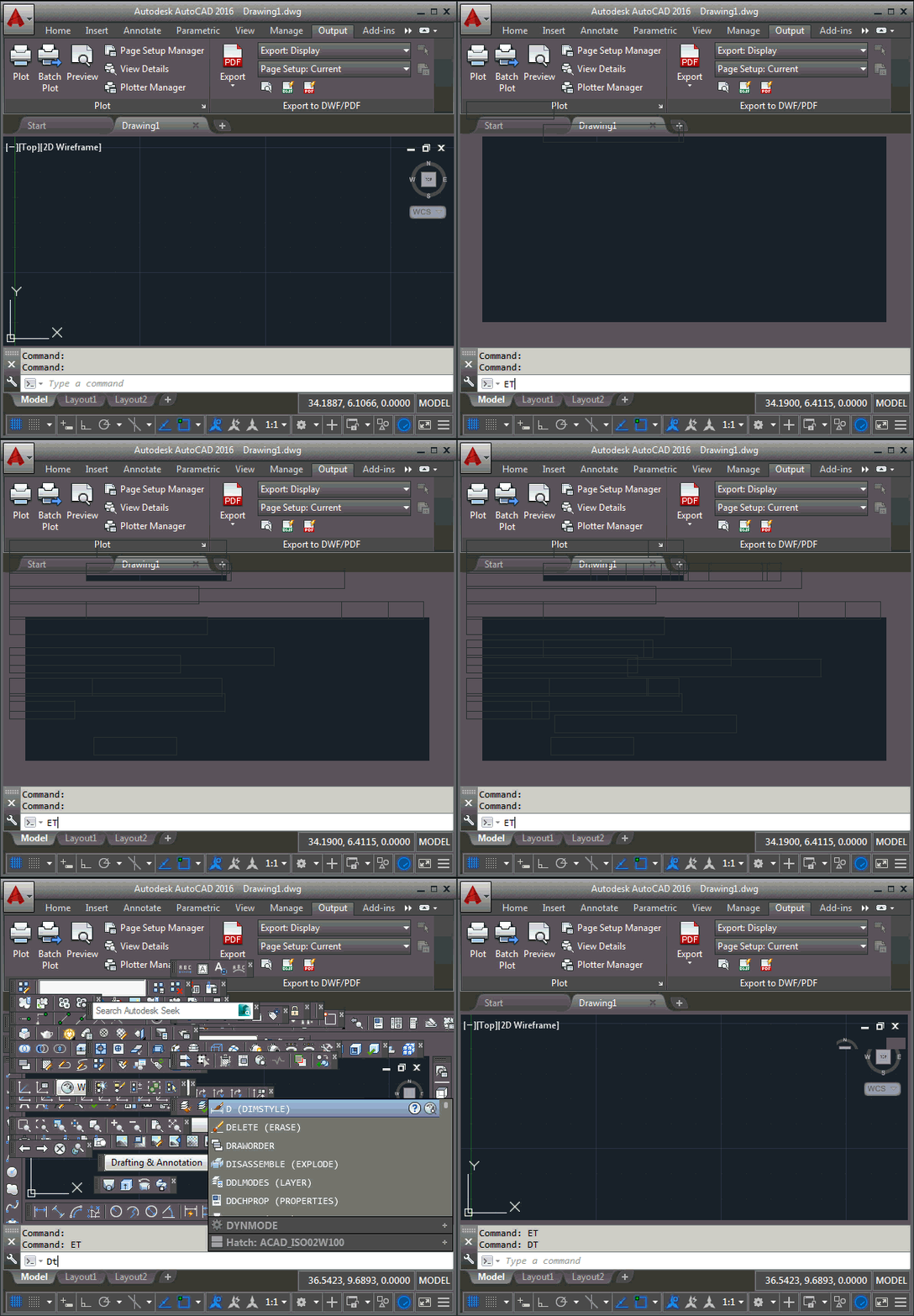
The next attempt was more successful: rather than blindly modifying every toolbar, the "disable" pass stores any visible toolbars in a list before making them invisible, and the "enable" pass then uses this to decide which toolbars to make visible again. The "enable" path could probably be optimised not to iterate through the whole set of toolbars – we could probably get these directly from the menu groups, or perhaps store the indices to even avoid a look-up – but that's been left as an exercise for the reader. As a "one off" I doubt very much that the performance impact would be an important issue.
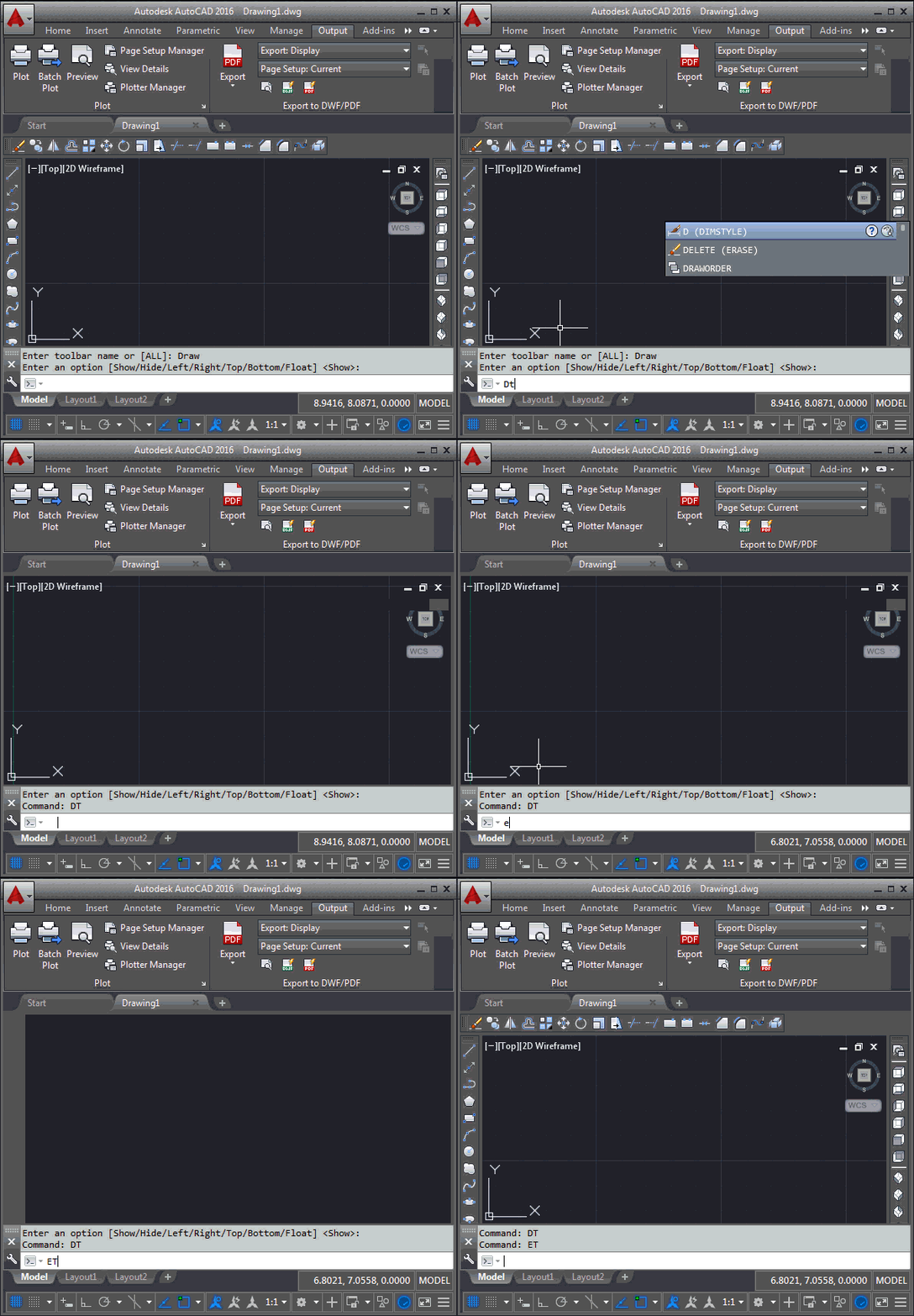
Here's the C# code – extended from last time – that implements the additional DT and ET commands for disabling/enabling toolbars as well as the DU and EU commands for disabling/enabling both the ribbon and any visible toolbars at the same time.
using Autodesk.AutoCAD.ApplicationServices;
using Autodesk.AutoCAD.Runtime;
using Autodesk.Windows;
using System.Collections.Generic;
namespace UserInterfaceManipulation
{
public class Commands
{
private static bool _showTipsOnDisabled = false;
private static List<string> _visibleToolbars = new List<string>();
[CommandMethod("DR")]
public static void DisableRibbonCommand()
{
EnableRibbon(false);
}
[CommandMethod("ER")]
public static void EnableRibbonCommand()
{
EnableRibbon(true);
}
[CommandMethod("DT")]
public static void DisableToolbarCommand()
{
EnableToolbars(false);
}
[CommandMethod("ET")]
public static void EnableToolbarCommand()
{
EnableToolbars(true);
}
[CommandMethod("DU")]
public static void DisableUICommand()
{
EnableUI(false);
}
[CommandMethod("EU")]
public static void EnableUICommand()
{
EnableUI(true);
}
public static void EnableUI(bool enable)
{
EnableRibbon(enable);
EnableToolbars(enable);
}
public static void EnableRibbon(bool enable)
{
// Start by making sure we have a ribbon
// (if calling from a command this will almost certainly just return
// the ribbin that already exists)
var rps = Autodesk.AutoCAD.Ribbon.RibbonServices.CreateRibbonPaletteSet();
// Enable or disable it
rps.RibbonControl.IsEnabled = enable;
if (!enable)
{
// Store the current setting for "Show tooltips when the ribbon is disabled"
// and then modify the setting
_showTipsOnDisabled = ComponentManager.ToolTipSettings.ShowOnDisabled;
ComponentManager.ToolTipSettings.ShowOnDisabled = enable;
}
else
{
// Restore the setting for "Show tooltips when the ribbon is disabled"
ComponentManager.ToolTipSettings.ShowOnDisabled = _showTipsOnDisabled;
}
// Enable or disable background tab rendering
rps.RibbonControl.IsBackgroundTabRenderingEnabled = enable;
}
public static void EnableToolbars(bool enable)
{
// Clear the list of toolbars that were previously visible, if we're
// disabling
if (!enable)
{
_visibleToolbars.Clear();
}
// Use dynamic .NET to avoid the COM typelib reference
// (all the implicit "vars" below will also be resolved to dynamics)
dynamic app = Application.AcadApplication;
// Iterate through all the menu groups
var mgs = app.MenuGroups;
foreach (var mg in mgs)
{
// Iterate through a menu group's toolbars
var tbs = mg.Toolbars;
foreach (var tb in tbs)
{
// If we're disabling, check whether the toolbar is visible
// and, if so, add its ID to the list before turning it off
if (!enable)
{
if (tb.Visible)
{
_visibleToolbars.Add(tb.TagString);
tb.Visible = false;
}
}
else
{
// If we're enabling, check whether the toolbar is in our list
// before turning it on
if (_visibleToolbars.Contains(tb.TagString))
{
tb.Visible = true;
}
}
}
}
}
}
}
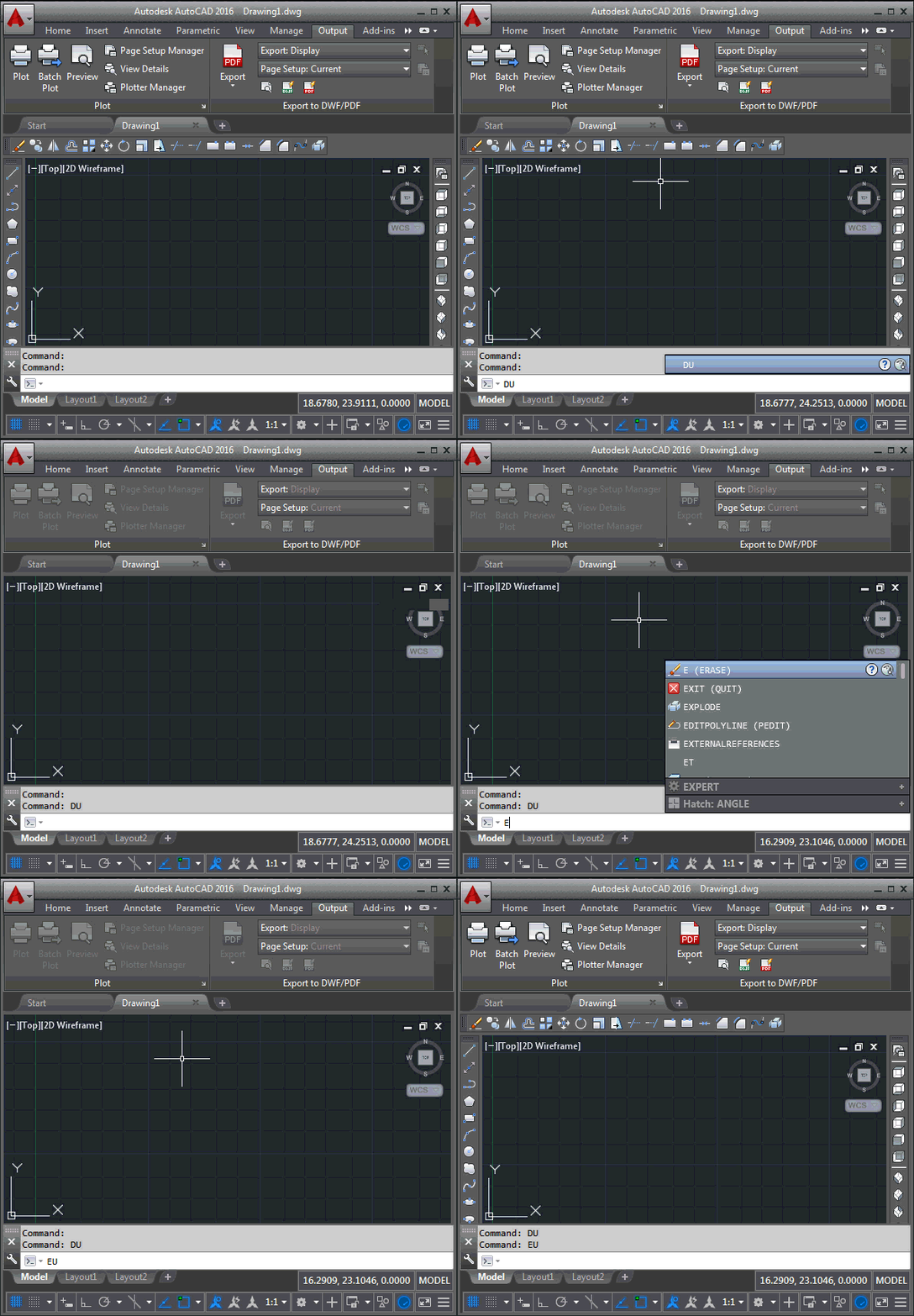
Here are the commands that disable and enable both the ribbon and toolbars in action (you would of course just call EnableUI(false); before your initialization code and call EnableUI(true); afterwards).


Leave a Reply to Kean Walmsley Cancel reply