This is really interesting news I've been waiting to share for a while, now. And of course it's the answer to the question I posed in my last post (this is the service the dashboard has been monitoring). Once I get back home to Switzerland I'll go through the various comments on the post and LinkedIn, to see who wins the prize. 🙂
The AutoCAD team has been working hard on a cloud-based batch-processing framework that works with AutoCAD data. The current name for the service is the AutoCAD I/O API – Beta.
The service is powered by AcCore, the cross-platform AutoCAD "Core Engine" that was originally created when we built AutoCAD for Mac, during the "Big Split" project. (A side note: the initial working name for this service was AutoCAD Core Engine Services – or ACES – so don't be confused if you still see references to that name.)
The service is targeted at offline operations – meaning batch processing or operations that don't require immediate feedback – which allows us to queue the operations to execute optimally. That said, we're usually talking about seconds to execute, rather than hours or days. 🙂
In essence, the service allows developers to call through to an instance of AcCore – running up there in the cloud – to run an AutoCAD Script to perform operations related to AutoCAD data and then access the results, all through HTTP. Which means, of course, that it can be used from any device that connects to HTTP, which now includes a number of children's toys. 😉
That said, as with any authenticated web-service you will need a client ID and key to gain access. You will not want to share this as part of a client-side application, so you'll need to create a lightweight web-service yourself that handles authentication, just as we saw when developing an application with Autodesk's first PaaS offering, the Viewing & Data API.
But for testing purposes we won't worry about that. Our first application – courtesy of my friend and colleague, Albert Szilvasy – is a simple console application that makes use of the client ID and key directly to authenticate against the AutoCAD I/O API and then use it to create a DWG containing a line and output that to PDF. (In case you're interested in this service's "bona fides" it is currently being used to service all PDF output requests from AutoCAD 360. And that's really just the beginning…)
To get this working, create a simple console application project inside Visual Studio. Call it "AutoCADIoSample" – just to make sure the code works when you copy & paste it in – and add a service reference to "https://autocad.io/api/v1" called "AutoCADIo" (you'll find step-by-step instructions here).
Now you should be ready to copy & paste the following C# code into the Program.cs file. You will, of course, need to apply for your own ID and key (you can do so from here) and paste them into the clientId and clientKey constants.
using System;
using System.IO;
using System.Linq;
using System.Net.Http;
using System.Data.Services.Client;
using Microsoft.IdentityModel.Clients.ActiveDirectory;
namespace AutoCADIoSample
{
class Program
{
const string clientId = "12345678-1234-1234-1234-123467890AB";
const string clientKey =
"s0meMad3upT3xt5upp053dT0R3pr353ntAVal1dk3y";
static void Main(string[] args)
{
// Obtain token from active directory
var authCon =
new AuthenticationContext(
"https://login.windows.net/acesprodactdir.onmicrosoft.com"
);
var cred = new ClientCredential(clientId,clientKey);
var token =
authCon.AcquireToken("https://autocad.io/api/v1", cred).
CreateAuthorizationHeader();
// Instruct client side library to insert token as
// Authorization value into each request
var container =
new AutoCADIo.Container(
new Uri("http://autocad.io/api/v1/")
);
container.SendingRequest2 +=
(s, e) => e.RequestMessage.SetHeader("Authorization", token);
// Remove any existing instances of our activity
var actsToDel =
container.Activities.Where(a => a.Id == "CreateALine");
foreach (var actToDel in actsToDel)
container.DeleteObject(actToDel);
container.SaveChanges();
// Create our new activity which generates a DWG containing
// a line and exports it to PDF
var act =
new AutoCADIo.Activity()
{
UserId = "",
Id = "CreateALine",
Version = 1,
Instruction = new AutoCADIo.Instruction()
{
// The instruction is simply an AutoCAD Script
Script =
"_tilemode 1 _line 0,0 1,1 _tilemode 0 " +
"_save result.dwg\n" +
"_-export _pdf _all result.pdf\n"
},
Parameters = new AutoCADIo.Parameters()
{
InputParameters =
{
new AutoCADIo.Parameter()
{
Name = "HostDwg", LocalFileName = "$(HostDwg)"
}
},
OutputParameters =
{
new AutoCADIo.Parameter()
{
Name = "DwgResult", LocalFileName = "result.dwg"
},
new AutoCADIo.Parameter()
{
Name = "PdfResult", LocalFileName = "result.pdf"
}
}
},
RequiredEngineVersion = "20.0"
};
// Add the activity to our container
container.AddToActivities(act);
container.SaveChanges();
// List the available activities: should include CreateALine
foreach (var a in container.Activities)
{
Console.WriteLine("-----------");
Console.WriteLine("Activity Id: {0}", a.Id);
Console.WriteLine("User Id: {0}", a.UserId);
Console.WriteLine("Instruction: {0}", a.Instruction.Script);
Console.WriteLine(
"Command Line: {0}",
!string.IsNullOrWhiteSpace(
a.Instruction.CommandLineParameters
) ? a.Instruction.CommandLineParameters :
"/i {hostdwg} /i {instructions.scr}");
foreach (var p in a.Parameters.InputParameters)
Console.WriteLine(
"Input '{0}' will be named as '{1}' in working folder.",
p.Name, p.LocalFileName
);
foreach (var p in a.Parameters.OutputParameters)
Console.WriteLine(
"Output '{0}' will cause file '{1}' to be uploaded " +
"from working folder.", p.Name, p.LocalFileName
);
}
// Create a workitem referencing our new activity
var wi = new AutoCADIo.WorkItem()
{
UserId = "", // Must be set to empty
Id = "", // Must be set to empty
Arguments = new AutoCADIo.Arguments(),
Version = 1, // Should always be 1
ActivityId =
new AutoCADIo.EntityId()
{
UserId = clientId, Id = "CreateALine"
}
};
// Specify an input DWG, which will actually be a blank DWT
wi.Arguments.InputArguments.Add(
new AutoCADIo.Argument()
{
Name = "HostDwg", // Must match activity's input parameter
Resource =
"https://s3.amazonaws.com/" +
"AutoCAD-Core-Engine-Services/TestDwg/acad.dwt",
StorageProvider = "Generic" // Generic HTTP download
}
);
// We'll post the DWG to a specified storage location
// (using generic HTTP rather than storing to A360)
wi.Arguments.OutputArguments.Add(
new AutoCADIo.Argument()
{
Name = "DwgResult", // Must match activity's output param
StorageProvider = "Generic", // Generic HTTP upload
HttpVerb = "POST", // Use HTTP POST when delivering result
Resource = null // Use storage provided by AutoCAD.io
}
);
// We'll also post the PDF to a specified storage location
// (using generic HTTP rather than storing to A360)
wi.Arguments.OutputArguments.Add(
new AutoCADIo.Argument()
{
Name = "PdfResult", // Must match activity's output param
StorageProvider = "Generic", // Generic HTTP upload
HttpVerb = "POST", // Use HTTP POST when delivering result
Resource = null // Use storage provided by AutoCAD.io
}
);
// Add the work item to our container
container.AddToWorkItems(wi);
container.SaveChanges();
// Once saved, the work item should start executing...
// We'll poll every 5 seconds to see if it's finished
do
{
Console.WriteLine("Sleeping a bit...");
System.Threading.Thread.Sleep(5000);
container.LoadProperty(wi, "Status"); // Http request here
}
while (wi.Status == "Pending" || wi.Status == "InProgress");
Console.WriteLine("\nRequest completed. Querying results...");
// Re-query the service so that we can use the results
container.MergeOption = MergeOption.OverwriteChanges;
wi =
container.WorkItems.Where(
p => p.UserId == wi.UserId && p.Id == wi.Id
).First();
// Resource property of the output argument "PdfResult"
// will have the output url for the PDF
// (for the DWG we'd do exactly the same for "DwgResult")
var url =
wi.Arguments.OutputArguments.First(
a => a.Name == "PdfResult"
).Resource;
if (url != null)
{
// Download the resultant PDF, store it locally
var client = new HttpClient();
var content =
(StreamContent)client.GetAsync(url).Result.Content;
var pdf = "z:\\Data\\line.pdf";
if (File.Exists(pdf))
File.Delete(pdf);
using (var output = File.Create(pdf))
{
content.ReadAsStreamAsync().Result.CopyTo(output);
output.Close();
}
Console.WriteLine("PDF downloaded to \"{0}\".", pdf);
}
url = wi.StatusDetails.Report;
if (url != null)
{
// Download the report, store it locally
var client = new HttpClient();
var content =
(StreamContent)client.GetAsync(url).Result.Content;
var report = "z:\\Data\\AutoCADIoReport.txt";
if (File.Exists(report))
File.Delete(report);
using (var output = File.Create(report))
{
content.ReadAsStreamAsync().Result.CopyTo(output);
output.Close();
}
Console.WriteLine("Report downloaded to \"{0}\".", report);
}
// Wait for a key to be pressed
Console.WriteLine("Press a key to continue...");
Console.ReadKey();
}
}
}
A few words on what's happening here.
After authenticating to use the service, we create a new Activity – think of this as being like a cloud-based "function" for us to call – which will create a DWG file and publish it to PDF.
To make use of this Activity, we need to create a WorkItem – which is like a function call providing the various arguments the function needs to operate.
Once the WorkItem has completed, we simply need to query its data via the service, as it should now have been populated by the AutoCAD I/O API with the various URLs to the output data. We can then query this data and save them to local files.
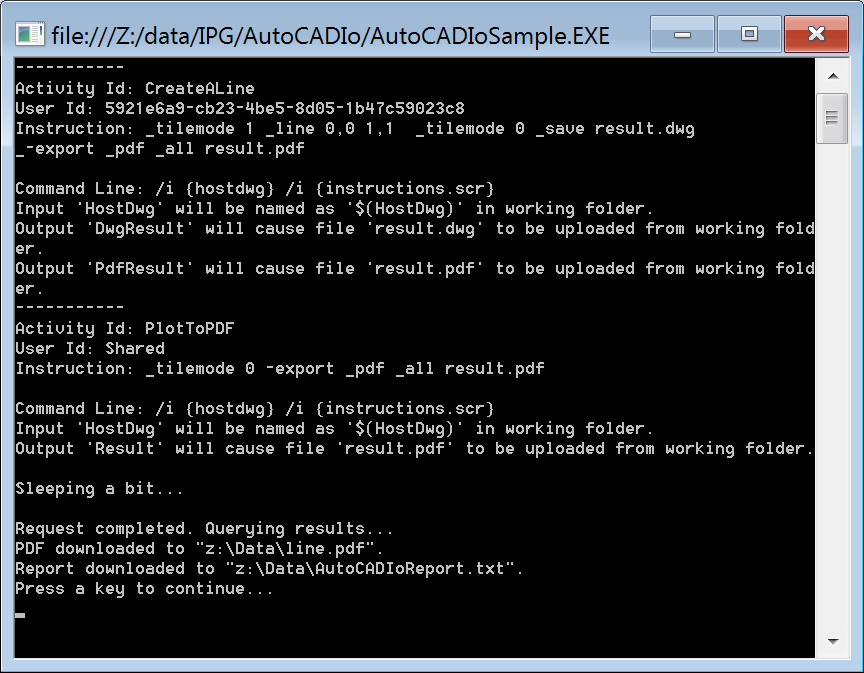
Here's the console window output when we run this code:
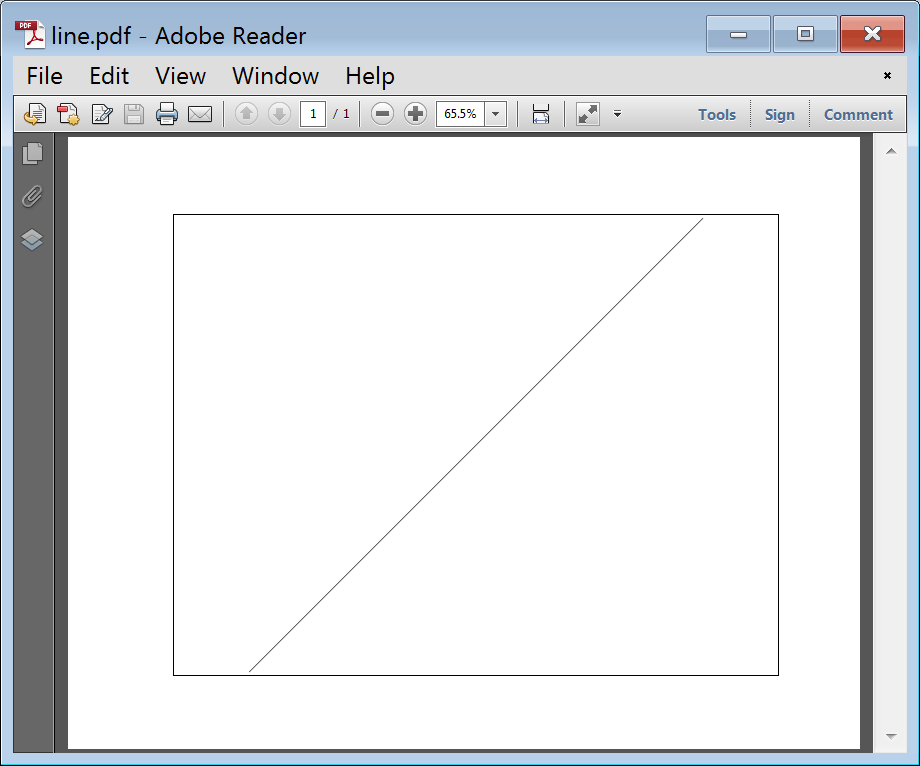
Here's the PDF:
And here are the contents of the report, to give you a sense for the kind of logging performed:
[10/03/2014 08:12:05] Starting work item 9c6f00ec93c1480dba00cd0974b84a46
[10/03/2014 08:12:05] Start download phase.
[10/03/2014 08:12:05] Start downloading file https://s3.amazonaws.com/AutoCAD-Core-Engine-Services/TestDwg/acad.dwt.
[10/03/2014 08:12:05] Bytes downloaded = 31419
[10/03/2014 08:12:05] https://s3.amazonaws.com/AutoCAD-Core-Engine-Services/TestDwg/acad.dwt downloaded as C:\Users\acesworker\AppData\LocalLow\jobs\9c6f00ec93c1480dba00cd0974b84a46\acad.dwt.
[10/03/2014 08:12:05] End download phase.
[10/03/2014 08:12:05] Start preparing script and command line parameters.
[10/03/2014 08:12:05] Start script content.
[10/03/2014 08:12:05] _tilemode 1 _line 0,0 1,1 _tilemode 0 _save result.dwg
_-export _pdf _all result.pdf
[10/03/2014 08:12:05] End script content.
[10/03/2014 08:12:05] Command line: /i "C:\Users\acesworker\AppData\LocalLow\jobs\9c6f00ec93c1480dba00cd0974b84a46\acad.dwt" /isolate job_9c6f00ec93c1480dba00cd0974b84a46 "C:\Users\acesworker\AppData\LocalLow\jobs\9c6f00ec93c1480dba00cd0974b84a46\userdata" /s "C:\Users\acesworker\AppData\LocalLow\jobs\9c6f00ec93c1480dba00cd0974b84a46\script.scr"
[10/03/2014 08:12:05] End preparing script and command line parameters.
[10/03/2014 08:12:05] Start script phase.
[10/03/2014 08:12:05] Start AutoCAD Core Console output.
[10/03/2014 08:12:05] Redirect stdout (file: C:\Users\ACESWO~1\AppData\Local\Temp\accc21082).
[10/03/2014 08:12:05] AutoCAD Core Engine Console - Copyright Autodesk, Inc 2009-2013.
[10/03/2014 08:12:05] Isolating to userId=job_9c6f00ec93c1480dba00cd0974b84a46, userDataFolder=C:\Users\acesworker\AppData\LocalLow\jobs\9c6f00ec93c1480dba00cd0974b84a46\userdata.
[10/03/2014 08:12:05] Regenerating model.
[10/03/2014 08:12:05] Command:
[10/03/2014 08:12:05] Command:
[10/03/2014 08:12:05] Command:
[10/03/2014 08:12:05] Command: _tilemode
[10/03/2014 08:12:05] Enter new value for TILEMODE <1>: 1
[10/03/2014 08:12:05] Command: _line
[10/03/2014 08:12:05] Specify first point: 0,0
[10/03/2014 08:12:05] Specify next point or [Undo]: 1,1
[10/03/2014 08:12:05] Specify next point or [Undo]:
[10/03/2014 08:12:05] Command: _tilemode
[10/03/2014 08:12:05] Enter new value for TILEMODE <1>: 0 Regenerating layout.
[10/03/2014 08:12:05] Regenerating model - caching viewports.
[10/03/2014 08:12:05] Command: _save Save drawing as <C:\Users\acesworker\AppData\LocalLow\jobs\9c6f00ec93c1480dba00cd0974b84a46\userdata\Local\template\acad.dwt>: result.dwg
[10/03/2014 08:12:06] Command: _-export Enter file format [Dwf/dwfX/Pdf] <dwfX>_pdf Enter plot area [Current layout/All layouts]<Current Layout>: _all
[10/03/2014 08:12:06] Enter file name <acad-Layout1.pdf>: result.pdf
[10/03/2014 08:12:06] Regenerating layout.
[10/03/2014 08:12:06] Regenerating model.
[10/03/2014 08:12:06] Command:
[10/03/2014 08:12:06] Command: Effective plotting area: 8.04 wide by 10.15 high
[10/03/2014 08:12:06] Effective plotting area: 6.40 wide by 8.40 high
[10/03/2014 08:12:06] Plotting viewport 2.
[10/03/2014 08:12:06] Plotting viewport 1.
[10/03/2014 08:12:06] Command: _quit
[10/03/2014 08:12:06] End AutoCAD Core Console output
[10/03/2014 08:12:06] End script phase.
[10/03/2014 08:12:06] Start upload phase.
[10/03/2014 08:12:06] Start uploading.
[10/03/2014 08:12:06] Target url: https://acesprod-bucket.s3-us-west-1.amazonaws.com/aces-workitem-outputs/9c6f00ec93c1480dba00cd0974b84a46/result.dwg?AWSAccessKeyId=ASIAIURT4LB4UT6AQUQQ&Expires=1412327526&x-amz-security-token=AQoDYXdzEHAa0ANVvX5bcflsH6HOUgkdeZaXsnR523sDP0j%2FwKSG%2B4fXEwLpAQF5oOXaq2s2gOIFFlbY0AeL7K%2BTx%2Bpnr2wyc5LVAgu5YrTZDt01BTS4YL5NYGPHJqZuYrFpX673UomYh1qdhK31l%2BJFzqk1L5NZofkQneY9FUPYQGxkEhGivI4ZCc%2FNqvd250Epc20DaWbAboE2kjLtEp5XkZRmfPR5StaerELbJNDk6ETlZBN4z%2FwSTxR5Yg1lhq%2BbIc27fDroU%2BLWJrkgbJUmQpXAqLDnmoVRR6RUopcWSM0sS8Mecq7iv%2BGhW%2F2udeMT8Ik9xfeVn19xRJ%2BVzww%2FkT6lY8v5AkwSVx3OGNAFPlAmFOPwWEzFrSTQXn9XU9hkE2TQY29wiLRTbL5EjOxV1anrYRnm7UjIOpY0h%2BdQjQO4fer3SAJZWx17Kk%2FF0iGT35n09pGElPqpiwcy%2FoCjNs432TGJXMLq1mOw5KqEUc7CkMF6pPbiJUc5109tsS4SALh%2B5cQhWP0pibYKns1vsxZioA9mEVClsezKsq%2BJRzjUkWbpVbEDz7fCy7ncY0yN0gWCTX5eIWwQdbzg%2BP%2Bv9au44OhJMPpiOu54IUCVNZnY2Du2kEkgayD4krmhBQ%3D%3D&Signature=4lUgaBWg6N8KeNUgpGfSl7Wcoy8%3D
[10/03/2014 08:12:06] End uploading.
[10/03/2014 08:12:06] Start uploading.
[10/03/2014 08:12:06] Target url: https://acesprod-bucket.s3-us-west-1.amazonaws.com/aces-workitem-outputs/9c6f00ec93c1480dba00cd0974b84a46/result.pdf?AWSAccessKeyId=ASIAIURT4LB4UT6AQUQQ&Expires=1412327527&x-amz-security-token=AQoDYXdzEHAa0ANVvX5bcflsH6HOUgkdeZaXsnR523sDP0j%2FwKSG%2B4fXEwLpAQF5oOXaq2s2gOIFFlbY0AeL7K%2BTx%2Bpnr2wyc5LVAgu5YrTZDt01BTS4YL5NYGPHJqZuYrFpX673UomYh1qdhK31l%2BJFzqk1L5NZofkQneY9FUPYQGxkEhGivI4ZCc%2FNqvd250Epc20DaWbAboE2kjLtEp5XkZRmfPR5StaerELbJNDk6ETlZBN4z%2FwSTxR5Yg1lhq%2BbIc27fDroU%2BLWJrkgbJUmQpXAqLDnmoVRR6RUopcWSM0sS8Mecq7iv%2BGhW%2F2udeMT8Ik9xfeVn19xRJ%2BVzww%2FkT6lY8v5AkwSVx3OGNAFPlAmFOPwWEzFrSTQXn9XU9hkE2TQY29wiLRTbL5EjOxV1anrYRnm7UjIOpY0h%2BdQjQO4fer3SAJZWx17Kk%2FF0iGT35n09pGElPqpiwcy%2FoCjNs432TGJXMLq1mOw5KqEUc7CkMF6pPbiJUc5109tsS4SALh%2B5cQhWP0pibYKns1vsxZioA9mEVClsezKsq%2BJRzjUkWbpVbEDz7fCy7ncY0yN0gWCTX5eIWwQdbzg%2BP%2Bv9au44OhJMPpiOu54IUCVNZnY2Du2kEkgayD4krmhBQ%3D%3D&Signature=leR9Gdzg6ggabjNHI6QEWBcPccQ%3D
[10/03/2014 08:12:06] End uploading.
[10/03/2014 08:12:06] End upload phase.
[10/03/2014 08:12:06] Job finished with result Succeeded
This service clearly has a lot of potential, especially for creating applications where you need some kind of DWG processing from an environment that isn't suited to hosting AutoCAD (such as a mobile app or a web-based configurator that cranks out DWGs).
I would expect a modest cost to be associated with using the service, in due course, so don't be surprised when that happens. But right now you can give it a try for free and consider how such a service might be used in your applications.
One area that I'll show in a follow-up post is how to include custom application modules in your activities, so you can have custom commands included in the scripts you execute via the AutoCAD I/O API.
photo credit: dvanzuijlekom via photopincc


Leave a Reply