As promised, I'm going to spend some time this week looking at options for moving the Python code we've seen in this series of posts – that de-skews perspective images using CPython or IronPython code running on your desktop – to "the cloud". Which in this case I'm taking to mean Google App Engine (GAE), as it has native Python support and I hadn't done anything with it, before. 🙂
As a first step – and I should probably say "at first glance" – it's really quite easy to take some existing Python code and host it behind a web-service in GAE. Here's some code that does just this for the Python core we've been working with:
import os
import urllib
import webapp2
import cgi
from deskew import *
from image import image2writer
from google.appengine.ext import blobstore
from google.appengine.ext.webapp import blobstore_handlers
class MainHandler(webapp2.RequestHandler):
def get(self):
upload_url = blobstore.create_upload_url('/upload')
sro = self.response.out
sro.write('<html><body>')
sro.write(
'<form action="%s" method="POST" enctype="multipart/form-data">'
% upload_url)
sro.write('Upload File:')
sro.write('<input type="file" name="file"><br/>')
sro.write('Top left: ')
sro.write('<input type="number" name="xtl" value="82">')
sro.write('<input type="number" name="ytl" value="73"><br/>')
sro.write('Bottom left: ')
sro.write('<input type="number" name="xbl" value="81">')
sro.write('<input type="number" name="ybl" value="103"><br/>')
sro.write('Top right: ')
sro.write('<input type="number" name="xtr" value="105">')
sro.write('<input type="number" name="ytr" value="69"><br/>')
sro.write('Bottom right: ')
sro.write('<input type="number" name="xbr" value="105">')
sro.write('<input type="number" name="ybr" value="102"><br/>')
sro.write('Width over height: ')
sro.write(
'<input type="number" name="fac" step="0.1" value="1.0"><br/>')
sro.write('<input type="submit" name="submit" value="Submit">')
sro.write('</form></body></html>')
class UploadHandler(blobstore_handlers.BlobstoreUploadHandler):
def post(self):
# Get the posted PNG file in the variable img1
upload_files = self.get_uploads('file')
blob_info = upload_files[0]
blob_reader = blobstore.BlobReader(blob_info)
img1 = blob_reader.read()
blob_reader.close()
# Get the various coordinate inputs and the width factor
xtl = int(cgi.escape(self.request.get('xtl')))
ytl = int(cgi.escape(self.request.get('ytl')))
xbl = int(cgi.escape(self.request.get('xbl')))
ybl = int(cgi.escape(self.request.get('ybl')))
xtr = int(cgi.escape(self.request.get('xtr')))
ytr = int(cgi.escape(self.request.get('ytr')))
xbr = int(cgi.escape(self.request.get('xbr')))
ybr = int(cgi.escape(self.request.get('ybr')))
fac = float(cgi.escape(self.request.get('fac')))
# Run the in-memory deskew code on our image
img2 = deskew_image(img1, (xtl,ytl), (xbl,ybl),
(xtr,ytr), (xbr,ybr), fac)
# Write back out the resulting image
self.response.headers['Content-Type'] = "image/png"
image.image2writer(img2, self.response.out)
app = webapp2.WSGIApplication(
[
('/', MainHandler),
('/upload', UploadHandler)
],
debug=True)
Too easy! A little bit of code that presents a simple UI to the user (that I've lazily pre-populated with values that work for a particular test image) and then takes the provided data and uses it to call into our Python core.
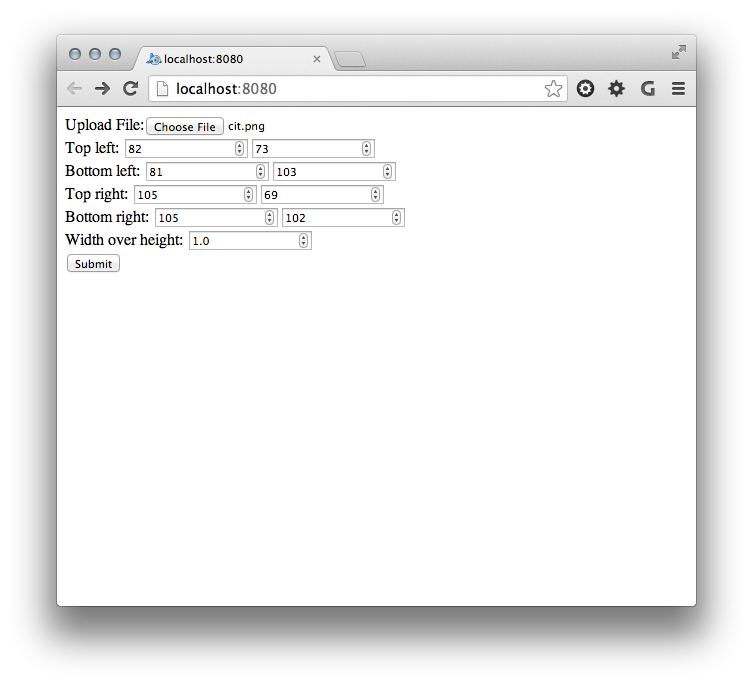 It works well enough on your local system: you click upload and eventually the de-skewed portion of your image gets served up in your browser. On your local system this works well for small and – to some degree – larger images, too, although when I say "larger" I'm still talking about nothing larger than 1K pixels on a side.
But when you deploy this to the cloud – using the Google App Launcher that comes with the Google App Engine SDK – then it really only works with smaller (and I mean tiny) images. Beyond that you quickly get an error reported in the browser:

Looking into the log behind the web-site (we can't really call it a web-service until we put some appropriate endpoints in place), we can quickly see where the issue lies:
Exceeded soft private memory limit with 155.402 MB after servicing 2 requests total
While handling this request, the process that handled this request was found to be using too much memory and was terminated. This is likely to cause a new process to be used for the next request to your application. If you see this message frequently, you may have a memory leak in your application.
The soft private memory limit on in GAE is pretty low for frontend instances – these are really intended to service web requests and aren't meant to do any heavy lifting – so one option is to go down the path of employing backend instances that have more memory and horsepower. As part of GAE's free daily quota you get 9 hours of backend instance uptime, which is presumably adequate for a small site. But backend instances don't scale automatically, which seems to me one of the important features of GAE (from the admittedly small amount of time I've spent looking at it).
Which is one of the reasons that I've decided to spend some time reworking the implementation to work with Google's famous (and apparently patented) MapReduce algorithm. We'll go into this in more depth in the next post, but in a nutshell MapReduce is about mapping lots of little processing cores to work on small parts of a problem in parallel, with the results getting shuffled and sorted and then reduced into the results you're looking for.
In our case we'll probably plug together a couple of MapReduce pipelines: one to take the initial image data and transform it to the desired coordinate system, and one to generate the output image. But that's for the next post in this series…
Leave a Reply