This topic isn't at all specific to AutoCAD – in fact it was encountered by Adam Nagy with the recent Plugin of the Month he developed for Revit – but it seemed something people might hit. Thanks to Adam for proposing this topic and providing the information to share with everyone. 🙂
In recent versions of Windows – at least with Vista and Windows 7, but perhaps versions before that – it's possible for the user to adjust DPI Scaling options on their system as part of the usability/accessibility options. This can cause issues with how your dialogs are displayed, as sometimes the contents are scaled beyond the size of the dialog itself.
On Vista it's this setting is accessible via Control Panel –> Ease of Access –> Optimize visual display (or Personalization –> Adjust font size (DPI), if in Classic View):
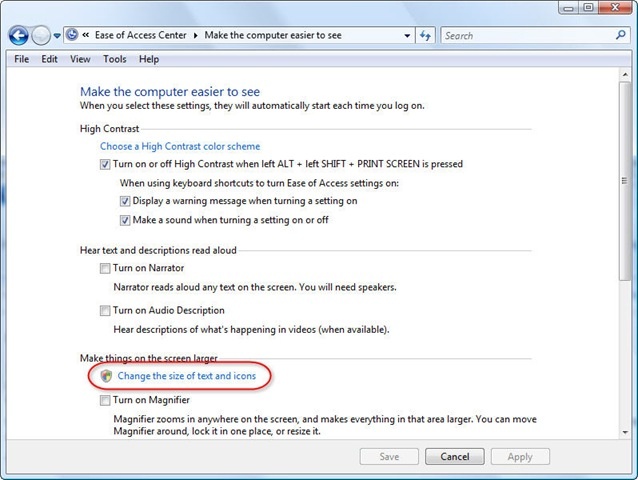
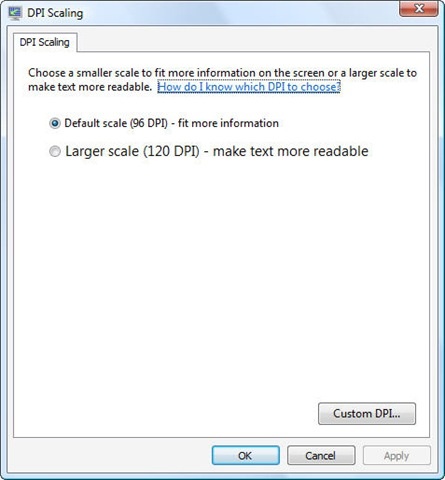
The DPI settings can be modified in the following dialog:
On Windows 7, things look a little different (I don't have a Windows 7 machine, so am using a screenshot of Adam's for this):
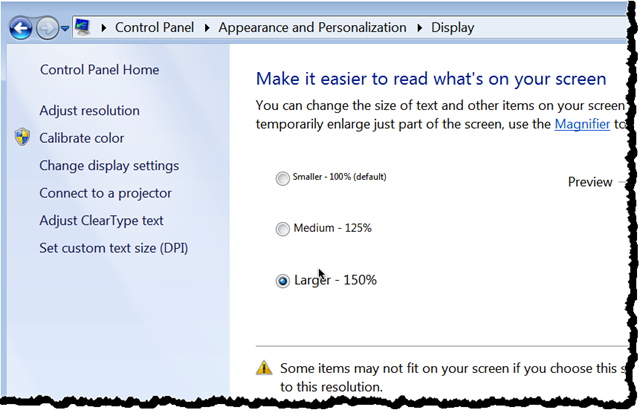
As mentioned, the problem can potentially arise that DPI scaling leads to dialog content scaling beyond the dialog's limits. When the setting was at 150% Win7, Adam's Revit plugin's main form was cropped at the bottom.
I will admit, despite my efforts to reproduce this behaviour in a standalone application on Windows Vista, I have not been able to. A comparable dialog looks like this at 96 and 120 DPI, respectively:
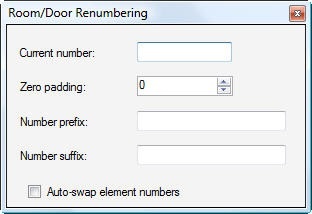
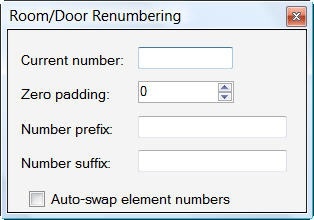
Obviously neither are cropped, but presumably scaling further – and perhaps the fact the plugin is hosted in Revit rather than standalone – can cause unwanted content cropping.
The solution Adam found was to edit the form's properties, to make sure it a) AutoSized and b) used the Dpi AutoScaleMode:

This scenario was new to me, but I do suggest testing your applications with the DPI scaling set to 150%, to make sure it doesn't cause a problem for your GUI.
A quick tip that saved me time during my failed efforts to reproduce the erroneous behaviour: after changing the setting you can simply log out rather than performing a full reboot (as was recommended by Vista, at least).


Leave a Reply