Creating a custom AutoCAD table style using .NET

The question of how to define a new table style programmatically has come up a couple of times over the last week or so, so this post shows how to approach this. I've used the code from this previous post as a basis for this post's.

The important thing to know is that TableStyle objects are stored in a special dictionary, which can be accessed via a Database's TableStyleDictionaryId property. This ObjectId property allows you to access the dictionary, from which you can query the contents, determine whether your style exists and add a new one if it doesn't. The code to specify the colour and formatting of the table style is reasonably straightforward.

Here's some C# code to define a new "Garish Table Style" with a red header/title area, yellow data area and magenta text throughout (better put on your sunglasses before running it... :-):

using Autodesk.AutoCAD.ApplicationServices;

using Autodesk.AutoCAD.DatabaseServices;

using Autodesk.AutoCAD.EditorInput;

using Autodesk.AutoCAD.Runtime;

using Autodesk.AutoCAD.Colors;

namespace TableAndStyleCreation

{

  public class Commands

  {

    [CommandMethod("CTWS")]

    static public void CreateTableWithStyle()

    {

      Document doc =

        Application.DocumentManager.MdiActiveDocument;

      Database db = doc.Database;

      Editor ed = doc.Editor;

      PromptPointResult pr =

        ed.GetPoint("\nEnter table insertion point: ");

      if (pr.Status == PromptStatus.OK)

      {

        Transaction tr =

          doc.TransactionManager.StartTransaction();

        using (tr)

        {

          // First let us create our custom style,

          //  if it doesn't exist

          const string styleName = "Garish Table Style";

          ObjectId tsId = ObjectId.Null;

          DBDictionary sd =

            (DBDictionary)tr.GetObject(

              db.TableStyleDictionaryId,

              OpenMode.ForRead

            );

          // Use the style if it already exists

          if (sd.Contains(styleName))

          {

            tsId = sd.GetAt(styleName);

          }

          else

          {

            // Otherwise we have to create it

            TableStyle ts = new TableStyle();

            // Make the header area red

            ts.SetBackgroundColor(

              Color.FromColorIndex(ColorMethod.ByAci, 1),

              (int)(RowType.HeaderRow | RowType.TitleRow)

            );

            // And the data area yellow

            ts.SetBackgroundColor(

              Color.FromColorIndex(ColorMethod.ByAci, 2),

              (int)RowType.DataRow

            );

            // With magenta text everywhere (yeuch 🙂

            ts.SetColor(

              Color.FromColorIndex(ColorMethod.ByAci, 6),

              (int)(RowType.HeaderRow |

                    RowType.TitleRow |

                    RowType.DataRow)

            );

            // Add our table style to the dictionary

            //  and to the transaction

            sd.UpgradeOpen();

            tsId = sd.SetAt(styleName, ts);

            tr.AddNewlyCreatedDBObject(ts, true);

            sd.DowngradeOpen();

          }

          BlockTable bt =

            (BlockTable)tr.GetObject(

              doc.Database.BlockTableId,

              OpenMode.ForRead

            );

          Table tb = new Table();

          // Use our table style

          if (tsId == ObjectId.Null)

            // This should not happen, unless the

            //  above logic changes

            tb.TableStyle = db.Tablestyle;

          else

            tb.TableStyle = tsId;

          tb.NumRows = 5;

          tb.NumColumns = 3;

          tb.SetRowHeight(3);

          tb.SetColumnWidth(15);

          tb.Position = pr.Value;

          // Create a 2-dimensional array

          // of our table contents

          string[,] str = new string[5, 4];

          str[0, 0] = "Part No.";

          str[0, 1] = "Name ";

          str[0, 2] = "Material ";

          str[1, 0] = "1876-1";

          str[1, 1] = "Flange";

          str[1, 2] = "Perspex";

          str[2, 0] = "0985-4";

          str[2, 1] = "Bolt";

          str[2, 2] = "Steel";

          str[3, 0] = "3476-K";

          str[3, 1] = "Tile";

          str[3, 2] = "Ceramic";

          str[4, 0] = "8734-3";

          str[4, 1] = "Kean";

          str[4, 2] = "Mostly water";

          // Use a nested loop to add and format each cell

          for (int i = 0; i < 5; i++)

          {

            for (int j = 0; j < 3; j++)

            {

              tb.SetTextHeight(i, j, 1);

              tb.SetTextString(i, j, str[i, j]);

              tb.SetAlignment(i, j, CellAlignment.MiddleCenter);

            }

          }

          tb.GenerateLayout();

          BlockTableRecord btr =

            (BlockTableRecord)tr.GetObject(

              bt[BlockTableRecord.ModelSpace],

              OpenMode.ForWrite

            );

          btr.AppendEntity(tb);

          tr.AddNewlyCreatedDBObject(tb, true);

          tr.Commit();

        }

      }

    }

  }

}

Here's what happens when we load the module and run the CTWS command, selecting a location for our "garish" table:
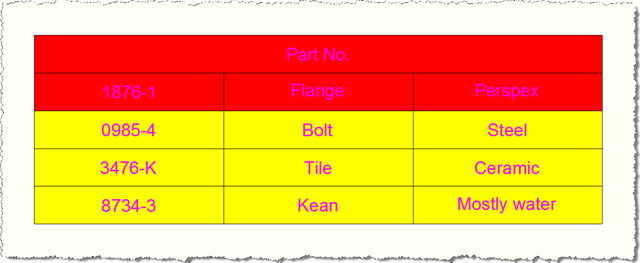
Custom garishly-styled table

And if we launch AutoCAD's TABLESTYLE command we can see our custom style in the list:
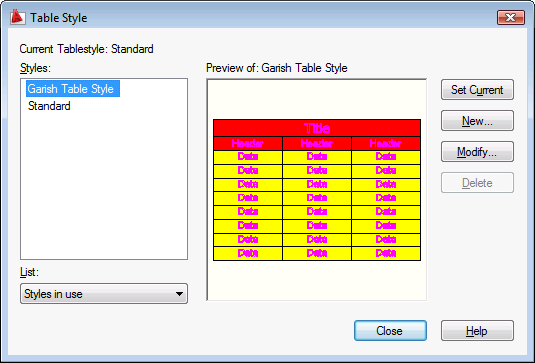
AutoCAD's Table Style dialog with our new style

Update

A further post on this topic has now been published.

16 responses to “Creating a custom AutoCAD table style using .NET”

  1. This sample is most appreciated by me - I have been really ... by the tables so far 🙂

    The sample works as expected. But I have some questions that you can help me out with (I use managed C++):

    (1) After creating the table, it doesn't have any style associated with it, its style id is null - we have to set a style to the table to get "expected results", right?

    (2) I tried placing the table in the paper space in the layout, and it didn't show up. It shows up properly in the model space, and the modelspace viewport in the layout. How can I fix this in the sample?

    Thanks for the sample!

    Gagan
    ==============

  2. Kean, Please ignore my question (2) in the previous post! I should have thought a bit before typing it!

    Thanks,

    Gagan
    ==============

  3. Hi Kean,
    I copied and run the code, but the result is not like yours. The most confused me is the title, in my table there were three columns showed "Name" and "Material". How can you hide these two columns and make the "Part No" center?

  4. I merged the first row's three columns to hide these two columns and make the "Part No" center, this can make my result as yours. But I didn't see any merge code in this example. Is there any other way to do that?

    To Gagan:
    Yse, after you create a table, the TableStyle'id is null, but it has a default table style, which you can see in "TABLESTYLE" command in AuotCAD, it's name is "default". This id will not assigned until you add the new table object to blocktable and commit the transaction.

  5. Travor,

    Actually, I now realise I didn't look very closely at the contents of the generated table when I put this post together...

    I didn't use merge code - the 0,0 cell ends up being used as the title (as I didn't suppress it).

    I'll post a new entry with the updated code - email me if you need it sooner.

    Regards,

    Kean

  6. Hi Kean,
    I am trying to break the table, of various height (different row numbers), how can I use 'AllowManualHeights', 'AllowManualPositions', 'BreaksEnabled', 'TableBreakOptions'....

    Thanks
    Shankar J

  7. Hi Shankar,

    I'm afraid I haven't looked into that, myself: I suggest submitting your question to the ADN team, if you're a member, or otherwise to the AutoCAD .NET Discussion Group.

    Regards,

    Kean

  8. Thanks Kean, I have posted this query in AutoCAD .NET Discussion Group and waiting someone to reply... meanwhile I am also trying.. if I got some progress, I will post it...
    thanks for the reply
    Shankar J

  9. Andrey Bushman Avatar
    Andrey Bushman

    AutoCAD's table style has collection of cell styles (default it's are 'Title', 'Header' and 'Data').

    How can I create/modify/delete custom cell style?

    Class TableStyle has collection 'CellStyles', which content names of table cell styles. It's collection is ArrayList and contain method 'Add' and property 'IsReadOnly'. Property 'CellStyles' contain string objects, property 'IsReadOnly' = false, but if I add new string in 'CellStyles' - it's not happen.

    P.S. Sorry for my English...

  10. Kean Walmsley Avatar

    Unfortunately I haven't tried to do this, myself, and so don't have a quick answer for you.

    Please submit your question to the ADN team, if you're a member, or otherwise the AutoCAD .NET Discussion Group.

    Kean

  11. The question is solved for a long time.

  12. Hi Kean,
    Very nice tutorial. based on this I manange to create the VB. NET code for my table style, but I face with a problem that I could not change the Title to be unmerged.
    In this moment, as default, it is merged and I want it to have it not merged.
    What is code for this ? I tried to find it out by

    ts.SetCellClass(RowType.TitleRow, MergeCellStyleOption.None

    but is not working. i get error on:

    sd.UpgradeOpen() line

    1. Hi Daniel,

      This is a bit off-topic - please post these questions to the AutoCAD .NET forum, in future:

      forums.autodesk.com/

      Have you tried adding rows and then deleting the first, default row?

      Regards,

      Kean

      1. Hi Kean,
        Thanks for quick reply and I will join forum.

        regarding first row, i want to use the Title because I have some data there.

        If i change standard tablestyle and I uncheck the " Merge cells on row/column creation" and I run the code for table, it wors fine, but I want to use a custom tablestyle and I do not know how to have the Tile row not merged.

        1. Hi Daniel,

          You can unmerge the cells of an existing table. Here's some code I've just put together - it'll turn into a blog post next week:

          using Autodesk.AutoCAD.ApplicationServices;

          using Autodesk.AutoCAD.DatabaseServices;

          using Autodesk.AutoCAD.EditorInput;

          using Autodesk.AutoCAD.Runtime;

          namespace TableStyleEditing

          {

          public class Commands

          {

          [CommandMethod("UTT")]

          public void UnmergeTableTitle()

          {

          var doc = Application.DocumentManager.MdiActiveDocument;

          if (doc == null) return;

          var ed = doc.Editor;

          // Select a table

          var peo = new PromptEntityOptions("\nSelect table");

          peo.SetRejectMessage("\nMust be a table.");

          peo.AddAllowedClass(typeof(Table), false);

          var per = ed.GetEntity(peo);

          if (per.Status != PromptStatus.OK)

          return;

          using (var tr = doc.TransactionManager.StartTransaction())

          {

          var table = tr.GetObject(per.ObjectId, OpenMode.ForWrite) as Table;

          if (table != null)

          {

          // Get the first row

          var row = table.Rows[0];

          // If it is merged, unmerge it

          if (row.IsMerged.HasValue && row.IsMerged.Value)

          {

          table.UnmergeCells(row);

          ed.WriteMessage("\nUnmerged first row.");

          }

          else

          {

          ed.WriteMessage("\nFirst row is not merged.");

          }

          }

          tr.Commit();

          }

          }

          }

          }

          Regards,

          Kean

          1. Thanks Kean for helping me.
            Finally I post on forum this problem. See here maybe You have any tip: forums.autodesk.com/

Leave a Reply

Your email address will not be published. Required fields are marked *