Creating an AutoCAD table using .NET

This suggestion came in a few weeks ago from Kélcyo Pereira, and I've borrowed some code from Sreekar Devatha, from DevTech India, to help implement the suggestion.

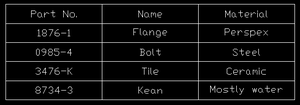
The following C# code creates a very simple table and inserts it at the position selected by the user. The table is really very simply - a 5 (row) x 3 (column) table created from string values, no other data-types. It picks up the current style and aligns each cell as "middle, center". That's really all there is to it.

using Autodesk.AutoCAD.ApplicationServices;

using Autodesk.AutoCAD.DatabaseServices;

using Autodesk.AutoCAD.EditorInput;

using Autodesk.AutoCAD.Geometry;

using Autodesk.AutoCAD.Runtime;

namespace TableCreation

{

  public class Commands

  {

    [CommandMethod("CRT")]

    static public void CreateTable()

    {

      Document doc =

        Application.DocumentManager.MdiActiveDocument;

      Database db = doc.Database;

      Editor ed = doc.Editor;

      PromptPointResult pr =

        ed.GetPoint("\nEnter table insertion point: ");

      if (pr.Status == PromptStatus.OK)

      {

        Table tb = new Table();

        tb.TableStyle = db.Tablestyle;

        tb.NumRows = 5;

        tb.NumColumns = 3;

        tb.SetRowHeight(3);

        tb.SetColumnWidth(15);

        tb.Position = pr.Value;

        // Create a 2-dimensional array

        // of our table contents

        string[,] str = new string[5, 3];

        str[0, 0] = "Part No.";

        str[0, 1] = "Name ";

        str[0, 2] = "Material ";

        str[1, 0] = "1876-1";

        str[1, 1] = "Flange";

        str[1, 2] = "Perspex";

        str[2, 0] = "0985-4";

        str[2, 1] = "Bolt";

        str[2, 2] = "Steel";

        str[3, 0] = "3476-K";

        str[3, 1] = "Tile";

        str[3, 2] = "Ceramic";

        str[4, 0] = "8734-3";

        str[4, 1] = "Kean";

        str[4, 2] = "Mostly water";

        // Use a nested loop to add and format each cell

        for (int i = 0; i < 5; i++)

        {

          for (int j = 0; j < 3; j++)

          {

            tb.SetTextHeight(i, j, 1);

            tb.SetTextString(i, j, str[i, j]);

            tb.SetAlignment(i, j, CellAlignment.MiddleCenter);

          }

        }

        tb.GenerateLayout();

        Transaction tr =

          doc.TransactionManager.StartTransaction();

        using (tr)

        {

          BlockTable bt =

            (BlockTable)tr.GetObject(

              doc.Database.BlockTableId,

              OpenMode.ForRead

            );

          BlockTableRecord btr =

            (BlockTableRecord)tr.GetObject(

              bt[BlockTableRecord.ModelSpace],

              OpenMode.ForWrite

            );

          btr.AppendEntity(tb);

          tr.AddNewlyCreatedDBObject(tb, true);

          tr.Commit();

        }

      }

    }

  }

}

And here's what you see when you run the CRT command and select a point:
Simple_table

I'd like to take this further by showing more advanced concepts around tables - please post a comment if you have a particular suggestion or request.

One response to “Creating an AutoCAD table using .NET”

  1. Kélcyo Pereira Avatar
    Kélcyo Pereira

    Obrigado por ter postado este exemplo, será de grande importância para aqueles que estão iniciando.
    Em especial, obrigado por me atender, valeu mesmo.
    Espero no futuro ter um exemplo aprimorado deste post.

    "Debtor for having postado this example, will be of great importance for that they are initiating.
    In special, obliged for taking care of to me, he was valid exactly.
    I wait in the future to have an example improved of this post."

  2. Patrick Ottenschläger Avatar
    Patrick Ottenschläger

    Hello Kean,

    Is it possible to create a new tablestyle with the .net API?

    regards
    Patrick

  3. Hello Patrick,

    Yes, it is. I'll add it to my list of future topics to cover.

    Regards,

    Kean

  4. David Fernández Avatar
    David Fernández

    Hello Kean,
    Is it possible to add a row dynamically (using .net code) to an existing table?

    I receive an eexception "eNonApplicable" when I try to do this in my c# code:

    myInfoTable.NumRows++

    If it is possible, what are the steps needed to perform this operation?

    Thank you.

  5. Hi David,

    You should be able to, but not just by incrementing the count.

    Have you tried using myInfoTable.InsertRows()?

    Regards,

    Kean

  6. David Fernandez Avatar
    David Fernandez

    It's strange, because NumRows++ works for the first time. It redimension the table from 1 to 2 rows without loosing data.
    The InsertRows() method works fine but makes the table loosing its previows content.
    Any Idea?
    I was also trying DataTable object wich is a wrapper for acDbDataTable to store information but there is not information about this object.

    Thank you very much.

  7. I'm really no expert - I don't use Tables day in and out - and this isn't really a forum to get support... if you're an ADN member, please submit your question here, otherwise I suggest posting to the AutoCAD .NET Discussion Group.

    Kean

  8. I tried the above code . but the output table structure is diferent. its showing partno as header.
    and missing the arry values str[0,1], str[0,2]. Actualy i want to display the table as you showed above. So what change should I do?

  9. As an ADN member please send your detailed question (with source) across to us via the ADN site, so a member of my team can take a look.

    Kean

  10. Although that said, you might find this post to be of use.

    Kean

  11. Kean, please, tell me one thing - how can I place table by clicking on the bottom-right corner?

    I assume I must set tb.Position to a new Point3d(), with X = clickedX - tb.Width and Y = clickedY + tb.Height.

    X works for me (using tb.Width), but tb.Height returns 3, when AutoCAD says height is 4.33 :/ I tried getting the maximum value of TextHeight from all cells in the row and adding it to clickedX, but it only took me a little closer (3 + 1 != 4.33) to the bottom-right corner, not exactly to it.

    What else do I have to include when calculating overall height of a table?

  12. Kean Walmsley Avatar

    Hi WRonX,

    Have you tried getting the Extents (or GeometricExtents) of the table?

    if that doesn't help, please submit your question to the ADN team, if you're a member, or otherwise the AutoCAD .NET Discussion Group.

    Kean

  13. Thanks.
    Unfortunately, GeometricExtents gives me correct X values, but Y values are totally weird, for example, the point is at the about 1/3 of left or right edge of Table.
    It's just like I'm missing something while creating table, and AutoCAD fills it with it's own values, so I set row height to 4 and end up with table of 3 rows, with the overall height of 17 :/
    I'll try the Groups, thanks...

  14. I know this post is old, but just FYI, Table.NumRows is deprecated. The docs suggest using Table.Rows.Count, but you can't set the number of rows using that. Table.InsertRows is the way to go.

  15. Hello,Kean.How to set the TextHeight of the text in the cells.

  16. hi,
    I want to create a table that do not use the unit title style?
    Thank you!

    1. I'm not sure exactly what you're after: please post a more complete explanation to the AutoCAD .NET Discussion Group.

      Kean

  17. hello everyone i want code to create table in zwcad so any one can help me how to create code and send me code to create table in zwcad on my mail id ? mail id is jcrpnky@gmail.com

  18. BRILLLIANT! I love this page 🙂

  19. Hi Kean,
    I used code above and I tried to do same thing but I am using VB.NET 2010 and I get following error:

    Autodesk.AutoCAD.Runtime.Exception: eLockViolation
    at Autodesk.AutoCAD.DatabaseServices.TransactionManager.GetObjectInternal(AcDbTransactionManager* pTM, ObjectId id, OpenMode mode, Boolean openErased, Boolean forceOpenOnLockedLayer)
    at Autodesk.AutoCAD.DatabaseServices.Transaction.GetObject(ObjectId id, OpenMode mode)
    at Armature.New_arm.btnTabel_Click(Object sender, EventArgs e) in C:\Users\New_Arm.vb:line 1348

    Line 1348 is following:
    Dim acBlockRec As BlockTableRecord = acTable_tran.GetObject(acBlockTbl(BlockTableRecord.ModelSpace), OpenMode.ForWrite)

    All transaction procedure is this one. I think I made a mistake somewhere I did not figure out where.

    Private Sub btnTabel_Click(sender As System.Object, e As System.EventArgs) Handles btnTabel.Click
    Dim table_str(5, 3) As String
    Dim table_row As Integer
    Dim table_col As Integer
    Dim acDoc As Document = Autodesk.AutoCAD.ApplicationServices.Application.DocumentManager.MdiActiveDocument
    Dim acDb As Database = acDoc.Database
    Dim acEd As Editor = acDoc.Editor
    Dim acPoint As PromptPointResult = acEd.GetPoint("\nPick table insertion point. ")
    If acPoint.Status = PromptStatus.OK Then
    Dim acTable As Table = New Table
    acTable.TableStyle = acDb.Tablestyle
    acTable.SetSize(5, 3)
    acTable.SetRowHeight(3)
    acTable.SetColumnWidth(15)
    acTable.Position = acPoint.Value
    table_str(0, 0) = "str 0,0"
    table_str(0, 1) = "str 0,1"
    table_str(0, 2) = "str 0,2"
    table_str(1, 0) = "str 1,0"
    table_str(1, 1) = "str 1,1"
    table_str(1, 2) = "str 1,2"
    table_str(2, 0) = "str 2,0"
    table_str(2, 1) = "str 2,1"
    table_str(2, 2) = "str 2,2"
    table_str(3, 0) = "str 3,0"
    table_str(3, 1) = "str 3,1"
    table_str(3, 2) = "str 3,2"
    table_str(4, 1) = "str 4,0"
    table_str(4, 2) = "str 4,1"
    table_str(4, 0) = "str 4,2"
    For table_row = 0 To 4
    For table_col = 0 To 2
    acTable.Cells(table_row, table_col).TextHeight = 1
    acTable.Cells(table_row, table_col).TextString = table_str(table_row, table_col)
    acTable.Cells(table_row, table_col).Alignment = CellAlignment.MiddleCenter
    Next
    Next
    acTable.GenerateLayout()

    Using acTable_tran As Transaction = acDoc.TransactionManager.StartTransaction
    Dim acBlockTbl As BlockTable = acTable_tran.GetObject(acDoc.Database.BlockTableId, OpenMode.ForRead)
    Dim acBlockRec As BlockTableRecord = acTable_tran.GetObject(acBlockTbl(BlockTableRecord.ModelSpace), OpenMode.ForWrite)
    acBlockRec.AppendEntity(acTable)
    acTable_tran.AddNewlyCreatedDBObject(acTable, True)
    acTable_tran.Commit()
    End Using
    End If
    End Sub
    End Class

    1. Kean Walmsley Avatar

      Hi Daniel,

      If you're calling it from a modeless dialog, you're going to need to lock the document first.

      Regards,

      Kean

      1. Thanks Kean,
        It works great.
        For others that are interesting to know where was problem:

        Dim acDoc As Document = Autodesk.AutoCAD.ApplicationServices.Application.DocumentManager.MdiActiveDocument
        Dim acDb As Database = acDoc.Database
        Using acLckDoc As DocumentLock = acDoc.LockDocument() <<<< here was missing code >>>>>
        Dim acEd As Editor = acDoc.Editor
        Dim acPoint As PromptPointResult = acEd.GetPoint("\nPick table insertion point. ")

        ................other code there...........

        End Using <<<< End locking document >>>>>
        End Sub

  20. а как выглядит этот код на Delphi

  21. I would like to say that this blog really convinced me to update my knowledge about the technology you talk about. Thanks, very good post

  22. Is it possible to create a new tablestyle with the .net API?

    king11

Leave a Reply

Your email address will not be published. Required fields are marked *