I won't tell you just how bored I've been getting while "post-processing" the HTML created when I copy/paste code from Visual Studio into this blog's editing interface. My aim is simply to maintain a certain amount of the formatting provided in Visual Studio (font, syntax colouring and indentation would be great, but I end up settling for the last two, and only then after a lot of HTML editing).
So I decided to take a look at what tools might be out there on the web to help with this. The first tool I found wasn't what I wanted, but was so cool that I thought I'd mention it anyway (ah, the joy of the internet! :-).
Copy C#, Paste VB!
It's a Visual Studio Add-In that allows you to copy C# code into the clipboard and "Paste As Visual Basic" into a .vb document. It allows you to choose between a couple of translator web services (although so far it only does C#->VB, while I'd also make strong use of a version that goes the other way).
http://msdn.microsoft.com/msdnmag/issues/06/02/PasteAs/
A couple of tips to get this working:
- You will only be able to use Visual Studio versions that support AddIns (the Express versions do not, for instance)
- You will find an installer inside the downloadable archive file:
- PasteAs\PasteAsVBSetup\Debug\setup.exe
- Once installed, you should find a "Paste as Visual Basic" menu item added to the Edit menu
- This will only be added if there is text in the clipboard and you are inside a .vb file
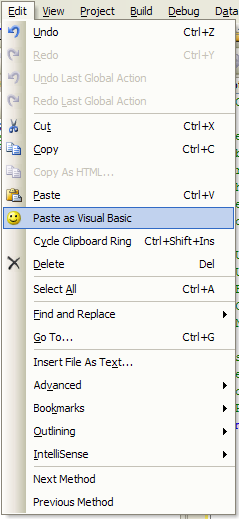
- I found the menu item did nothing whatsoever to start with, until I copied these files from where they were installed into C:\My Documents\Visual Studio 2005\Addins
- PasteAsVB.dll, PasteAsVBAddin.dll

You will know it is working if you see a dialog appear:
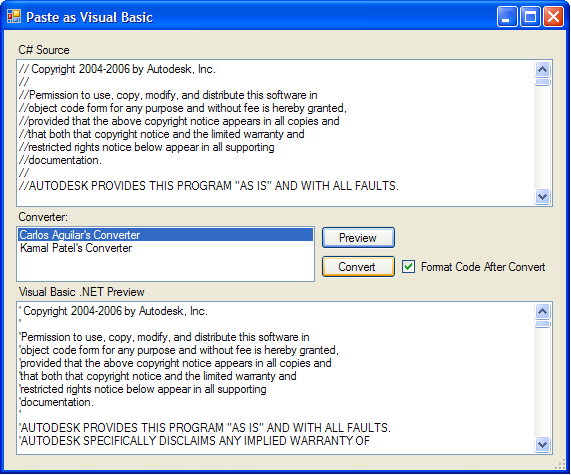
As for the code it creates, here's an example of a C# code snippet from the "prompts" sample of the ObjectARX SDK, and the VB.NET output:
C# Input
using System;
using Autodesk.AutoCAD.DatabaseServices;
using Autodesk.AutoCAD.Runtime;
using Autodesk.AutoCAD.Geometry;
using Autodesk.AutoCAD.ApplicationServices;
using Autodesk.AutoCAD.EditorInput;
namespace Prompts
{
public class PromptsTest
{
static PromptAngleOptions useThisAngleOption;
static PromptDoubleResult useThisAngleResult;
static PromptPointOptions useThisPointOption;
static PromptPointResult useThisPointResult;
static PromptEntityOptions useThisEntityOption;
static PromptEntityResult useThisEntityResult;
//A small function that shows how to prompt for an integer
[CommandMethod("GetInteger")]
public void integerTest()
{
Editor ed = Application.DocumentManager.MdiActiveDocument.Editor;
PromptIntegerOptions opt0 = new PromptIntegerOptions("Enter your age");
opt0.AllowNegative = false;
opt0.AllowNone = false;
opt0.AllowZero = false;
opt0.DefaultValue = 1;
PromptIntegerResult IntRes = ed.GetInteger(opt0);
if(IntRes.Status == PromptStatus.OK)
{
ed.WriteMessage(string.Format("\nYou entered {0}",IntRes.Value));
}
}
}
}
VB.NET Output
Imports System
Imports Autodesk.AutoCAD.DatabaseServices
Imports Autodesk.AutoCAD.Runtime
Imports Autodesk.AutoCAD.GeomeTry
Imports Autodesk.AutoCAD.ApplicationServices
Imports Autodesk.AutoCAD.EditorInput
Namespace Prompts
Public Class PromptsTest
Shared useThisAngleOption As PromptAngleOptions
Shared useThisAngleResult As PromptDoubleResult
Shared useThisPointOption As PromptPointOptions
Shared useThisPointResult As PromptPointResult
Shared useThisEntityOption As PromptEntityOptions
Shared useThisEntityResult As PromptEntityResult
'A small function that shows how to prompt for an integer
<CommandMethod("GetInteger")> _
Public Sub integerTest()
Dim ed As Editor = Application.DocumentManager.MdiActiveDocument.Editor
Dim opt0 As PromptIntegerOptions = New PromptIntegerOptions("Enter your age")
opt0.AllowNegative = False
opt0.AllowNone = False
opt0.AllowZero = False
opt0.DefaultValue = 1
Dim IntRes As PromptIntegerResult = ed.GetInteger(opt0)
If IntRes.Status = PromptStatus.OK Then
ed.WriteMessage(String.Format("\nYou entered {0}", IntRes.Value))
End If
End Sub
End Class
End Namespace
Copy as HTML
The next tool is the one I was really in need of - as you can see from the above code snippets, it works very well:
http://www.jtleigh.com/people/colin/software/CopySourceAsHtml/
This is another Visual Studio Addin, this time to enable copying of your code along with its formatting (as defined by Visual Studio) into the clipboard as an HTML fragment. This is really a great tool for bloggers, technical writers or people providing API support (as my team does).
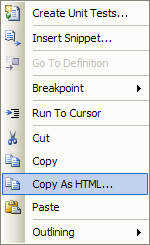
This time a "Copy as HTML..." menu item gets added to both the Edit menu and to the right-click context menu:
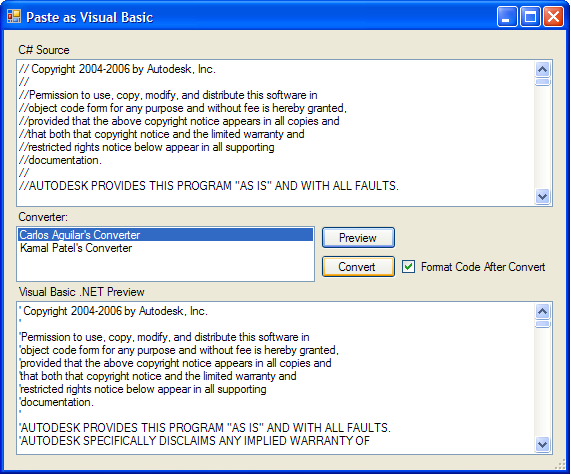
When you select some text in the Visual Studio editor and choose this menu option, a dialog appears to allow some configuration:
And that's it - from there you can paste into Word, Outlook, TypePad etc. (see above for the results!)


Leave a Reply to s.kaiser Cancel reply