This topic is a follow-up to the previous post dealing with offscreen rendering, and was suggested (and is based on code provided) by Fenton Webb, a member of DevTech Americas who has just moved across to San Rafael. Fenton was until recently part of DevTech EMEA, working from the UK.
The basic technique is similar to the one used in the previous post: we use the graphics system to create an "offscreen device", which we then set up and request to create a snapshot of our model. This can work on graphical objects stored in any AutoCAD database, but in this case we use it to capture an image of the contents of the active drawing's modelspace (after, once again, adding a sphere to it).
To spice up the results a little, I added the option to specify a particular visual style for the output. I've inserted the created images at the bottom (as before, you will need to add a particular material to the current drawing in order to get exactly the same results I as I have).
Here's the C# code:
using Autodesk.AutoCAD.ApplicationServices;
using Autodesk.AutoCAD.DatabaseServices;
using Autodesk.AutoCAD.EditorInput;
using Autodesk.AutoCAD.GraphicsInterface;
using Autodesk.AutoCAD.GraphicsSystem;
using Autodesk.AutoCAD.Runtime;
using Autodesk.AutoCAD.Interop;
using System.Drawing;
namespace OffscreenImageCreation
{
public class Commands
{
[CommandMethod("OSS")]
static public void OffscreenSnapshot()
{
CreateSphere();
SnapshotToFile(
"c:\\sphere-Wireframe2D.png",
VisualStyleType.Wireframe2D
);
SnapshotToFile(
"c:\\sphere-Hidden.png",
VisualStyleType.Hidden
);
SnapshotToFile(
"c:\\sphere-Basic.png",
VisualStyleType.Basic
);
SnapshotToFile(
"c:\\sphere-ColorChange.png",
VisualStyleType.ColorChange
);
SnapshotToFile(
"c:\\sphere-Conceptual.png",
VisualStyleType.Conceptual
);
SnapshotToFile(
"c:\\sphere-Flat.png",
VisualStyleType.Flat
);
SnapshotToFile(
"c:\\sphere-Gouraud.png",
VisualStyleType.Gouraud
);
SnapshotToFile(
"c:\\sphere-Realistic.png",
VisualStyleType.Realistic
);
}
static public void CreateSphere()
{
Document doc =
Application.DocumentManager.MdiActiveDocument;
Database db = doc.Database;
Editor ed = doc.Editor;
Transaction tr =
doc.TransactionManager.StartTransaction();
using (tr)
{
BlockTable bt =
(BlockTable)tr.GetObject(
db.BlockTableId,
OpenMode.ForRead
);
BlockTableRecord btr =
(BlockTableRecord)tr.GetObject(
bt[BlockTableRecord.ModelSpace],
OpenMode.ForWrite
);
Solid3d sol = new Solid3d();
sol.CreateSphere(10.0);
const string matname =
"Sitework.Paving - Surfacing.Riverstone.Mortared";
DBDictionary matdict =
(DBDictionary)tr.GetObject(
db.MaterialDictionaryId,
OpenMode.ForRead
);
if (matdict.Contains(matname))
{
sol.Material = matname;
}
else
{
ed.WriteMessage(
"\nMaterial (" + matname + ") not found" +
" - sphere will be rendered without it.",
matname
);
}
btr.AppendEntity(sol);
tr.AddNewlyCreatedDBObject(sol, true);
tr.Commit();
}
AcadApplication acadApp =
(AcadApplication)Application.AcadApplication;
acadApp.ZoomExtents();
}
static public void SnapshotToFile(
string filename,
VisualStyleType vst
)
{
Document doc =
Application.DocumentManager.MdiActiveDocument;
Editor ed = doc.Editor;
Database db = doc.Database;
Manager gsm = doc.GraphicsManager;
// Get some AutoCAD system variables
int vpn =
System.Convert.ToInt32(
Application.GetSystemVariable("CVPORT")
);
// Get AutoCAD's GS view for this document...
View gsv =
doc.GraphicsManager.GetGsView(vpn, true);
// ... but create a new one for the actual snapshot
using (View view = new View())
{
// Set the view to be just like the one
// in the AutoCAD editor
view.Viewport = gsv.Viewport;
view.SetView(
gsv.Position,
gsv.Target,
gsv.UpVector,
gsv.FieldWidth,
gsv.FieldHeight
);
// Set the visual style to the one passed in
view.VisualStyle = new VisualStyle(vst);
Device dev =
gsm.CreateAutoCADOffScreenDevice();
using (dev)
{
dev.OnSize(gsm.DisplaySize);
// Set the render type and the background color
dev.DeviceRenderType = RendererType.Default;
dev.BackgroundColor = Color.White;
// Add the view to the device and update it
dev.Add(view);
dev.Update();
using (Model model = gsm.CreateAutoCADModel())
{
Transaction tr =
db.TransactionManager.StartTransaction();
using (tr)
{
// Add the modelspace to the view
// It's a container but also a drawable
BlockTable bt =
(BlockTable)tr.GetObject(
db.BlockTableId,
OpenMode.ForRead
);
BlockTableRecord btr =
(BlockTableRecord)tr.GetObject(
bt[BlockTableRecord.ModelSpace],
OpenMode.ForRead
);
view.Add(btr, model);
tr.Commit();
}
// Take the snapshot
Rectangle rect = view.Viewport;
using (Bitmap bitmap = view.GetSnapshot(rect))
{
bitmap.Save(filename);
ed.WriteMessage(
"\nSnapshot image saved to: " +
filename
);
// Clean up
view.EraseAll();
dev.Erase(view);
}
}
}
}
}
}
}
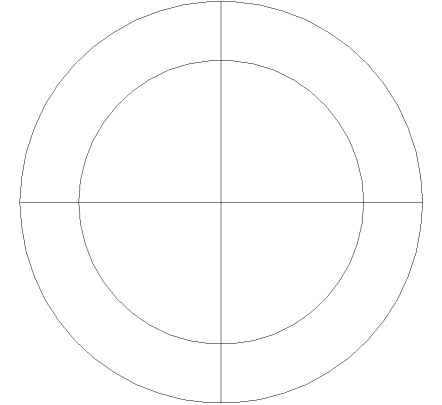
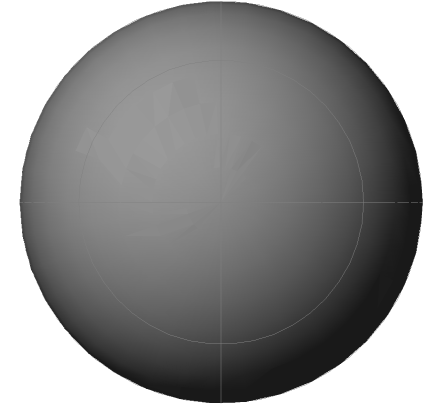
And here are the images created by the OSS command, listed by their visual style type...
Wireframe2D:
Hidden:

Basic:

ColorChange:
Conceptual:
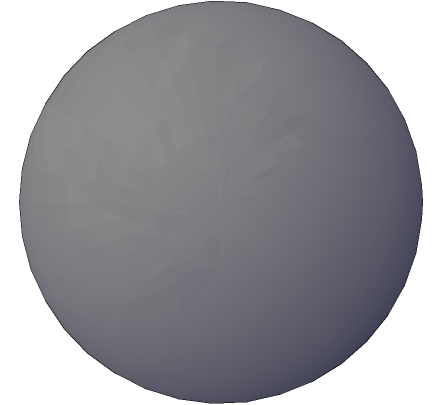
Flat:
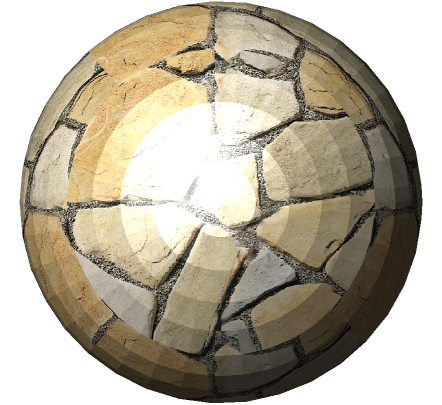
Gouraud:
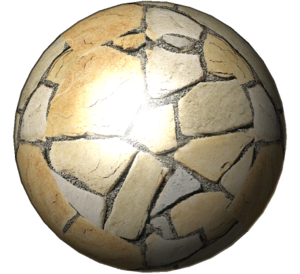
Realistic:
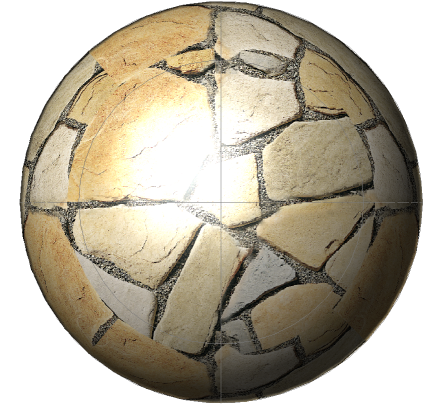
Update: an improved version of the above code is now available in this follow-up post.


Leave a Reply to Robin Cancel reply