Using a modal .NET dialog to display AutoCAD object properties

Firstly, a big thanks for all your comments on the first anniversary post. It's good to know that people are finding this blog useful, and I hope the flow of ideas (internal and external) doesn't dry up anytime soon. So keep the comments coming! 🙂

This post is going to start a sequence of posts that look at how to integrate forms into AutoCAD. This post looks at modal forms, and later on we'll look more at modeless forms and - in particular - palettes.

Just to be clear, these posts will focus on the basic integration - the more advanced activity of detailed property display (etc.) are left as an exercise for the reader. For example, in today's code we're simply going to get the type of an object and put that text into our dialog. Nothing very complex, but it shows the basic interaction between AutoCAD objects and WinForms.

Before we get started, I should very quickly define "modal" and "modeless", for those that aren't familiar with the terminology. Modal dialogs take exclusive control of an application's user-input functions, while modeless dialogs can co-exist with other modeless dialogs and user-input handling. Which means that the two types of dialog have different issues to deal with (in terms of how the assumptions they make on accessing data etc.).

So next we need to create our form... I'm not going to step through the process here - we'll focus on the code - so to make life easier I've packaged up the source here.

Here's the C# code for the command class. It's very simple: it checks the pickfirst selection and uses the first object as input for the form (assigning the object ID to the form, which will then go away and retrieve the object's type). At this stage we're just supporting one object - we're not going through the effort of determining shared properties across objects etc. We then use Application.ShowModalDialog() to show the form inside AutoCAD.

using Autodesk.AutoCAD.ApplicationServices;

using Autodesk.AutoCAD.DatabaseServices;

using Autodesk.AutoCAD.EditorInput;

using Autodesk.AutoCAD.Runtime;

using System;

using CustomDialogs;

namespace CustomDialogs

{

  public class Commands

  {

    [CommandMethod("vt",CommandFlags.UsePickSet)]

    public void ViewType()

    {

      Editor ed =

        Application.DocumentManager.MdiActiveDocument.Editor;

      TypeViewerForm tvf = new TypeViewerForm();

      PromptSelectionResult psr =

        ed.GetSelection();

      if (psr.Value.Count > 0)

      {

        ObjectId selId = psr.Value[0].ObjectId;

        tvf.SetObjectId(selId);

      }

      if (psr.Value.Count > 1)

      {

        ed.WriteMessage(

          "\nMore than one object was selected: only using the first.\n"

        );

      }

      Application.ShowModalDialog(null, tvf, false);

    }

  }

}

The form itself is a little more complex (but barely). It contains a function that can be used to set the active object (by its ID, as mentioned above) which goes away and opens the object, getting its type. The form also contains a "browse" button, which can be used to change the actively selected object.

Here's the C# code for the form:

using Autodesk.AutoCAD.ApplicationServices;

using Autodesk.AutoCAD.DatabaseServices;

using Autodesk.AutoCAD.EditorInput;

using Autodesk.AutoCAD.Runtime;

using System;

using System.Collections.Generic;

using System.ComponentModel;

using System.Data;

using System.Drawing;

using System.Text;

using System.Windows.Forms;

namespace CustomDialogs

{

  public partial class TypeViewerForm : Form

  {

    public TypeViewerForm()

    {

      InitializeComponent();

    }

    public void SetObjectText(string text)

    {

      typeTextBox.Text = text;

    }

    public void SetObjectId(ObjectId id)

    {

      if (id == ObjectId.Null)

      {

        SetObjectText("");

      }

      else

      {

        Document doc =

          Autodesk.AutoCAD.ApplicationServices.

            Application.DocumentManager.MdiActiveDocument;

        Transaction tr =

          doc.TransactionManager.StartTransaction();

        using (tr)

        {

          DBObject obj = tr.GetObject(id, OpenMode.ForRead);

          SetObjectText(obj.GetType().ToString());

          tr.Commit();

        }

      }

    }

    private void closeButton_Click(object sender, EventArgs e)

    {

      this.Close();

    }

    private void browseButton_Click(object sender, EventArgs e)

    {

      DocumentCollection dm =

        Autodesk.AutoCAD.ApplicationServices.

          Application.DocumentManager;

      Editor ed =

        dm.MdiActiveDocument.Editor;

      Hide();

      PromptEntityResult per =

        ed.GetEntity("\nSelect entity: ");

      if (per.Status == PromptStatus.OK)

      {

        SetObjectId(per.ObjectId);

      }

      else

      {

        SetObjectId(ObjectId.Null);

      }

      Show();

    }

  }

}

Here's what happens when you run the VT command and select a circle:
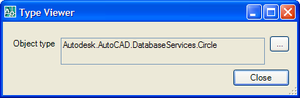
Modal_dialog_1

As an aside... I'm going on holiday on Wednesday for a week. We have our annual football (meaning soccer, of course) tournament being held this year in the UK. Teams from Autodesk offices from around the world (it used to have a European focus, but it's gained in popularity in the last few years) will fly in and take part. I'll be playing for one of the Swiss teams, and it'll certainly be lots of fun to catch up with old friends from other locations. The tournament is at the weekend, but I'm taking some days off either side to catch up with family and friends. I doubt I'll have time to queue up additional posts for while I'm away, so this is just to let you know that things may go a little quiet for the next week or so.

23 responses to “Using a modal .NET dialog to display AutoCAD object properties”

  1. Pedro Ferreira Avatar

    Hello Kean, could you give an example of how to create a new menu item in the Menu Bar?
    For example to start the command that you just have shown to us in this post?
    Good luck for the game and have great holiday!

    Thanks

  2. Hi Pedro,

    Thanks!

    Traditionally there are a few ways to go about this. You would create an MNU file and load that, or use the COM API to add menu items.

    These days, the recommended approach is using CUI. Here are a couple of posts that may be of use to you: Loading a partial CUI and making its toolbars visible through .NET and Creating a partial CUI file using .NET and loading it inside AutoCAD.

    Regards,

    Kean

  3. Hi Kean,

    for getting a selection I use the following statements:

    Form1.Hide()
    selectionOpts.SingleOnly = True
    selectionRes = ed.GetSelection(selectionOpts)
    Form1.Show()

    This perfectly works for the modal dialog, ACAD shows the pickbox selector and with one click the object is selected.
    In the modeless dialog however only an ordinary mouse-pointer is shown and it needs 2 mouseclicks to select the object. What is needed to do the selection with one click ?

    Thanks Mark

  4. Hi Mark,

    Actually the best - and safest - way to handle this is via the command-throat. Modeless interactions with a document can be tricky, so we generally recommend firing commands to the command-line (via SenStringToExecute() - see this recent post for a reasonable approach for this).

    As you want to reshow the dialog, you will probably want to check a flag in your application from your command and then re-display the dialog, if needed.

    People often find sending commands "ugly", but in many situations it's actually the proper way to do things. This is one of those situations.

    Cheers,

    Kean

  5. Hi Kean,

    ObjectARX-developers made our life quite hard...
    Switching from GetSelection to SendStringToExecute changes the program logic because of its asynchronous nature. So I capture the PromptedforSelection event.
    This works, but I always have to terminate the Select-prompt with a ^C.
    I did not find a way to select just a single object (as it worked with selectionOpts.SingleOnly = True). Do you have an idea ? Here is my string:
    doc.SendStringToExecute("_select ", activate:=True, wrapUpInactiveDoc:=False, echoCommand:=True)

    Thanks
    Mark

  6. Hi Mark,

    Sorry - at this stage I'll have to refer you to ADN support or to one of our discussion groups, if you're not a member.

    Regards,

    Kean

  7. Hi Kean,

    A little off topic here, but similar in nature: I was wondering if there a means of customising the Dynamic Input mechanism? What I mean is, currently we are constrained to use the various GetXXX() (in EditorInput namespace) methods for obtaining input from the user. Fine, this works well, but is there a way to obtain information about the input AS it is occuring?

    What I am trying to do is create a sort of 'intellisense' mechanism when the user is typing in information at the Dyna-input prompt on screen, and based on what they enter, say a '.' then pop-up another little user interface at the point on screen where they are typing.

    Is this possible?

    Thanks
    John.

  8. Hi John,

    Certainly - this post should be of help.

    Regards,

    Kean

  9. Oops - a bit too quick there...

    You may indeed also need information provided by a PointMonitor, to know where the cursor is, etc.

    Kean

  10. hi kean,

    i have some trouble running this code on Acad2009 x64. I get an exception everytime I touch an object.

    It works fine on a 32bit version.

    Any idea?

    regards,

    malo

  11. This was coded for 32-bit AutoCAD, so I haven't tested it with 64-bit and don't know what the problem might be.

    Have you stepping through the code in the Visual Studio debugger?

    Kean

  12. I tried, but it's pretty hard.
    It happens in the OnMonitorPointEvent when I point an entity on screen:

    FullSubentityPath[] paths = e.Context.GetPickedEntities();

    It seems to be an error in the GetPickedEntities() function (x64 only). It's not an exception I can catch.

    malo

  13. Malo -

    This would be a perfect one for the ADN support team to handle (I'm not using 64-bit, as yet).

    Are you a member of ADN?

    Kean

  14. hi kean,

    thank you.

    unfortunately I'not a member of ADN.

    malo

  15. Hi Kean,
    I do not recommend using Hide() and Show() function withing a modal dialog to start interacting with AutoCAD. Quite often it causes nasty flickering. Maybe you could mention the proper way of doing this by using the Editor.StartUserInteraction class.
    Regards
    Krayzie

  16. Hi Krayzie,

    Thanks - it seems to me that you've just done so. 🙂

    I'll put this on my list for a follow-up post.

    Regards,

    Kean

  17. Hi kean,
    When i use this ShowModalDialog method it replaces my icon in the dialog box. How do i display my icon in the dialog?

    Regards,
    Prem Kumar U

  18. Hi Prem,

    I don't know - I suggest posting your question to the ADN team or via the AutoCAD .NET Discussion Group.

    Regards,

    Kean

  19. Hi kean,

    Thank you for your response.

    Regards
    Prem Kumar U

  20. After launching dialog by command, window task bar entry is getting created.
    Is there any way to avoid this?

  21. Kean Walmsley Avatar

    Have you tried setting the form's ShowInTaskBar property to be false?

    Kean

  22. Neyton Luiz Dalle Molle Avatar
    Neyton Luiz Dalle Molle

    Hello, I'm having problem with ED.StartUserInteraction.

    When WindowsForm (modal form) is maximized and I click the button that requires data on the command line, the WindowsForms closes unexpectedly.

    I tried to work around the problem with the event below, but it still fails:

    Private Sub me_FormClosing (sd As Object, evt The FormClosingEventArgs) Handles Me.FormClosing
    If evt.CloseReason = CloseReason.None Then
    MsgBox ("FormClosing User Intercation Error ...")
    evt.Cancel = True 'try to cancel "close"

    end If
    end Sub

    1. Hi Neyton,

      Could you please post this question to the AutoCAD .NET forum?

      forums.autodesk.com/

      Someone there will be able to help.

      Thanks,

      Kean

Leave a Reply to Pedro Ferreira Cancel reply

Your email address will not be published. Required fields are marked *