Creating an AutoCAD table linked to an Excel spreadsheet using .NET

In the last post I promised to tackle this issue, and so here we are again. 🙂

Note: the code in this post relies on enhanced table functionality introduced in AutoCAD 2008, so please don't get frustrated trying to make this work in previous versions.

The following C# code follows on from yesterday's, taking the spreadsheet selected by the user and linking it to a newly-created table in the active AutoCAD drawing. I haven't bothered with line numbering in the below code, as it follows on almost exactly from the code shown last time (aside from renaming the namespace, the command and the function, as well as adding a string constant at the top of the function implementation).

using Autodesk.AutoCAD.ApplicationServices;

using Autodesk.AutoCAD.DatabaseServices;

using Autodesk.AutoCAD.EditorInput;

using Autodesk.AutoCAD.Runtime;

using Autodesk.AutoCAD.Windows;

namespace LinkToExcel

{

  public class Commands

  {

    [CommandMethod("TFS")]

    static public void TableFromSpreadsheet()

    {

      // Hardcoding the string

      // Could also select for it

      const string dlName =

        "Import table from Excel demo";

      Document doc =

        Application.DocumentManager.MdiActiveDocument;

      Database db = doc.Database;

      Editor ed = doc.Editor;

      OpenFileDialog ofd =

        new OpenFileDialog(

          "Select Excel spreadsheet to link",

          null,

          "xls; xlsx",

          "ExcelFileToLink",

          OpenFileDialog.OpenFileDialogFlags.

            DoNotTransferRemoteFiles

        );

      System.Windows.Forms.DialogResult dr =

        ofd.ShowDialog();

      if (dr != System.Windows.Forms.DialogResult.OK)

        return;

      ed.WriteMessage(

        "\nFile selected was \"{0}\".",

        ofd.Filename

      );

      PromptPointResult ppr =

        ed.GetPoint(

          "\nEnter table insertion point: "

        );

      if (ppr.Status != PromptStatus.OK)

        return;

      // Remove the Data Link, if it exists already

      DataLinkManager dlm = db.DataLinkManager;

      ObjectId dlId = dlm.GetDataLink(dlName);

      if (dlId != ObjectId.Null)

      {

        dlm.RemoveDataLink(dlId);

      }

      // Create and add the Data Link

      DataLink dl = new DataLink();

      dl.DataAdapterId = "AcExcel";

      dl.Name = dlName;

      dl.Description =

        "Excel fun with Through the Interface";

      dl.ConnectionString = ofd.Filename;

      dl.DataLinkOption =

        DataLinkOption.PersistCache;

      dl.UpdateOption |=

        (int)UpdateOption.AllowSourceUpdate;

      dlId = dlm.AddDataLink(dl);

      Transaction tr =

        doc.TransactionManager.StartTransaction();

      using (tr)

      {

        tr.AddNewlyCreatedDBObject(dl, true);

        BlockTable bt =

          (BlockTable)tr.GetObject(

            db.BlockTableId,

            OpenMode.ForRead

          );

        Table tb = new Table();

        tb.TableStyle = db.Tablestyle;

        tb.Position = ppr.Value;

        tb.SetDataLink(0, 0, dlId, true);

        tb.GenerateLayout();

        BlockTableRecord btr =

          (BlockTableRecord)tr.GetObject(

            db.CurrentSpaceId,

            OpenMode.ForWrite

          );

        btr.AppendEntity(tb);

        tr.AddNewlyCreatedDBObject(tb, true);

        tr.Commit();

      }

      // Force a regen to display the table

      ed.Regen();

    }

  }

}

Here's what happens when you run the TFS command and select your favourite XLS for linking (I used mass-balance.xls from AutoCAD 2008's Sample\Mechanical Sample folder):
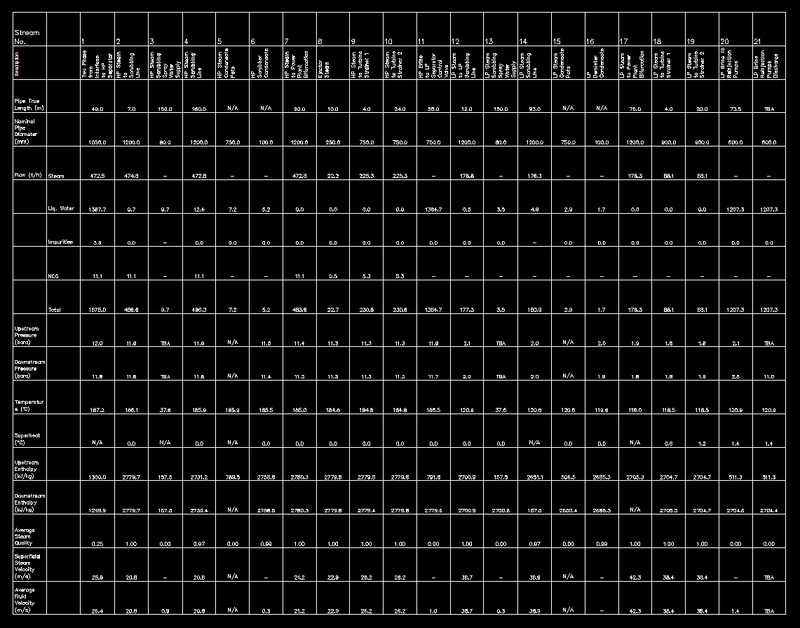
Table_linked_to_excel_spreadsheet

At this stage I haven't focused at all on formating - this is just coming in "as is", without any adjustment of cell alignments, column widths or row heights.

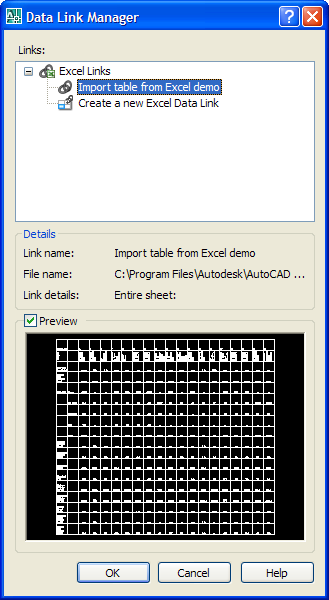
I chose to hardcode the name of the Data Link we use for the spreadsheet. You can run the DATALINK command to check on it, after the command has executed:
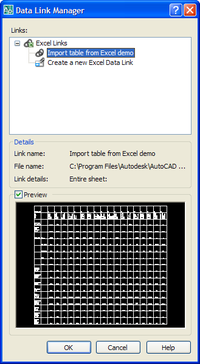
Data_link_for_excel_speadsheet_2 

It doesn't seem to be an issue if you repeat the command and bring in a different spreadsheet using the same link - the link appears to continue (although I haven't performed exhaustive testing). If it does prove to be a problem it should be simple enough to create a unique Data Link per spreadsheet imported (or even per time the command is run).

16 responses to “Creating an AutoCAD table linked to an Excel spreadsheet using .NET”

  1. Thank you very much.......

  2. I have code in vb that does the same thing but I need to have it specify the range name that is predefined in the excel file in the datalink options and I can not for the life of me figure out how to programmably do it. I figure if you can do it manually there should be a way in code.

  3. Monty -

    I'm afraid I don't have time to handle this type of question unless directly related to one of my posts (i.e. there's a problem with code I've posted).

    Please redirect your question to the AutoCAD .NET Discussion Group, or to ADN, if you're a member.

    Kean

  4. i wish to have an excel spreadsheet to design runoff and runout of superelevation transitions for civil 3d

  5. Just a note to anyone who has had any issues...the AutoCad.NET Discussion Group is extremely responsive if you have any questions.
    Steve

  6. Christiaan Ellis Avatar
    Christiaan Ellis

    say I just want to link cell range B5: to C:10 not the entire sheet

  7. Christiaan Ellis Avatar
    Christiaan Ellis

    yes thx.. i did not need to check against a regular expression, i just needed hardcode. your secret was in the connection string

  8. Hello,

    Thank you for the code, it really help me understand C# on AutoCAD as a beginner. But could you please tell me the references used to code ? I have some errors like with "Application.DocumentManager.MdiActiveDocument" and I don't know which one I must add to Visual Studio.

    Thank you.

    1. The easiest way is to install the reference assemblies via NuGet (you should be able to find information on this blog). Otherwise via the ObjectARX SDK.

      Kean

      1. Hello,

        Thank you for your quick answer, after I downloaded the ObjectARX SDK and slightly changed my code due to some errors while I was typing, I don't have any errors left anymore.

        Thank you again for taking your time.

  9. Hi, I can do this via activex?

    1. Possibly, although that's another subject entirely (and not one I'm in a position to answer in my current role). Can you ask on the forums?

      Kean

      1. Thank you for your speedy answare. i have not yet written on forum. Can you suggest me one of the most active forum?

        I don't know if you know the VBA/Activex Com Interlop technology to handle Autocad.

        however, my current problem is:

        when i try to call

        ThisDrawing.sendcommand("_pastspec "); //after copying the excel cells of interest

        the autocad application show the window dialog to select the pastspec's setting preferences.

        Unfortunately my c# application (i'm using ActiveX on c#), must be invisible to user and not must have interactions whit he. therefore i'm not able to handle that window dialog.

        Thanks for your time.

        1. You can't disable the PASTESPEC dialog, as far as I can tell. You're better off using the managed API (as shown in this post), if you possibly can.

          You might need to go to the VB forum for this question:

          forums.autodesk.com...

          Good luck,

          Kean

          1. Thanks, Kean!

Leave a Reply to Mirko Cancel reply

Your email address will not be published. Required fields are marked *