Adding a custom tab to AutoCAD's options dialog using .NET - Part 1

A big thanks to Viru Aithal, from our DevTech India team, for providing the code that inspired this post.

Update: it turns out I didn't look deeply enough into the origins of the code behind this post. The code that inspired Viru's code that inspired mine came from our old friend Mike Tuersley, who's delivering a class on customizing the Options dialog at this year's AU (in just over a week). Thanks, Mike! 🙂

One way that applications often want to integrate with AutoCAD is via the dialog displayed by the OPTIONS command. Luckily it's relatively easy to add your own custom tab to this dialog using .NET, allowing users to view and modify your application's settings. I'm going to take a similar approach to this topic as I did with task dialogs: part 1 (this post) focuses on a very simple implementation to show the basic capabilities of the mechanism, and part 2 will look at a more "real world" implementation that goes as far as providing access to and storing some actual (well, realistic, at least) application settings.

The first step when implementing your custom tab is to add a User Control to your project. As this activity goes beyond just copy & pasting code, here's a sample project demonstrating the technique shown in this post.

Once you have a User Control in your project (ours has the default name UserControl1), you can design it to add in some custom controls - whether buttons, checkboxes, combos, or more complex controls such as a property grid (something I'll show in the next post). Here's the design I settled for, containing just a few, simple controls, each added with its default name:
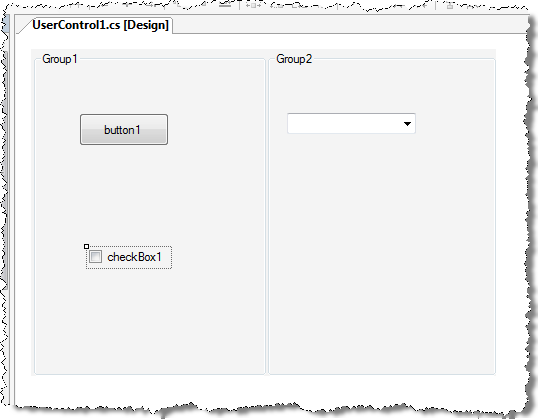
User control layout for options tab

You can clearly adjust the layout, as you wish, with anchor points, docking, etc. It's worth setting the "modifier" for each of the controls you've added to public or internal, assuming you want to access their state directly from elsewhere in the project. The other way is to expose them via public properties, but that's really up to you.

Here's the code that goes behind this dialog, the important activity being to set the "dirty" flag for the control when a particular component control is selected:

using System;

using System.Windows.Forms;

using Autodesk.AutoCAD.ApplicationServices;

namespace OptionsDlg

{

  public partial class UserControl1 : UserControl

  {

    public UserControl1()

    {

      InitializeComponent();

    }

    private void button1_Click(

      object sender,

      EventArgs e

    )

    {

      TabbedDialogExtension.SetDirty(this, true);

    }

    private void checkBox1_CheckedChanged(

      object sender,

      EventArgs e

    )

    {

      TabbedDialogExtension.SetDirty(this, true);

    }

    private void comboBox1_SelectedIndexChanged(

      object sender,

      EventArgs e

    )

    {

      TabbedDialogExtension.SetDirty(this, true);

    }

  }

}

Now for our rest of the implementation. We're going to add our custom tab on load of the application (see these two previous posts for the approach for running code on application load), so there's no need to implement a command. Here's the C# code:

using Autodesk.AutoCAD.Runtime;

using Autodesk.AutoCAD.ApplicationServices;

using Autodesk.AutoCAD.EditorInput;

[assembly:

  ExtensionApplication(

    typeof(OneNeedsOptions.Initialization)

  )

]

namespace OneNeedsOptions

{

  class Initialization : IExtensionApplication

  {

    static OptionsDlg.UserControl1 _uc;

    public void Initialize()

    {

      Application.DisplayingOptionDialog +=

        new TabbedDialogEventHandler(

          Application_DisplayingOptionDialog

        );

    }

    public void Terminate()

    {

      Application.DisplayingOptionDialog -=

        new TabbedDialogEventHandler(

          Application_DisplayingOptionDialog

        );

    }

    private static void ButtonPressedMessage(string name)

    {

      Editor ed =

        Application.DocumentManager.MdiActiveDocument.Editor;

      ed.WriteMessage(name + " button pressed.\n");

    }

    private static void ShowSettings()

    {

      if (_uc != null)

      {

        Editor ed =

          Application.DocumentManager.MdiActiveDocument.Editor;

        ed.WriteMessage(

          "Settings were: checkbox contains {0}," +

          " combobox contains {1}\n",

          _uc.checkBox1.Checked,

          _uc.comboBox1.Text

        );

      }

    }

    private static void OnOK()

    {

      ButtonPressedMessage("OK");

      ShowSettings();

    }

    private static void OnCancel()

    {

      ButtonPressedMessage("Cancel");

    }

    private static void OnHelp()

    {

      ButtonPressedMessage("Help");

    }

    private static void OnApply()

    {

      ButtonPressedMessage("Apply");

      ShowSettings();

    }

    private static void Application_DisplayingOptionDialog(

      object sender,

      TabbedDialogEventArgs e

    )

    {

      if (_uc == null)

        _uc = new OptionsDlg.UserControl1();

      TabbedDialogExtension tde =

        new TabbedDialogExtension(

          _uc,

          new TabbedDialogAction(OnOK),

          new TabbedDialogAction(OnCancel),

          new TabbedDialogAction(OnHelp),

          new TabbedDialogAction(OnApply)

        );

      e.AddTab("My Custom Settings", tde);

    }

  }

}

When we build the application, load it into AutoCAD and run the OPTIONS command, we should see our custom settings appear in our new tab:
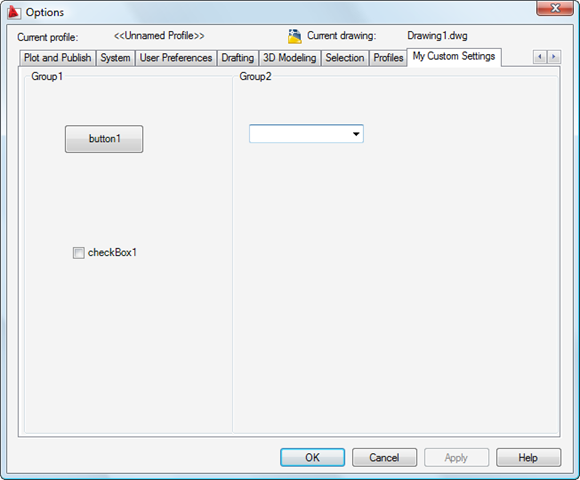
A custom tab in AutoCAD's options dialog

As the various settings in the dialog get modified (even the button being clicked), you'll see the "Apply" button get enabled - a direct result of the settings on the control being considered "dirty". As you select the various buttons belonging to the dialog you should see messages on the command-line, as the respective events get fired.

In the next post we'll extend this example to provide access to persistent properties, as you would want to do from a real application.

29 responses to “Adding a custom tab to AutoCAD's options dialog using .NET - Part 1”

  1. Hi Kean,

    For this posting, would you be willing to post the entire solution? I am having difficulties understanding the various source files that are involved and how everything ties together.

    Ron

  2. Hi Ron,

    Certainly - the link is in the post, but here it is again.

    Regards,

    Kean

  3. Hi Kean,

    I was wondering about testing of AutoCAD plug-ins in general. How do you write unit tests if you depend on the AutoCAD API which doesn't run independently of AutoCAD? In general, what's your recommended strategy for testing a plug-in?

    Thanks.

  4. Hi Kean,

    I've just started Autocad automation with C# and I've got a question. Is there a way to get the max X, minX, max Y and min Y values of all entities within a drawing?

    Imagine I have a drawing with some entities like arcs, lines or even polylines. I'd like to know what are those values so I could draw a rectangle to fit all entities within it. Did you get it?

    Tks

  5. Kean,
    Thanks for keeping up the interesting posts.
    Regards
    kwb

  6. @Tks,

    You can use the property GeometricExtents of an entity. If you have a list of entities, you can easily loop through them to figure out the bounding box. Here is an example in F#.

  7. Hi Nada,

    Thanks for responding to Filipe's question.

    We (meaning Autodesk) use various methods to test our software, but for unit testing we have a large set of scripts that exercise the various APIs. These have to run within AutoCAD, of course.

    Having some kind of test suite for your own internal methods would seem a logical way to approach this, from my perspective.

    I'd be interested to hear how others approach this.

    Kean

  8. Thanks a lot guys! And Kean, you're doing such a great job over here.
    Thanks again.

  9. Hi, when are providing an article on status bar i.e trayitem on pene custom icons. I haveen trying the following code without sucess. The icon gets loaded but disappears after working with cad eg aftaer minimizing the drawing.

    attached code..
    Imports Autodesk.AutoCAD.ApplicationServices
    Imports Autodesk.AutoCAD.Runtime
    Public Class Class1
    Implements Autodesk.AutoCAD.Runtime.IExtensionApplication
    Overridable Sub Initialize() Implements Autodesk.AutoCAD.Runtime.IExtensionApplication.Initialize
    AddTrayItems()
    End Sub

    Function GetEmbeddedIcon(ByVal strName As String) As Drawing.Icon
    Return New Drawing.Icon(System.Reflection.Assembly.GetExecutingAssembly.GetManifestResourceStream(strName))
    End Function

    Sub AddTrayItems()
    Try
    Dim doc As Document = Application.DocumentManager.MdiActiveDocument
    Dim ti As New TrayItem()
    ti.ToolTipText = "MyCadAddon Info"
    ti.Icon = GetEmbeddedIcon("MyCadAddon.blue.ico")
    Application.StatusBar.TrayItems.Add(ti)
    Dim bw As New TrayItemBubbleWindow()
    bw.Title = "MyCadAddon Application:"
    'bw.HyperText = ""
    ' bw.HyperLink = ""
    bw.Text = "This application has been loaded sucessfully"
    bw.IconType = IconType.Information
    ti.ShowBubbleWindow(bw)
    Catch

    End Try

    End Sub

    Overridable Sub Terminate() Implements Autodesk.AutoCAD.Runtime.IExtensionApplication.Terminate

    End Sub

    End Class

  10. Sorry - I don't have time to look into this. Perhaps someone on the AutoCAD .NET Discussion Group can help (or the ADN team, if you're a member).

    It looks as though you adapted the technique from this previous post. I assume you're not also implementing the Closed event handler, which removes the icon in that example?

    Kean

  11. About the unit testing:

    A tool exists, Gallio that (among many other features) runs MbUnit tests in the AutoCAD context.
    I have not yet had the time to look into it, but it seems interesting. The documentation on AutoCAD integration is scarce though, so trying it out is the only way to go right now.

    Another option, from my point of view, 'Contracting' all your functionality. This means writing interfaces for the self-written functionality, and mocking it in the unit tests.

    This way you don't need to use the acad dll's, but it does create a LOT of overhead for your code. It means proxying all acad-functionality you need, again in your own code.

    If anyone has any other options (or links), please share...

  12. Kean,

    Firstly, thank-you for continuing an excellent resource that is this blog.

    I do have a question on this particular post. Within AutoCAD 2010, when loading this particular module the custom options tab can be seen. However, if you close then re-open the AutoCAD options the custom tab is no long accessible.

    Was there something that changed in the AutoCAD API which alters this?

    Regards,
    Xander

  13. Kean Walmsley Avatar

    Xander,

    My pleasure! 🙂

    As long as your application is loaded and adds its tab, the options dialog should contain it. I assume your app has been loaded and is initialized in the new session?

    Regards,

    Kean

  14. Kean,

    The app has indeed been loaded and initialized. If I navigate my way to the options after loading I see my tab. Upon closing the options dialog, and re-opening my custom Tab vanishes/unloads, yet the app is still loaded. It is confusing to say the least.

    I have tested this with your code (as is from the link) and the same thing happens.

    Could the implementation of these functions in the AutoCAD API changed to cause this?

    Regards,
    Xander

  15. Kean Walmsley Avatar

    Xander,

    It works fine for me on AutoCAD 2010 (at least the implementation I have in a separate project works fine, and it uses exactly the same technique as this post).

    Perhaps you can post exact steps to reproduce?

    Kean

  16. Kean,

    The procedure I use:
    1. 'NetLoad' OptionsDLG (the sample provided here as is).
    2. Open the AutoCAD Options Dialog. The new tab is present and working.
    3. Close the Options Dialog by clicking Apply, OK.
    4. Re-Open the options dialog to find the tab missing.

    Just having a look, the only difference I can think of is the .NET version. I have currently adopted .NET 3.0 instead of 2.0.

    Regards,
    Xander

  17. Xander,

    OK, I see it now. It works if I adjust the implementation of Application_DisplayingOptio nsDialog() slightly to still create the TabbedDialogExtension and add it even when _uc is not null:

    private static void Application_DisplayingOptionDialog(
    object sender,
    TabbedDialogEventArgs e
    )
    {
    if (_uc == null)
    _uc = new OptionsDlg.UserControl1();

    TabbedDialogExtension tde =
    new TabbedDialogExtension(
    _uc,
    new TabbedDialogAction(OnOK),
    new TabbedDialogAction(OnCancel),
    new TabbedDialogAction(OnHelp),
    new TabbedDialogAction(OnApply)
    );
    e.AddTab("My Custom Settings", tde);
    }

    I've updated the code in the post and in the sample project.

    Please let me know if the changed code works for you,

    Kean

  18. Kean,

    YOU ARE A LEGEND!
    Not to over state it but why couldn't I figure that out!

    Regards,
    Xander

  19. Xander,

    Glad to be of help... just sorry I didn't spot it sooner. :-S

    Cheers,

    Kean

  20. Kean,

    Thank you for this post - very clear and easy to follow.

    I do have a question: So far my experience with adding options tabs via the .NET interfaces results in the application's tab being displayed to the user each time the OPTIONS command is invoked. Is there a way to keep the last viewed tab presented to the user each time the OPTIONS command is issued?

    Scott

  21. Scott,

    I just tried the code in this project inside AutoCAD 2010, and found that the displayed tab when launching OPTIONS is the last accessed tab (not even the one that has just been added by the application).

    Could you give it a try and let me know whether you see the same thing?

    Regards,

    Kean

  22. Great post,

    Only got one more question. How can 1 enable the apply button when something on my optionsdialog changes?

    I want to keep my app working as autocad does.

    Kind regards,

    Irvin
    From tje Netherlands

  23. Hi Irvin,

    As explained in the post, calling SetDirty() should cause the Apply button to be enabled. Is there something more you need?

    Regards,

    Kean

  24. Hi Kean

    How does one edit
    the standard AutoCAD options
    in VB.NET - want to use a preset configuration as the users
    keep on changing them

  25. Hi Richard,

    You can get the Preferences property from the Application object, which actually returns a COM object (so you need to include the appropriate Type Library in your project to access it).

    If you need more detail, please post your question to the ADN team, if you're a member, or otherwise the AutoCAD .NET Discussion Group.

    Kean

  26. Hi Kean,

    After including my own tab on Options dialog, I would like to know whether it is possible to open the Options dialog directly on my tab (so as to include a Settings button in the ribbon bar)

  27. Hi Joseba,

    Off the top of my head I don't know of a supported API for this (I'd suggest checking the Preferences object in the COM API - perhaps there's something there). You might try posting to the ADN team or the AutoCAD .NET Discussion Group, to see if someone knows.

    In terms of unsupported ways to do this, the OPTIONS command does read this Registry entry on every execution:

    HKEY_CURRENT_USER\Software\Autodesk\AutoCAD\R19.1\ACAD-D001:409\Profiles\<<unnamed profile="">>\Dialogs\OptionsDialog\ActiveTab

    This is a zero-based index into the set of tabs.

    Regards,

    Kean

  28. Hello,
    I've been trying to find out if I can prevent the user pressing OK or Apply if there are 'validation errors' in my options tab.
    Can you recommend an approach to enable the dialog to remain open until I can accept the input? Ideally I'd like to disable OK and Apply.
    Thanks
    Craig

  29. Hi Craig,

    The standard AutoCAD tabs tend to use controls that validate input (and then show a local bubble notification when users attempt to enter non-numeric data into a numeric textbox, for instance) or otherwise attempt to validate the data and present a messagebox, if not (such as entering an invalid path in one of the search paths).

    That's probably the better way to go: to validate on input (or loss of focus of a control) and then display an appropriate warning there and then, rather than waiting for OK or Apply to be pressed. I don't know whether that's feasible for your particular scenario, though.

    Regards,

    Kean

Leave a Reply to Scott Cancel reply

Your email address will not be published. Required fields are marked *