This is a topic I've been meaning to get to for some time... as I finally had to research it for a side project I'm working on, I decided to go ahead and post my findings here.
AutoCAD 2009 makes heavy use of task dialogs, which are basically message-boxes on steroids. MSDN contains documentation on Microsoft's implementation of task dialogs, although our implementation is a little different.
Why bother with these new task dialogs? They provide a way of asking more user-friendly questions using actual actions as answers rather than yes/no/cancel etc. It's a bit like the way I now often seem to be asked questions such as "who packed this bag?" when flying, these days, rather than "did you pack this bag yourself?" - you have to think a little more, but that usually increases the chances of getting accurate information. Alright, perhaps the airline security analogy wasn't all that appropriate, after all, but hopefully you get the idea.
In this first part of the two-part series we're going to look at the basic steps to add task dialogs to our projects, showing a very basic example that gives an idea of their capabilities, and in the next part we'll see a much more concrete, real-world implementation example.
The first thing to do to make use of task dialogs in your application is to add a reference to the AdWindows.dll assembly. You should find it in AutoCAD 2009 (but not previous versions), in the root application folder. As usual when adding AutoCAD's managed assemblies to your project, remember to set the "Copy Local" flag to false, to avoid problems later. Once we've added this reference we're able to use the Autodesk.Windows namespace (not to be confused with Autodesk.AutoCAD.Windows, which is AutoCAD-specific).
Here's our initial C# code to show a very basic task dialog, without doing very much with the information provided:
using Autodesk.AutoCAD.ApplicationServices;
using Autodesk.AutoCAD.EditorInput;
using Autodesk.AutoCAD.Runtime;
using Autodesk.Windows;
namespace TaskDialogs
{
public class Commands
{
[CommandMethod("Task1")]
public static void TestingTaskDialogOptions()
{
Editor ed =
Application.DocumentManager.MdiActiveDocument.Editor;
// Create the task dialog itself
TaskDialog td = new TaskDialog();
// Set the various textual settings
td.WindowTitle = "The title";
td.MainInstruction = "Something has happened.";
td.ContentText =
"Here's some text, with a " +
"<A HREF=\"http://adn.autodesk.com\">" +
"link to the ADN site</A>";
td.VerificationText = "Verification text";
td.FooterText =
"The footer with a "+
"<A HREF=\"http://blogs.autodesk.com/through" +
"-the-interface\">link to Kean's blog</A>";
td.EnableHyperlinks = true;
td.EnableVerificationHandler = true;
// And those for collapsed/expanded text
td.CollapsedControlText =
"This control text can be expanded.";
td.ExpandedControlText
= "This control text has been expanded..." +
"\nTo span multiple lines.";
td.ExpandedText = "This footer text has been expanded.";
td.ExpandFooterArea = true;
td.ExpandedByDefault = false;
// Set some standard icons and display of the progress bar
td.MainIcon = TaskDialogIcon.Shield;
td.FooterIcon = TaskDialogIcon.Information;
td.ShowProgressBar = true;
// A marquee progress bas just loops,
// it has no range fixed upfront
//td.ShowMarqueeProgressBar = true;
// Now we add out task action buttons
td.UseCommandLinks = true;
td.Buttons.Add(
new TaskDialogButton(
1,
"This is one course of action."
)
);
td.Buttons.Add(
new TaskDialogButton(
2,
"Here is another course of action."
)
);
td.Buttons.Add(
new TaskDialogButton(
3,
"And would you believe we have a third!"
)
);
// Set the default to be the third
td.DefaultButton = 3;
// And some radio buttons, too
td.RadioButtons.Add(new TaskDialogButton(4, "Yes"));
td.RadioButtons.Add(new TaskDialogButton(5, "No"));
td.RadioButtons.Add(new TaskDialogButton(6, "Maybe"));
// Set the default to be the second
td.DefaultRadioButton = 5;
// Allow the dialog to be cancelled
td.AllowDialogCancellation = false;
// Implement a callback for UI event notification
td.Callback =
delegate(
ActiveTaskDialog atd,
TaskDialogEventArgs e,
object sender
)
{
ed.WriteMessage(
"\nButton ID: {0}",
e.ButtonId
);
ed.WriteMessage(
"\nNotification: {0}",
e.Notification
);
if (e.Notification ==
TaskDialogNotification.VerificationClicked)
{
atd.SetProgressBarRange(0, 100);
atd.SetProgressBarPosition(80);
}
else if (e.Notification ==
TaskDialogNotification.HyperlinkClicked)
{
ed.WriteMessage(" " + e.Hyperlink);
}
ed.WriteMessage("\n");
// Returning true will prevent the dialog from
// being closed
return false;
};
td.Show(Application.MainWindow.Handle);
}
}
}
When we execute the TASK1 command, we can see this dialog gets displayed:
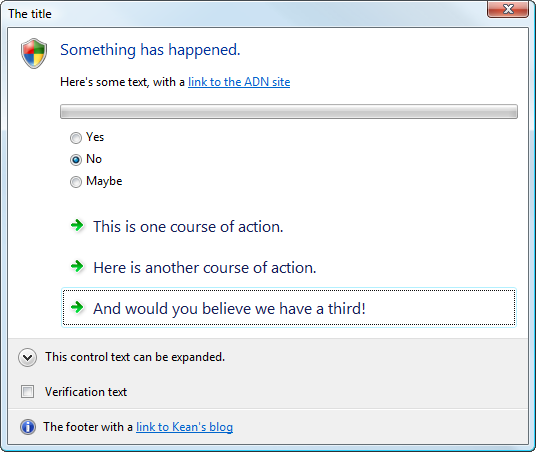
This dialog exercises most of the UI options available in the TaskDialog class. You'll see a progress bar (which gets modified via the ActiveTaskDialog passed into the notification callback - try checking the "Verification text" box to see that happen) as well as option buttons, action buttons and some expandable text.
Here's how the dialog looks with the text expanded and the verification checkbox ticked:

It's worth playing around with the code to see how the notification is provided to the application, and how the ActiveTaskDialog can be used from there to modify the state of the dialog. One thing you'll notice is that the hyperlinks don't automatically result in a browser being launched, which overall is a good thing, as the links can then be set up to result in other actions (the application has all the information it needs to know what was clicked in the notification callback - if it wants to launch a browser to the clicked URL, it is free to do so).
Now that we've explored the various options open to us, in the next post we'll look at a more real-world example of using a task dialog to help manage potentially time-consuming application behaviour.
Update
In AutoCAD 2010 the TaskDialogEventArgs class was renamed to TaskDialogCallbackArgs, apparently to be more consistent with .NET naming conventions. If you receive an error such as "The type or namespace name 'TaskDialogEventArgs' could not be found (are you missing a using directive or an assembly reference?)" when building your application, updating the name to be TaskDialogCallbackArgs will resolve it.


Leave a Reply to David Osborne Cancel reply