More fun with AutoCAD tables and their styles using .NET

In this previous post we saw some code to create a table style and apply it to a new table inside an AutoCAD drawing. While responding to a comment on the post, I realised that the table didn't display properly using my example: the first column heading was being taken as the table title and the rest of the column headings were lost - the headings in the table were actually taken from the first row of data. I suppose that serves me right for having chosen such eye-catching (and distracting) colours. 🙂

The following C# code addresses this by adding some information to our array of table contents, and using that for the table title. It also does a little more to customize the display of our table by applying chunky lineweights (and yet more garish colours) to the table's grid-lines.

using Autodesk.AutoCAD.ApplicationServices;

using Autodesk.AutoCAD.DatabaseServices;

using Autodesk.AutoCAD.EditorInput;

using Autodesk.AutoCAD.Runtime;

using Autodesk.AutoCAD.Colors;


namespace TableAndStyleCreation

{

  public class Commands

  {

    [CommandMethod("CTWS")]

    static public void CreateTableWithStyleAndWhatStyle()

    {

      Document doc =

        Application.DocumentManager.MdiActiveDocument;

      Database db = doc.Database;

      Editor ed = doc.Editor;


      PromptPointResult pr =

        ed.GetPoint("\nEnter table insertion point: ");

      if (pr.Status == PromptStatus.OK)

      {

        Transaction tr =

          doc.TransactionManager.StartTransaction();

        using (tr)

        {

          // First let us create our custom style,

          //  if it doesn't exist


          const string styleName = "Garish Table Style";

          ObjectId tsId = ObjectId.Null;


          DBDictionary sd =

            (DBDictionary)tr.GetObject(

              db.TableStyleDictionaryId,

              OpenMode.ForRead

            );


          // Use the style if it already exists


          if (sd.Contains(styleName))

          {

            tsId = sd.GetAt(styleName);

          }

          else

          {

            // Otherwise we have to create it


            TableStyle ts = new TableStyle();


            // Make the header area red


            ts.SetBackgroundColor(

              Color.FromColorIndex(ColorMethod.ByAci, 1),

              (int)(RowType.TitleRow |

                    RowType.HeaderRow)

            );


            // And the data area yellow


            ts.SetBackgroundColor(

              Color.FromColorIndex(ColorMethod.ByAci, 2),

              (int)RowType.DataRow

            );


            // With magenta text everywhere (yeuch 🙂


            ts.SetColor(

              Color.FromColorIndex(ColorMethod.ByAci, 6),

              (int)(RowType.TitleRow |

                    RowType.HeaderRow |

                    RowType.DataRow)

            );


            // And now with cyan outer grid-lines


            ts.SetGridColor(

              Color.FromColorIndex(ColorMethod.ByAci, 4),

              (int)GridLineType.OuterGridLines,

              (int)(RowType.TitleRow |

                    RowType.HeaderRow |

                    RowType.DataRow)

            );


            // And bright green inner grid-lines


            ts.SetGridColor(

              Color.FromColorIndex(ColorMethod.ByAci, 3),

              (int)GridLineType.InnerGridLines,

              (int)(RowType.TitleRow |

                    RowType.HeaderRow |

                    RowType.DataRow)

            );


            // And we'll make the grid-lines nice and chunky


            ts.SetGridLineWeight(

              LineWeight.LineWeight211,

              (int)GridLineType.AllGridLines,

              (int)(RowType.TitleRow |

                    RowType.HeaderRow |

                    RowType.DataRow)

            );


            // Add our table style to the dictionary

            //  and to the transaction


            tsId = ts.PostTableStyleToDatabase(db, styleName);

            tr.AddNewlyCreatedDBObject(ts, true);

          }


          BlockTable bt =

            (BlockTable)tr.GetObject(

              doc.Database.BlockTableId,

              OpenMode.ForRead

            );


          Table tb = new Table();


          tb.NumRows = 6;

          tb.NumColumns = 3;

          tb.SetRowHeight(3);

          tb.SetColumnWidth(15);

          tb.Position = pr.Value;


          // Use our table style


          if (tsId == ObjectId.Null)

            // This should not happen, unless the

            //  above logic changes

            tb.TableStyle = db.Tablestyle;

          else

            tb.TableStyle = tsId;


          // Create a 2-dimensional array

          // of our table contents


          string[,] str = new string[6, 3];

          str[0, 0] = "Material Properties Table";

          str[1, 0] = "Part No.";

          str[1, 1] = "Name";

          str[1, 2] = "Material";

          str[2, 0] = "1876-1";

          str[2, 1] = "Flange";

          str[2, 2] = "Perspex";

          str[3, 0] = "0985-4";

          str[3, 1] = "Bolt";

          str[3, 2] = "Steel";

          str[4, 0] = "3476-K";

          str[4, 1] = "Tile";

          str[4, 2] = "Ceramic";

          str[5, 0] = "8734-3";

          str[5, 1] = "Kean";

          str[5, 2] = "Mostly water";


          // Use a nested loop to add and format each cell


          for (int i = 0; i < 6; i++)

          {

            if (i == 0)

            {

              // This is for the title


              tb.SetTextHeight(0, 0, 1);

              tb.SetTextString(0, 0, str[0, 0]);

              tb.SetAlignment(0, 0, CellAlignment.MiddleCenter);

            }

            else

            {

              // These are the header and data rows


              for (int j = 0; j < 3; j++)

              {

                tb.SetTextHeight(i, j, 1);

                tb.SetTextString(i, j, str[i, j]);

                tb.SetAlignment(i, j, CellAlignment.MiddleCenter);

              }

            }

          }

          tb.GenerateLayout();


          BlockTableRecord btr =

            (BlockTableRecord)tr.GetObject(

              bt[BlockTableRecord.ModelSpace],

              OpenMode.ForWrite

            );

          btr.AppendEntity(tb);

          tr.AddNewlyCreatedDBObject(tb, true);

          tr.Commit();

        }

      }

    }

  }

}

One other minor enhancement: I made use of the TableStyle.PostTableStyleToDatabase() method to add the style to the appropriate location in the Database (we previously edited the TableStyleDictionary directly to achieve this).

Here's what happens when we run the CTWS command (making sure that we have adjusted the display settings to use lineweights):
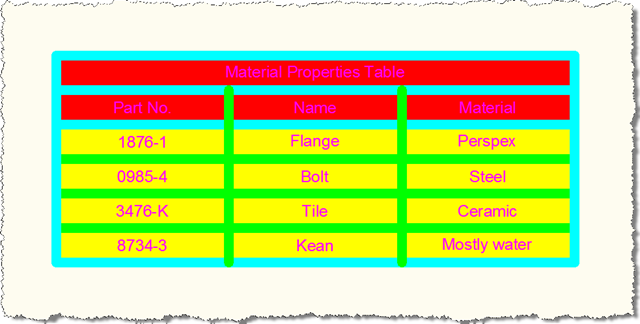
Another custom garishly-styled table

And here's the updated style in AutoCAD's TableStyle dialog:
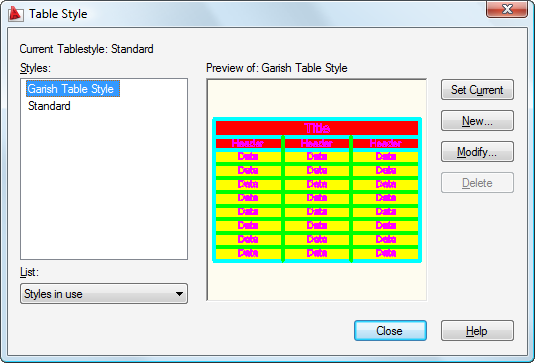
AutoCAD's Table Style dialog with our updated style

That's better. At least in that it does what was expected of it, even if it's not winning any design awards. 🙂

Update

Roland Feletic pointed out that this code - while it still builds for AutoCAD 2011 - causes some "obsolete property/method" compiler warnings. I've provided an updated version of the code below, with the previous lines commented out for comparison:

using Autodesk.AutoCAD.ApplicationServices;

using Autodesk.AutoCAD.DatabaseServices;

using Autodesk.AutoCAD.EditorInput;

using Autodesk.AutoCAD.Runtime;

using Autodesk.AutoCAD.Colors;


namespace TableAndStyleCreation

{

  public class Commands

  {

    [CommandMethod("CTWS")]

    static public void CreateTableWithStyleAndWhatStyle()

    {

      Document doc =

        Application.DocumentManager.MdiActiveDocument;

      Database db = doc.Database;

      Editor ed = doc.Editor;


      PromptPointResult pr =

        ed.GetPoint("\nEnter table insertion point: ");

      if (pr.Status == PromptStatus.OK)

      {

        Transaction tr =

          doc.TransactionManager.StartTransaction();

        using (tr)

        {

          // First let us create our custom style,

          //  if it doesn't exist


          const string styleName = "Garish Table Style";

          ObjectId tsId = ObjectId.Null;


          DBDictionary sd =

            (DBDictionary)tr.GetObject(

              db.TableStyleDictionaryId,

              OpenMode.ForRead

            );


          // Use the style if it already exists


          if (sd.Contains(styleName))

          {

            tsId = sd.GetAt(styleName);

          }

          else

          {

            // Otherwise we have to create it


            TableStyle ts = new TableStyle();


            // Make the header area red


            ts.SetBackgroundColor(

              Color.FromColorIndex(ColorMethod.ByAci, 1),

              (int)(RowType.TitleRow |

                    RowType.HeaderRow)

            );


            // And the data area yellow


            ts.SetBackgroundColor(

              Color.FromColorIndex(ColorMethod.ByAci, 2),

              (int)RowType.DataRow

            );


            // With magenta text everywhere (yeuch 🙂


            ts.SetColor(

              Color.FromColorIndex(ColorMethod.ByAci, 6),

              (int)(RowType.TitleRow |

                    RowType.HeaderRow |

                    RowType.DataRow)

            );


            // And now with cyan outer grid-lines


            ts.SetGridColor(

              Color.FromColorIndex(ColorMethod.ByAci, 4),

              (int)GridLineType.OuterGridLines,

              (int)(RowType.TitleRow |

                    RowType.HeaderRow |

                    RowType.DataRow)

            );


            // And bright green inner grid-lines


            ts.SetGridColor(

              Color.FromColorIndex(ColorMethod.ByAci, 3),

              (int)GridLineType.InnerGridLines,

              (int)(RowType.TitleRow |

                    RowType.HeaderRow |

                    RowType.DataRow)

            );


            // And we'll make the grid-lines nice and chunky


            ts.SetGridLineWeight(

              LineWeight.LineWeight211,

              (int)GridLineType.AllGridLines,

              (int)(RowType.TitleRow |

                    RowType.HeaderRow |

                    RowType.DataRow)

            );


            // Add our table style to the dictionary

            //  and to the transaction


            tsId = ts.PostTableStyleToDatabase(db, styleName);

            tr.AddNewlyCreatedDBObject(ts, true);

          }


          BlockTable bt =

            (BlockTable)tr.GetObject(

              doc.Database.BlockTableId,

              OpenMode.ForRead

            );


          Table tb = new Table();


          tb.InsertRows(0, 3, 6);

          tb.InsertColumns(0, 15, 3);


          /*

          tb.NumRows = 6;

          tb.NumColumns = 3;

          tb.SetRowHeight(3);

          tb.SetColumnWidth(15);

          tb.Position = pr.Value;

          */


          // Use our table style


          if (tsId == ObjectId.Null)

            // This should not happen, unless the

            //  above logic changes

            tb.TableStyle = db.Tablestyle;

          else

            tb.TableStyle = tsId;


          // Create a 2-dimensional array

          // of our table contents


          string[,] str = new string[6, 3];

          str[0, 0] = "Material Properties Table";

          str[1, 0] = "Part No.";

          str[1, 1] = "Name";

          str[1, 2] = "Material";

          str[2, 0] = "1876-1";

          str[2, 1] = "Flange";

          str[2, 2] = "Perspex";

          str[3, 0] = "0985-4";

          str[3, 1] = "Bolt";

          str[3, 2] = "Steel";

          str[4, 0] = "3476-K";

          str[4, 1] = "Tile";

          str[4, 2] = "Ceramic";

          str[5, 0] = "8734-3";

          str[5, 1] = "Kean";

          str[5, 2] = "Mostly water";


          // Use a nested loop to add and format each cell


          for (int i = 0; i < 6; i++)

          {

            if (i == 0)

            {

              // This is for the title


              tb.Cells[0, 0].TextHeight = 1;

              tb.Cells[0, 0].TextString = str[0, 0];

              tb.Cells[0, 0].Alignment =

                CellAlignment.MiddleCenter;


              //tb.SetTextHeight(0, 0, 1);

              //tb.SetTextString(0, 0, str[0, 0]);

              //tb.SetAlignment(0, 0, CellAlignment.MiddleCenter);

            }

            else

            {

              // These are the header and data rows


              for (int j = 0; j < 3; j++)

              {

                tb.Cells[i, j].TextHeight = 1;

                tb.Cells[i, j].TextString = str[i, j];

                tb.Cells[i, j].Alignment =

                  CellAlignment.MiddleCenter;


                //tb.SetTextHeight(i, j, 1);

                //tb.SetTextString(i, j, str[i, j]);

                //tb.SetAlignment(i, j, CellAlignment.MiddleCenter);

              }

            }

          }

          tb.GenerateLayout();


          BlockTableRecord btr =

            (BlockTableRecord)tr.GetObject(

              bt[BlockTableRecord.ModelSpace],

              OpenMode.ForWrite

            );

          btr.AppendEntity(tb);

          tr.AddNewlyCreatedDBObject(tb, true);

          tr.Commit();

        }

      }

    }

  }

}

Many thanks, Roland! 🙂

  1. Hi,
    could you please post a topic about proxy objects and proxy entity ?

    thanks

  2. adoh -

    What would you like to know, specifically?

    Kean

  3. Hi,Kean!
    could you show me a example about How to creat a text style and display chinese & japanese word?
    thanks in advance!

  4. Hi kean,
    Thank you for your reply.
    Actually I'm trying to write a program,that when it's unloaded,all the objects become proxy objects. Adding kind of security that make all my objects inivisible without my program loaded. I think I should use proxy object and entity but I dont know how?!

    Thank you
    adoh

  5. adoh -

    Proxies only get created for custom objects, not for standard entities. If you want to impose some kind of security on your data, then there are better ways to get there than by going down the path of implementing custom objects for everything in your application (potentially a lot of work).

    One option would be to store no graphical data at all in your DWG file and re-create it all on the fly. The non-graphical data used to define your objects could then be stored in the DWG (in the Named Objects Dictionary) or in an external database.

    Kean

  6. Thanks Kean,
    Really colorful design,isn't it?:-) And what is important is the heading and title appear.

  7. Hi Kean,
    Actually I didn't test this example myself. One of my workmate sent me a mail said that it works correct, so I left the comment above. I don't know how can he do this. But today I found the title's row(the row 0) still had three columns, and the text in the first column(column 0,0).
    There are some complie errors like"'Autodesk.AutoCAD.DatabaseServices.GridLineType' does not contain a definition for 'OuterGridLines'
    ". I think these codes don't affect the title's show style, so I remove them. Is this wrong?
    I think maybe the problem is ObjectARX's version. I use AutoCAD2007+ObjectARX2008. Did I really needn't to merge the first row's columns?
    As you know, I can got the correct result(merge the first row's columns), but I still want to know if there are better way to implement that.
    Thanks.

  8. Hi Travor,

    I'm testing on AutoCAD 2009 - there have probably been changes since AutoCAD 2007. You were right to remove that line - it shouldn't be the cause of the problem.

    As you have a solution, I suggest going with that, but as you support a more recent AutoCAD version you may want to adjust the code accordingly.

    Kean

  9. hi Kean
    i use autocad 2006, and would like to know,if i can create a drawing (eg: dress pattern) and be able to modify by using a table or dialog box ,by entering (eg: hip, waist, shoulders)in the box and having the actual drawing change to match the measurments placed in the table.
    ive heard about LISP commands, could this work if so how? can u show basic eg?

    thanks leslie

  10. Hi Leslie,

    AutoCAD currently doesn't do this out-of-the-box, so you would have to implement some kind of application.

    I suggest posting to one of the Autodesk discussion groups, to see if someone there has some suggestions.

    Regards,

    Kean

  11. Hi Kean,
    I found sometime the actual RowHeight adjusted to fit the text height, not the value you set. For example, when I set the RowHeight=5 and TextHeight=3, the actual RowHeight is set to 7 not 5, but when I change the TextHeight to 1, the actual RowHeight is 5. I didn't find any properties or methods to fix the row height. Any suggestion?
    Thanks.

  12. Hi Travor,

    I'm going to post something soon (hopefully in the coming weeks) related to Cell Styles. You may want to look them up in the AutoCAD product help, to get some understanding of them. It may be that these are more effective that setting the text/row height directly (although I need to look into this further).

    Kean

  13. Thanks for your quick response. I am looking forward to that post.

  14. Hi Kean,
    I had an old template drawing which had a 'Table' drawn out of lines and text, and I decided I'd go ahead and replace that with a real Table while I upgrade the program which used to use that template. While I was chopping up your code (I don't think the engineers in this office would approve of your color scheme;~), I noticed that you got the transaction manager and therefore the transaction from the document instead of the database. Could you explain why?

  15. Kean Walmsley Avatar

    Hi David,

    > Could you explain why?

    Nope, sorry. Because there's no particular reason I did this: I might have just as effectively used the TransactionManager from the Database.

    One might argue I probably should have, as it might make logical sense to use the transaction manager from the "lowest" point in the object model, but in (this) reality there's no practical difference in having done so.

    So you can consider this a slip of the keyboard, but an insignificant one. 🙂

    Cheers,

    Kean

  16. Rodrigo Araújo Avatar
    Rodrigo Araújo

    Hello Kean, good afternoon.
    I was a student of Augusto Gonçalves in last Autocad.net training in São Paulo/Brazil.
    I tried running the code but the following errors
    "'Autodesk.AutoCAD.DatabaseServices.GridLineType' does not contain a definition for 'OuterGridLines'"
    'Autodesk.AutoCAD.DatabaseServices.GridLineType' does not contain a definition for 'InnerGridLines'"
    "'Autodesk.AutoCAD.DatabaseServices.GridLineType' does not contain a definition for 'AllGridLines'"
    Could you help me?
    Thank you!
    Rodrigo Araujo

  17. Kean Walmsley Avatar

    Hello Rodrigo,

    I don't see this error - it works fine for me with AutoCAD 2011 and 2012.

    Perhaps you're using an older version of AutoCAD?

    Regards,

    Kean

  18. Hi Kean.

    Tried the above "update" code and noticed that the table came out not quite right. The tweaking below seems to fix things. Do you agree?...

    When you instantiate the table (i.e. Table tb = new Table()), it appears that it automatically contains 1 column and 1 row.

    So when you add rows and columns you should do this:
    tb.InsertRows(1, 3.0, 5);
    InsertColumns(1, 15.0, 2);

    And then manually set the first column and row width and height respectively:
    tb.Rows[0].Height = 3.0;
    tb.Columns[0].Width = 15.0;

    Also just noticed that the following statement was missing:
    tb.Position = pr.Value;

    This seems to get it working properly for me in both AutoCAD 2011 and 2012.

  19. It's quite possible the code needs some tweaking for newer releases.

    Thanks for posting your suggestions!

    Kean

  20. Hi Kean:

    I was wondering if we can utilize the Civil 3D API to create tables with same level of customization that is available AutoCAD tables.

    At present, AutoCAD table are more customizable but when imported in Civil 3D, they don't dynamically update when modifications are done in Civil 3D document. However, the Civil 3D tables does the job of dynamic update but they lack the flexible styling component.

    I would appreciate if you can share some ideas or provide a sample code.

    Thank you.

  21. Kean Walmsley Avatar

    Hi James,

    Unfortunately I don't know about Civil 3D tables (nor do I have time to investigate this). Hopefully someone on the discussion groups can help.

    Regards,

    Kean

  22. Hello Sir, I have problem, whenever i open cad file in 2010 i have to set mbuttonpan. another is have to fill on. please tell me solution.

  23. Hello Abdul,

    Your question isn't related to this post: please submit it via the appropriate AutoCAD Discussion Group.

    Regards,

    Kean

  24. Hi Kean:

    Could you give me some pointers as to how to import a table style (including the template and the necessary text styles) from one DB into another? I tried using WBlockClone but it doesn't seem to work.

    Thanks in advance,
    Jurica

  25. Hi Jurica,

    I'd have gone with WblockCloneObjects(). Have you tried that?

    Regards,

    Kean

  26. very helpful thank you.

Leave a Reply to adoh Cancel reply

Your email address will not be published. Required fields are marked *