I received a comment on this previous post:
Hi Kean, I tried to develop a routine based on this post but I found 2 things that I'd like to solve if possible. Your routine is just not usable for larger drawings (takes way to long). Also, your routine does not work properly in paper space. Please, don't get me wrong, I appreciate all the work you've put into this blog. I just desperately need to come up with a solution for snapshots that work on large drawings, that work in paper/model space and that use the current viewstyle settings (except the background color). Isn't there a way to somehow mimic the GetGsView function that is fast and works in paper space as well but has a downfall of creating a 3D view in the actual drawing whenever a 2D Wireframe visual style is set? Any help is really appreciated.
The previous post was really focused on using AutoCAD's graphics system to generate a bitmap of the contained model. Something that may work better for certain specific scenarios is to capture graphics at the operating system level: essentially taking a screenshot (as opposed to what I previously called a snapshot – although frankly the difference is really which graphics system you ask to generate the graphics). The code I've adapted for use within AutoCAD is shown here.
Here's the C# code:
using acApp = Autodesk.AutoCAD.ApplicationServices;
using Autodesk.AutoCAD.Runtime;
using System.Drawing.Imaging;
using System.Drawing;
namespace ScreenshotTest
{
public class Commands
{
[CommandMethod("CSS")]
static public void CaptureScreenShot()
{
ScreenShotToFile(
acApp.Application.MainWindow,
"c:\\main-window.png",
0, 0, 0, 0
);
ScreenShotToFile(
acApp.Application.DocumentManager.MdiActiveDocument.Window,
"c:\\doc-window.png",
30, 26, 10, 10
);
}
private static void ScreenShotToFile(
Autodesk.AutoCAD.Windows.Window wd,
string filename,
int top, int bottom, int left, int right
)
{
Point pt = wd.Location;
Size sz = wd.Size;
pt.X += left;
pt.Y += top;
sz.Height -= top + bottom;
sz.Width -= left + right;
// Set the bitmap object to the size of the screen
Bitmap bmp =
new Bitmap(
sz.Width,
sz.Height,
PixelFormat.Format32bppArgb
);
using (bmp)
{
// Create a graphics object from the bitmap
using (Graphics gfx = Graphics.FromImage(bmp))
{
// Take a screenshot of our window
gfx.CopyFromScreen(
pt.X, pt.Y, 0,0, sz,
CopyPixelOperation.SourceCopy
);
// Save the screenshot to the specified location
bmp.Save(filename, ImageFormat.Png);
}
}
}
}
}
The code is pretty simple: it defines a command called CSS which creates two screenshots – one of the entire application window and one of the active document. The function that does the hard work – ScreenShotToFile() takes some arguments to allow cropping of the created image, as – for instance - the drawing window also contains some graphics that most people wouldn't consider to be part of the drawing. If you want to see the reason for adding these four parameters, try passing zero to each of them in second call to the function (just as we do for the first), and look at the resulting image in c:\doc-window.png.
You'll need to add references to a few additional .NET assemblies: System.Drawing and probably PresentationCore if you're working with AutoCAD 2010.
Now let's see what we get when we run our CSS command in an editing session. Two files get created – c:\main-window.png:
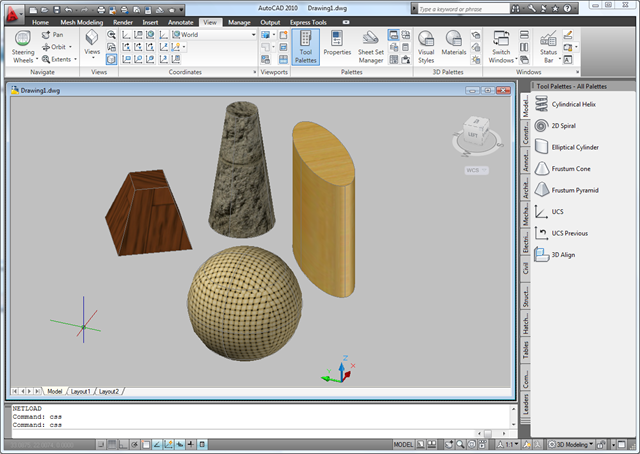
And c:\doc-window.png:
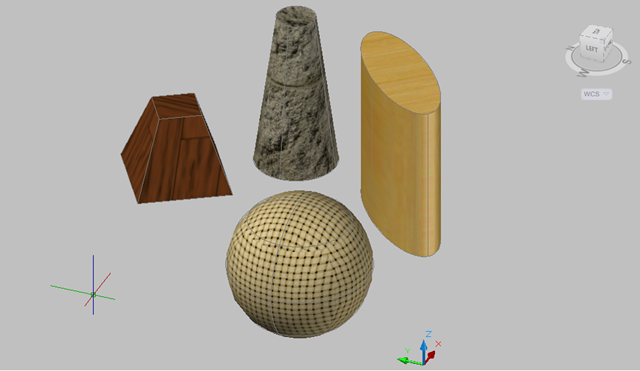
While this approach may not work for every situation, it's another option to consider, depending on your requirements.


Leave a Reply