Back when we were first creating the Exchange Store, I went through the process of preparing several of our Plugins of the Month for posting to Autodesk Exchange. After a break of several months, I've now gone back and readied September's plugin (TransTips, now on Autodesk Labs) for posting, also.
It seemed to make sense to spend a couple of posts documenting the process I followed – which should complement the DevTV sessions already posted on the Autodesk Exchange Apps Developer Center:
This initial post focuses on preparing an application for submission to Autodesk for posting. The follow-up post will step through the process of getting set up as a published and submitting the application to Autodesk.
Step 1 – download an existing Autodesk app to copy.
Download an Autodesk app from the Store: any of the previous Plugins of the Month will do. I tend to use Spiro as a basis for mine, for no particular reason.

Step 2 - navigate to where it is on your hard-drive and make a copy of it.
I use this handy string, pasted into Windows Explorer, to get to the folder containing downloaded application bundles (i.e. the file structures containing the application modules, etc.):
%AppData%/Autodesk/ApplicationPlugins
Then you can simply right-click drag and select "Copy here":

Rename the bundle to have the name you want (prefixing it with your Registered Developer Symbol, to avoid name clashes with other applications).
I'd also suggest moving the bundle out of the autoloader folder – or at least renaming it so it doesn't end in .bundle – as we will be launching AutoCAD before we've finished the complete migration (and don't want it loaded until we're ready).
The plugin's source code is there for you to look at and extend, if you wish, but you should remove it from your copy of the application bundle (i.e. delete the entire "Contents\Source" sub-folder).
Step 3 – copy your application modules to the new bundle's "Contents\Windows" folder.
Navigate down through your newly renamed bundle, to find the "Contents\Windows" sub-folder. This is the location to which you should copy your LISP, .NET, ObjectARX, etc. application modules.
Step 4 – update the PackageContents.xml manifest.
Here's a sample manifest for Spiro, such as the one found in the root folder of the downloaded/copied bundle. There may be some additional attributes in the XML you download – specifically the ProductCode and UpgradeCode GUIDs and the reference to the HTML help-file – which can safely be removed as they will be included automatically during the posting process. I've also inserted a few additional attributes to comply with standards we'll be starting to impose soon for newly submitted applications (as well as retro-fitting to the existing applications on the store).
For more details on the XML format, see this online help page.
<?xml version="1.0" encoding="utf-8"?>
<ApplicationPackage
SchemaVersion="1.0"
ProductType="Application"
Name="Spiro" AppVersion="1.1.0"
Description="ADN Plugin of the Month: Spiro"
Author="Kean Walmsley"
Icon="./Contents/Resources/Spiro.bmp">
<CompanyDetails
Name="Autodesk"
Phone=" "
Url="http://labs.autodesk.com/utilities/ADN_Plugins"
Email="labs.plugins@autodesk.com" />
<Components>
<RuntimeRequirements
SupportPath="./Contents/Resources"
Platform="AutoCAD|AutoCAD*"
OS="Win32|Win64"
SeriesMin="R18.2" />
<ComponentEntry
AppName="ADNPlugin-Spiro"
ModuleName="./Contents/Windows/ADNPlugin-Spiro.dll"
AppDescription="ADN Plugin of the Month: Spiro"
LoadOnCommandInvocation="True"
LoadOnRequest="True">
<Commands GroupName="ADNPLUGINS">
<Command Local="SPI" Global="SPI" />
<Command Local="SPISEGS" Global="SPISEGS" />
</Commands>
</ComponentEntry>
<ComponentEntry
AppName="ADNPlugin-Spiro"
ModuleName="./Contents/Resources/Spiro.cuix" />
</Components>
</ApplicationPackage>
Here's what I typically do when updating this file:
- Go through, line by line, updating the names, descriptions, resource links, etc.
- As I'm typically using the same application format, I would typically just replace "Spiro" with my updated product name, including for the various image files, etc. You will have a bit more work to do, of course. 🙂
- Specify the components that need loading in AutoCAD, and under which circumstances, in the Components section.
- Dependent modules – such as runtime components or shared libraries used by the main AutoCAD components – do not need to be listed.
Step 5 – update the images in the bundle.
Rename the various .bmp files in the "Contents/Resources" sub-folder, making sure they match the names in the manifest. This is also true of the .CUIX file, although you can simply delete the .MNR and the .HTM files, which will get generated automatically later (one when we edit the .CUIX file and the other when the application submission is processed by Autodesk).
Use an image editor – I'm a big fan of the free Paint.NET tool, as it supports layers and provides other features that makes life easier – to update (or create) images of the same dimensions as those in the bundle. Having the existing images renamed arguably makes it easier to get the filenames right as you overwrite them, although I can see how others may find this a little redundant.
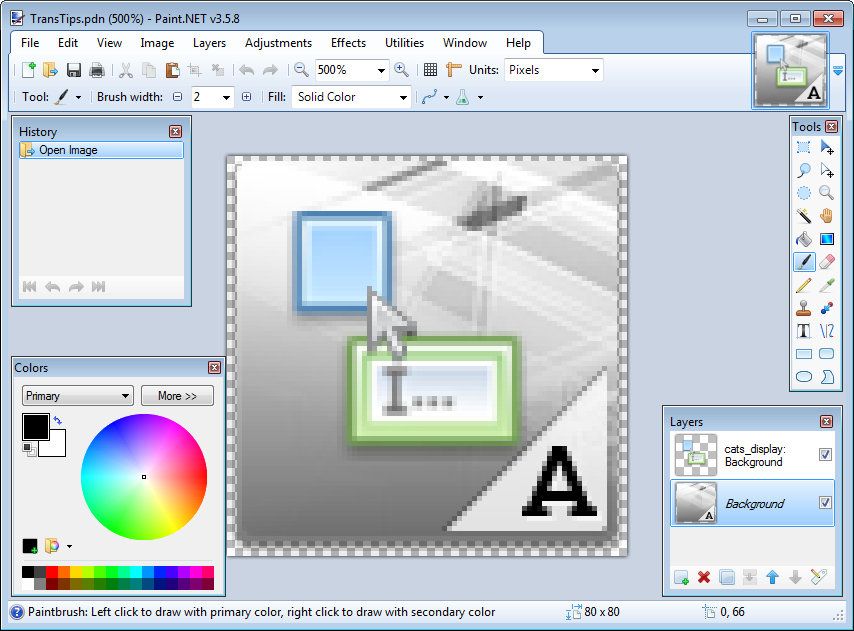
The background I've used for the various plugins I've posted is intended to make it clear the plugins are from Autodesk. You will clearly want to have your own, unique branding.
Step 6 – update the CUIX file.
All applications on the Exchange Store have a consistent UI for being launched, in that upon install they add a ribbon panel (containing one or more commands) to the "Plug-ins" ribbon tab inside AutoCAD. They do this by providing a partial CUIX file containing the panel definition that is also referenced from the XML manifest.
We'll use AutoCAD to update the CUIX file to work for our application. Start by using the MENULOAD command to unload the partial CUIX file we're basing ours on (just to avoid confusion, as the one we copied will have similar internal names and IDs).
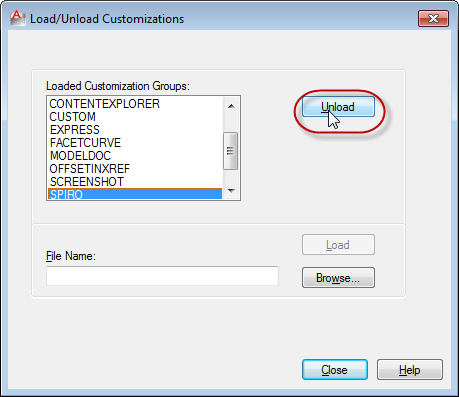
You can then use the same dialog to browse to and load our copied/renamed CUIX file.
Now run the CUI command, selecting the partial CUIX to edit:
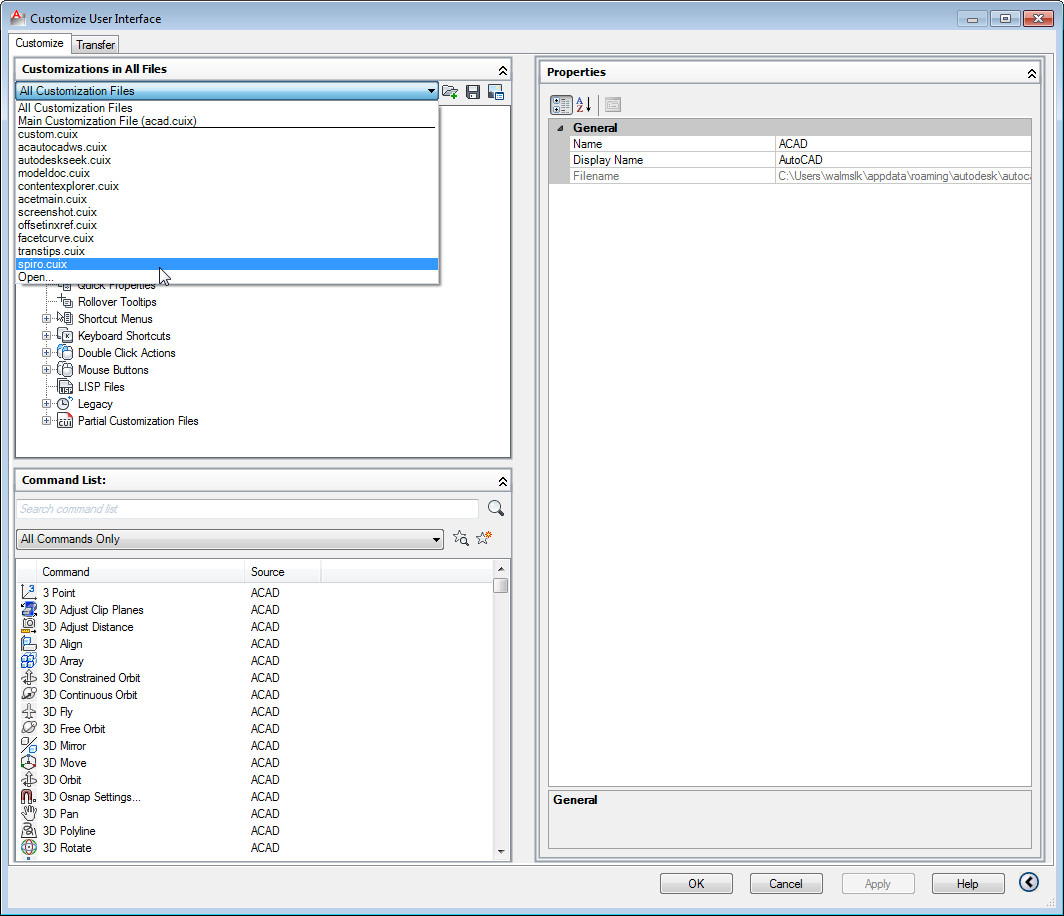
We can see that the CUIX itself is pretty minimal: it really only contains our custom ribbon panel – and associated command – and an entry for it on the standard "Plug-ins" tab (whose internal name is "Add-Ins").
A quick comment on this tab: when the CUIX file is brought in, an attempt is made to match the internal ID of the partial tab with those of the main CUI file. If a match is found, the contents of the tab in the partial file get added to the existing one. Otherwise a new tab is created with the name of the tab in the partial file.
So if the "Plug-ins" tab isn't present in one of an AutoCAD-based product's workspace, a new tab will be created. It's recommended to use the ID of the "Plug-ins" tab for the tab containing your custom panel in the CUIX file, but you should use a name that makes sense if the standard "Plug-ins" tab isn't present. If everyone just calls their tab "Plug-ins", then potentially there could end up being one "Plug-ins" tab created for each product (it's about the tabs in the main CUI file, not about those loaded in the current workspace).
Therefore, in this case, I'd suggest keeping the ID as "ID_ADDINSTAB" but changing the name of the ribbon tab to something like "Language" or "Translate".
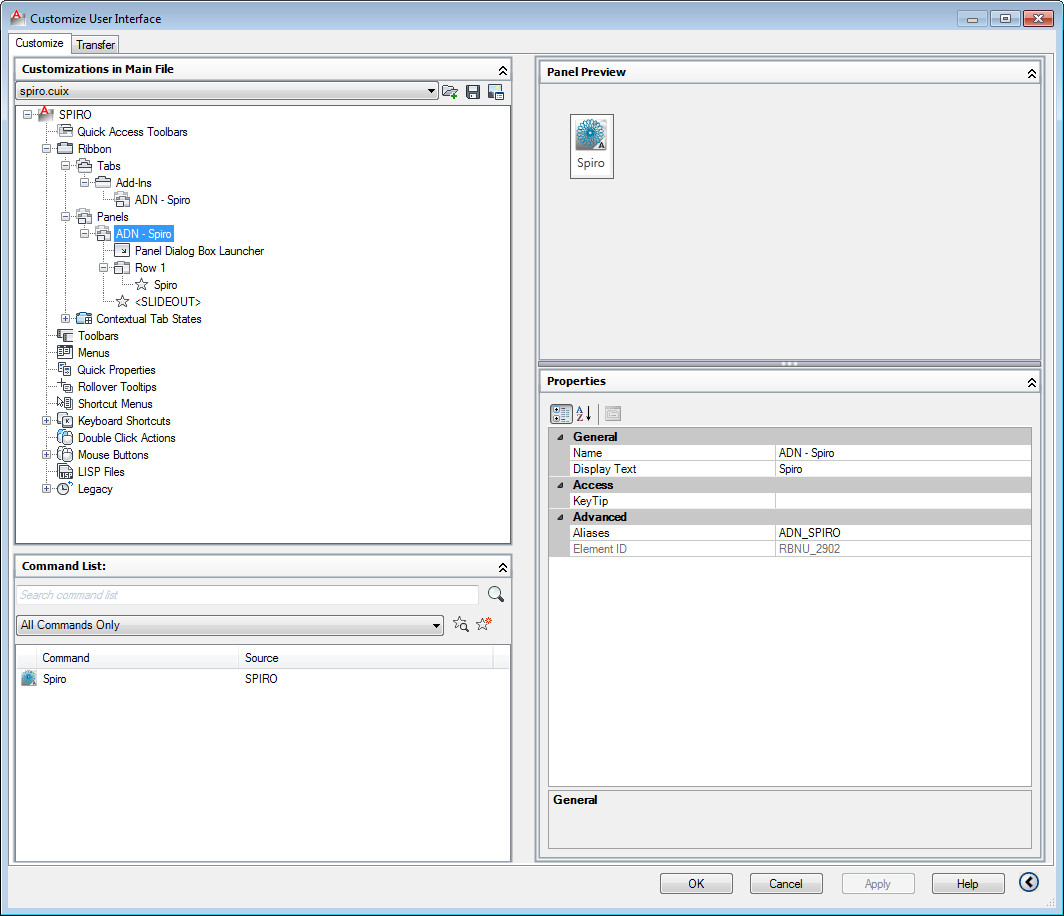
Start by editing the Name, Display Text and Aliases for the panel itself (in the Properties window you can see at the bottom right of the above image).
Next select the button image entry (the one named "Spiro" above, the first child of "Row 1") and edit its various properties:
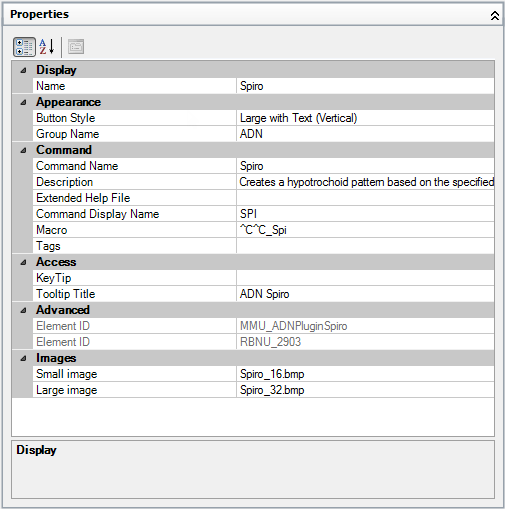
You should change the Group Name, Command Name, Description, Command Display Name, Macro and Small & Large image properties. Don't be concerned about the Element ID in the "Advanced" category: you can edit this by selecting the SPIRO command at the lower-left of the CUI dialog:
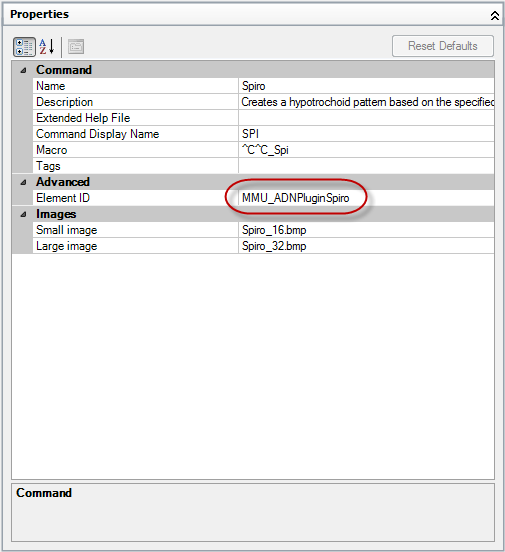
Now you should be able to save your changes and see the results on the "Plug-ins" tab inside AutoCAD.
There's a quirk in the FCS (First Customer Shipment or the original, un-patched) version of AutoCAD 2012: if the Autoloader has already loaded your bundle – but then you remove and replace it – then the partial CUIX sometimes doesn't get loaded. This should be addressed before too long, but in the meantime you can simply unload and reload your CUIX file using the MENULOAD or CUI commands.

Step 7 – test your bundle.
Move your bundle back into the "%AppData%\Autodesk\ApplicationPlugins" folder (or rename it to have the .bundle suffix) and launch AutoCAD, to see how the application loads and performs. For instance, make sure the conditions for loading the various modules specified in the PackageContents.xml file are respected (such as loading the application on invocation of your custom commands).
In case you hit problems, try using the APPAUTOLOADER command with the RELOAD option to reload the various application bundles: this will report when your XML is incorrect or list the settings for each application, otherwise.
It's really worth testing your application thoroughly before submitting. Upon receiving the submission, my team will certainly let you know of any issues they come across during their cursory inspection of the loading/launching functionality, but each iteration of the feedback loop adds to the time it takes for you to get your application in the hands of AutoCAD users.
That's it for this post looking at preparing your application for posting. In the next post we'll take a look at the actual posting process.


Leave a Reply to kolio Cancel reply