Regular readers of this blog may have followed the development of this plugin, but I've written this post is to announce its availability more officially (in addition to Scott's post from last week).
TransTips uses the Bing Translator web service to translate tooltips into one of 36 languages on-the-fly, as they are displayed by AutoCAD, Inventor, Revit, 3ds Max and the products based upon them.
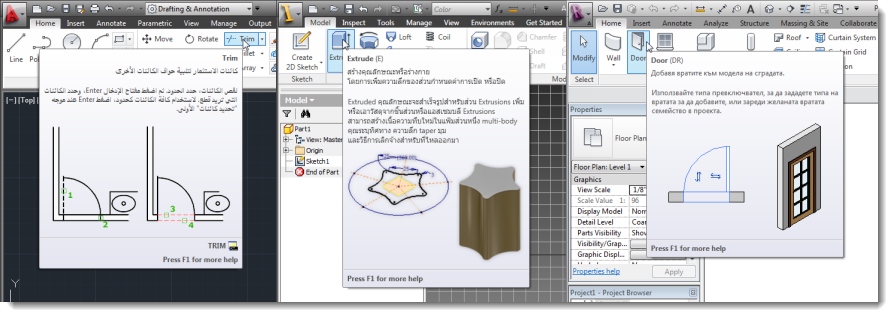
The 36 languages are those currently supported by the Bing Translator service:
Arabic, Bulgarian, Catalan, Chinese, Czech, Danish, Dutch, Estonian, Finnish, French, German, Greek, Haitian Creole, Hebrew, Hindi, Hungarian, Indonesian, Italian, Japanese, Korean, Latvian, Lithuanian, Norwegian, Polish, Portuguese, Romanian, Russian, Slovak, Slovenian, Spanish, Swedish, Thai, Turkish, Ukrainian, Vietnamese
(This list has grown by one since I started work on this tool: Hindi was added sometime in the last few weeks, and I expect the list will grow further, over time.)
I haven't listed English, but it should also be noted that the tool can also be used to translate into English from localized versions.
To help announce the tool, I've put together a short YouTube video to demonstrate some of its capabilities:
I'm excited about this plugin for a number of reasons…
Firstly – from a customer perspective – I'm optimistic that this kind of technology will make the difference for customers currently having to use a product in a language they're not overly familiar with. Machine translation doesn't always provide great results, but it is getting better (the technology itself isn't necessarily the problem, as much as the way the translation engine is trained: the quantity, quality and domain applicability of the material used makes a huge difference). And as this plugin checks a local XML cache before translating, it can also be used to deploy "preferred" translations, which also happens to remove the need for a live Internet connection. But anyway – the point is that while MT isn't perfect, but it may be just enough to help make sense of something that was previously a complete mystery.
Secondly – from a technology perspective – I think it's really cool that the core implementation of this plugin works across several products (four core ones plus the various vertical products based on them). Some product-specific code is needed to enable loading in each environment – which means a separate DLL is still needed for each main product – but the core implementation is the same. The implementation is also pretty simple: an implementation with relatively few moving parts creates some very interesting results. Results which will scale both with the languages provided by Bing and with the breadth of content added to our products' ribbon user interface (it should work well with tooltip content you provide for your own application's ribbon items, for instance).
A final comment on this tool: while I doubt many readers of this blog will themselves need to use this plugin to understand the capabilities of Autodesk products, please do help spread the word if you belong to a community that you feel would benefit from using it. I'm very keen to get feedback on the tool, to see how best to take it forward.


Leave a Reply