In the last post, we saw the steps involved in preparing an AutoCAD application for posting to the Autodesk Exchange store. In this post, we'll step through the submission process.
Let's start with some basics: posting to Autodesk Exchange currently happens from within the AutoCAD product, which means you'll need AutoCAD 2012 installed (and running) to submit your product.
Step 1 – sign into (or up for and then into) Autodesk Exchange.
Within AutoCAD 2012, sign in to Autodesk Exchange.
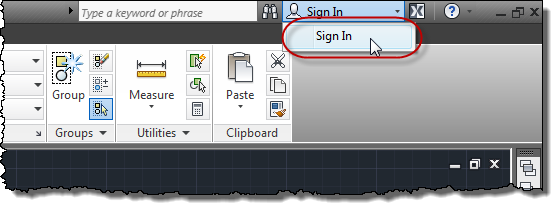
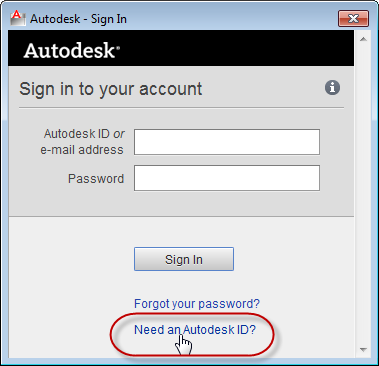
If you're not already in possession of an Autodesk ID, click on the link to create one. If you have one, just use it to sign in and then skip ahead to Step 2.
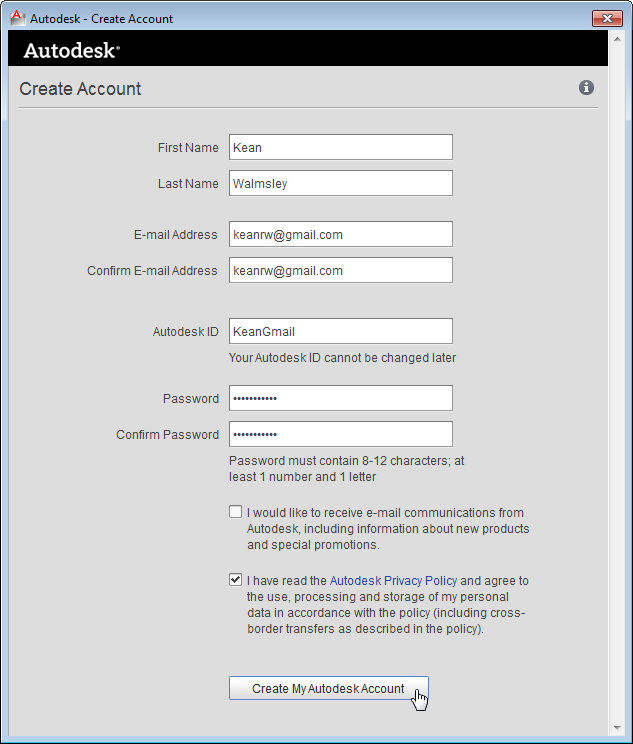
You'll need to fill out some information to get an Autodesk ID. I've gone through the process of creating a new one, for the purposes of this post (I wanted to show all the steps involved, rather than skipping ones I'd gone through in the past).
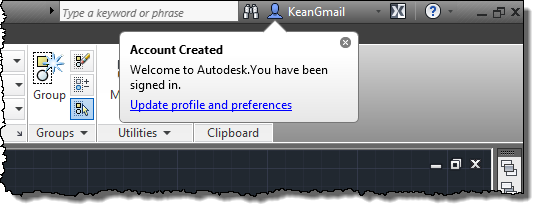
Once your account is created, you'll receive a notification in AutoCAD that you've been signed in automatically.
Step 2 – request your publisher status.
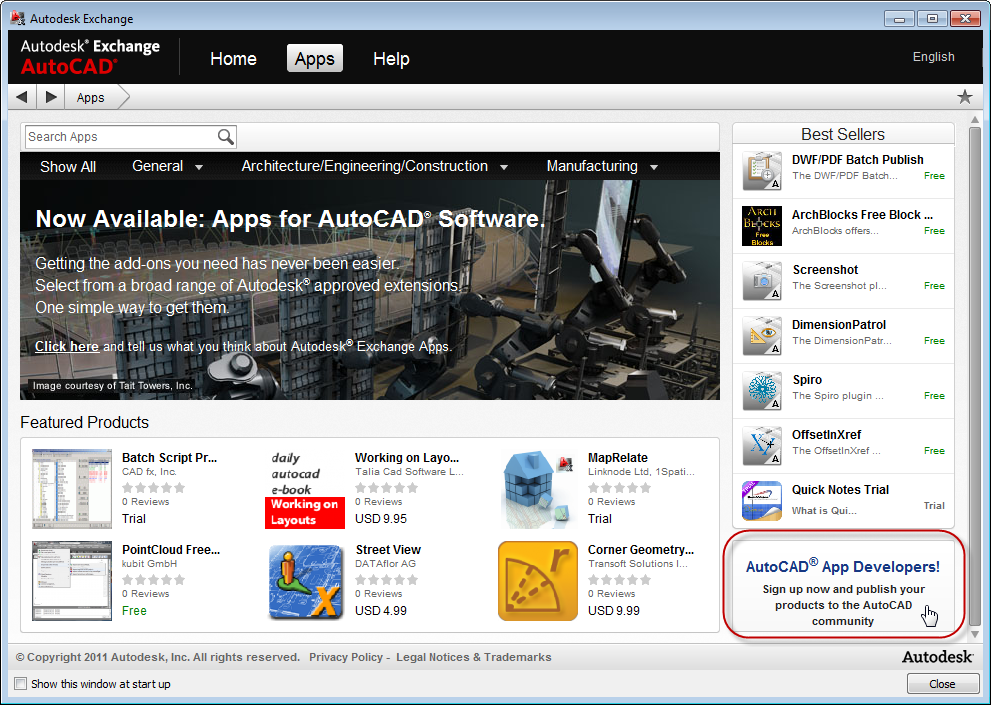
Open Autodesk Exchange via the icon next to the notification, above. You'll find the button to click on in order to start the process proper at the bottom-right of the Apps tab:
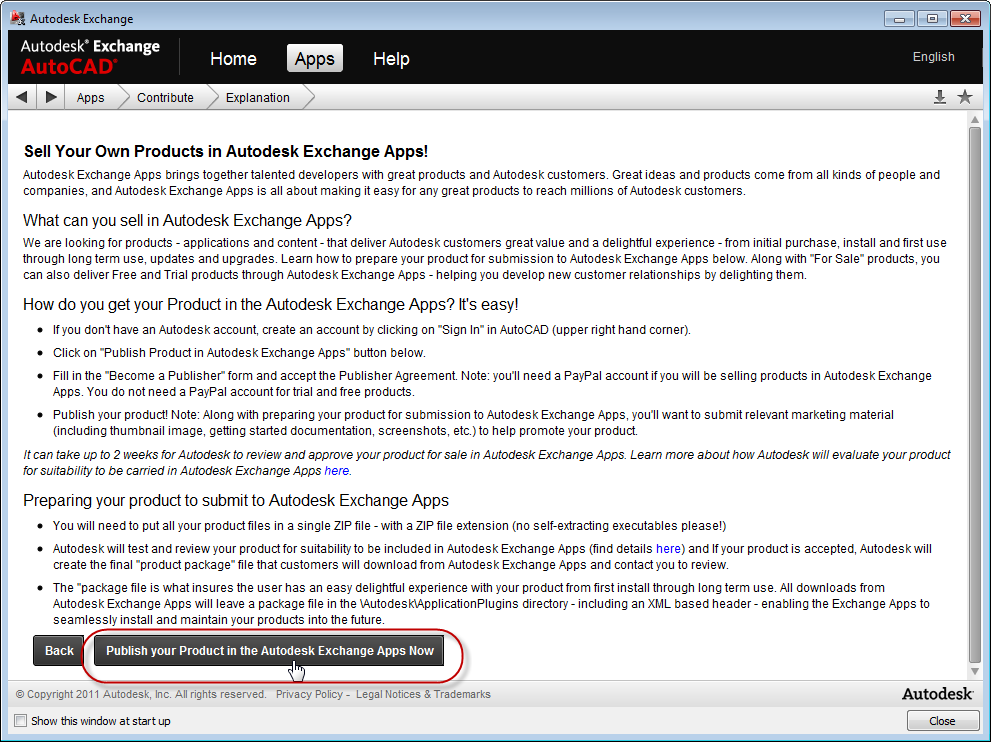
You'll be presented with an explanation of the concept behind Autodesk Exchange Apps and how to take advantage of it. Click on the "Publish Now" button at the bottom of the page, which will start the process of requesting the status of App Publisher.
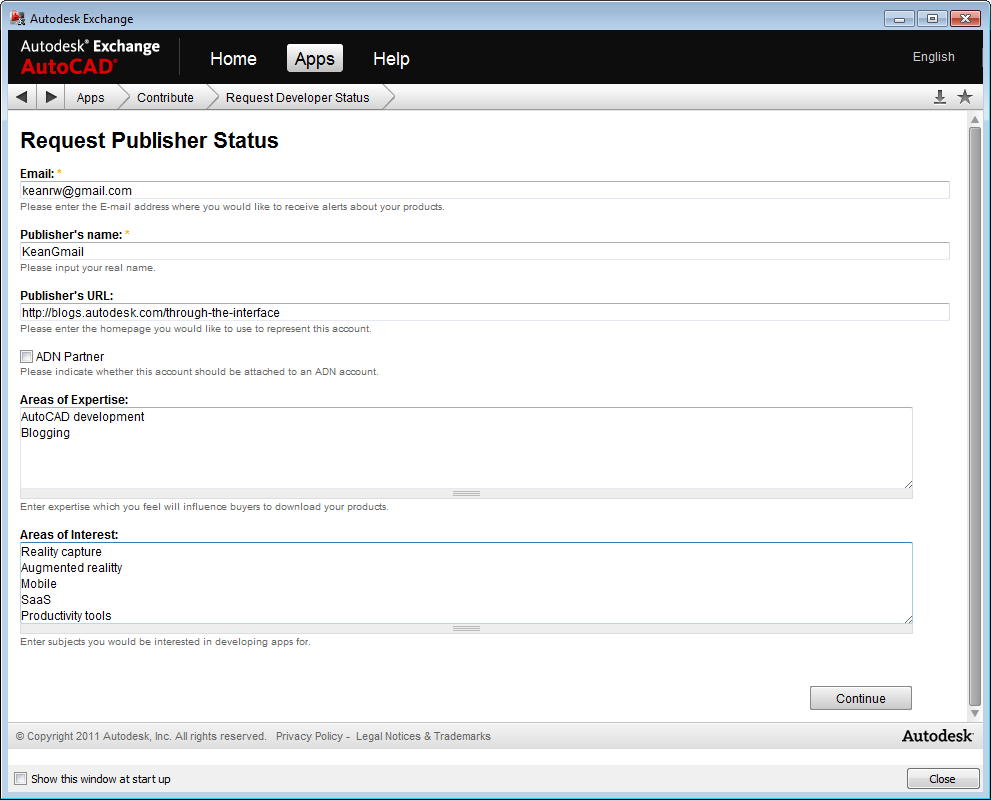
Fill out the form with the pertinent details.
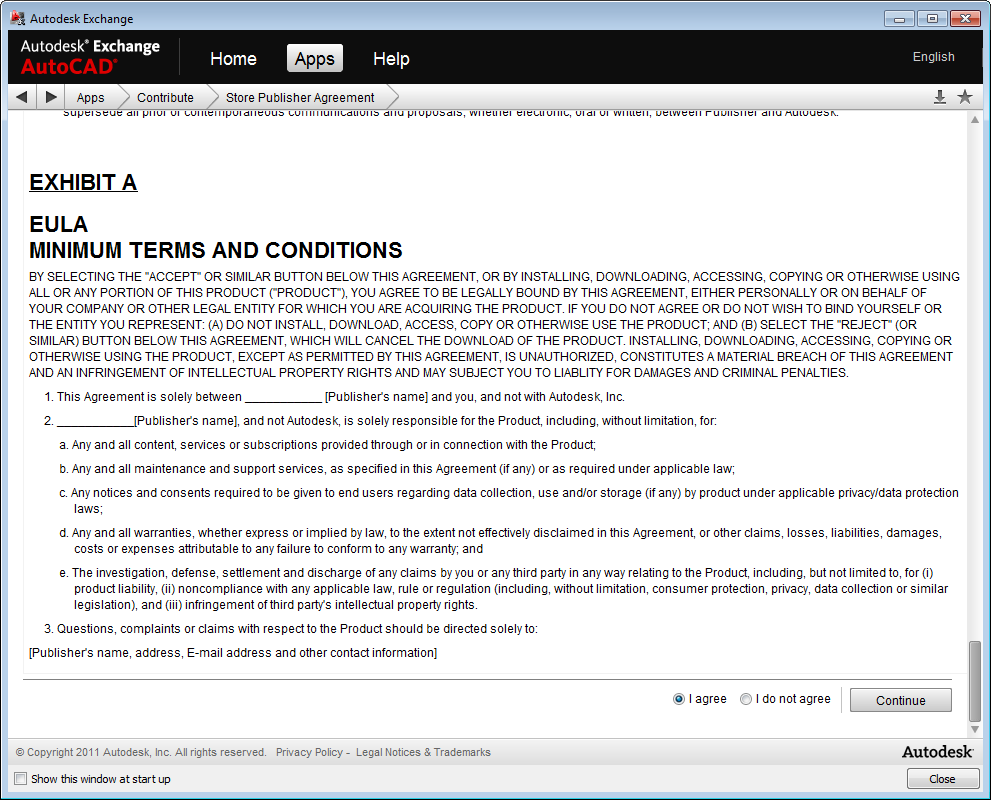
There are several pages worth of agreement to read (and hopefully accept)…
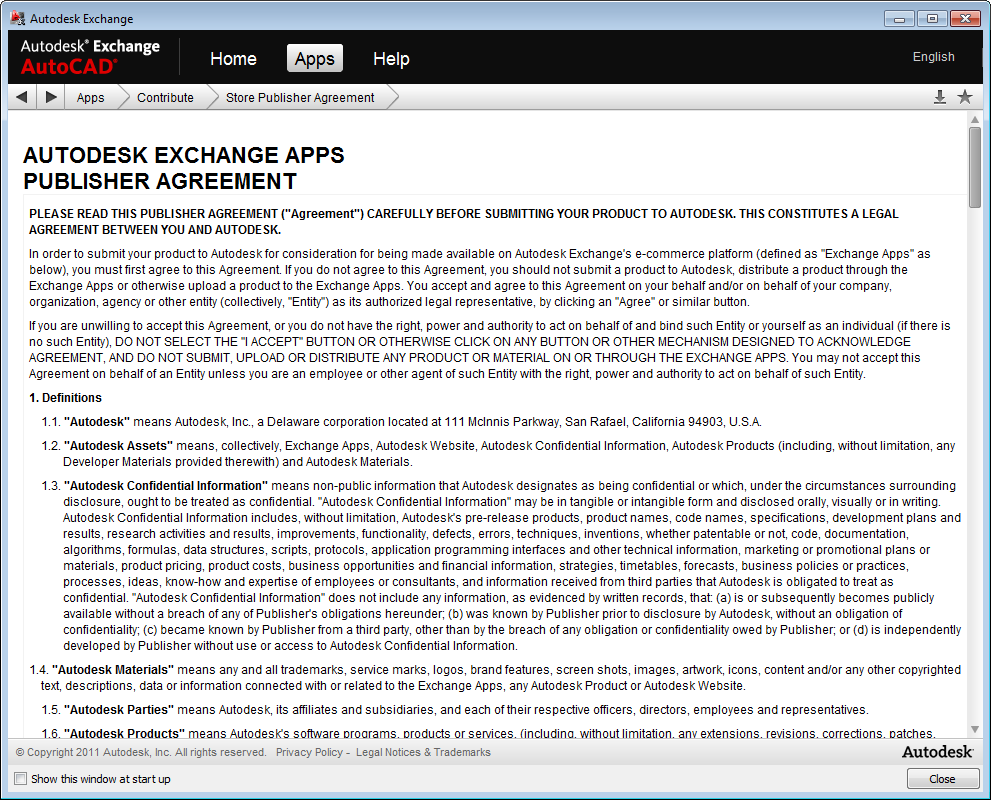
… via the radio-button at the bottom of the page.
Step 3 – fill out the product submission form.
As you fill out this form – which includes quite a lot of information – I do recommend keeping a Notepad session going into which you copy & paste the information you enter. This just makes it less likely that if a catastrophic error happens you'll have to start from scratch.
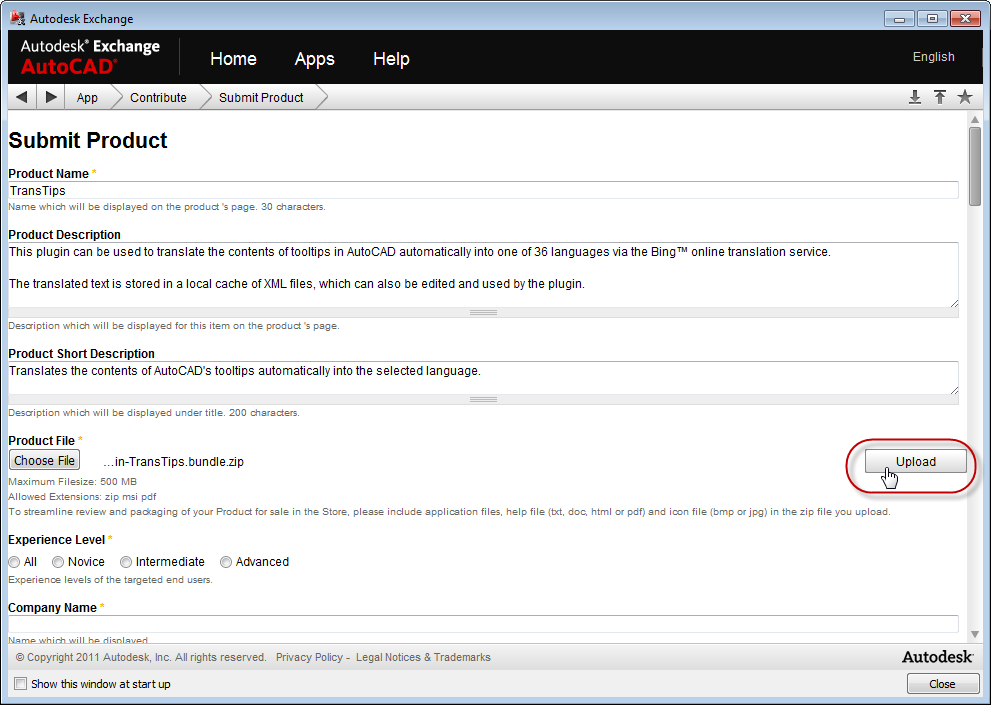
Start by giving your application a name (which must be unique – you'll be told if the name has already been taken when you try to preview the online help-file, later on), and then provide a short and long description of its functionality.
Use the "Choose File" button to select your ZIPped application bundle (as created in the previous post) and then "Upload" it.
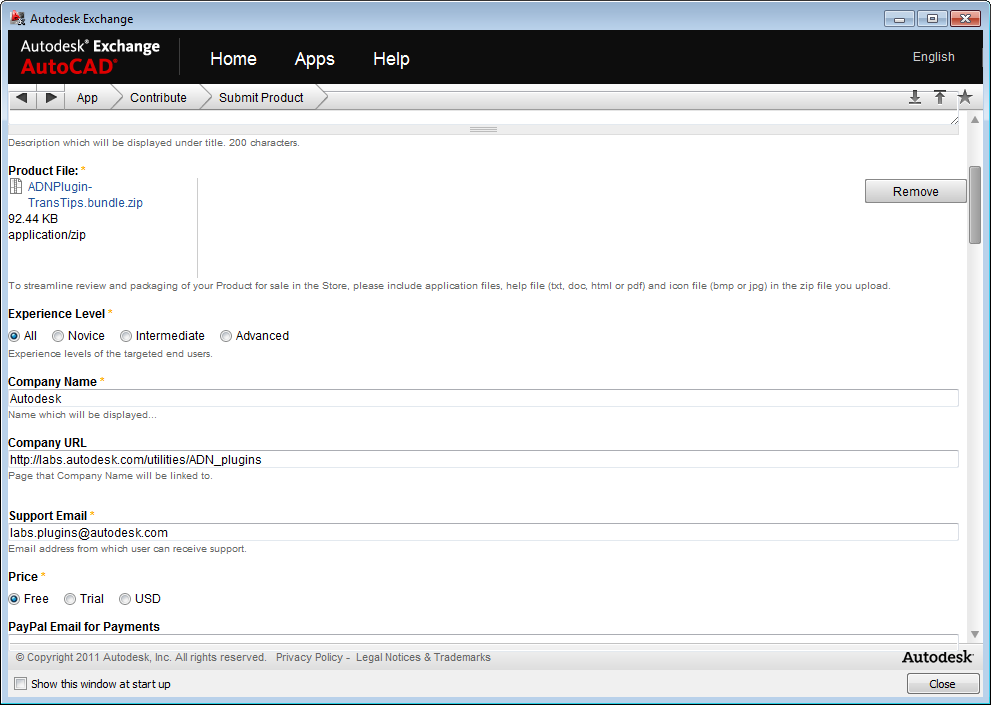
If you scroll down, you can specify the experience level required to use the application, the name and URL of your company as well as the email address to be used for support issues.
It's here that you can specify the price of your application. If you select the "USD" option, you can enter the price you wish to charge. If you choose this option, you will need to provide details on your PayPal account (which you will need to set up separately – something beyond the scope of this
particular post).
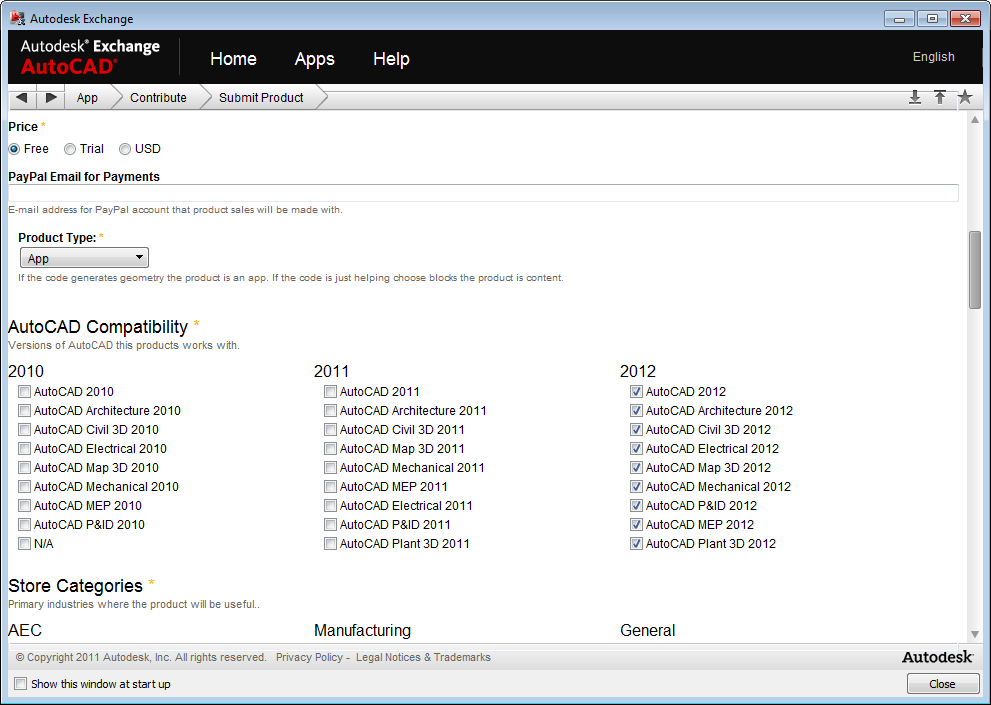
Next you should select the type of product (the most likely choice is "App", given the focus of this post) and its compatibility with AutoCAD-based products. Be sure that this compatibility reflects reality, otherwise you will certainly receive support issues related to incompatible products (as well as having disgruntled users), at some point in the future.
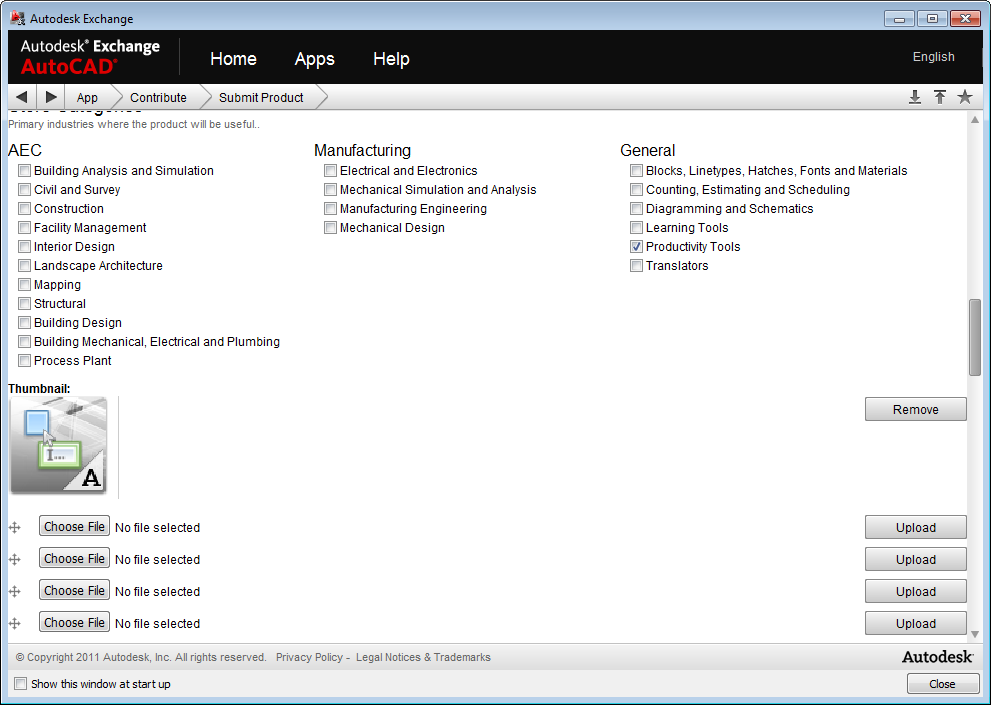
Next you should select the store categories. While this particular app is of general interest, I haven't checked the various industries that might use it (all of them, I suspect). I selected "Productivity Tools", and might have also selected "Translators", but consider that as being more for model – rather than language – translation.
Lower down you can specify and upload a thumbnail image for your app and screenshots of it in action (images which need to be .jpg, .png of .gif – not .bmp).
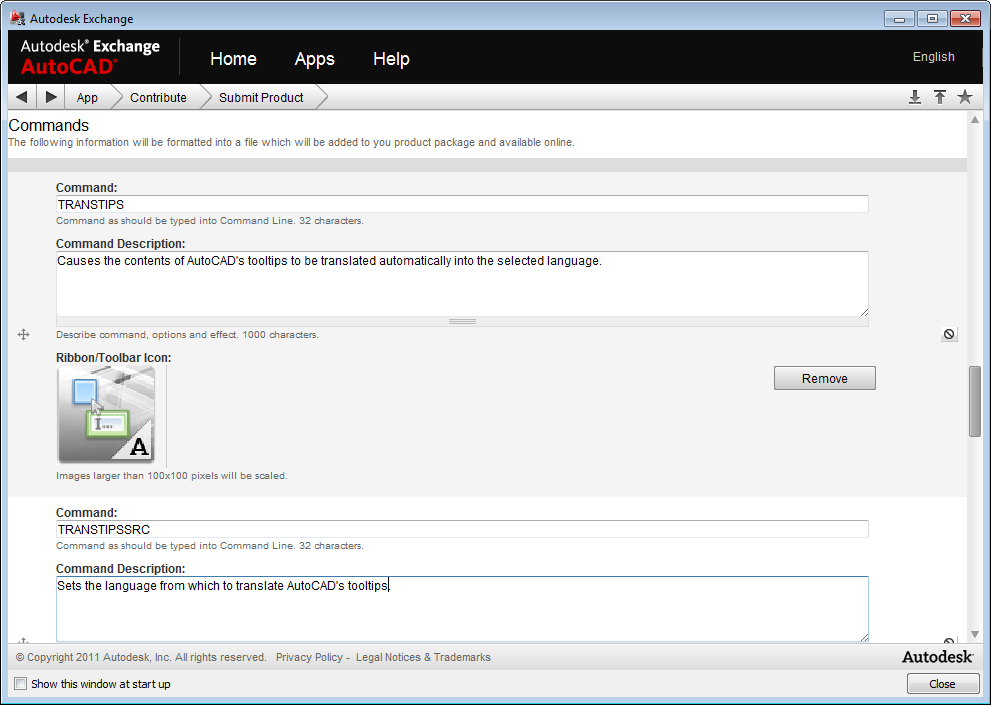
Next you can add information for each command exposed by your application:
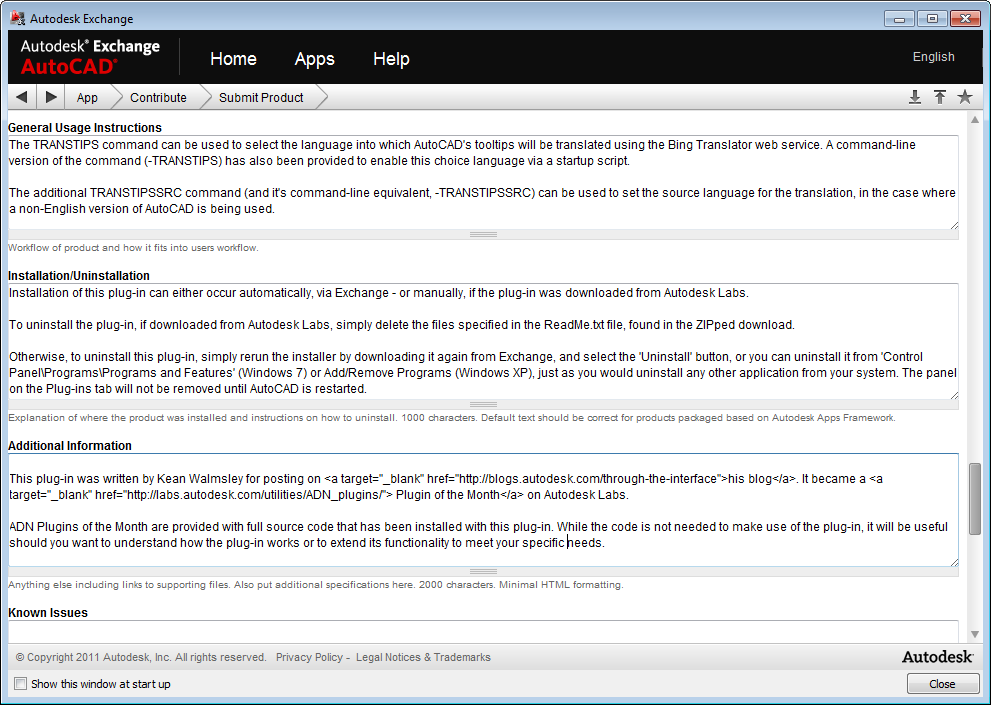
Followed by some general, descriptive text for the application itself:
And then the final set of information around the author and the mechanism for support.
You can add information on the various versions, at this point, too, and then preview the HTML help that will get auto-generated using much of this content.
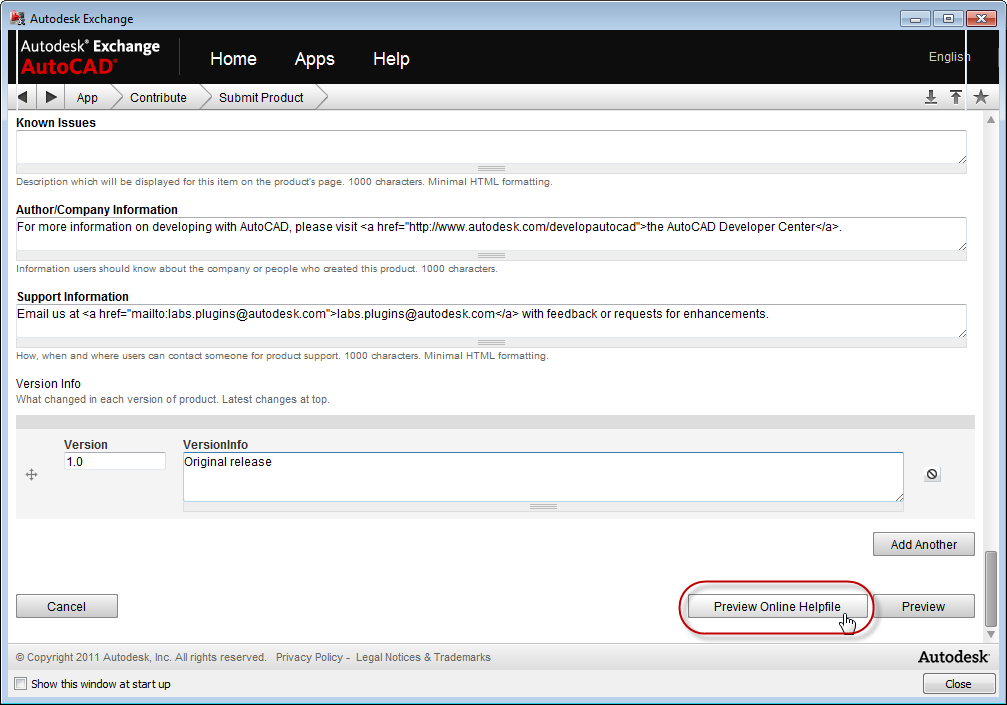
At this stage it's important to check the preview of the online help for errors and correct them:
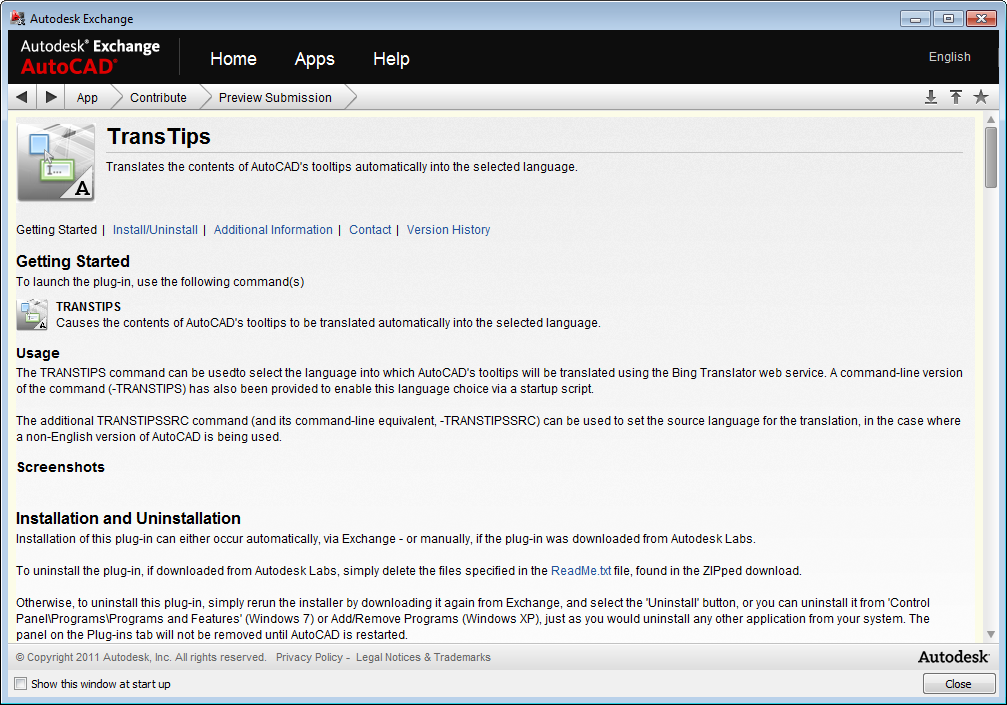
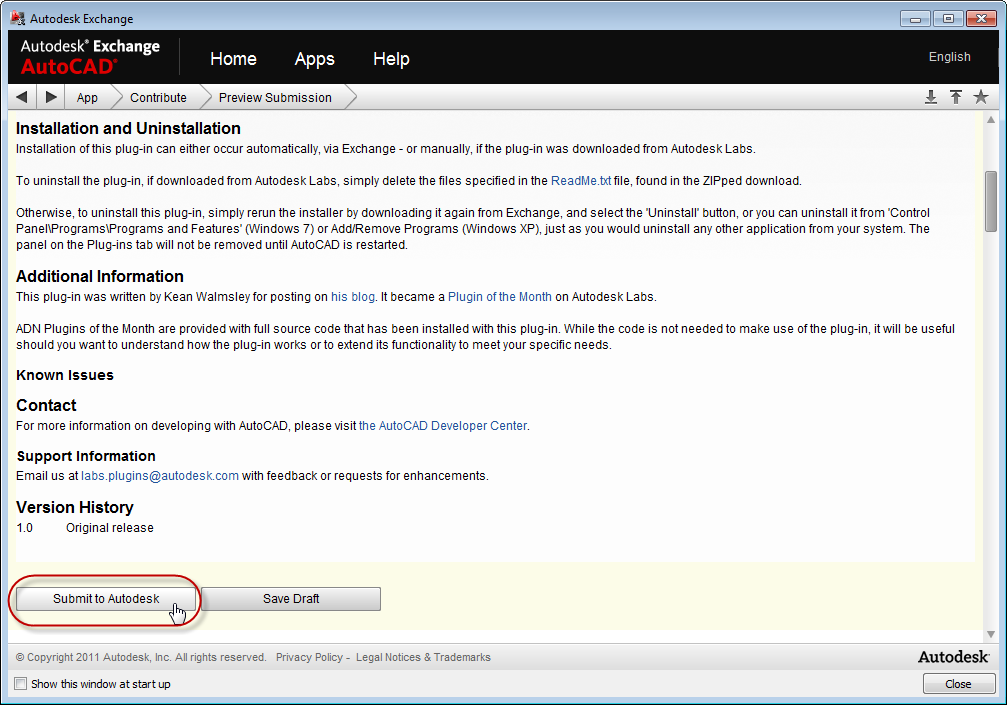
And then hit submit, to send it across to us:
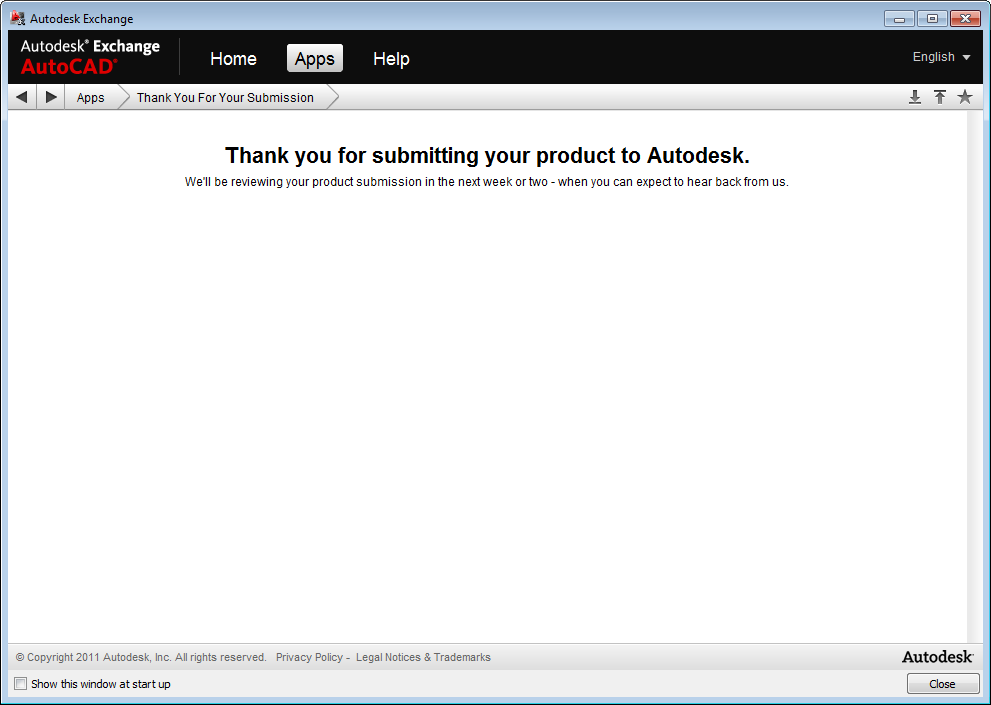
At which point you'll receive a notification that the submission has occurred, all being well:
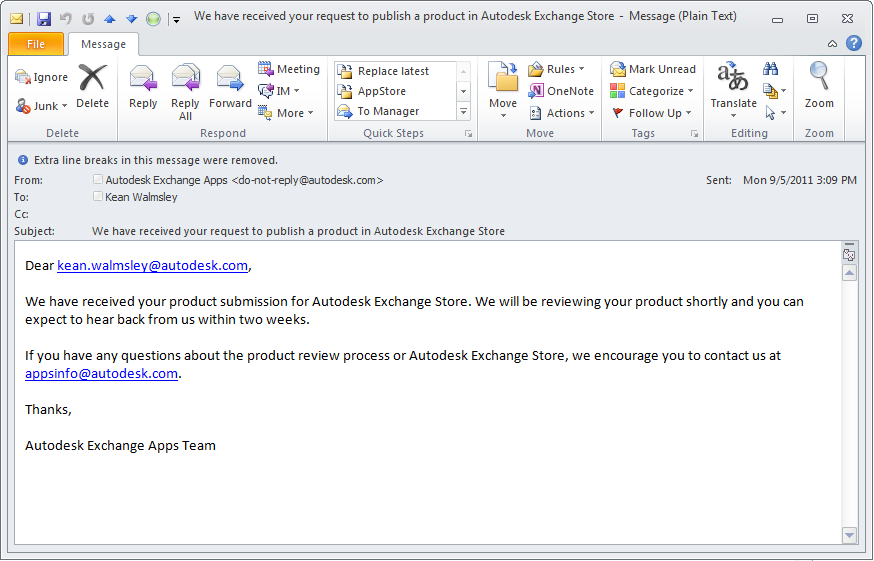
I also received an email describing the successful submission:
In the next post, we'll take a look at the process to follow should your application be rejected by the Autodesk Exchange Apps testing team (many applications end up needing an iteration or two of this process, for one reason or another).


Leave a Reply to Felipe Mesquita Cancel reply