A handy jig for creating AutoCAD text using .NET – Part 1

Back in March, I received an email from Thomas Fitou suggesting an interesting blog topic:

I was thinking about a cool feature in jigs:

  • You invoke a command to enter an Mtext or text
  • The editor is asking for some text
  • You enter the text
  • Then a jig is dragged asking for position
  • But in the editor appear some options:[R]egular [B]old [I]talic [R]otate 90
  • If the user hits "B" the text becomes bold
  • If the user hits "R" the text is rotated 90 degrees
  • If the user hits "R" again, another 90 degrees and so on...

It struck me as an interesting idea, but wasn't something I managed to get to until now. It turned out to be a pretty interesting mini-project, too โ€“ so much so that I decided to split it across 3 separate posts:

  1. A basic jig to position, rotate and size a DBText object
  2. An extended version that supports font-level formatting (bold, italic, etc.)
  3. For extra points: interactive alignment adjustment (left, middle, right)

In today's post, then, we're going to see a basic jig implementation that allows the user to position, rotate and adjust the size of the created text.

A few notes on design decisions related to this code:

  • I decided to stick with DBText rather than including MText
  • A few previous implementations on this blog have made sure geometry is database-resident before jigging it
    • While not needed for this initial post, it is needed later on, so I've adopted that same approach, here
  • The proposed implementation suggested the use of single keystrokes to enable different modes (at least that's how I read it)
    • The code uses the standard keyword mechanism, which means Enter is needed to submit the mode change
  • I've placed the UI paths (i.e. the keywords) in the code for the latter parts โ€“ for now they don't do anything, though
    • I dropped the "Regular" keyword, with the idea that "Bold" and "Italic" should really be toggles (and "R" is already fairly busy between "ROtate90" and "RIght", for that matter)

Here's the C# code for this initial version:

using Autodesk.AutoCAD.ApplicationServices;

using Autodesk.AutoCAD.DatabaseServices;

using Autodesk.AutoCAD.EditorInput;

using Autodesk.AutoCAD.Geometry;

using Autodesk.AutoCAD.Runtime;

using System;


public class Commands

{

  [CommandMethod("QT")]

  static public void QuickText()

  {

    Document doc =

      Application.DocumentManager.MdiActiveDocument;

    Database db = doc.Database;

    Editor ed = doc.Editor;


    PromptStringOptions pso =

      new PromptStringOptions("\nEnter text string");

    pso.AllowSpaces = true;

    PromptResult pr = ed.GetString(pso);


    if (pr.Status != PromptStatus.OK)

      return;


    Transaction tr =

      doc.TransactionManager.StartTransaction();

    using (tr)

    {

      BlockTableRecord btr =

        (BlockTableRecord)tr.GetObject(

          db.CurrentSpaceId, OpenMode.ForWrite

        );


      // Create the text object, set its normal and contents


      DBText txt = new DBText();

      txt.Normal =

        ed.CurrentUserCoordinateSystem.

          CoordinateSystem3d.Zaxis;

      txt.TextString = pr.StringResult;


      // We'll add the text to the database before jigging

      // it - this allows alignment adjustments to be

      // reflected


      btr.AppendEntity(txt);

      tr.AddNewlyCreatedDBObject(txt, true);


      // Create our jig


      TextPlacementJig pj = new TextPlacementJig(tr, db, txt);


      // Loop as we run our jig, as we may have keywords


      PromptStatus stat = PromptStatus.Keyword;

      while (stat == PromptStatus.Keyword)

      {

        PromptResult res = ed.Drag(pj);

        stat = res.Status;

        if (

          stat != PromptStatus.OK &&

          stat != PromptStatus.Keyword

        )

          return;

      }


      tr.Commit();

    }

  }


  class TextPlacementJig : EntityJig

  {

    // Declare some internal state


    Database _db;

    Transaction _tr;

    Point3d _position;

    double _angle, _txtSize;


    // Constructor

 < /p>

    public TextPlacementJig(

      Transaction tr, Database db, Entity ent

    ) : base(ent)

    {

      _db = db;

      _tr = tr;

      _angle = 0;

      _txtSize = 1;

    }


    protected override SamplerStatus Sampler(

      JigPrompts jp

    )

    {

      // We acquire a point but with keywords


      JigPromptPointOptions po =

        new JigPromptPointOptions(

          "\nPosition of text"

        );


      po.UserInputControls =

        (UserInputControls.Accept3dCoordinates |

          UserInputControls.NullResponseAccepted |

          UserInputControls.NoNegativeResponseAccepted |

          UserInputControls.GovernedByOrthoMode);


      po.SetMessageAndKeywords(

        "\nSpecify position of text or " +

        "[Bold/Italic/LArger/Smaller/" +

         "ROtate90/LEft/Middle/RIght]: ",

        "Bold Italic LArger Smaller " +

        "ROtate90 LEft Middle RIght"

      );


      PromptPointResult ppr = jp.AcquirePoint(po);


      if (ppr.Status == PromptStatus.Keyword)

      {

        switch (ppr.StringResult)

        {

          case "Bold":

            {

              // TODO


              break;

       &#
160;    }

          case "Italic":

            {

              // TODO


              break;

            }

          case "LArger":

            {

              // Multiple the text size by two


              _txtSize *= 2;

              break;

            }

          case "Smaller":

            {

              // Divide the text size by two


              _txtSize /= 2;

              break;

            }

          case "ROtate90":

            {

              // To rotate clockwise we subtract 90 degrees and

              // then normalise the angle between 0 and 360


              _angle -= Math.PI / 2;

              while (_angle < Math.PI * 2)

              {

                _angle += Math.PI * 2;

              }

              break;

            }

          case "LEft":

            {

              // TODO


              break;

            }

          case "RIght":

            {

              // TODO


              break;

            }

          case "Middle":

            {

              // TODO


              break;

            }

        }


        return SamplerStatus.OK;

      }

      else if (ppr.Status == PromptStatus.OK)

      {

        // Check if it has changed or not (reduces flicker)


        if (

          _position.DistanceTo(ppr.Value) <

            Tolerance.Global.EqualPoint

        )

          return SamplerStatus.NoChange;


        _position = ppr.Value;

        return SamplerStatus.OK;

      }


      return SamplerStatus.Cancel;

    }


    protected override bool Update()

    {

      // Set properties on our text object


      DBText txt = (DBText)Entity;


      txt.Position = _position;

      txt.Height = _txtSize;

      txt.Rotation = _angle;


      return true;

    }

  }

}

When we run our QT (which stands for QuickText) command, we can use it to quickly enter, preview and place a text object:

Command: QT

Enter text string: Some text

Jigging some text

Specify position of text or

[Bold/It
alic/LArger/Smaller/ROtate90/LEft/Middle/RIght]: LA

Increasing its size

Specify position of text or

[Bold/Italic/LArger/Smaller/ROtate90/LEft/Middle/RIght]: RO

Rotating it

Specify position of text or

[Bold/Italic/LArger/Smaller/ROtate90/LEft/Middle/RIght]:
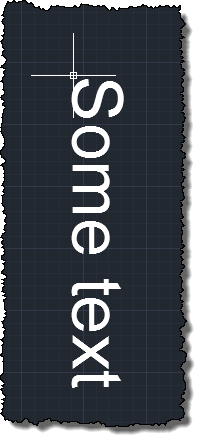
And it gets placed

In the next post, we'll implement the font-formatting options for bold, italic and bold-italic text (which, as it requires modification to the associated text style, is harder than it sounds).

12 responses to “A handy jig for creating AutoCAD text using .NET – Part 1”

  1. Nowhere do I see the definition for "Jig". What does "Jig" stand for?

    Thanks for the great blog. I have found it very useful. But I have been wondering about this "Jig" business.

  2. Hi Kevin,

    Great question - it's one I tend to take for granted after all these years, so thought it best to look up the definition in the ObjectARX docs (.NET inherited the concept from there).

    Here's what the ObjectARX Developer's Guide says:

    "The AcEdJig class is used to perform drag sequences, usually to acquire, create, edit, and add a new entity to the database. If you are deriving a new entity class, you will usually want to implement your own version of AcEdJig. This class enables the AutoCAD user to define certain aspects of an entity using a pointing device, and it gives the programmer access to the AutoCAD drag mechanism. (The class takes its name from 'jig,' a device used to hold a machine part that is being bent or molded in place.)"

    Let me know if you need any clarifications and I'll attempt to put something in my own words.

    Regards,

    Kean

  3. Thank you for the information on "Jigs" Kean!

    One final Beginner question, if I may:

    When you refer to the "Object ARX Developer's Guide", do you mean the documentation included in the ObjectARX SDK?

    In the root directory of the SDK, there is a sub directory named "docs" which contains a number of .chm help files, one of which is arxdoc.chm. arxdoc contains a section titled "Object ARX Developer's Guide". Is this the guide you are referring to? I am using the .Net based "wrapper" classes to customize AutoCAD, and I just want to be certain I have the most comprehensive documentation available.

    I apologize if this is the wrong location to pose such a question, but I am new to customizing AutoCAD and I find myself sightly confused about where to locate AutoDesk's MSDN equivalent for this API. I am an ADN member, in case this has any bearing on where to access the documentation you recommend.

    Thanks again for the great blog.

  4. My pleasure, Kevin. ๐Ÿ™‚

    Yes, that's exactly where I got it from.

    You may also want to check out the documentation resources linked from the AutoCAD Developer Center (autodesk.com/developautocad). You'll find links to the online .NET Developer's Guide as well as Visual Studio help integrations for .NET and ObjectARX. I use both regularly.

    Oh, and the ADN DevBlogs, of course (linked to from my blog's left-sash).

    Kean

  5. Matthias Mueller Avatar
    Matthias Mueller

    Hi Kean,

    is there a reason why you don't prompt for the text contents inside the Jig?
    I'm looking for a working sample how to prompt for a Jig String (using JigPromptStringOptions), but didn't found one.
    The contents always needs to be entered before and then passed into the Jigging class.

    Matthias

  6. Hi Matthias,

    I tend to find it overkill to get string input within a jig, if I can avoid it (and so far I've done so pretty successfully ;-). I often get keyword input from within AcquirePoint() (for example), but that's not the same thing.

    This post may be of some use, although I admit I haven't spent much time on the string part of it:

    keanw.com/2012/12/update-to-the-autocad-net-entity-jig-framework.html

    Cheers,

    Kean

  7. Matthias Mueller Avatar
    Matthias Mueller

    You're right. One can prompt for string also before jigging, so maybe there's no need for it. I only wonder why I can't manage to enter a string with JigPrompts.AcquireString().

    Thanks for the provided link. As frequently user of this site I already tried to use the Jig Framework for my needs.
    I like the idea a lot, but in the current state it doesn't help me a lot:
    The polyline I want to jig doesn't have a fixed number of phases - the user can decide to add an arbitrary number of vertices at runtime.
    But that's maybe another topic ๐Ÿ™‚

  8. I'll have to take a closer look at using AcquireString() sometime.

    I can see why the framework wouldn't help in this scenario. It'd certainly be interesting to see how it might be extended to work for "looped" phases... but yes - one for another day. ๐Ÿ™‚

    Kean

  9. Thanks Kean...
    am New to this AutoCAD Coding.
    U have lot of Good Stuff..
    But I have a requirement that is how to know the scale of current drawing & apply the same scale standards to Newly created objects....
    Annotation scale is different i want to set Standard scale of model as View Port

    Can u help me in this regard

    Thanks in Advance

  10. Hi Pran,

    I'm afraid I don't have time to provide support. Please post your question via the ADN team or to the AutoCAD .NET Discussion Group.

    As far as I'm aware there still isn't a "drawing scale" in AutoCAD (unless someone slipped one in when I was napping :-). Which means you either have to store the user's intention in your own code or infer it in some way.

    But again - someone on the forums will hopefully have some concrete advice for you.

    Regards,

    Kean

  11. David Brubacher Avatar
    David Brubacher

    Kean;
    I've read through this post and comments as well as many of your other posts - all very good and informative! One problem I'm trying to solve (as a somewhat newcomer to the Acad .NET APIs) is how to restrict a selected point to be on an entity.
    In the context of a jig, what if I only wanted AutoLISP ENTSEL like behavior? JigPromptGeometryOptions seemed right but it is only the base class for things like JigPromptPointOptions.
    Something like UserInputControls.3dCoordinatesRestrictedToOnEntity would be nice.
    Barring a tidy way of doing it, do I take any point and check if it's on an entity?

    Thanks

    [EDIT] I found your example "Moving text in an AutoCAD block using .NET โ€“ Part 3" and it looks like a combo of the two will serve my needs well. I'm not sure if I will need the pinvoke code though - we will see.

    I'd appreciate any commentary you might provide though.

    1. David,

      A jig isn't always the answer: if you don't have graphical feedback to provide, then it's almost certainly unnecessary - it's a lot simpler to use Editor.GetXxx() methods, instead.

      You might also want to look at Editor.PointMonitor(), as this can be a good way to get input (especially for modeless scenarios).

      If you do need graphical output, jigs do give you the freedom to decide how you take the provided data (e.g. points) and use them to change your graphics: you can snap to to a grid or an entity's geometry, of you wish to.

      I hope this answer isn't too high-level... hopefully I've managed to outline at least one way to address your requirement.

      Regards,

      Kean

Leave a Reply to David Brubacher Cancel reply

Your email address will not be published. Required fields are marked *