Creating a motion-detecting security cam with a Raspberry Pi – Part 2

In the first post in this series, we took a look at some fundamentals related to building your own motion-detecting security camera using a Raspberry Pi. In this post, we're going to look at very specific steps to get one working.

The first major step I took after the last post was to drop the Raspbian "wheezy" OS distribution in favour of Arch Linux ARM. This was an important change, as it increased the stability of the system significantly, and even allowed me to increase the capture resolution of the webcam back up to 960 x 720. Where "wheezy" would frequently crash – or the webcam itself would stop working, even at really low resolutions – Arch Linux ARM has shown itself to be rock solid and just keeps on working away. I've now left it running for days at a time without any issues.

There are a few differences when working with Arch Linux ARM: it doesn't come with the very handy raspi-config script that alows "wheezy" users to perform common start-up operations – such as resizing the root partition, which we'll perform manually, below – and there are various other bells & whistles missing, but at the end of the day most Raspberry Pi usage is likely to be to create embedded systems that clearly need leanness and a high level of stability.

That's not to say that "wheezy" won't get more stable prior to its official release (it is still in Beta, after all), but Arch Linux ARM was absolutely the way to go for this project.

Installing the OS to an SD card was straightforward: as mentioned previously, I used Win32DiskImager to burn it to a 16 GB Class 10 SDHC card (which has way more beef that I need for this project, but hey :-). This tool can also be used to back up your OS, which is a good thing to do from time to time.

It should now be a simple matter of plugging in the LAN cable via the RJ45 socket and plugging in the Micro-USB power supply to see the device boot up. I personally no longer bother with keyboards and direct display connections: I just log in using ssh (which is native on OS X and Linux, and usable via PuTTY on Windows) to access the device remotely. It's even possible to use X11 Windowing to pipe graphics back down to a compatible system (such as OS X), but that's beyond the scope of this post.

In an OS X Terminal session, then, I use this command to connect to the Pi (when on my home network, where I've configured my router to dedicate the IP address of 192.168.1.110 to the device):

ssh root@192.168.1.110

The default machine name is "alarmpi" (Arch Linux ARM Pi), so when in the office I use this, instead (it's simpler to use DNS to resolve the IP rather than hunting around for it):

ssh root@alarmpi.ads.autodesk.com

[The default password is "root" on the standard install.]

Once you have an ssh session running, you can take care of some initial tasks, first of which is to increase the root OS partition to the full size of the SD card. Here is the most elegant method I've found to do this (while those knowing what it does may find it a little scary, it worked perfectly for me :-). It's worth bearing in mind that expanding the size of your root partition will increase the size of the image file when you back up your OS, but then that's the choice you make.

I've added some comments that start with the # sign – you don't need to type those lines in:

# As root:

fdisk /dev/mmcblk0

# Delete the second partition /dev/mmcblk0p2

d

2

# Create a new primary partition and use default sizes prompted.

# This will then create a partition that fills the disk.

n

p

2

enter

enter

# Save and exit fdisk:

w

# Now reboot:

reboot

# Once rebooted:

resize2fs /dev/mmcblk0p2

# Your main / partition should now be the full size of the disk.

As you've rebooted during this process, you'll clearly need to reconnect via ssh to the device to complete it.

Depending on the size of the card, this resize2fs operation may take some time.

Now it's worth changing the root password and setting up a new user (which I'll name "pi"):

passwd root

adduser

# Add a user named pi - accept default options

We'll stay logged in as root, for now, as we still have some work to do to get things ready to have effective use of the device as a standard user.

Linux distributions have different command-line tools for installing approved component packages – much as some of you may be used to with NuGet in recent versions of Visual Studio. Raspbian has apt-get, Arch Linux ARM has pacman. To make sure pacman is installed and (along with the OS itself) up-to-date, run these operations:

pacman -Syu

pacman-key --init

pacman -Syu

Now you can use pacman to install the various packages we want to use. We'll start with sudo (which stands for "super-user do" rather than being a mis-spelling of "pseudo" :-), which will allow our pi user to perform operations as root.

pacman -S sudo

It's one thing to have sudo installed, it's another to be able to use it. You can edit the sudo privileges directly using this command, which unfortunately uses the vi editor to open the file (I've mostly switched over to the much more intuitive nano editor, at this stage):

visudo

# Scroll down to "root ALL=(ALL) ALL", i to insert:

pi ALL=(ALL) ALL

Esc ZZ # (to quite & save)

At this stage it's worth logging out (you can type exit or logout to do so) and logging back in via a new ssh session as the "pi" user:

ssh pi@192.168.1.110

One last step is helpful but not strictly necessary, in that it enables command-completion via the Tab key when executing commands using sudo:

sudo pacman -S bash-completion

Now we basically have our OS up and ready. If we were on "wheezy" we'd now be thinking about installing (or building) a webcam driver. That happens to be built into Arch Linux ARM, so we can skip on ahead to installing Motion:

sudo pacman -S motion

At this stage we have most of the packaged components in place that we need to run our motion-detecting security cam. Now we'll start configuring Motion.

We're going to ask Motion to save it's running process ID in a file in the /var/run/motion folder. First, though, we need to create that folder:

sudo mkdir -p /var/run/motion

[As mentioned last time, it's helpful – but not necessary – to set up a killmotion script that uses this ID to kill the motion process (which is really only for when you're running in daemon mode). That said, it's also simple enough to run the "pstree –p" command to see the running process tree with the IDs at each node, and then just use "kill 1234" (assuming the process ID is 1234).]

Next we're going to install Python and the GData component we need to access GMail and Google Drive.

sudo pacman -S python2 python2-pip

sudo pip2 install gdata

We're going to ask Motion to save one frame per event – that we can use as an email attachment in our email, to help recipients – especially those on a mobile device – decide whether it's worth watching the uploaded video. Both the capture frame and the video will be stored to /home/pi/motion, which we need to create:

mkdir /home/pi/motion

We might also have kept the default location – which I believe is under /var/tmp – but that's a folder that gets cleared between sessions (when the device is rebooted). When my device was regularly being reset – back when I was using "wheezy" – I moved across to this folder, so I could see when images/videos were captured successfully. So far I haven't seen the need to switch back.

Now we can download and install the Uploader.py file, which I've adapted from the one in this post (with the help of the information in this page). You might download the file and FTP it across, or you could use the following approach to download it directly using the Pi (and then make it executable):

cd /etc/motion

sudo wget "/wp-content/uploads/files/uploader.py"

sudo chmod +x uploader.py

You'll also need an uploader.cfg file in the same location. The simplest approach is to run "sudo nano uploader.cfg" and paste the contents in (after having modified them with your login information, of course):

[gmail]

# GMail account credentials

name = Kean Walmsley

user = keanrw@gmail.com

password = this_is_not_really_my_password

sender = keanrw@gmail.com


# Recipient email address (could be same as from_addr)

recipient = kean.walmsley@autodesk.com


# Subject line for email

subject = You have a visitor


# First line of email message

message = See attachment. Video of visitor uploaded to:


[docs]

# Folder (or collection) in Docs where you want the videos to go

folder = motion


[options]

# Delete the local video file after the upload

delete-after-upload = true


# Send an email after the upload

send-email = true

You should now be able to test the script, to see that it works:

cd ~

wget "/wp-content/uploads/files/VidTest.avi"

wget "/wp-content/uploads/files/VidTest.jpg"

/etc/motion/uploader.py /etc/motion/uploader.cfg ./VidTest.avi

[I had previously thought to post instructions to use fswebcam to capture a still and ffmpeg to capture a video, but the former involved installing an additional component and the latter didn't actually work when called directly on my Pi (even though Motion uses it successfully to encode video, as far as I can tell)].

Once you've executed the uploader script, you should receive an email with a link to the video on Google Drive (assuming it's enabled for your Gmail account) and the image as an attachment:
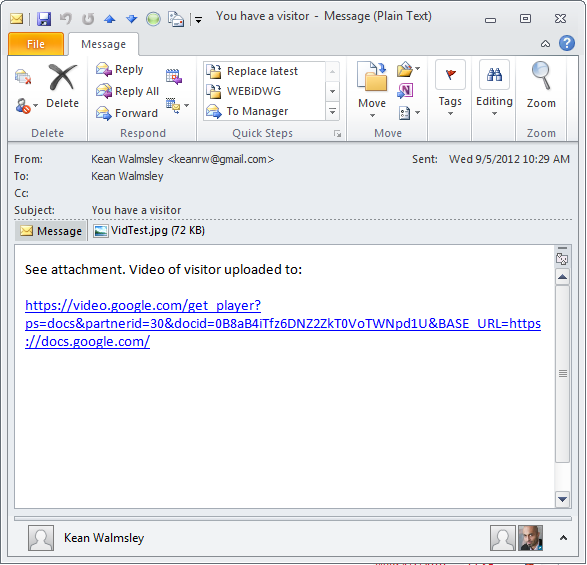
Test email with attachmentNow the various pieces are in place, it should be a simple matter of getting and adjusting the Motion configuration file. To get the one that I have working with my webcam, you can:

cd /etc/motion

sudo wget "/wp-content/uploads/files/motion.conf"

Motion has a lot of settings that you may want to adjust – it's a really flexible, powerful component – but I won't go into the details on that, here.

To run Motion simply type "sudo motion" at the command-line. The configuration I've provided will run it in daemon (i.e. as a background service) mode, but if you hit problems you may want to run it in interactive mode, or even with the –s flag. A couple of handy features provide the ability to change configuration options at runtime via a URL (in my case this is http://192.168.1.110:7071) and to view the live webcam output via another (http://192.168.1.110:7070).

If all is working well, you should start to get emails with detected motion events:
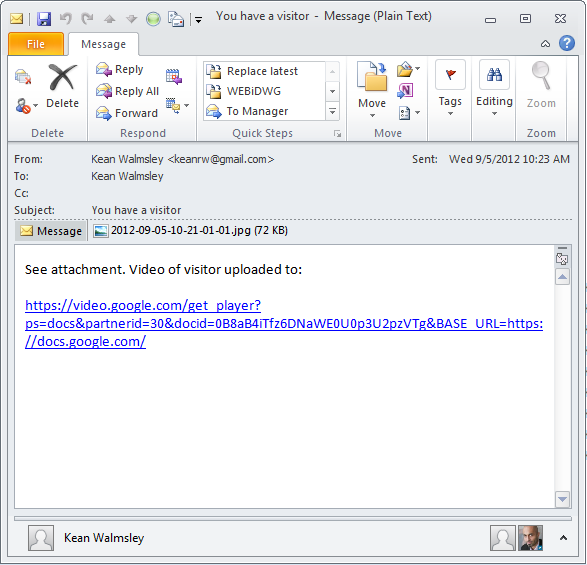
Email on motion detection - with attachment

Once you're ready to have it enter daemon mode on boot, you can edit the /etc/rc.conf file (using sudo nano …) to add it to the list of startup daemons on the very last line of the file.

One thing to note about this particular configuration: as mentioned, we save a single .jpg to accompany the .avi file that gets recorded (both files will appear in the same /home/pi/motion folder with the same name). The uploader script gets called when the .avi gets saved but assumes the .jpg will be there.

These files get created once motion has fully stopped (and there's a configurable 60 delay to make sure that's the case) which means that at some point we'll want to change the configuration to have Motion take more regular snapshots – and use a different naming convention, as we'll have more .jpg files per .avi – as that will allow us to run them through the facial recognition system and present the results without waiting for 60 seconds after the person has left. A change will also be needed for the uploader module, of course. But all that's for another day and another series of posts. 🙂

Update:

Alex Fielder reminded me that the uploader will look for a folder called "motion" in your Google Drive - be sure to make that folder before you try uploading. Thanks, Alex! 🙂

108 responses to “Creating a motion-detecting security cam with a Raspberry Pi – Part 2”

  1. a note to the uninitiated reader (like myself): I found the visudo editor just about the most unintuitive text editor I've ever used, so looked around for a nano-based solution and found one here (albeit with a slight change to accommodate nano):

    export EDITOR=nano && sudo -E visudo

    allows you to edit the sudoers file with nano.

    🙂

    (any idea how to make the change permanent?)

  2. Great - thanks for the tip, Alex!

    My vi skills were just about good enough to get me through a simple change, but it was a close thing.

    I'm not sure how you'd make the change permanent, but then if you're not adding users on a regular basis it's probably not that big a deal (IMHO).

    Kean

  3. Hi Kean,

    I have tried to configure the settings as what you have posted.

    When i start motion "sudo motion", i get the following erros as shown.

    [0] Processing thread 0 - config file /etc/motion/motion.conf
    [0] Unknown config option "sq1_log_image"
    [0] Unknown config option "sq1_log_snapshot"
    [0] Unknown config option "sq1_log_mpeg"
    [0] Unknown config option "sq1_log_timelapse"
    [0] Unknown config option "sq1_query"
    [0] Motion 3.2.12 Started
    [0] MOtion going to daemon mode

    May i know how to solve this issues?

  4. These are benign warnings that won't appear if the settings are commented out in the .conf file (which they are in the one I've provided - are you sure you're using it?).

    Kean

  5. Hi Kean,

    I am working on a raspberry pi project, to connect the raspberry pi to a webcam and provide real-time information on a server. Thus i have to create a server probably Apache server.

    Then the next phase is to create a iPhone/iPad application on Xcode to view the real time viewing on the iPhone/iPad application.

    Any clue, how can i get about this?

  6. Hi Selva,

    I don't have much experience with setting up a real-time webcam feed, but I have done so using Motion (and it's really easy to do so).

    If you follow the instructions in this post, it should just work.

    Then you simply need to write some kind of iOS app - presumably using Safari or Webkit directly - to consume the feed via HTTP.

    There may be better ways to do all his, but Motion is the way I've happened to have done it, myself.

    Regards,

    Kean

  7. Hi Kean,

    Thanks for your advice. Probably will be using direct connection to the Google Drive on my iOS application.

  8. Sorry to disturb u again Kean.

    I don't really get this part.

    "Once you’re ready to have it enter daemon mode on boot, you can edit the /etc/rc.conf file (using sudo nano …) to add it to the list of startup daemons on the very last line of the file."

  9. Daemon mode means it's running in the background. To enable daemon mode you need to set the appropriate setting in the motion.conf file (daemon=on, I think).

    To have the Motion daemon start when the device boots up, you can edit rc.conf:

    sudo nano /etc/rc.conf

    and then edit this line to include @motion (which starts the Motion daemon in the background - not sure the '@' is really needed, but anyway):

    DAEMONS=(!hwclock syslog-ng network openntpd @netfs @crond @sshd @motion)

    Does that make more sense?

    Kean

  10. Hi Kean,

    I followed your post and, however when i start motion

    it appears:

    [0] processing thread 0 -config file /home/sit/motion.conf
    [0] Motion 3.2.12 Started
    [0] Motion going to daemon mode

    then nothing happens and the video is not uploaded in the google drive or notify me in email

    any i missing anything here?

  11. Hi Melvin,

    Try editing the conf file to have daemon=off. You can then launch motion with the -s flag and see what the output says.

    Make sure the uploader.py command works manually, too, as per the instructions in the post.

    Regards,

    Kean

  12. Hi Kean,

    I followed your instructions and tried editing the conf file to have daemon=off

    it seems to work but however the following commands still appeared:

    found control 0X00980910, "Gamma", range 1.6
    "Gamma", default 4 , current 4

    found control 0X00980911, "Exposure" , range 781.18750
    "Exposure", default 2343, current 2343

    found control 0X00980912 "Auto Gain" range 0.1
    "Auto Gain" default 1, current 1
    Error requesting buffers 4 for memory map, VIDIOC_REQBUFS: Device Or resource
    ioctl (VIDIOCGCAP) : Inappropriate ioctl for device
    Retrying until successful connection with camera
    cap.driver: "zc3xx"
    cap.card: " "Camera"
    cap.bus_info: "usb-bcm2708_usb-1.2"
    cap.capabilities=0X05000001
    -VIDEO_CAPTURE
    - READWRITE
    - STREAMING

    Config palette index 8 (YU12) doesn't work.
    Supported palettes:
    0: JPEG (JPEG)
    Selected palette JPEG
    Test palette JPEG ( 352X288)
    Adjusting resolution from 352X288 to 320X240
    Using palette JPEG (320X 240) bytesperlines 320 sizeimage 29390 colorspace 0000007
    found control 0X00980900 "Brightness", range 0,255
    "Brightness", default 128 current 128
    found control 0X00980901 "Contrast" range 0,255
    Contrast", default 128 current 128
    found control 0X00980910, "Gamma", range 1.6
    "Gamma", default 4 , current 4
    found control 0X00980911, "Exposure" , range 781.18750
    "Exposure", default 2343, current 2343
    found control 0X00980912 "Auto Gain" range 0.1
    "Auto Gain", default 1, current 1

    map information:
    frames=4
    0 length=32768
    1 length= 32768
    2 length= 32768
    3 length= 32768
    Using V4L2
    Resizing pre-capture buffer to 1 items
    corrupt JPEG data: premature end of data segment
    corrupt JPEG data: premature end of data segment
    corrupt JPEG data: premature end of data segment
    corrupt JPEG data: premature end of data segment

    v412_next: VIDIOC_DQBUF: E10 (s->frame 3); Input/output error
    v412_next : VIDIOC_QBUF: Invaild augument
    Video device fatal error -Closing Video device
    Closing video device /dev/video0

    These are the errors i get when running motion

    Is there a problem with the camera or with the motion setting itself?

    Thank you very much for your assistance.
    Please advice

  13. Hi Melvin,

    A lot of this stuff is very webcam-specific, it seems. You should try adjusting the settings (reducing resolution can help) but you might also just need a powered USB hub (some webcams take more power than the Pi's board can provide).

    And then again, your webcam may just not be compatible. This page may be of use:

    elinux.org/RPi_VerifiedPeripherals#USB_Webcams

    Regards,

    Kean

  14. Hi Kean,

    It seems, my old logitec webcam do not support after all. i need a new one.

    Thanks for your advice.

    Do you think a supported powered USB is more than enough as, it can provide enough voltage to the camera itself?

    With powered USB i can use my keyboard, mouse and webcam as well.

  15. Hi Melvin,

    I don't have very much experience of using powered USB hubs: I tried one briefly but then found my webcam issues were related to Raspbian and went away with Arch Linux ARM.

    Regards,

    Kean

  16. Hi kean,
    very nice project. I got motion up and running, through browser it works, it saves avi and jpeg in the /home/pi/motion folder....but the uploader doesn't work 🙁 I've got this errors doing the uploading test:

    Traceback (most recent call last):
    File "/etc/motion/uploader.py", line 18, in <module>
    import gdata.data
    File "/usr/local/lib/python3.2/dist-packages/gdata/__init__.py", line 27, in <module>
    import atom
    File "/usr/local/lib/python3.2/dist-packages/atom/__init__.py", line 133, in <module>
    CreateClassFromXMLString)
    File "/usr/local/lib/python3.2/dist-packages/atom/__init__.py", line 97, in mark_deprecated
    optional_warn_function.func_name = f.func_name
    AttributeError: 'function' object has no attribute 'func_name'

    How can I fix?

    Thank you very much (:

  17. Hi Fedecupe,

    I've neither seen this error nor heard of anyone else hitting it... could it be you've missed a step?

    My first instinct would be to make sure gdata is installed properly:

    sudo pip2 install gdata

    Cheers,

    Kean

  18. Hey Kean,

    Love you work, keep it up!

    A question, is it possible to run double or multiple cams with your program?

    Cheers, Rene

  19. Hi Rene,

    The Motion sub-system supports multiple cams, although with the R-Pi you may need to think about a powered USB hub: it's unlikely there'll be enough power to do so directly.

    Good luck!

    Kean

  20. I already read the part one of it and it was really amazing and also this one.In Finland country many of people use only security for their home and business and i never been seen in any social media a security camera like this.

  21. Hi Keane,

    The upload script works for me and motion captures the videos correctly, however the mpeg does not upload on movie end. There doesn't appear to be any unusual activity when running sudo motion -s.

    Any ideas?

  22. Hi Daniel,

    It sounds as though you've tried calling the upload script manually, which is what I'd have suggested.

    The only think I can think of is that the command in motion.config is somehow incorrect.

    Regards,

    Kean

  23. Thanks for your reply Kean,

    Yes I have tried calling it manually and that works fine.

    I am new to linux scripting so it is entirely possible I have got the script wrong.

    The script I am using in the file is

    On_Movie_End /etc/motion/uploader.py /etc/motion/uploader.cfg %f

    I have also tried getting the on_movie_end to run a bash script that runs the python script and this doesn't work either.

    The script is:

    #!/bin/bash
    VIDEO=$1
    /etc/motion/uploader.py /etc/motion/uploader.cfg VIDEO

    In motion.conf /etc/motion/uploaderscript.sh %f

  24. That looks right... you might try using on_movie_end instead (not sure whether case matters), and otherwise putting something else in there (e.g. to write to a text file) when it fires, to make sure it does so.

    Kean

  25. Thanks so much for the detailed instructions!

    I've got the upload happening, but I get an error when the uploader looks for e.g. /motion/01-20121221160.jpg ("No such file or directory") since the jpegs saved have the frame number appended, e.g. /motion/01-20121221160-01.jpg. As a result, the process stops after the upload, so no email and no deleting the local files.

    I've used a combination of your motion.conf and the original motion.conf to get it working to this stage (the original webcam settings worked better for me), but I'm stumped by this since the filenaming sections of both look identical.

    Any pointers gratefully received. Thanks again!

  26. Try only saving out the "first" or "best" frame of the capture. Otherwise you'll need to modify the Python code to be less fussy about that part of the filename (it could check for the frame-specific images, too).

    Kean

  27. Whoa, apologies, they're not identical at all - I really should have double-checked the different versions I've made before posting!

  28. Bingo. The filenaming was a red herring - looks like I'd pasted in more of the original than I'd realised.

    Where I actually went wrong in the first place was I'd taken the image width and height back to the original (small) sizes, but left the "threshold for number of changed pixels" at your 10000 - far more than my weedy webcam has anyway, so it was simply not detecting motion.

    All appears to be working now. I'm enjoying this a lot, thanks!

  29. Patrick (Netherlands) Avatar
    Patrick (Netherlands)

    The script is not working for me.

    When I manually start the script it works:
    sudo /etc/motion/uploader.py /etc/motion/uploader.cfg /etc/motion/*.avi

    When I add the following to motion.conf notting is happening:
    sudo /etc/motion/uploader.py /etc/motion/uploader.cfg /etc/motion %f

    The path of captured images videos is:
    /etc/motion

    Is there anything I have to change in uploader.py ? What am I doing wrong?

    Patrick

  30. Kean, I am getting the error message "Error: Could not find the %s folder"... I followed the tutorial verbatim, and it cannot find this folder... is there something i need to change??

  31. Karl,

    Did you make the folder as mentioned in the "Update" at the end?

    Kean

  32. GOT IT lol. Needed to make the drive on google... durp durp

  33. I feel dumb now xD Spent 3 hours trouble shooting this... it's always the easy stuff that will get you the most

  34. Glad it's sorted. 🙂

    Kean

  35. Interesting. I was having some issues with the my cam and hadn't even considered that the OS (Raspbian) might be the culprit. Motion is definitely doing some wonky things, like NOT emailing me when motion is detected and I'm mostly using a similar configuration to what I had on my old Debian system. I ended up creating a cron job to email me as a workaround. Anyway, good article and I may consider Arch for this task.

  36. Hi!

    Only to make things easy to the beginners (like me):

    The commnad "adduser" as posted do not work.

    you need to use:

    useradd -m -g users -s /bin/bash pi

    as in: wiki.archlinux.org/index.php/Users_and_Groups#User_management

  37. Hi Kean, I've got a small problem with this, the uploads working but its not sending me a text link or photo within the email, please see sample below, taken from email and file permission. I've tried and tested with your test files and your motion.conf file.

    Content-Type: multipart/mixed; name=VidTest.jpg
    Content-Transfer-Encoding: base64
    Content-Disposition: attachment; filename=VidTest.jpg

    /9j/4AAQSkZJRgABAQAAAQABAAD/2wBDAAgGBgcGBQgHBwcJCQgKDBQNDAsLDBkSEw8UHRofHh0aHBwgJC4nICIsIxwcKDcpLDAxNDQ0Hyc5PTgyPC4zNDL/2wBDAQkJCQwLDBgNDRgyIRwhMjIyMjIyMjIyMjIyMjIyMjIyMjIyMjIyMjIyMjIyMjIyMjIyMjIyMjIyMjIyMjIyMjL/wAARCALQA8ADASIAAhEBAxEB/8QAHwAAAQUBAQEBAQEAAAAAAAAAAAECAwQFBgcICQoL/8QAtRAAAgEDAwIEAwUFBAQAAAF9AQIDAAQRBRIhMUEGE1FhByJxFDKBkaEII0KxwRVS0fAkM2JyggkKFhcYGRolJicoKSo0NTY3ODk6Q0RFRkdISUpTVFVWV1hZWmNkZWZnaGlqc3R1dnd4eXqDhIWGh4iJipKTlJWWl5iZmqKjpKWmp6ipqrKztLW2t7i5usLDxMXGx8jJytLT1NXW19jZ2uHi4+Tl5ufo6erx8vP09fb3+PnU+Wd/eMIwN74xnPfpUFlrdpc6bNeQwSxpGx

    -rw-r--r-- 1 root root 24035 Feb 24 17:06 motion.conf
    -rw-r--r-- 1 root root 623 Feb 24 12:31 uploader.cfg
    -rwxr-xr-x 1 root root 5644 Sep 4 12:58 uploader.py

  38. Hi Richard,

    Not sure what to suggest... I'd try to make sure it's finding the VidTest.jpg file. Beyond that I'd probably simplify the email contents, to see if that helps (and then introduce more complexity once you know that works).

    Regards,

    Kean

  39. Thanks Kean, but which files do I edit, I've checked the uploader.cfg rewrote that just in case, going to check the uploader.py if thats the right file your asking me to simplify ?

  40. If I recall correctly it's in uploader.py. I can't help this week (on holiday), so post another comment if you're still struggling on Monday.

    Kean

  41. Thanks, enjoy your holiday.

  42. Are there any modifications needed to get this to run on Raspbian?
    I changed the pacman settings to apt-get install python, apt-get install python-pip etc. but I'm getting the following error when running the test script at the end:
    -bash: /etc/motion/uploader.py: /usr/bin/python2: bad interpreter: No such file or directory

  43. I didn't get very far with Raspbian, at the time, but that doesn't mean it's not possible to get it working (especially now that improvements have been made to the OS).

    This error should be simple enough to get past, although I don't have specific steps for you. Hopefully you'll be able to track down the ino you need elsewhere.

    Kean

  44. I managed to get it to work, sort of.
    The latest version of python that came with apt-get was 2.7, which meant that all I needed to do was to edit the first line of uploaded.py to reference python 2.7 instead of 2.
    This meant that the test script now works, uploaded the video and sent the email.

    Unfortunately, although videos are recording (at around triple speed, not sure why!), they're not being uploaded to Drive in the way that the test video was. Still no idea why the test script works but the real videos don't.

  45. Hmm - so your own test works but not your recorded videos? Then I'm at a loss: sometimes people forget to create the "motion" folder on Google Drive, but that would mean even the test would fail.

    And I haven't seen the triple-speed thing. Although that could be considered a feature, right there. 🙂

    Kean

  46. when I try to install Gdata I get this error:

    [root@alarmpi /]# sudo pip2 install gdata
    Downloading/unpacking gdata
    Could not fetch URL https://pypi.python.org/simple/gdata/: There was a problem confirming the ssl certificate: <urlopen error="" [errno="" 1]="" _ssl.c:504:="" error:14090086:ssl="" routines:ssl3_get_server_certificate:certificate="" verify="" failed="">
    Will skip URL https://pypi.python.org/simple/gdata/ when looking for download links for gdata
    Could not fetch URL https://pypi.python.org/simple/: There was a problem confirming the ssl certificate: <urlopen error="" [errno="" 1]="" _ssl.c:504:="" error:14090086:ssl="" routines:ssl3_get_server_certificate:certificate="" verify="" failed="">
    Will skip URL https://pypi.python.org/simple/ when looking for download links for gdata
    Cannot fetch index base URL https://pypi.python.org/simple/
    Could not fetch URL https://pypi.python.org/simple/gdata/: There was a problem confirming the ssl certificate: <urlopen error="" [errno="" 1]="" _ssl.c:504:="" error:14090086:ssl="" routines:ssl3_get_server_certificate:certificate="" verify="" failed="">
    Will skip URL https://pypi.python.org/simple/gdata/ when looking for download links for gdata
    Could not find any downloads that satisfy the requirement gdata
    No distributions at all found for gdata
    Storing complete log in /root/.pip/pip.log

  47. Sorry - no idea what's going on here.

    Kean

  48. Jerome Pinotage Avatar
    Jerome Pinotage

    Hello Kean,

    great tutorial. I managed it with Raspbian.

    My Problem: I need a sort of workround for the .jpg.
    uploader.py doesnt send Emails while the .jpg-file is missing. I dont want to increase CPU-load and storage, so there must be a solution to upload directly the video and sending the Email without waiting for the .jpg.
    Do you have any ideas?

    Jerome

  49. chrisk69@gmx.de Avatar
    chrisk69@gmx.de

    Hi GhostRider,

    look at:

    guide.python-distribute.org/installation.html

    developers.google.com/gdata/articles/python_client_lib#linux

    code.google.com/p/gdata-python-client/downloads/list

    I used pip-0.7.2 and qdata-2.0.17 and all works very fine with whezzy. I also, can use the USB-Webcam Xbox Live Vision ( elinux.org/RPi_VerifiedPeripherals#USB_Webcams ) but only with 352x288 resolution and the image quality is quite bad. I have to try with USB-Hub and other Web-Cams. But using IP server A9100B and IP-WEB-Cams with directly HTTP-request access to the images, works very fine and stable, I have 3 cameras working over days, now. Further I use squid3 and syslog-ng for my hardware firewall - I am very pleased! Thanks to Kean!

  50. The correct command for adding a new user is "useradd" instead of "adduser". Anyhow, your guide is great!

  51. Hi. Nice tutorial!

    I'm a newbie with several problems.

    I only want the Python-Script to send a Picture from gmail (to gmail: selfsend).
    I dont understand the Code 100%, so i dont know what to change. Anyone an idea?

    (The unchanged Code is running well - I'm using Raspbian)

  52. Hi Kean

    I've got a small problem with this. The uploads working but its not sending me a text link or photo within the email.
    How to solve this ?

  53. Kean Walmsley Avatar

    Hi Gunnar,

    Does the script work when you call it manually? I suggest going back through the steps and making sure you haven't missed any.

    Regards,

    Kean

  54. All ok. If sender and receiver emal aadressea are same email without link.If sender one aadress and receiver other works all prefectly.

  55. Hello Kean

    I had the script perfectly functioning, but now the email has no longer been sent. When I manually call the script I receive the following message:

    socket.error: [Errno 97] Address family not supported by protocol

    Dou you have any ideia how to fix it?

    Thanks!

  56. Kean Walmsley Avatar

    Hello Ricardo,

    Sorry - this isn't something I've come across, myself.

    Regards,

    Kean

  57. wow kean you post is great thanks for sharing this post with us.

  58. Great tutorial and scripts.

    I got this working with Raspian on the RPi with the following changes:

    1. need to use "sudo apt-get install python-gdata"
    2. even with chmod I couldn't get Motion to start the script unless I added "python" before the call to the script file

  59. DYNDNS is expensive

    Here a shell script which is reading the internet IP from your router and update the subject file of the uploader.cfg if IP is changed.
    _____________________________________________

    #!/bin/sh
    #cd /root

    ROUTERURL="http://192.168.0.1"
    ROUTERUSER="root"
    ROUTERPASSWD="YOURPASSWD"

    if [ ! -f "ipNEW.txt" ]
    then
    echo "192.168.0.1" > ipNEW.txt
    fi
    #save old IP
    export IPOLD="$(cat ipNEW.txt)"
    #wget -r --user=$ROUTERUSER --password=$ROUTERPASSWD $ROUTERURL 1> NUL 2> NUL
    export IPNEW="$(grep '[0-9]\{1,3\}\.[0-9]\{1,3\}\.[0-9]\{1,3\}\.[0-9]\{1,3\}' < index.html |sed -e "s/var wan_ip=//g" -e "s/'//g" -e "s/;//g")"
    echo $IPNEW > ipNEW.txt
    export NEWURL="message = http:\/\/$IPNEW:8080"
    if [ "$IPOLD" != "$IPNEW" ]; then
    echo "OLDIP: "$IPOLD "NEWIP: " $IPNEW
    echo "IP CHANGed new URL=$NEWURL"
    sed -i "s/message =.*$/$NEWURL/g" uploader.cfg 1> NUL 2> NUL
    else
    echo "IP SAME: "$IPNEW "URL IS: "$NEWURL
    echo
    fi

  60. All working very prefectly but i have one small question : can i use other (cam 2) camera in other port ?

  61. You might well be able to, but I haven't done so myself. Power's likely to be an issue - you might well need a powered USB hub.

    Kean

  62. Hi again,
    Following shell script restart via crontab motion and/or other programms if they re not running.

    Found the script on the net and adapted it a bit.

    I run it via cron (crontab -e) every 5 minutes :

    */5 * * * * /root/scripts/restart_service.sh >/dev/null 2>&1

    /var/log/crond.log show executions of cron..

    Code:

    #!/bin/sh
    ######### Check Service and Restart ############

    SERVICE="webmin motion"

    for n in $SERVICE
    do

    if ps ax | grep -v grep | grep $n > /dev/null
    then
    echo "$n service running, everything is OK"
    else
    echo "$n is not running, restarting $n"
    checkmysql=`ps ax | grep -v grep | grep -c $n`

    if [ $checkmysql -le 0 ]
    then
    '/usr/bin/systemctl' start $n

    if ps ax | grep -v grep | grep $n > /dev/null
    then
    echo "$n service is now restarted, everything is OK"
    fi
    fi
    fi
    done

    exit 0

  63. Hi again,
    Following shell script restart via crontab motion and/or other programms if they re not running.

    Found the script on the net and adapted it a bit.

    I run it via cron (crontab -e) every 5 minutes :

    */5 * * * * /root/scripts/restart_service.sh >/dev/null 2>&1

    /var/log/crond.log show executions of cron..

    Code:

    #!/bin/sh
    ######### Check Service and Restart ############

    SERVICE="webmin motion"

    for n in $SERVICE
    do

    if ps ax | grep -v grep | grep $n > /dev/null
    then
    echo "$n service running, everything is OK"
    else
    echo "$n is not running, restarting $n"
    checkmysql=`ps ax | grep -v grep | grep -c $n`

    if [ $checkmysql -le 0 ]
    then
    '/usr/bin/systemctl' start $n

    if ps ax | grep -v grep | grep $n > /dev/null
    then
    echo "$n service is now restarted, everything is OK"
    fi
    fi
    fi
    done

    exit 0

  64. Johan Gunnarsson Avatar
    Johan Gunnarsson

    Thanks for a great post!

    It works great, and sending ok,
    but when I run it as daemon=on, some permission problem. (no good in linux)

    What can I do? is it destination folder "/home/pi/motion/"
    or "/etc/motion/uploader.py" (I did sudo chmod +x uploader.py)

    url_fopen - error opening file /home/pi/motion/2013-08-17-18-58-16-01.avi ... check access rights to target directory: Permission denied

    Can't write picture to file /home/pi/motion/2013-08-17-20-57-27-01.jpg - check access rights to target directory: Permission denied

  65. Seems like it's the destination folder. I don't know why (sorry - it's been so long since I looked at this).

    Hopefully someone will be able to help or you'll work out what's wrong...

    Kean

  66. All seems to work OK *if* you are using a USB camera. I'm trying to get it to work with the Raspberry Pi camera and I don't get a /dev/video0 so it won't open.

    Hmmm...

  67. I haven't yet got my hands on one of those. I have no idea how they interface with the R-Pi. I'm also curious to know how you get it to work.

    Kean

  68. hey Kean,

    i had follow you description, Your video appears at my Mail but no videos from my room if i walk up and down.

    Thx and sorry for my english

  69. Hi Markus,

    Sorry - I have no way of telling what's not working.

    Regards,

    Kean

  70. Thank very much for this instructions, I was facing the same issue as you were on part1, but this one works like a charm!

  71. This works great with a USB webcam. I just received one of the raspberry pi camera modules. Not a lot out there on getting it to work with motion in Arch. Anyone got this going?

    -Jeremy

  72. Hi,

    Motion appears to work fine, when running motion -s I see the data about motion tracking (my cats!) and that it starts the httpd service but I cannot connect to it from my browser, any ideas?

    Thanks

  73. Fixed it, there is an option to restrict it to local host only, removed that and its fine.

    Great tutorial.

  74. Thanks for letting me know - glad you have it working.

    Kean

  75. I had the same error, and for me, it's the problem with the system date (01/01/1970)...
    I have set the date and now it's work.

  76. hi, Thanks for the instructions. My webcam seems to be supported but I still cant get it up! I am so close. When I run the sudo motion -s command I get the following error:

    [1] frames=4
    [1] 0 length=32768
    [1] 1 length=32768
    [1] 2 length=32768
    [1] 3 length=32768
    [1] Using V4L2
    Unsupported marker type 0xf5
    [1] Video device fatal error - Closing video device
    [1] Closing video device /dev/video0
    [1] Raw changes: 0 - changes after 'EedDl': 0 - labels: 0 - noise level: 11
    [1] Raw changes: 0 - changes after 'EedDl': 0 - labels: 0 - noise level: 11
    [1] Raw changes: 0 - changes after 'EedDl': 0 - labels: 0 - noise level: 11

    I have tried changing the resolution many times over. The blue light even flashes on the front of the webcam briefly. Do you know what the problem could be?

  77. Are you sure the webcam is supported (i.e. primarily has low enough power rating) for the R-Pi? You might try a powered USB hub - that often helps with issues such as this.

    Kean

  78. Using Raspbian, I solved substituting
    On_Movie_End /etc/motion/uploader.py etc/motion/uploader.cfg %F
    with
    On_Movie_End python /etc/motion/uploader.py /etc/motion/uploader.cfg %f

  79. Great tutorial Kean! Pleased to say I've successfully used it to set up two separate Raspberry Pi based webcams and, eventually, I intend to use it in a 'bird box' project.

    I used to be able to view the live stream remotely on both cams using Firefox or Chrome (never IE though) then the other day I couldn't access either, no matter what browser I used, remotely or locally. I'm wondering if they've made a change to Motion - nothing else has changed as far as I can see and I can still access the streams through VLC but I miss the accessibility of using a browser.

    I did also try to set up your project using Raspbian (find it much easier to use) but couldn't get the Python script to work and I'm a Linux beginner so gave up on that quickly - any advice would be appreciated!

    Anyway, just wanted to extend a big 'Thank you' for posting - keep up the great work!

  80. Hi Jez,

    Great - glad to know it's been useful. 🙂

    Not sure about the browser issue - it's been a while since I've had one of these running, myself, and so can't really comment on that.

    MC mentioned a change that helped on Raspbian, in case.

    Best of luck,

    Kean

  81. Thanks, for this great tutorial!

    I had some trouble getting the .jpg file to display/link in the body of the E-Mail.

    What worked for me was changing the "content-type" in the third header to "image/jpeg;"

    The line in uploader.py should be like this:
    p3="Content-Type: image/jpeg; name=%s\r\nContent-Transfer-Encoding:base64\r\nContent-Disposition: attachment; filename=%s\r\n\r\n%s\r\n--%s--\r\n" % (imgfile, imgfile, encodedcontent, marker)

  82. Just wanted to say thanks for this excellent tutorial. Using a combination of your instructions and "dozencrow’s" version of the motion program (rbnrpi.wordpress.com/project-list/setting-up-wireless-motion-detect-cam/) with wheezy-raspian everything works perfectly! Thank you!

  83. Have you tried using the RPi camera for this project? I am trying to get one working now and haven't been successful yet as I am a new to arch and the pi.

  84. Sadly not. All of this pre-dated the availability of the RPi camera and I haven't revisited it since.

    Kean

  85. hi kean... I had tried according to you and found some error:
    [1] cap.driver: "uvcvideo"
    [1] cap.card: "UVC Camera (046d:0819)"
    [1] cap.bus_info: "usb-bcm2708_usb-1.3"
    [1] cap.capabilities= 0x04000001
    [1] Error selecting input 0 VIDIOC_S_INPUT: Device of resource busy
    [1] ioctl (VIDEOCGCAP): Inappropriate ioctl for devices.
    [1] - VIDEO_CAPTURE
    [1] - STREAMING
    [1] raw changes: 0-changes after 'EedDl': 0-labels : 18
    I am using logitech c210 webcam... pls help me

  86. Hi Akash,

    Sorry - I can't really help with something that's very likely to be a device-specific issue.

    Good luck,

    Kean

  87. Ditto

    With p3="Content-Type: image/jpeg; etc." the pictures are showing up and opening up correctly on GMail. Haven't tested with Yahoo! or AOL though.

    Dear Kean,

    I have a perfect monitoring system, based on the latest Raspbian and Motion (3.2.12-3.4). It's very stable, and it's doing the job, as intended.

    Headless RPi Model B with Logitech C270 USB camera.

    The only trouble with Debian/Raspbian is the /etc/init.d/motion script. Motion expects the PID to be in /var/run/motion/motion.pid, whilst /etc/init.d/motion states it's /var/run/motion.pid.

    The patch:

    --- motion.orig 2013-12-01 08:37:27.439683538 +0000
    +++ motion.new 2013-12-01 08:36:34.161380612 +0000
    @@ -24 +24 @@
    -PIDFILE=/var/run/$NAME.pid
    +PIDFILE=/var/run/$NAME/$NAME.pid

    When I am away, I also wanted to have GPU and CPU temperature sensor's readings on my e-mails. I have added a few lines to the code, which I'd be happy to share. Apparently the owners might want to have more details about their RPis (CPU and memory load, and disk utilisation), when they are away. It's all doable.

    You've done your great piece of job by extending
    Jeremy's script above and beyond. The script requires some apparent patching, as per Zela. It can also be extended to include some extra functionality for RPi.

    How about setting up a project on SF with Jeremy Blythe, the original author of the script?

    Or shall we keep it quiet, non-public?

  88. Hi John,

    I'd be very happy to see this extended and posted publicly.

    What's SF?

    Best regards,

    Kean

  89. Hi Kean,
    No problem at all.
    Can you help me finding solution for the following error. It is the output for "dmesg" command and my kernel is 3.6.11+:
    [5.790301] Linux video capture interface: v2.00
    [6.213422] uvcvideo: Found UVC 1.00 device. <unnamed> (046d:0819)
    [6.610378] input: UVC camera (046d:0819) as /devices/platform/bcm2708_usb/usb1/1-1/1-1.2/1-1.2:1.0/input/input2
    [6.856060] usbcore: registered new interface driver uvcvideo
    [6.996478] USB Video Class driver (1.1.1)
    [ 7.796439] usbcore: registered new interface driver snd-usb-audio
    [10.301633] EXT4-fs (mmcblk0p2): re-mounted.Opts : (null)
    [10.822316] EXT4-fs (mmcblk0p2): re-mounted.Opts : (null)
    [ 23.426901] Adding 102396k swp on /var/swap. Priority:-1 extents:1 across:102396k SS
    [ 26.301843] uvcvideo: Failed to query (SET_CUR) UVC control 3 on unit 2: -110 (exp.2)
    [ 26.601848] uvcvideo: Failed to query (SET_CUR) UVC control 7 on unit 2: -110 (exp.2)
    [ 26.601848] uvcvideo: Failed to query (SET_CUR) UVC control 2 on unit 2: -110 (exp.2)
    [ 32.931814] uvcvideo: Failed to set UVC probe control : -110 (exp. 26).
    [ 37.931908] uvcvideo: Failed to set UVC probe control : -110 (exp. 26).
    [43.941808]uvcvideo: Failed to set UVC probe control : -110 (exp. 26).
    [48.841809] uvcvideo: Failed to set UVC probe control : -110 (exp. 26).
    [540.830427] uvcvideo: Failed to set UVC probe control : -71 (exp. 26).
    [541.059081] usb1-1.2: USB disconnected, device number 4.
    [544.621932] usb 1-1.2: new low-speed USB device number 6 using dwc_otg.

  90. Hi Akash,

    Sorry - no suggestions spring to mind and I unfortunately have neither the expertise nor the time to help research this problem.

    Good luck,

    Kean

  91. Freaking A. I spent all evening trying to figure out how to do Google Drive access based on some posts like this. Turns out that if you have two factor auth turned on for your account you need to either use oauth OR create an app specific password (that can access your entire account).

    So instead of entering your regular password, you can enter the app specific password. And it will just work.
    Username = yourgmailaddy@gmail.com
    Password=<app specific="" password="">

    I guess that not alot of these folks use two factor, or that they are so ubur dev they simply overlook mentioning it.

    And let me say that OAuth and Google Dev setup stuff is a nightmare. I have no clue if anything I setup would lead to financial charges. I did get it working, but I don't know if I want it working based on all the info about billing and legalese you agree to. All of this JUST to upload a file to a web service. Yikes!

    Anyone feel free to correct me or provide more info on any of this.

    Thanks for the original script btw!

  92. Freaking A. I spent all evening trying to figure out how to do Google Drive access based on some posts like this. Turns out that if you have two factor auth turned on for your account you need to either use oauth OR create an app specific password (that can access your entire account).

    So instead of entering your regular password, you can enter the app specific password. And it will just work.
    Username = yourgmailaddy@gmail.com
    Password=<app specific="" password="">

    I guess that not alot of these folks use two factor, or that they are so ubur dev they simply overlook mentioning it.

    And let me say that OAuth and Google Dev setup stuff is a nightmare. I have no clue if anything I setup would lead to financial charges. I did get it working, but I don't know if I want it working based on all the info about billing and legalese you agree to. All of this JUST to upload a file to a web service. Yikes!

    Anyone feel free to correct me or provide more info on any of this.

    Thanks for the original script btw!

  93. As for the email and content - I finally got an email with an attached jpg and a video link.

    Unfortunately the video link only works for the desktop version of Firefox. It does not work in Android 4.4/mobile FF, 4.4/mobile Chrome, or Ubuntu/Chromium (oddly enough). So I guess I'll try to research options for getting the video to display elsewhere.

    And all of this work is just to make sure I ave something that can work for if/when I decide to buy a Raspberry Pi!

  94. The video link won't work because I am essentially forced to output the video as flash. No Android or Chromium support. 🙁

  95. Heey - Great post! I didn't get motion running since about half a year and now, I finally made it! Thanks a lot!

    And: You have to share the 'motion-Folder' with the person that will recieve your E-Mails (If this isn't you)

    Thanks and continue writing so good posts 😉 Thanks man!

    (Sorry for my English, It's not my main Language

  96. I got as far as /etc/motion/uploader.py /etc/motion/uploader.cfg ./VidTest.avi
    but then it would always error out because it couldn't find the folder I put into the uploader.cfg file. No matter what folder I put in there.

    # Folder (or collection) in Docs where you want the videos to go

    folder = motion

    Can someone help with this?

    1. Never mind. I got to the part were they mention Google drive.

  97. Hello Kean,

    Thank you for your clear instructions to send emails from the Motion setup.

    I followed your instructions to set up uploader.cfg. If I use the credentials given in the config file (see file below) I can login to my gmail account without a problem. But uploader.cfg doesn't seem to work. When I run the uploader.py to upload a file to my Google drive, I am getting "Invalid user credentials given." error. What seems to be the error?

    Secondly, my video/jpg files are in /home/pi/camshare/Cam1 folder. I am not sure how uploader.py / uploader.cfg combination handle teh location of these files.

    Thnak you for ypur help.

    -------------------------------------
    # GMail account credentials
    name = myname
    user = mymailname@gmail.com
    password = mypassword
    sender = mymailname@gmail.com

    # Recipient email address (could be same as from_addr)
    recipient = girit@comcast.net

    1. Kean Walmsley Avatar

      Sorry, Cem - it's not clear to me what the issue is (and I haven't run this system myself in over a year).

      Kean

  98. Ants Adolf Tamm Avatar
    Ants Adolf Tamm

    Hi.

    How to config this for raspicam module ?

    1. Kean Walmsley Avatar

      Sorry - don't have one, so I have no idea.

      Kean

  99. Hi,

    I don't know if anyone can help but, - I followed the instructions and everything works - except the email.

    The test worked and generated both the Google Drive upload and the email. The working system does the upload but not the email.

    I'm assuming that the Jpeg and movie file have to have the exact same filename for this to work?

    However, no matter what I do I cannot seem to change the filename of the jpeg.

    In Motion.conf they have the same name convention:

    jpeg_filename %Y%m%d%H%M

    movie_filename %Y%m%d%H%M

    However, the resulting files are named:

    01-20140716203929-00.jpg

    201407162052.avi

    I have tried changing the jpeg filenames and used various permutations of date/time but I always get exactly the same jpeg name format.

    Can anyone offer any suggestions?

    Thanks.

  100. Hello, the jpg image in gmail did not produce a preview. Therefore I changed the header for the imag in uploader.py from attachment to inline

    Before:

    p3="Content-Type: multipart/mixed; name=""%s""\r\nContent-Transfer-Encoding:base64\r\nContent-Disposition: attachment; filename=%s\r\n\r\n%s\r\n--%s--\r\n" % (imgfile, imgfile, encodedcontent, marker)

    After:

    p3="Content-Type: application/octet-stream; name=""%s""\r\nContent-Transfer-Encoding:base64\r\nContent-Disposition: inline; filename=%s\r\n\r\n%s\r\n--%s--\r\n" % (imgfile, imgfile, encodedcontent, marker)

  101. Excellent work!... But I found one issue on how the code sends the content to Gmail. The images always require downloading to view offline and I'm sure I'm no the only one to experience the issue.

    So... This can be changed by making the line " p3="Content-Type: image/jpeg; .... instead of using p3="Content-Type: multipart/mixed;

    This allows the image to appear in the email and doesn't require downloading to view.

  102. The uploader.py does not work further - DATE 2015-06-27 - regarding changing the authentication method by google - look here for the the way how to implement it: jeremyblythe.blogspo...

  103. Google Drive Uploader works only with OAuth 2.0 - now (June - 2015)!
    Look here - for the new installation hints:
    jeremyblythe.blogspo...

  104. when I insert SD card in raspberry pi and start up the computer then it show root account as locked.....

  105. when I insert SD card in raspberry pi and start up the computer then it show root account as locked.....

    May i know how to solve this issues?

Leave a Reply to Kean Walmsley Cancel reply

Your email address will not be published. Required fields are marked *