As Shaan reported over on his blog, AutoCAD gets used in some very surprising ways. This "Hack A Day" article highlights the achievements of Carlos Paris, an HVAC engineer and AutoCAD user who found a novel way to visualize and understand prime numbers. Carlos originally believed he'd found an elusive proof for the twin prime conjecture, and while it turned out not to be the case he certainly found a novel way of representing a Sieve of Eratosthenes graphically.
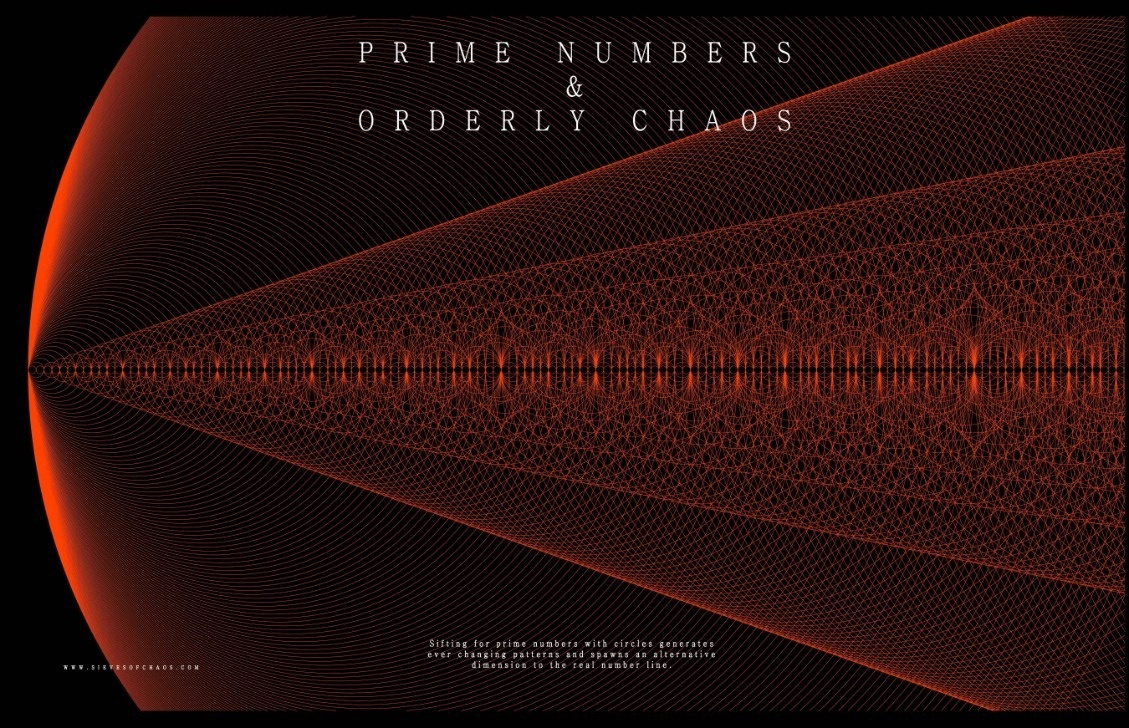
I really enjoyed watching Carlos's videos on YouTube, and thought I'd check in with him by email to see how he'd created his AutoCAD-based visualizations. It turns out that the part of the work he's most proud of relates to the probabilistic formulae he created for counting primes and twin primes. Carlos tells me that his formula for counting primes is apparently a special case of an Euler product and is directly connected to the Riemann zeta function. Carlos hasn't yet seen the twin primes counting formula in a text book, although he suspects it's probably there somewhere.
From my side, I was most interested in finding out more about the way Carlos had used AutoCAD. I was surprised to find his process was pretty manual, and actually really liked his statement (highlighted in bold, below).
Here was my question for Carlos:
I'm curious: did you use any scripting to generate/filter the circles (or create the rays for the primes) or was it all done "manually" (e.g. via the ARRAY command)?
And here's his response:
ARRAY is part of it, but probably not what you think. It was a mixture of ARRAY, QSELECT, COPY, SCALE AND MOVE. Say you made an array of circles of diameter "2", you do a qselect of all circles of this diameter and copy them. Then you scale by "2", copy and scale again, then repeat. So you've created arrays of circles of diameters 2, 4, 8, 16, 32, and so on. Then you just put them on a common origin.
Do the same for circles of diameter "3", so you've got circles of diameters 3, 6, 12, 24, 48.
When you get to circles of diameter "4" you realize you don't need them! You already have 4, 8, 16, 32 and so on, so you skip composites!! This is the first WOW moment, because if you keep going, you realize "you're only using circles of diameters equivalent to prime numbers to generate the graphic sieve!!"
I'm not a great programmer, but I'm not sure I would have realized the properties of a sieve so soon had I programmed a circle generator.
So there you have it – a very valid argument for following a manual process. Sometimes rolling your sleeves up and doing something by hand is the best way to discover an underlying pattern. 🙂
Despite this, in the next post I'll see if I can create some DesignScript code to generate something like the visualization Carlos has created. Just for fun.
A further comment Carlos made on his use of AutoCAD was also quite interesting, as it's not necessarily a product you'd expect to see used in this way:
The important thing is that the tools in AutoCAD, including layer management and color coding among many others, helped me create visuals that allowed me to dig deeper and bring life to some aspects of number theory that would otherwise have remained an obscure and esoteric subject.
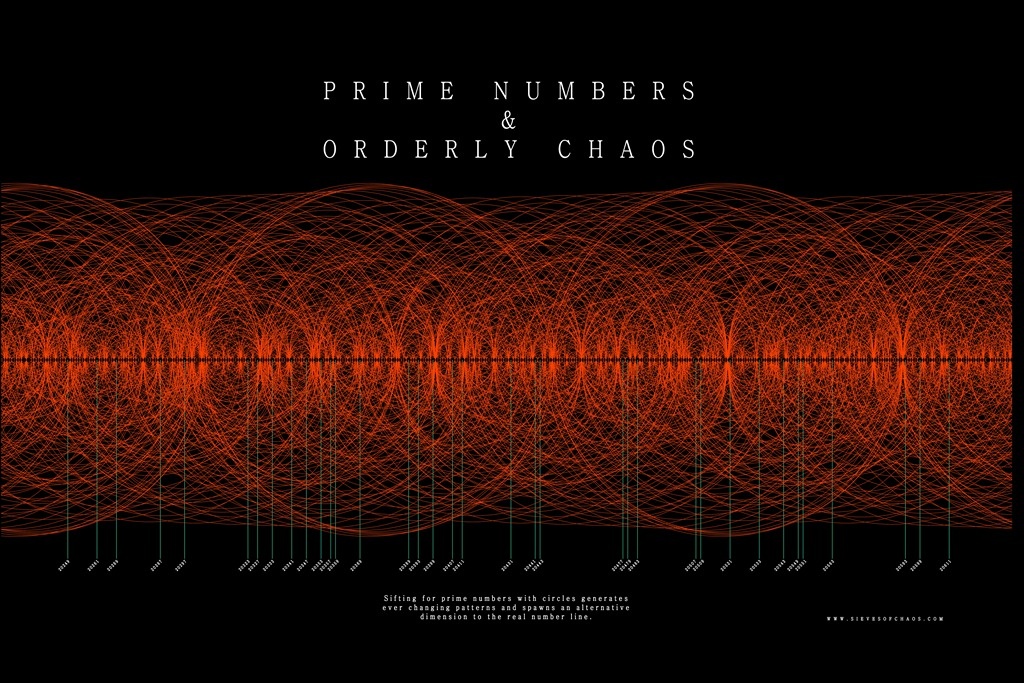
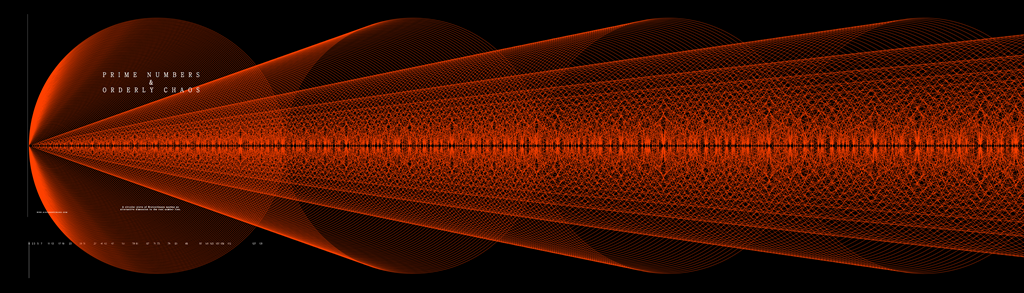
If you like the designs Carlos generated, be sure to check out his web-site: he even has wallpaper and posters for sale (apparently the posters are currently sold out… Carlos did say he'd share the source images via Google Docs: once I get the links I'll update the post to include them).
Update:
Here are the files from Carlos:
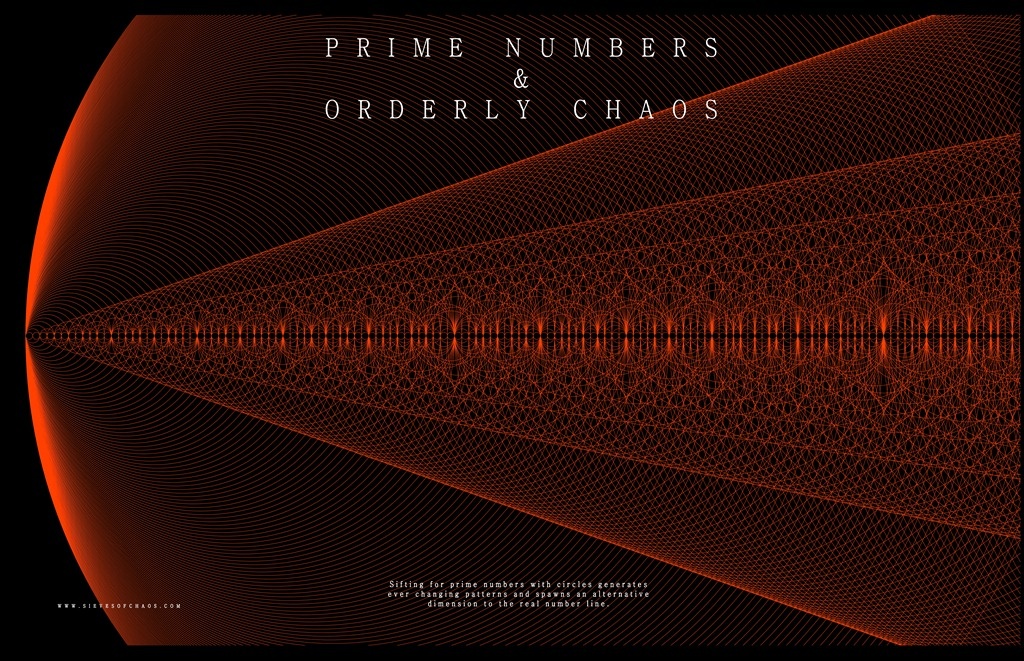
Afiche refinado 2.jpg (46.2MB)



Leave a Reply