A colleague in our Product Support team came to my desk yesterday afternoon with a problem he thought I might find interesting. He was right. 🙂
It turns out that AutoCAD tables containing Unicode characters don't export very well to CSV files (for later import into Excel, for instance).
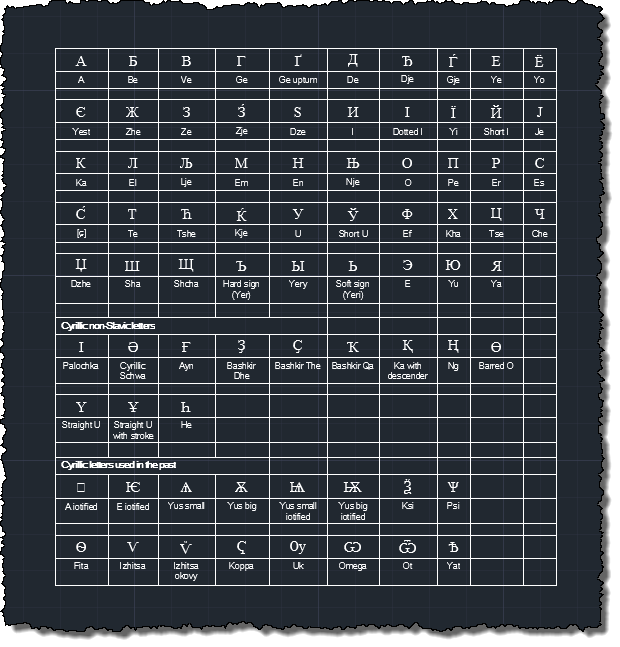
Here's a sample table with a number of Unicode characters in it:
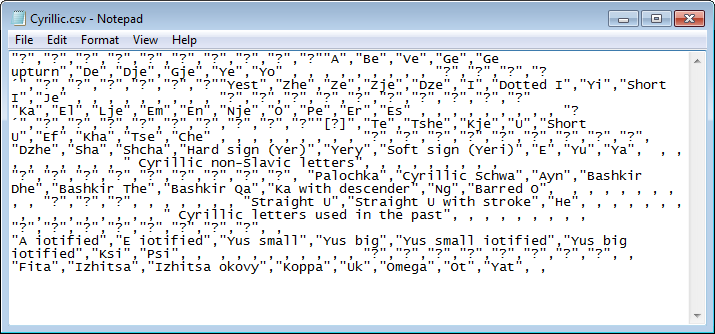
When exported to a CSV file using the standard right-click menu option it contains a bunch of ? characters:
The good news is that it's easy to create your own version of the TABLEEXPORT command – the one that gets called when you right-click a table and select Export – that successfully writes the contents of a table to a Unicode-encoded CSV file.
Here's the C# code that implements the TABLEEXPORT2 command. It uses a number of techniques from elsewhere: previous posts to select files and explode MText as well as a handy function from StackOverflow to help encode commas etc. in comma-delimited files.
It also replaces standard AutoCAD control codes – %%C, %%D and %%P – with their Unicode equivalents. The results get saved to a text file encoded using UTF-8.
using System.Text;
using Autodesk.AutoCAD.ApplicationServices;
using Autodesk.AutoCAD.DatabaseServices;
using Autodesk.AutoCAD.EditorInput;
using Autodesk.AutoCAD.Runtime;
using System;
using System.IO;
namespace TableExportUnicode
{
public class Commands
{
[CommandMethod("TABLEEXPORT2", CommandFlags.UsePickSet)]
static public void ExportTableToUnicode()
{
var doc =
Application.DocumentManager.MdiActiveDocument;
var db = doc.Database;
var ed = doc.Editor;
var tbId = ObjectId.Null;
// Check the pickfirst selection for a single Table object
var psr = ed.GetSelection();
if (psr.Status != PromptStatus.OK)
return;
if (psr.Value.Count == 1)
{
var selId = psr.Value[0].ObjectId;
if (
selId.ObjectClass.IsDerivedFrom(
RXObject.GetClass(typeof(Table))
)
)
{
tbId = selId;
}
}
if (tbId == ObjectId.Null)
{
// If no Table already selected, ask the user to pick one
var peo = new PromptEntityOptions("\nSelect a table");
peo.SetRejectMessage("\nEntity is not a table.");
peo.AddAllowedClass(typeof(Table), false);
var per = ed.GetEntity(peo);
if (per.Status != PromptStatus.OK)
return;
tbId = per.ObjectId;
}
// Ask the user to select a destination CSV file
var psfo = new PromptSaveFileOptions("Export Data");
psfo.Filter = "Comma Delimited (*.csv)|*.csv";
var pr = ed.GetFileNameForSave(psfo);
if (pr.Status != PromptStatus.OK)
return;
var csv = pr.StringResult;
// Our main StringBuilder to get the overall CSV contents
var sb = new StringBuilder();
using (var tr = db.TransactionManager.StartTransaction())
{
var tb = tr.
GetObject(tbId, OpenMode.ForRead) as Table;
// Should be a table but we'll check, just in case
if (tb != null)
{
for (int i = 0; i < tb.Rows.Count; i++)
{
for (int j = 0; j < tb.Columns.Count; j++)
{
if (j > 0)
{
sb.Append(",");
}
// Get the contents of our cell
var c = tb.Cells[i, j];
var s = c.GetTextString(FormatOption.ForEditing);
// This StringBuilder is for the current cell
var sb2 = new StringBuilder();
// Create an MText to access the fragments
using (var mt = new MText())
{
mt.Contents = s;
var fragNum = 0;
mt.ExplodeFragments(
(frag, obj) =>
{
// We'll put spaces between fragments
if (fragNum++ > 0)
{
sb2.Append(" ");
}
// As well as replacing any control codes
sb2.Append(ReplaceControlCodes(frag.Text));
return MTextFragmentCallbackStatus.Continue;
}
);
// And we'll escape strings that require it
// before appending the cell to the CSV string
sb.Append(Escape(sb2.ToString()));
}
}
// After each row we start a new line
sb.AppendLine();
}
}
tr.Commit();
}
// Get the contents we want to put in the CSV file
var contents = sb.ToString();
if (!String.IsNullOrWhiteSpace(contents))
{
try
{
// Write the contents to the selected CSV file
using (
var sw = new StreamWriter(csv, false, Encoding.UTF8)
)
{
sw.WriteLine(sb.ToString());
}
}
catch (System.IO.IOException)
{
// We might have an exception, if the CSV is open in
// Excel, for instance... could also show a messagebox
ed.WriteMessage("\nUnable to write to file.");
}
}
}
public static string ReplaceControlCodes(string s)
{
// Check the string for each of our control codes, both
// upper and lowercase
for (int i=0; i < CODES.Length; i++)
{
var c = "%%" + CODES[i];
if (s.Contains(c))
{
s = s.Replace(c, REPLS[i]);
}
var c2 = c.ToLower();
if (s.Contains(c2))
{
s = s.Replace(c2, REPLS[i]);
}
}
return s;
}
// AutoCAD control codes and their Unicode replacements
// (Codes will be prefixed with "%%")
private static string[] CODES = { "C", "D", "P" };
private static string[] REPLS = { "\u00D8", "\u00B0", "\u00B1" };
public static string Escape(string s)
{
if (s.Contains(QUOTE))
s = s.Replace(QUOTE, ESCAPED_QUOTE);
if (s.IndexOfAny(MUST_BE_QUOTED) > -1)
s = QUOTE + s + QUOTE;
return s;
}
// Constants used to escape the CSV fields
private const string QUOTE = "\"";
private const string ESCAPED_QUOTE = "\"\"";
private static char[] MUST_BE_QUOTED = {',', '"', '\n'};
}
}
Here's the CSV output the TABLEEXPORT2 command creates once you select the table and the location for the exported file:
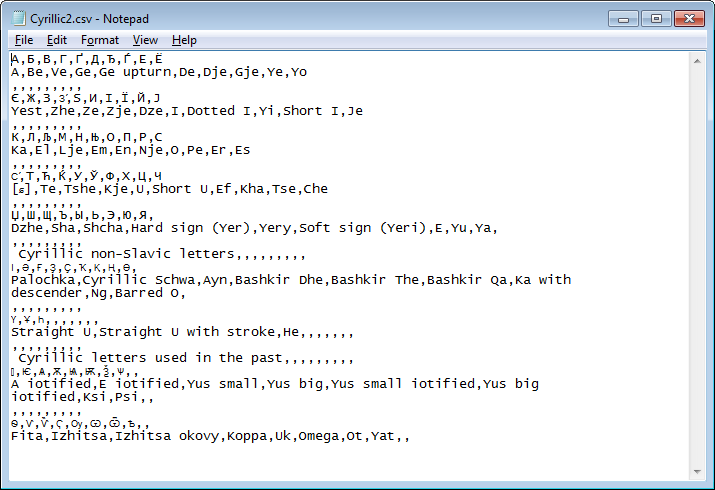
The code should work well with much more complex combinations of text in tables – I tested it against a customer's drawing, but found a basic sample to show in this post. Please give it a try and be sure to let me know if you find any issues.
Update:
I forgot to check the return status from the selection function. I've added two lines of code to the above to avoid crashing on cancel.


Leave a Reply to Jim Cancel reply