Too. Much. Fun. As mentioned in the last post, a colleague came to me with a problem… for an internal team-building exercise, he needed to manufacture a circular, 60-piece jigsaw puzzle with 6 groups of 10 pieces, each of which should be roughly the same size. The pieces will also have some text engraved on them, but that's a minor detail.
I searched the darkest corners of the Internet to find an online tool to generate a pattern for this, but then realised I'd spend my time more effectively by writing one myself and sharing it here. So that's what we're going to see today. The eventual goal is to laser cut the puzzle, of course, but first things first.
The first step was to work out the overall distribution of pieces. I fairly quickly worked out that 4 concentric rows of pieces containing 6 additional pieces in each row (i.e. rows with 6, 12, 18 & 24 pieces) would add up to 60. Then it was a matter of determining the radii of the various concentric rings to make the area the same for each piece – a fairly simple trigonometry problem. This left me with the basic grid of lines/arcs.
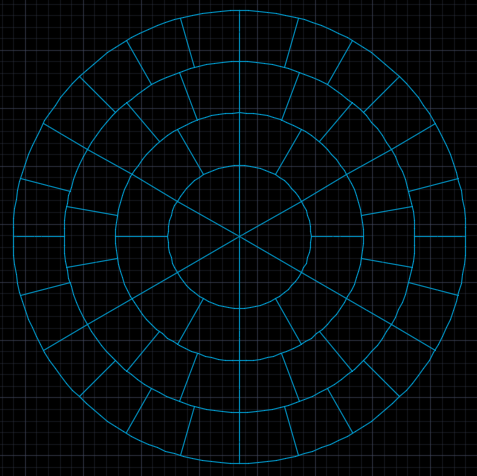
I created the outline with concentric circles (of course) and then polar arrays of lines. These I then exploded, resulting in 4 circles and the rest of the linear entities as short (non-contiguous) segments.
To generate a jigsaw pattern for the above outline, I decided on a couple of commands:
- JIGL is a command that takes the selected line segments and creates a spline at the location of each. This is for all the short, straight-line segments.
- JIG does the same thing, but works on a single curve (including circles – important for us, here) and allows us to select intersecting entities that define the limits of the curve section to process. This is for the concentric circles, and we select the appropriate radial lines as delimiters.
So how do we create a spline including a tab? It's actually really easy. We take the end-points of the line (or the intersection of the circle and the selected entities) and then move inwards, adding 4 more fit points – 2 on the line, 2 at a distance from it – as you can see below:
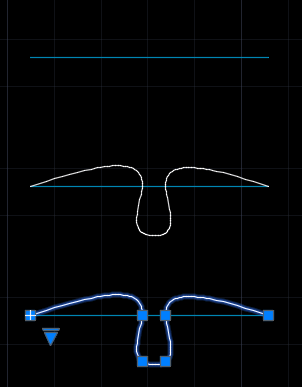
I used a random Boolean to decide which direction it gets created in (in the above case that means up or down) and an additional random factor that creates the tab at a slightly different position. I could also have varied the shape of the tab, for that matter… I think I'll add that in v2 (as well as a command to add that random factor to existing tabs).
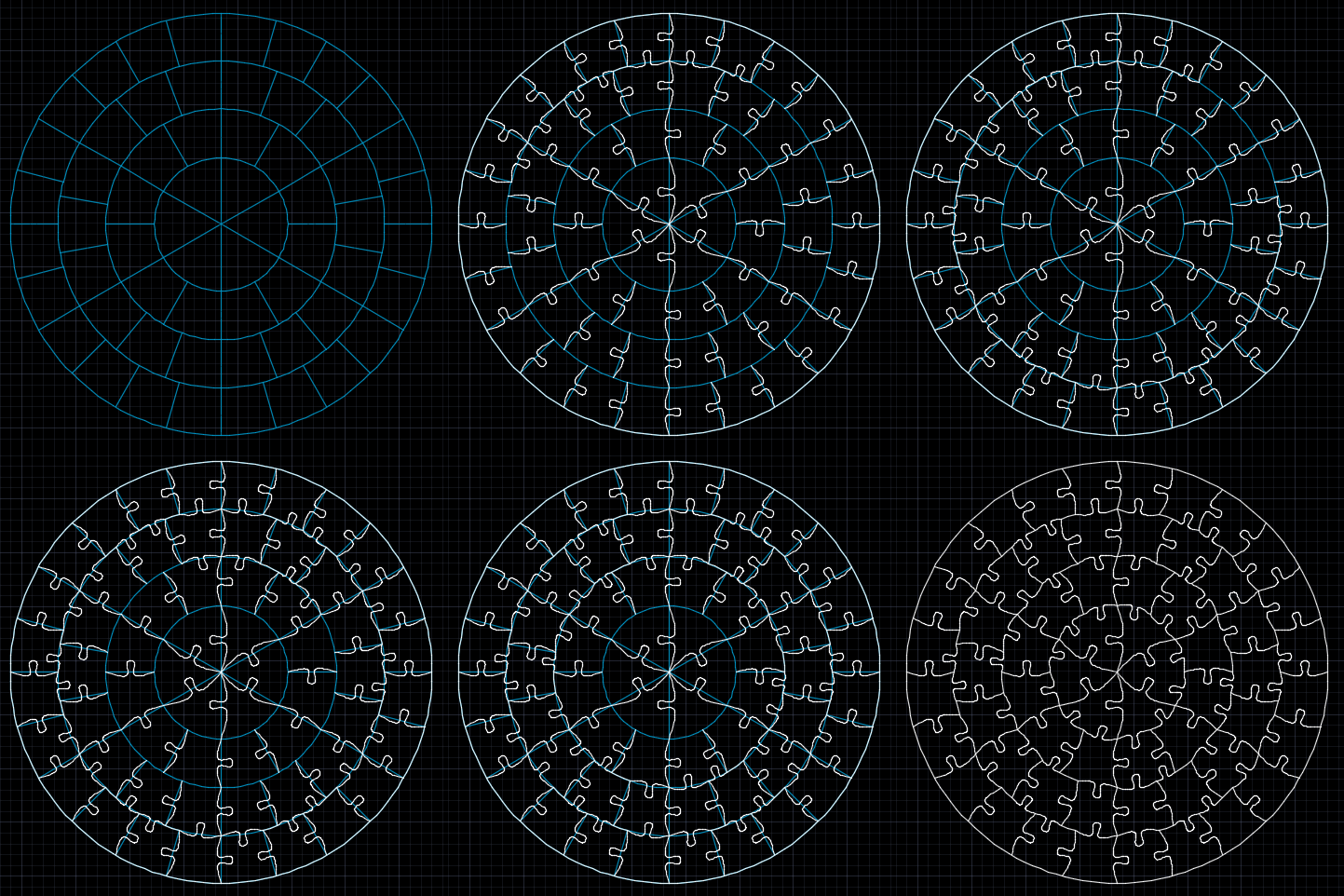
Here's how these commands can be combined to create the puzzle. The first step shows the initial splines being created by JIGL, the subsequent frames show the JIG command being used to generate the remaining segments. I also added arcs to fill in gaps, as needed.
Here's the C# source code:
using Autodesk.AutoCAD.ApplicationServices;
using Autodesk.AutoCAD.DatabaseServices;
using Autodesk.AutoCAD.EditorInput;
using Autodesk.AutoCAD.Geometry;
using Autodesk.AutoCAD.Runtime;
using System;
namespace JigsawGenerator
{
public class Commands
{
[CommandMethod("JIG")]
public void JigEntity()
{
var doc = Application.DocumentManager.MdiActiveDocument;
if (null == doc)
return;
var db = doc.Database;
var ed = doc.Editor;
// Select our entity to create a tab for
var peo = new PromptEntityOptions("\nSelect entity to jig");
peo.SetRejectMessage("\nEntity must be a curve.");
peo.AddAllowedClass(typeof(Curve), false);
var per = ed.GetEntity(peo);
if (per.Status != PromptStatus.OK)
return;
// We'll ask the user to select intersecting/delimiting
// entities: if they choose none we use the whole length
ed.WriteMessage(
"\nSelect intersecting entities. " +
"Hit enter to use whole entity."
);
var pso = new PromptSelectionOptions();
var psr = ed.GetSelection();
if (
psr.Status != PromptStatus.OK &&
psr.Status != PromptStatus.Error // No selection
)
return;
using (var tr = doc.TransactionManager.StartTransaction())
{
// Open our main curve
var cur =
tr.GetObject(per.ObjectId, OpenMode.ForRead) as Curve;
double start = 0, end = 0;
bool bounded = false;
if (cur != null)
{
// We'll collect the intersections, if we have
// delimiting entities selected
var pts = new Point3dCollection();
if (psr.Value != null)
{
// Loop through and collect the intersections
foreach (var id in psr.Value.GetObjectIds())
{
var ent = (Entity)tr.GetObject(id, OpenMode.ForRead);
cur.IntersectWith(
ent,
Intersect.OnBothOperands,
pts,
IntPtr.Zero,
IntPtr.Zero
);
}
}
ed.WriteMessage(
"\nFound {0} intersection points.", pts.Count
);
// If we have no intersections, use the start and end
// points
if (pts.Count == 0)
{
start = cur.StartParam;
end = cur.EndParam;
pts.Add(cur.StartPoint);
pts.Add(cur.EndPoint);
bounded = true;
}
else if (pts.Count == 2)
{
start = cur.GetParameterAtPoint(pts[0]);
end = cur.GetParameterAtPoint(pts[1]);
bounded = true;
}
// If we have a bounded length, create our tab in a random
// direction
if (bounded)
{
var rnd = new Random();
var left = rnd.NextDouble() >= 0.5;
CreateTab(db, tr, cur, start, end, pts, left);
}
}
tr.Commit();
}
}
[CommandMethod("JIGL")]
public void JigLines()
{
var doc = Application.DocumentManager.MdiActiveDocument;
if (null == doc)
return;
var db = doc.Database;
var ed = doc.Editor;
// Here we're going to get a selection set, but only care
// about lines
var pso = new PromptSelectionOptions();
var psr = ed.GetSelection();
if (psr.Status != PromptStatus.OK)
return;
using (var tr = doc.TransactionManager.StartTransaction())
{
// We'll be generating random numbers to decide direction
// for each tab
var rnd = new Random();
foreach (var id in psr.Value.GetObjectIds())
{
// We only care about lines
var ln = tr.GetObject(id, OpenMode.ForRead) as Line;
if (ln != null)
{
// Get the start and end points in a collection
var pts =
new Point3dCollection(
new Point3d[] {
ln.StartPoint,
ln.EndPoint
}
);
// Decide the direction (randomly) then create the tab
var left = rnd.NextDouble() >= 0.5;
CreateTab(
db, tr, ln, ln.StartParam, ln.EndParam, pts, left
);
}
}
tr.Commit();
}
}
private static void CreateTab(
Database db, Transaction tr,
Curve cur, double start, double end, Point3dCollection pts,
bool left = true
)
{
// Again we're going to generate random numbers
var rnd = new Random();
// We're calculating a random delta to adjust the location
// of the tab along the length
double delta = 0.1 * (rnd.NextDouble() - 0.5);
// Calculate the length of this curve (or section)
var len =
Math.Abs(
cur.GetDistanceAtParameter(end) -
cur.GetDistanceAtParameter(start)
);
// We're going to offset to the side of the core curve for
// the tab points. This is currently a fixed tab size
// (could also make this proportional to the curve)
double off = 0.5;
double fac = 0.5 * (len - 0.5 * off) / len;
if (left) off = -off;
// Get the next parameter along the length of the curve
// and add the point associated with it into our fit points
var nxtParam = start + (end - start) * (fac + delta);
var nxt = cur.GetPointAtParameter(nxtParam);
pts.Insert(1, nxt);
// Get the direction vector of the curve
var vec = pts[1] - pts[0];
// Rotate it by 90 degrees in the direction we chose,
// then normalise it and use it to calculate the location
// of the next point
vec = vec.RotateBy(Math.PI * 0.5, Vector3d.ZAxis);
vec = off * vec / vec.Length;
pts.Insert(2, nxt + vec);
// Now we calculate the mirror points to complete the
// splines definition
nxtParam = end - (end - start) * (fac - delta);
nxt = cur.GetPointAtParameter(nxtParam);
pts.Insert(3, nxt + vec);
pts.Insert(4, nxt);
// Finally we create our spline and add it to the modelspace
var sp = new Spline(pts, 1, 0);
var btr =
(BlockTableRecord)tr.GetObject(
SymbolUtilityServices.GetBlockModelSpaceId(db),
OpenMode.ForWrite
);
btr.AppendEntity(sp);
tr.AddNewlyCreatedDBObject(sp, true);
}
}
}
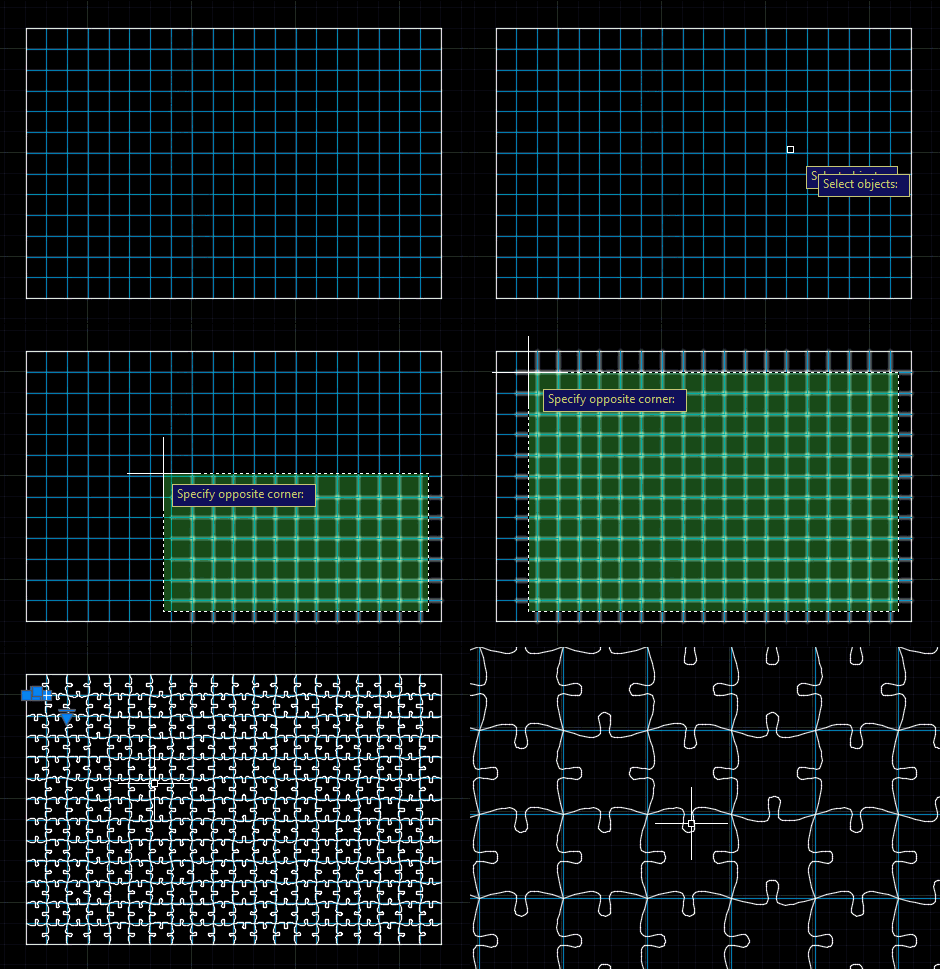
The JIG command is only really needed if you want non-recto-linear patterns. Here's how the JIGL command deals with a straight rectangular grid (created using RECTANG, ARRAY, EXPLODE and OVERKILL, as we don't want overlapping lines).


Leave a Reply to Roger King Cancel reply