After introducing the series and looking at the additional code needed for a .NET CRX app to work with AutoCAD I/O, in this post we're going to go the extra small step to prepare the Autoloader manifest, getting it ready to create the Activity and its AppPackage.
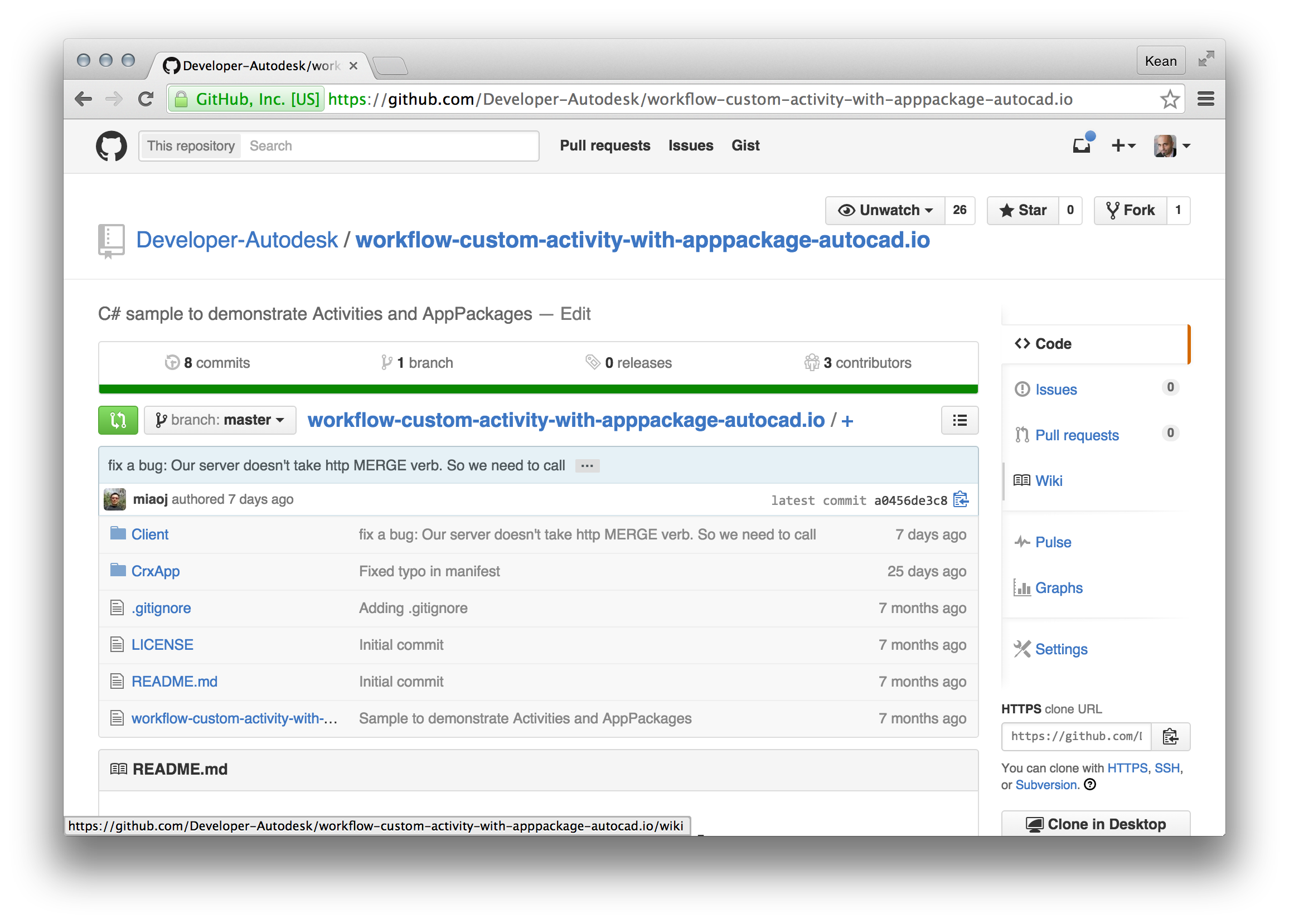
To simplify the process of developing this app, I recommend a couple of things: download the sample on GitHub I pointed you at, last time – whether by cloning the project or downloading it as a ZIP – and make modifications directly to that. To build the sample I'm creating, for instance, you can drop the C# code from the last post into CrxApp\Commands.cs and today's XML data into CrxApp\PackageContents.xml.
The actual creation of the AppPackage – and its upload to AutoCAD I/O – will be taken care of by the Client sub-project: this is a command-line administration tool that does all that for you. It only needs to be performed once – or only as often as your AppPackage needs to be updated, anyway.
Here's the XML manifest for our Autoloader package:
<?xml version="1.0" encoding="utf-8" ?>
<ApplicationPackage
SchemaVersion="1.0"
Version="1.0"
ProductCode=""
HelpFile=""
Name="JigsawPackage"
Description="Jigsaw Creation Package"
Author="Kean Walmsley" >
<CompanyDetails
Name="Autodesk, Inc"
Phone="415.555.5555"
Url="www.autodesk.com"
Email="kean.walmsley@autodesk.com" />
<Components>
<RuntimeRequirements
OS="Win64"
Platform="AutoCAD" />
<ComponentEntry
AppName="JigsawPackage"
ModuleName="./Contents/Jigsaw.dll"
AppDescription="Jigsaw creation app"
LoadOnCommandInvocation="True"
LoadOnAutoCADStartup="False">
<Commands GroupName="Commands">
<Command Global="JIGG" Local="JIGG" />
<Command Global="JIGIO" Local="JIGIO" />
<Command Global="WIGL" Local="WIGL" />
<Command Global="JIGL" Local="JIGL" />
<Command Global="JIG" Local="JIG" />
</Commands>
<AssemblyMappings>
<AssemblyMapping
Name="JigsawPackage.Newtonsoft.Json"
Path="./Contents/Newtonsoft.Json.dll" />
</AssemblyMappings>
</ComponentEntry>
<ComponentEntry
AppName="JigsawPackage.Newtonsoft.Json"
AppType="Dependency"
ModuleName="./Contents/Newtonsoft.Json.dll"
AppDescription="JSON processing library"
LoadOnAutoCADStartup="False" />
</Components>
</ApplicationPackage>
You'll notice a few things: we've enumerated the various commands, even though we could just have the module loaded on AutoCAD start-up. This is assuming you'll want to use the same Autoloader bundle for your desktop and your AutoCAD I/O application (which may well not be the case).
You may also have spotted that we're using Newtonsoft's Json.NET module: this is fairly standard for a .NET app, these days. This is the component our own code (from the last post) requires to unpack the JSON parameters we read in from the text file, and therefore needs to be available to the module when up in the cloud.
In the next post we'll see how to use the Client sub-project to create our Activity and its AppPackage in AutoCAD I/O.
Leave a Reply