This week we're going to look at an interesting problem: how to create text that fits into a particular space. The scenario was originally presented (to me, anyway) by Alex Fielder, early last year (thanks, Alex!), but it's taken a while for me to get to it. Alex wanted to check for the extents of block attributes overflowing their containers. I may well go ahead and implement that, in due course, but first I wanted to let the user select a space and create some text to fill it.
Let's take a look at how to make this happen. Here's the flow of operations:
- The user selects a point
- Call Editor.TraceBoundary() to determine the containing space
- Call Region.CreateFromCurves() with the resulting geometry
- Determine the centroid of the Region
- Check whether the centroid is actually inside the Region
- If it is, then generate some text to place (we could also have asked the user for this, of course)…
- … and then calculate the size of the text such that it fits entirely into the space
Step 7 is probably the most interesting, in that we iteratively adjust the size of the text and test whether its extents fall within the Region. But more on that, later in the week.
For now we have a "simple" problem… step 4. Regions do have this information available – you can access it via the MASSPROP command, for instance – but it's the first time I've used the .NET API to get it. It turned out to be worthy of its own blog post, so here it is.
Here's the C# code:
using Autodesk.AutoCAD.ApplicationServices;
using Autodesk.AutoCAD.DatabaseServices;
using Autodesk.AutoCAD.EditorInput;
using Autodesk.AutoCAD.Geometry;
using Autodesk.AutoCAD.Runtime;
namespace RegionalActivities
{
public static class Extensions
{
// Region extensions
///<summary>
/// Get the centroid of a Region.
///</summary>
///<param name="cur">An optional curve used to define the region.</param>
///<returns>A nullable Point3d containing the centroid of the Region.</returns>
public static Point3d? GetCentroid(this Region reg, Curve cur = null)
{
if (cur == null)
{
var idc = new DBObjectCollection();
reg.Explode(idc);
if (idc.Count == 0)
return null;
cur = idc[0] as Curve;
}
if (cur == null)
return null;
var cs = cur.GetPlane().GetCoordinateSystem();
var o = cs.Origin;
var x = cs.Xaxis;
var y = cs.Yaxis;
var a = reg.AreaProperties(ref o, ref x, ref y);
var pl = new Plane(o, x, y);
return pl.EvaluatePoint(a.Centroid);
}
}
public class Commands
{
[CommandMethod("COR")]
public void CentroidOfRegion()
{
var doc = Application.DocumentManager.MdiActiveDocument;
if (doc == null) return;
var ed = doc.Editor;
var peo = new PromptEntityOptions("\nSelect a region");
peo.SetRejectMessage("\nMust be a region.");
peo.AddAllowedClass(typeof(Region), false);
var per = ed.GetEntity(peo);
if (per.Status != PromptStatus.OK)
return;
using (var tr = doc.TransactionManager.StartTransaction())
{
var reg = tr.GetObject(per.ObjectId, OpenMode.ForRead) as Region;
if (reg != null)
{
var pt = reg.GetCentroid();
ed.WriteMessage("\nCentroid is {0}", pt);
}
tr.Commit();
}
}
}
}
Some comments about this:
- To get the "area properties" of a Region – which include the Region's centroid, perimeter, radii of gyration, moments of inertia, etc. – we first need to specify a plane. Region doesn't have an implementation for Entity.GetPlane(), so we have to determine this using some of its boundary geometry. In the upcoming post, we pass in one of the Curves we'd used to generate the Region, but in this post we're going to have to explode the selected Region to get at its boundary.
- Region.AreaProperties() will reject a plane that isn't well-defined, as per the AutoCAD .NET reference:
- This function calculates the area properties of the Region. All of the values in the returned RegionAreaProperties struct are in the coordinate system specified by origin, xAxis, and yAxis (which must be in WCS coordinates). The function validates the origin, xAxis, and yAxis parameters to ensure that the axes are of unit length and are perpendicular to each other, and that the axes and origin lie in the same plane as the Region.
- The specific curve used to define the plane shouldn't matter, too much: as we're using the plane to evaluate and return a Point3d, which curve was chosen is ultimately unimportant (providing it works, of course :-).
To make sure it does work, here's an example of running both the COR and MASSPROP commands, selecting a Region we've created manually on an arbitrary plane in 3D space.
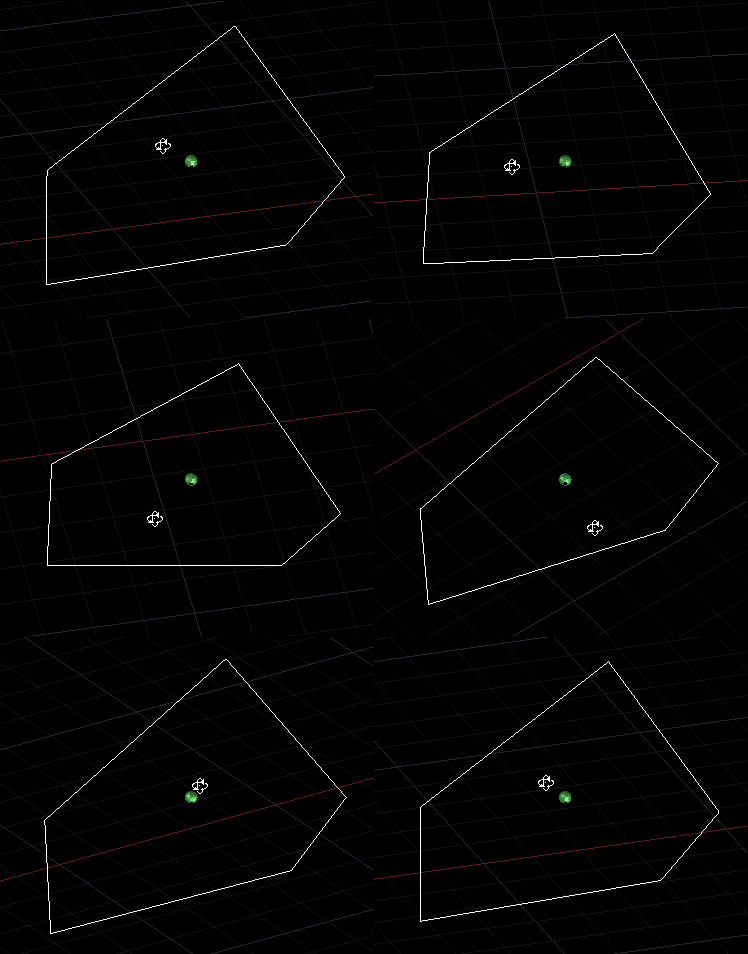
Command: COR
Select a region:
Centroid is (24.8686431313716,-11.7227175502621,7.71521951836058)
Command: MASSPROP
Select objects: 1 found
Select objects:
---------------- REGIONS ----------------
Area: 112.3602
Perimeter: 43.1524
Bounding box: X: 18.2540 -- 31.6548
Y: -15.4236 -- -8.3921
Z: 1.8974 -- 14.8993
Centroid: X: 24.8686
Y: -11.7227
Z: 7.7152
Write analysis to a file? [Yes/No] <N>: N
Looks good! In the next post we'll see how this integrates into our "space labelling" application.


Leave a Reply to Kean Walmsley Cancel reply