It was an interesting week, last week, getting two HoloLens devices to coordinate. After talking about the network infrastructure, last time, today we're going to look at other levels of the problem.
Logistically there's a requirement to have two devices: it might be possible to get it all working with a mix of devices and emulators, but that seems like a stretch. And you'd need – in any case – to test with physical devices at some point. The good news is that HoloLens distribution is gradually opening up – with devices now available to pre-order in Australia, Ireland, France, Germany, New Zealand, and the United Kingdom – so getting hold of multiple devices is becoming simpler (if still $3K a pop).
From a physical (human) perspective, it's been a hard thing to do when you have only one head: this is not the first – and probably won't be the last – time I've been envious of Zaphod Beeblebrox. It's possible to have multiple "Mixed Reality Capture" dashboards showing in a browser – with the Live Preview showing each of the HoloLens streams – but there's variable latency that makes it hard to tell whether the views are really synchronised.
More often than not I found myself squinting through two devices at the same time.
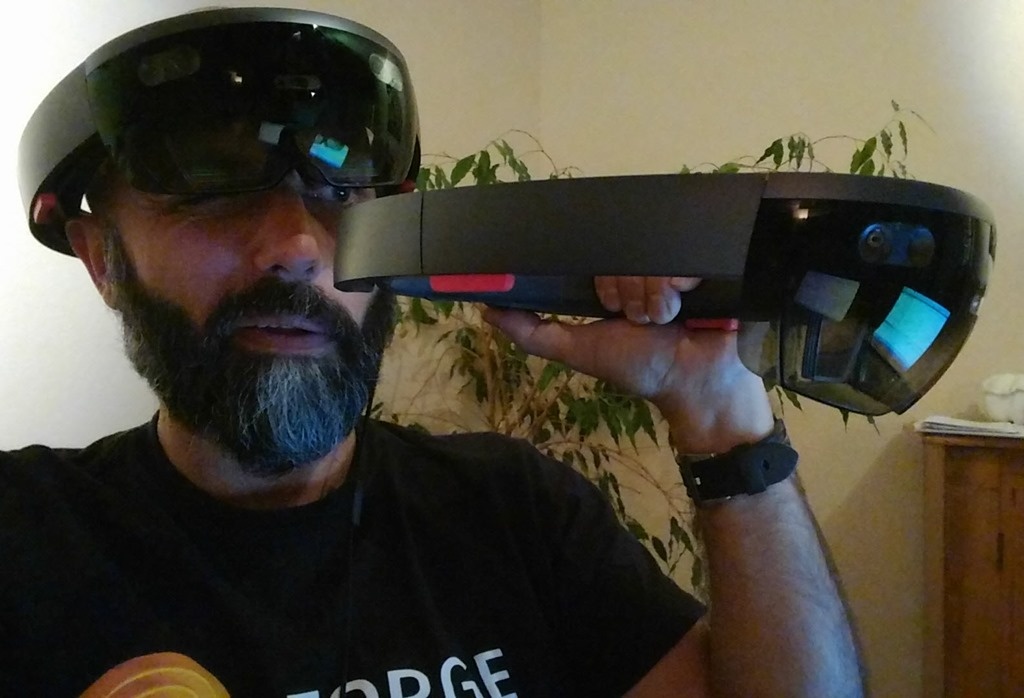
Towards the end of the week I actually started to think I was seeing glitches in the matrix. Perhaps this indeed isn't base reality, after all.
I also had a headache for the entire week. initially it was probably due to the remnants of the cold that hadn't properly gone away when I went scuba-diving the week before – and which definitely then came back – but it certainly wasn't helped by fooling around with multiple HoloLens devices. Thankfully I had a break from the HoloFloor over the weekend, so I'm feeling much better now.
From a software perspective… the HoloToolkit provides a lot of plumbing that helps. It's not super-easy to implement it in your own app, but it is possible… I'm getting my (still slightly sore) head around it, now, but it took a while to understand what was happening. Here are some notes I've taken on how it appears to work:
- Each device maintains its own set of holograms
- This may seem an obvious point, but it's worth spelling out
- Information on where holograms are and how they're behaving can be shared, though
- There is no sense of a global coordinate system: individual devices are mapping things out individually
- This is important: you'll find you're relating relatively (and to some degree, flexibly) to multiple coordinate spaces
- You can create WorldAnchors to fix positions in space to share between devices
- Be aware that the WorldAnchor goes and locks your object in space – which can make it difficult to manipulate collaboratively
- You can use the HoloToolkit's "Import Export Anchor Manager" script to look at coordinating the position of holograms between sharing sessions
- It persists anchors in an anchor store, so subsequent sessions can also access this positional data
- The anchor position can be decided manually or automatically
- I'm still working through which way it makes sense to go, here
- When operations or events happen that need to be shared between devices you can send custom messages
- For the robot app, I have a "robot positioning", "robot scaling" and "part rotation" messages
- This seems to be enough to coordinate the various possible actions/movements, so far
- For the robot app, I have a "robot positioning", "robot scaling" and "part rotation" messages
- You also need to be aware of when other people/devices join your session
- When they do join you'll need to send them information about your scene
I feel as though I'm getting close… I have a number of operations shared between devices, but the positioning isn't yet quite right. I'm confident I'll have nailed it within another day or so, though.


Leave a Reply to pranav gadamsetty Cancel reply