Last time we saw how it's possible to use Autodesk's HIG to add different visual themes to a Forge viewer application. When I first started down this path, I thought I'd probably just stop at implementing another dark theme inside Dasher: I suspected it would be a lot of work to implement a light theme.
It turns out I was wrong: towards the end of last year I'd spent a few days rationalising our use of styles inside Dasher, by eradicating every use of "hardcoded" colours inside CSS styles and have them stored in SCSS variables. It felt like a good thing to do, at the time, and it turned out to be invaluable when it came to implementing a light mode: most of the common colours that were used by Dasher were defined in a single place inside SCSS, and could then be switched to refer to theme-based variables coming from the HIG's own SCSS files.
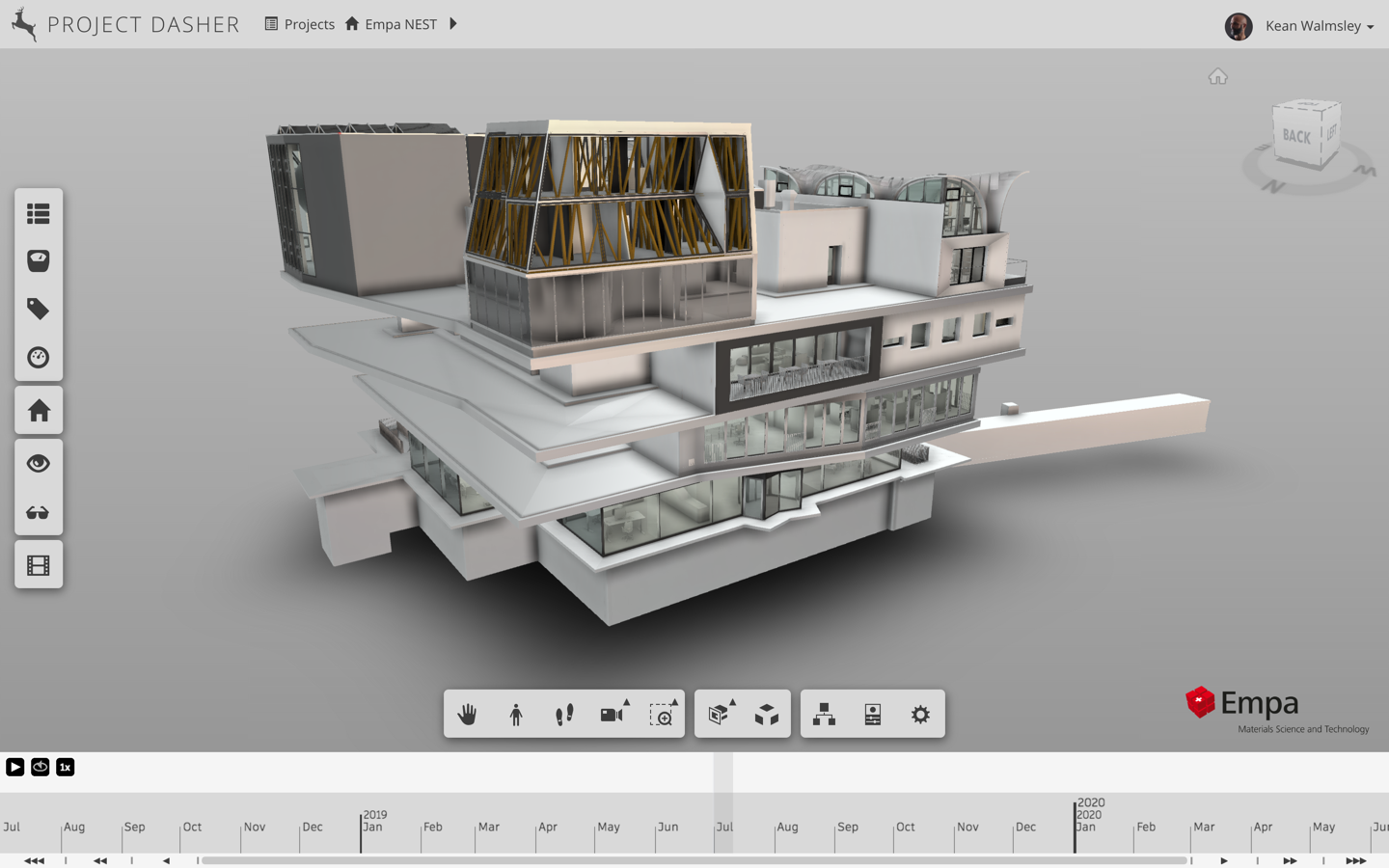
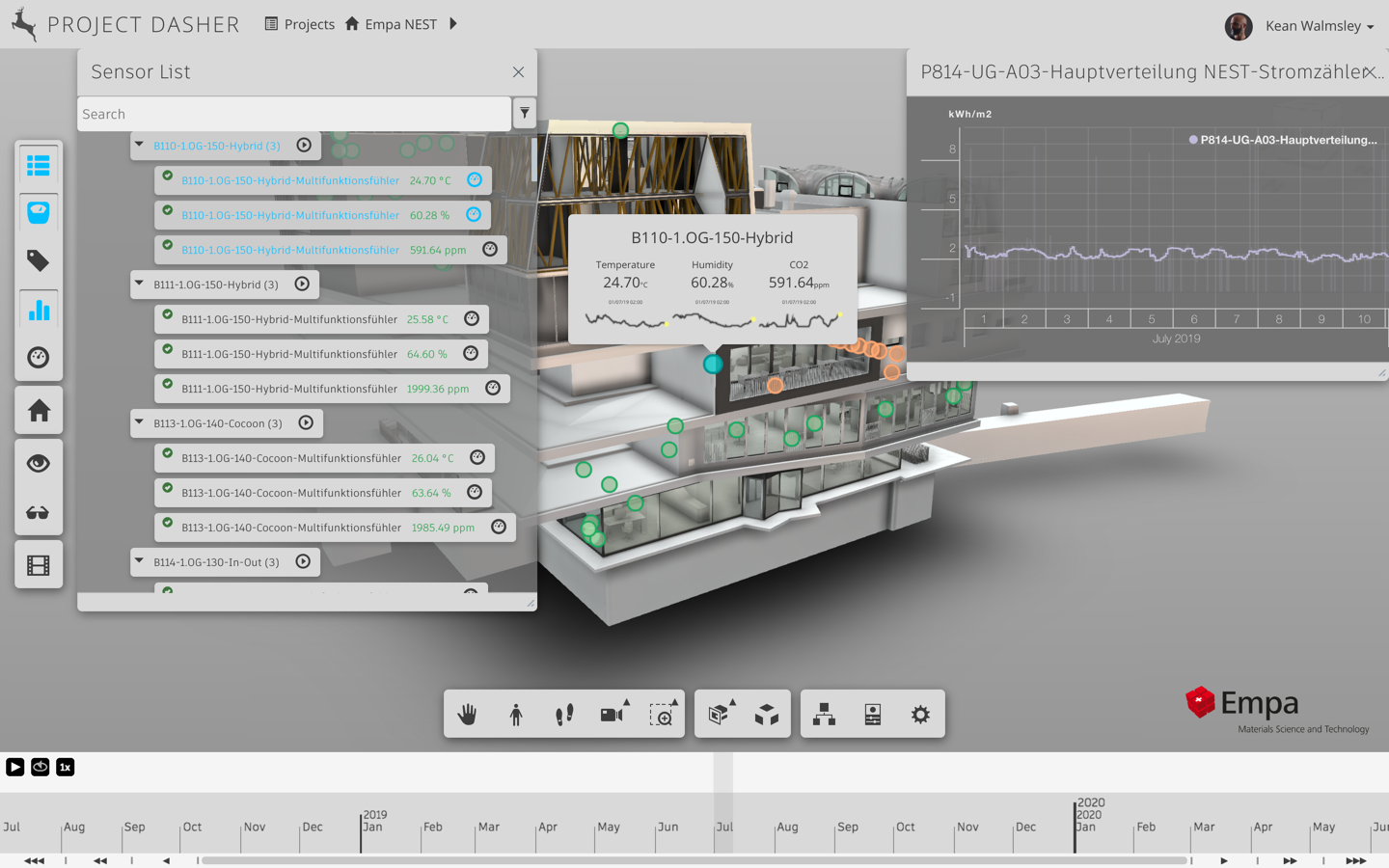
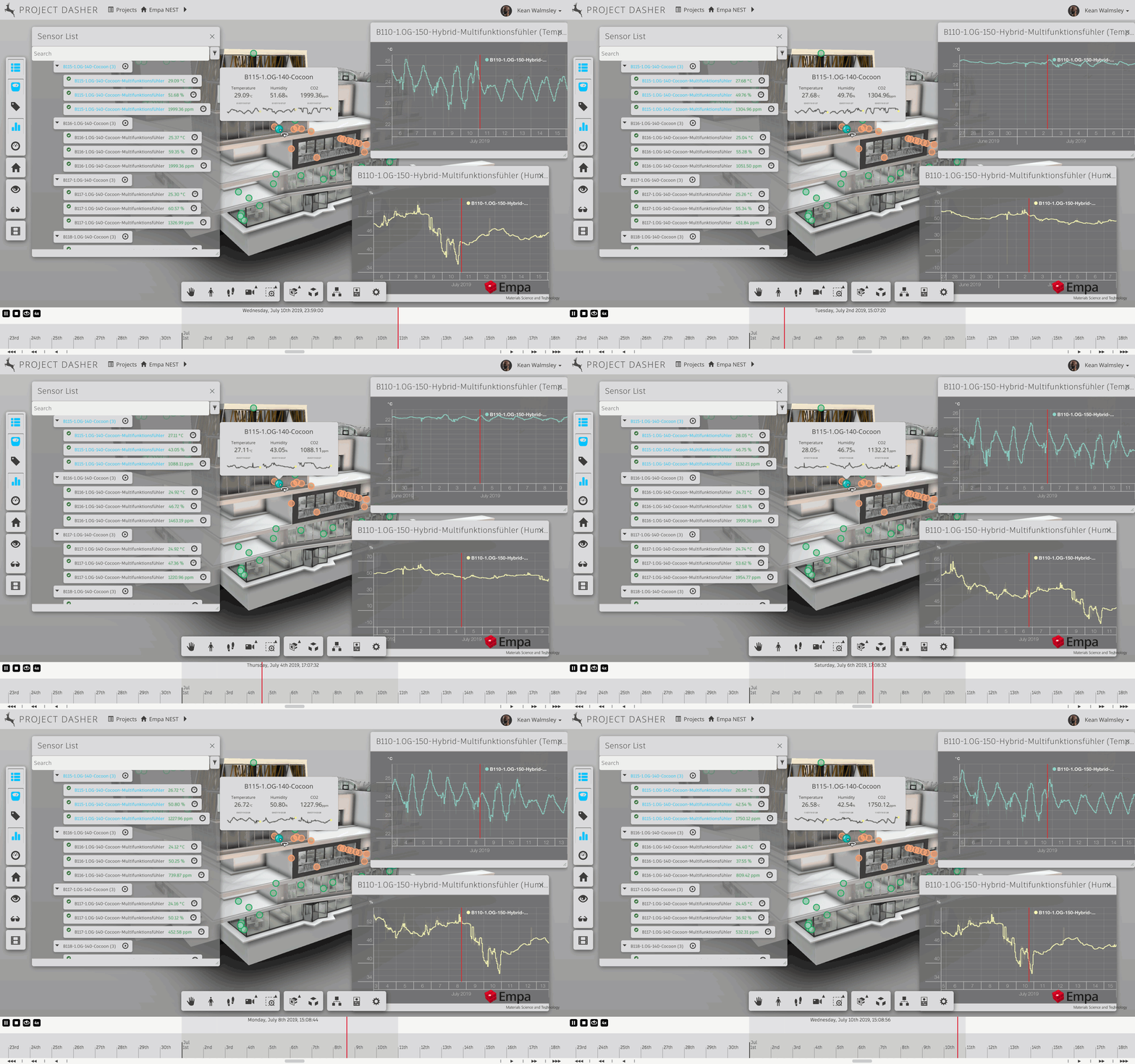
Before we get into the specifics of what it took to implement this, here are a few images of the light mode inside Dasher:
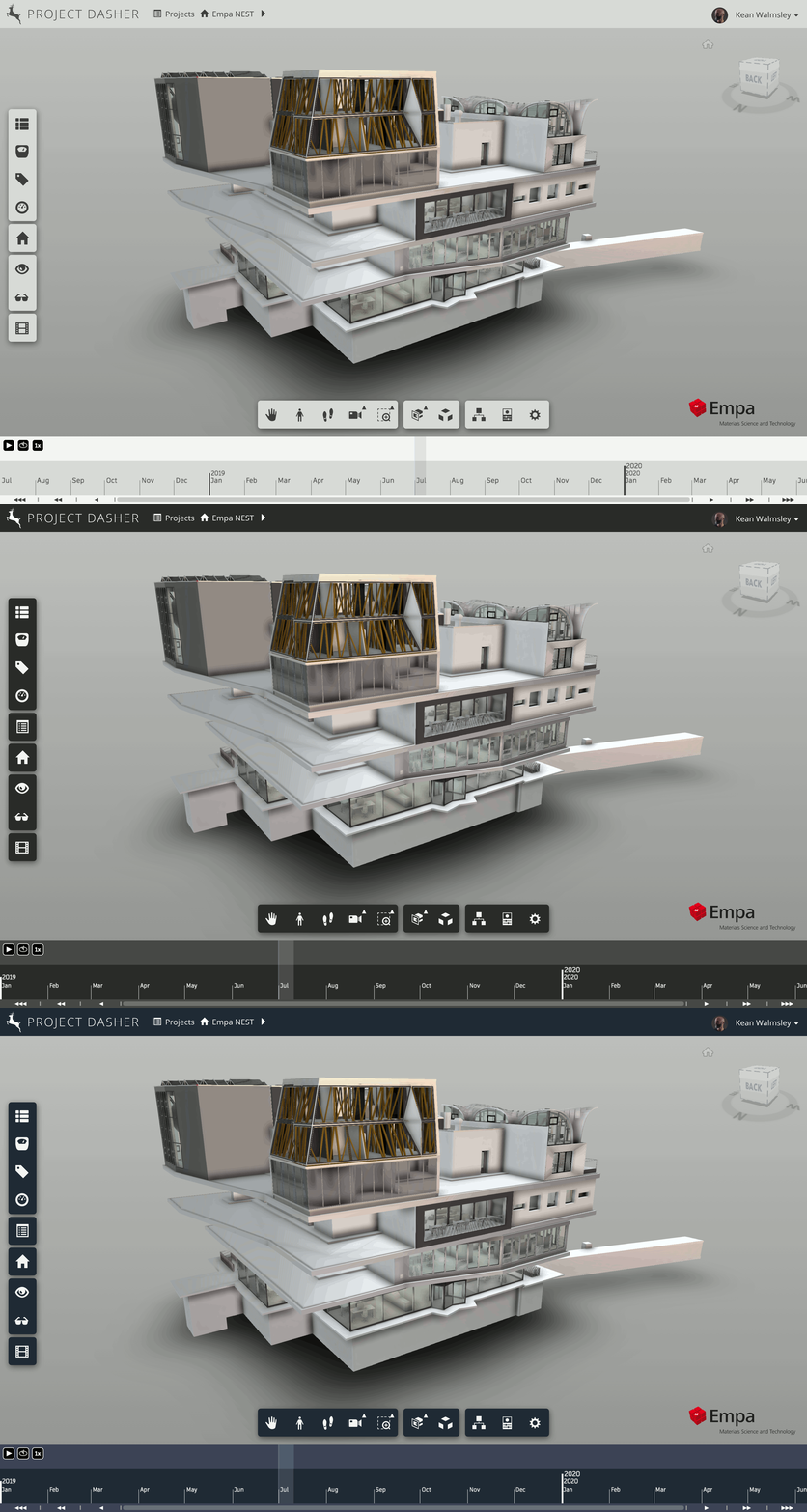
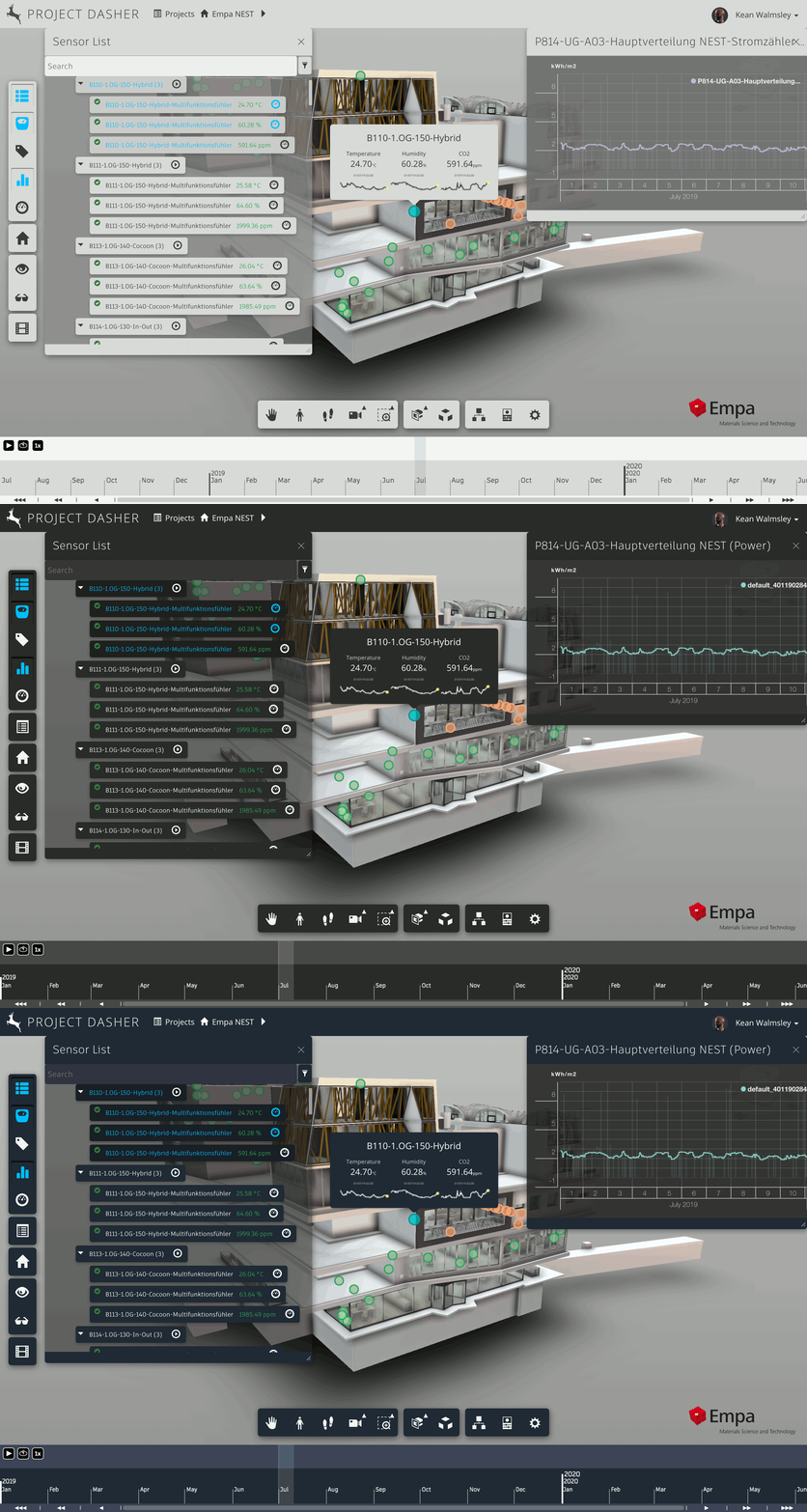
Here are the animations we saw in the last post, this time showing three themes instead of two:
For the dark themes, I found we ended up using the "surface level" settings, such as:
- $colorScheme-surfaceLevel200Color
- $colorScheme-surfaceLevel250Color
- $colorScheme-surfaceLevel300Color
- $colorScheme-surfaceLevel350Color
These get mapped according to the HIG themes, and will also be mapped appropriately for light themes (whether the "light gray" theme or the soon-to-be-deprecated "web light" theme). The additional work to support light themes revolved around the need to support a different text (or foreground) colour. Thankfully it was super-simple to have anything in the foreground refer to this HIG variable:
- $colorScheme-textColor
Easy!
It's interesting to note that the Forge viewer has support for its own light mode: there's some very helpful information on how to enable this over on the Forge blog. I found that the foreground colours it uses are different from those in the HIG – it uses pure white for buttons etc. rather than a light gray – so I ended up overriding the Forge viewer's theme to use the appropriate "surface level" variables coming from the HIG. It was still useful to set light mode in the Forge viewer, despite overriding these settings, as it allows us to use straight CSS to deal with dark vs. light decisions in that we can have rules that work for .adsk-viewing-viewer.dark-theme and others that work for .adsk-viewing-viewer.light-theme.
Some things can't be handled by CSS styling within the viewer, however. I ended up finding I needed to set an SCSS variable that indicated the mode. I then used this to set a CSS variable at the root of the DOM that could be accessed from JavaScript (in our case we build this from TypeScript) to make other runtime decisions based on the theme that has been set.
Here's where we define this inside SCSS:
When I change the theme at build-time, all I need to do is uncomment the theme I want to use – one of three – and then set its index in the $dark variable.
I've implemented a couple of simple utility functions that can be used to get the theme string and determine whether the theme is dark or not:
When we create the viewer instance in our code, we can now check the theme set in SCSS and set the mode appropriately inside the viewer, as well as making any dynamic changes to the page's styling (in this case we add the navbar-inverse class to our Bootstrap navigation bar to make sure it picks up the appropriate dark theme styling):
Overall this all works well, despite the frustration of having to choose the theme at build-time rather than allowing the user to choose it at run-time (or have it decided based on the OS setting, such as was shown over on the Forge blog). This is definitely something I want to work out how to do, especially now that we have a decent light mode working.
And speaking of the light mode working, here's an animation of some data being shown in Dasher with the light mode enabled. Being a coder at heart, I'm overall a big fan of dark mode apps, but I have to admit that Dasher looks sexy even in light mode!
Leave a Reply