In the last post we looked at using VASA from within Dynamo for FormIt to solve mazes generated by a cool plugin created by Brett from the FormIt team. The Dynamo graph we saw used VASA in "3D mode" – where the voxel height is higher than 1 – but that came with the added need to create a floor for the maze (something that isn't too hard, as we know the exact dimensions and location of the maze).
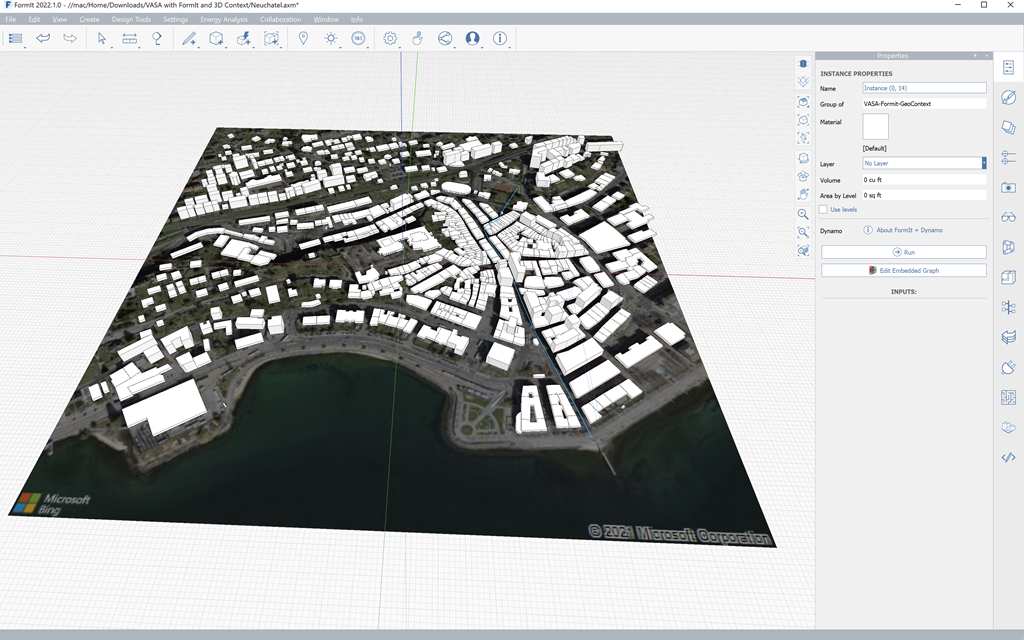
In today's post we're looking at how VASA might be used to perform pathfinding operations at the urban scale, taking geometry from FormIt that has been generated by the awesome new 3D Context Creator plugin created by our friends at matterlab. Here's some geometry inside FormIt that has been generated for the centre of Neuchâtel, the city closest to my home.
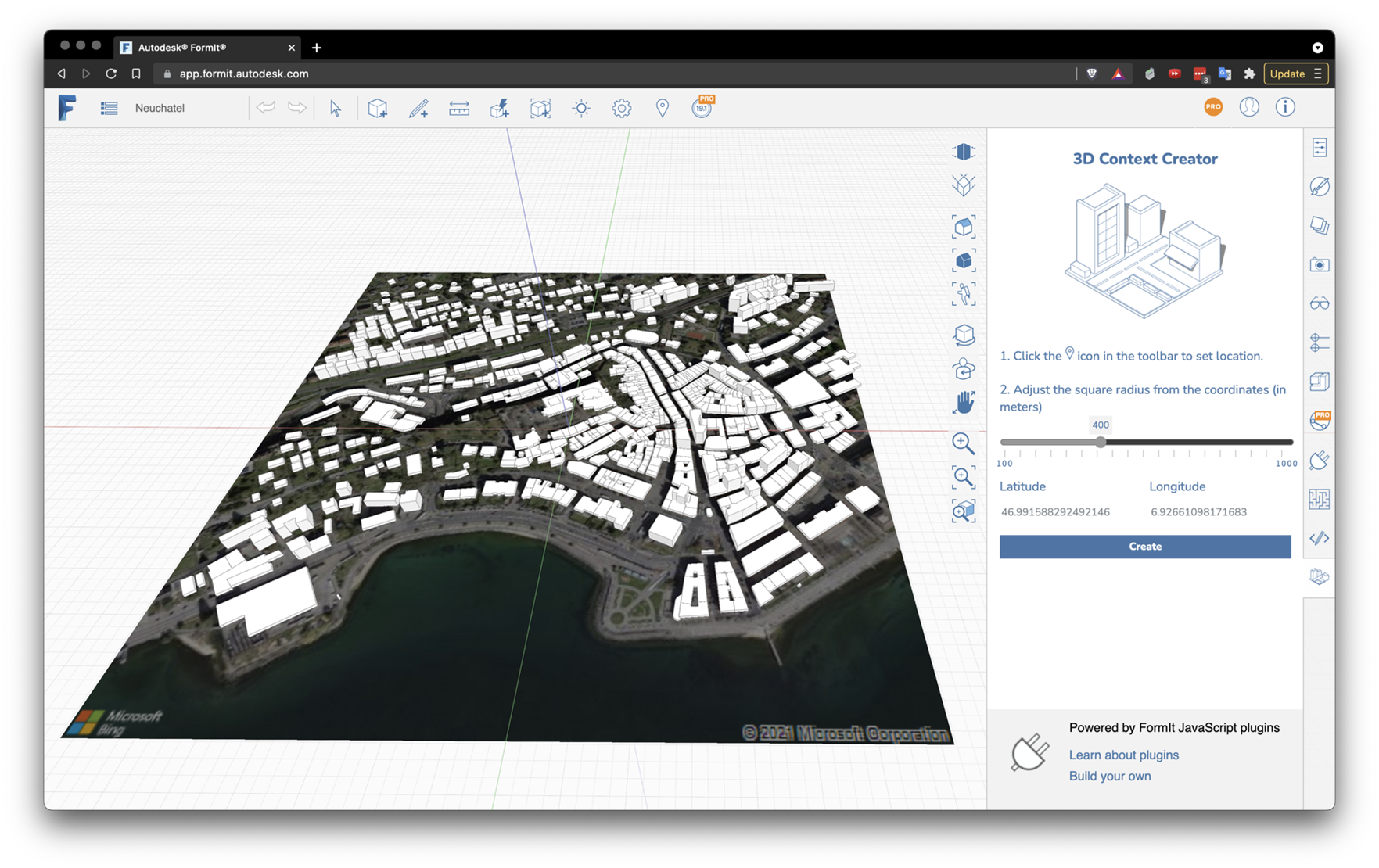
The geometry that's created is also fairly predictable, in the sense that you specify a radius for the area for which you want geometry to be pulled in. That said, it's still a setting that would need copying across to be embedded in the graph, which isn't ideal if it can be avoided.
Going with pathfinding in "2D mode" simply means slicing the bottom voxel from the overall voxel model and using that as the basis for the pathfinding operations. Rhys showed this very well in his recent video on VASA's pathfinding capability (here's a direct link to the section of the video that relates to this). This means that no "ground plane" is needed.
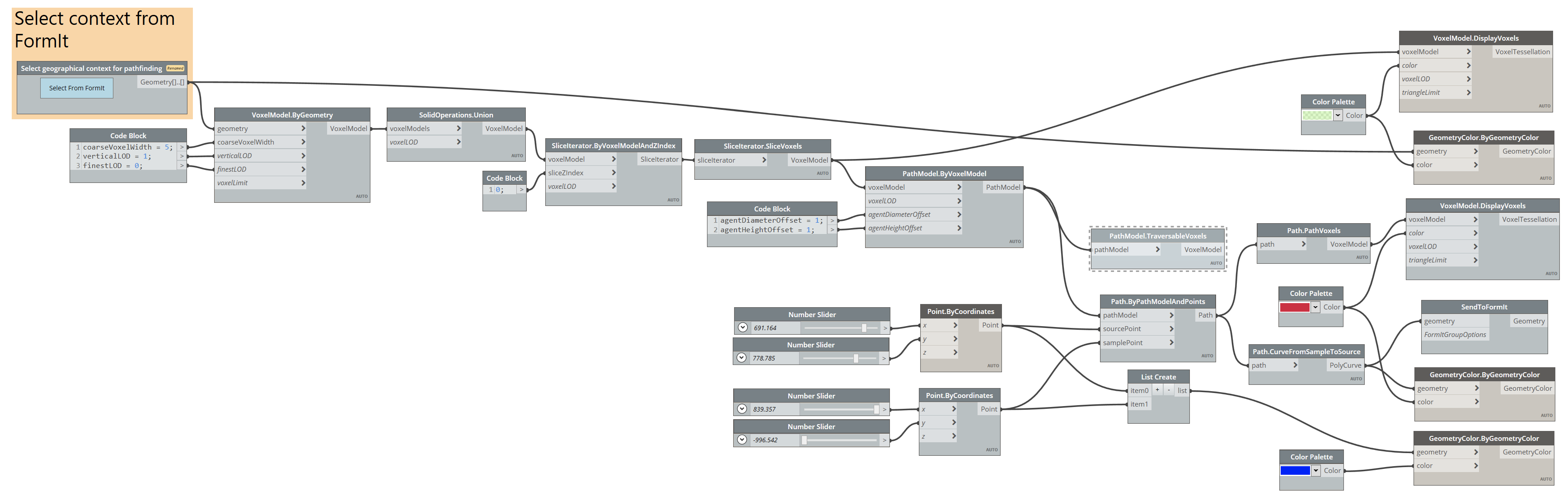
Here's the Dynamo graph I created to pull across the geometry and perform some pathfinding:
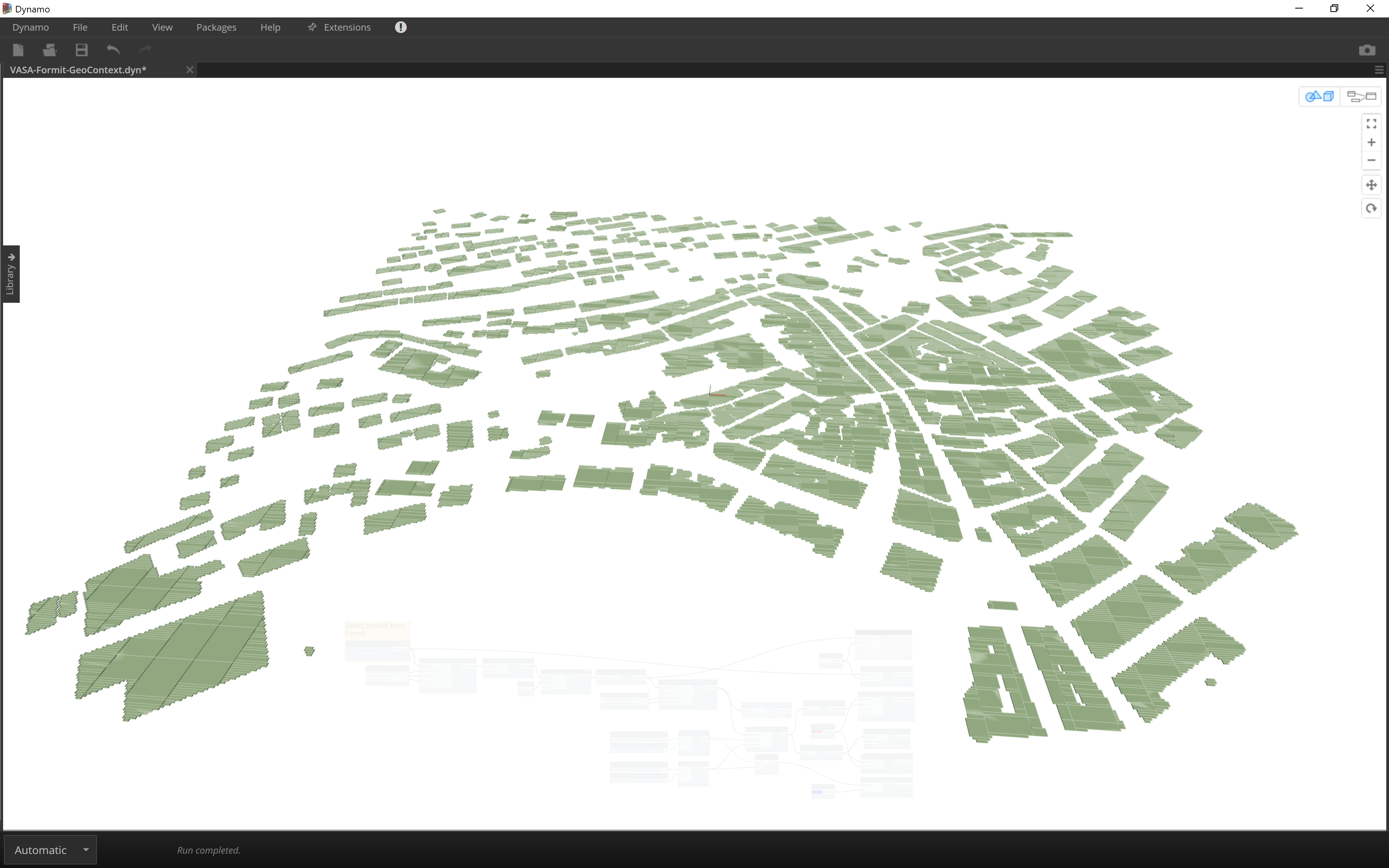
Turning on the display of the voxel model, you can see it's really only one voxel high. (If you displayed the "traversable" voxels, instead, you'd see the inverse of this pattern.)
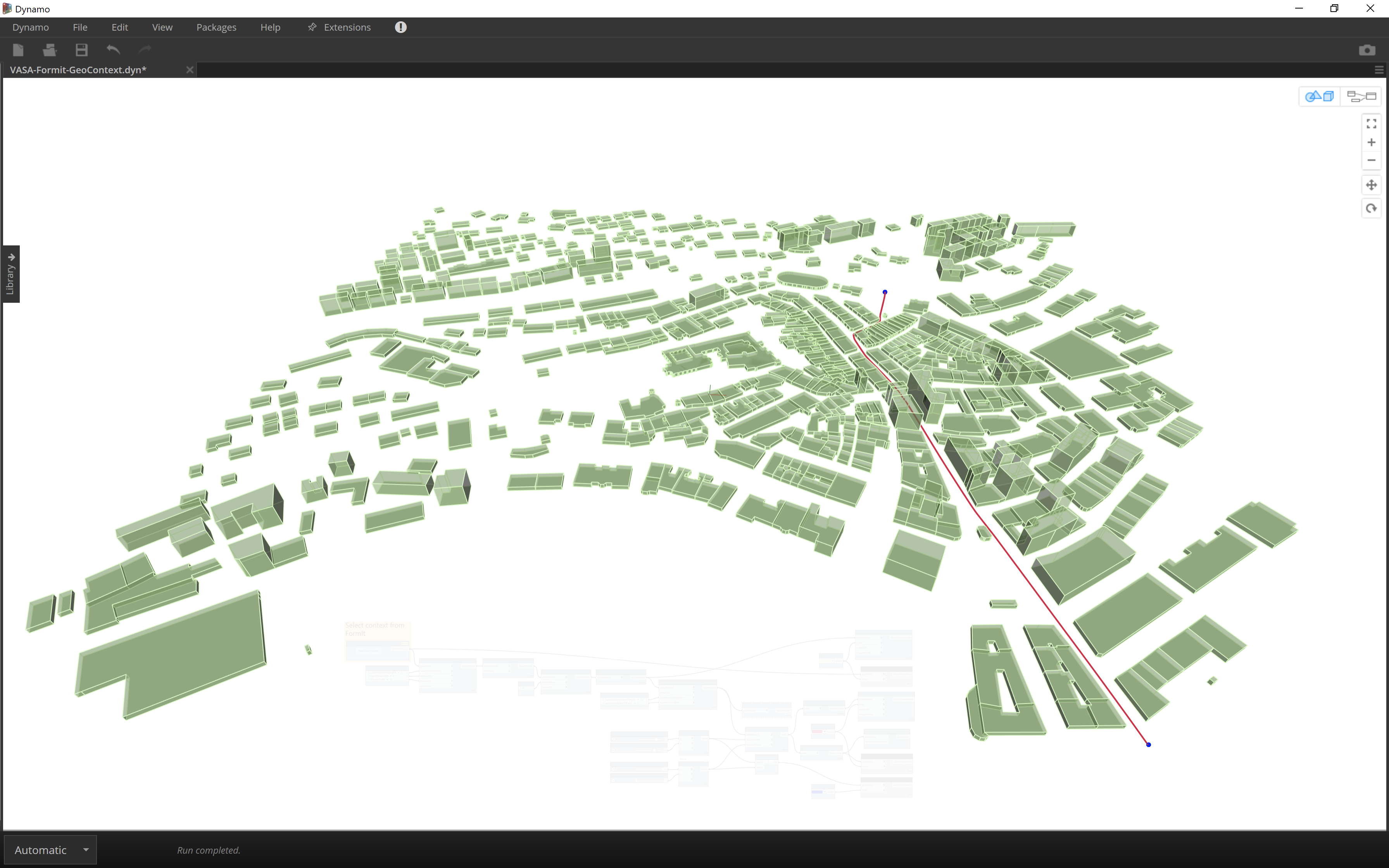
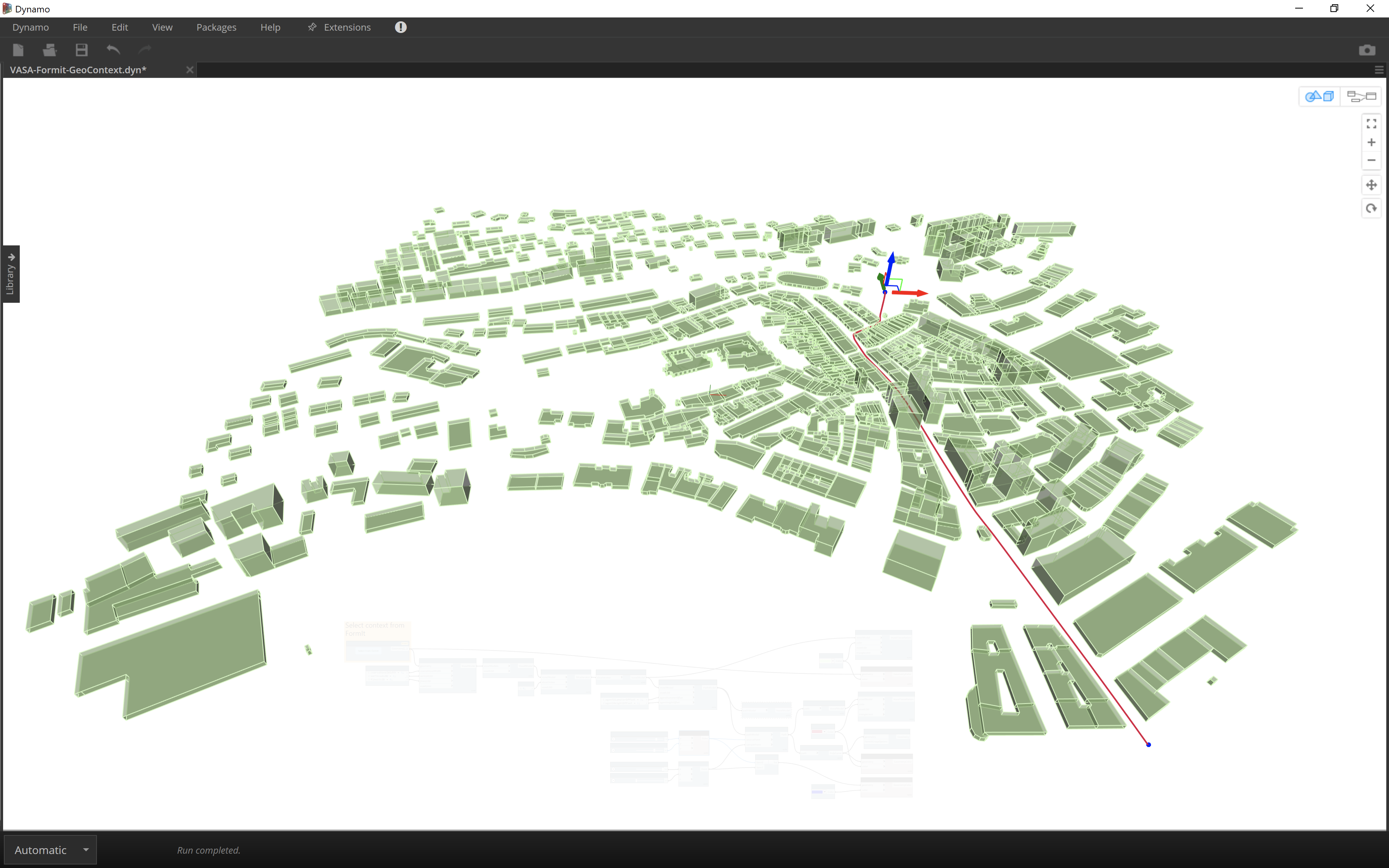
Here's a path that's been calculated through the city centre.
The start and end points are going to vary for each project, clearly, so I find it simplest to preview and select them inside the "node view" and then manipulate then directly inside the "3D view". If you're doing it right, you should get a 3D gizmo displayed:
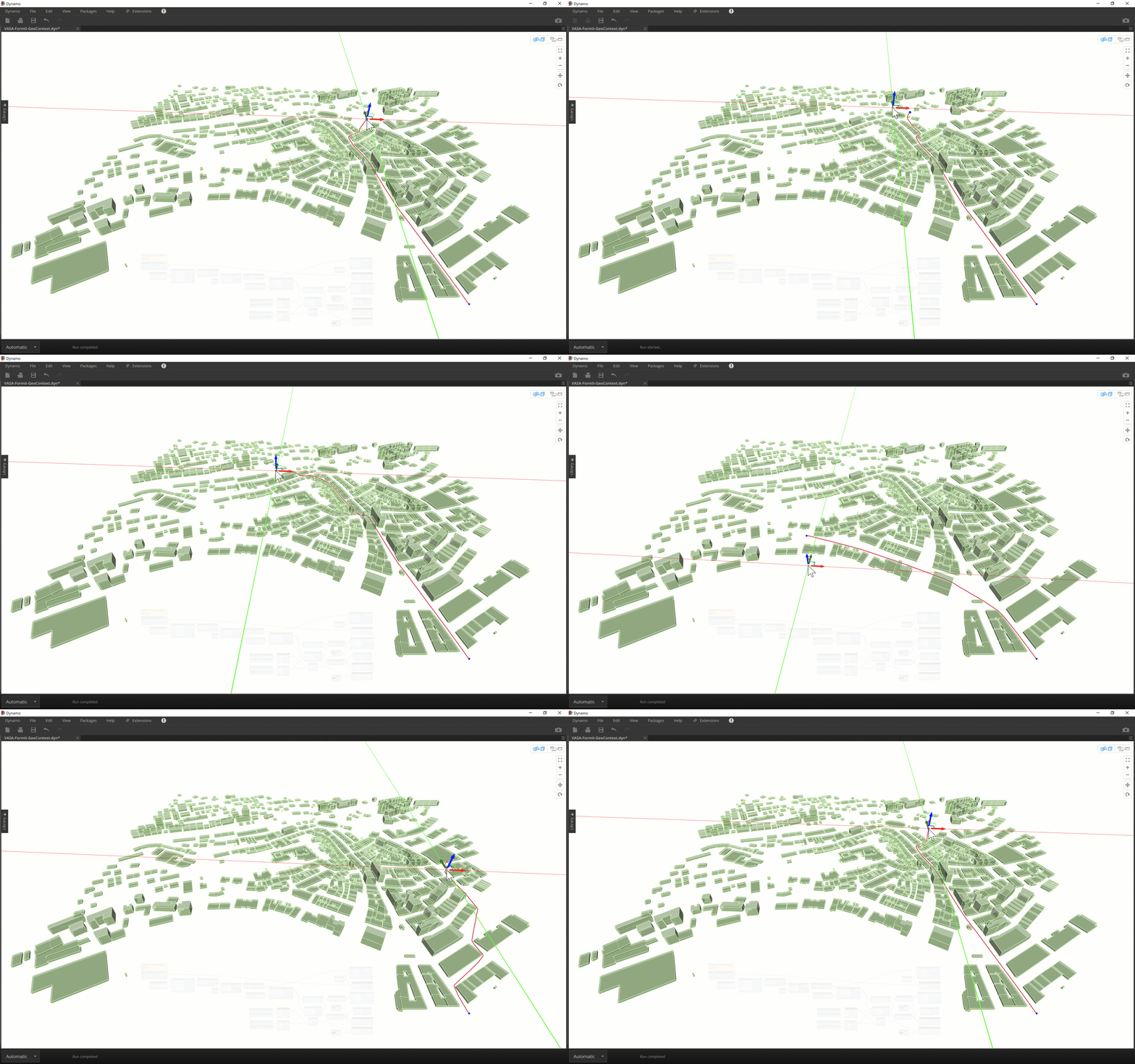
And then you can start to have fun dragging the point(s) around – if the graph is set for automatic calculation then you should see fairly responsive results:
All being well the resulting path should appear back in FormIt for Windows (although as we saw last time, sometimes you need to run the graph a second time for this to happen):
It's great to see VASA working in combination with such handy tools. In the next post in the extended series – which probably won't come until next week, at this stage – we'll take a look at how VASA can be used via the (currently unpublished) WebAssembly version of the toolkit to enable purely web-based workflows. It's really just a streamlining of what's possible from Dynamo on Windows – such as we've seen in this sub-series of posts – but it will hopefully give a sense for how WebAssembly is changing the game for browser-based applications.
Leave a Reply