After looking at how to control robots using Cylon.js in the last post, in this post we're going to get that working inside AutoCAD. For now with just a command that allows us to move the robots – in a future post we'll analyse geometry and use that to specify the movements.
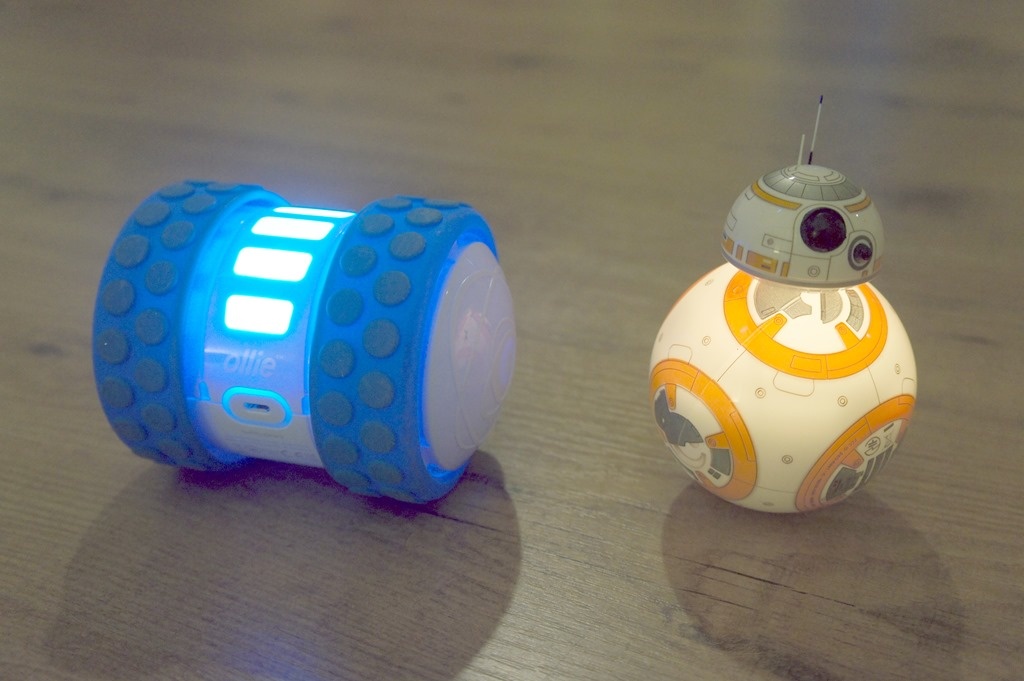
The "controller" code we saw in the last post needed a little updating for use in this way. I went ahead and stripped out the keyboard-related code – as we're using behind a web-service – and added the capability to control individual robots. We want to be able to move the robots independently, for example. We also want to use the controller in the API layer, so we return the controller object from a module export.
Here's the updated controller:
For the server implementation, we make use of Express to specify various routes:
- http://localhost:8080/api/robots
- Returns a list of the available robots
- http://localhost:8080/api/robots/name
- Connects to the robot of the specified name
- http://localhost:8080/api/robots/name/left
- Tells the robot to move in a particular direction
- The standard directions are left, right, forward, backward
- You can also just pass an integer angle
- Tells the robot to move in a particular direction
All these APIs are effectively "GET" end-points: it seemed unnecessary (for now) to add the complexity of requiring PUT requests to "modify" the robots. It certainly makes testing easier, as you can just open the link in a standard browser.
Here's the server code:
Running this in Node allows us to move our robots from within a browser.
To get this all running side AutoCAD, we can now use a simple WebClient to make various DownloadString() calls to the various URLs. Here's the AutoCAD client code:
using Autodesk.AutoCAD.ApplicationServices;
using Autodesk.AutoCAD.EditorInput;
using Autodesk.AutoCAD.Runtime;
using System.Globalization;
using System.Net;
using System.Web.Script.Serialization;
namespace DriveRobots
{
public static class Extensions
{
public static string ToTitleCase(this string str)
{
return CultureInfo.CurrentCulture.TextInfo.ToTitleCase(str.ToLower());
}
}
public class Commands
{
private static string _lastBot = "";
const string host = "http://localhost:8080";
const string root = host + "/api/robots";
[CommandMethod("DR")]
public void DriveRobot()
{
var doc = Application.DocumentManager.MdiActiveDocument;
if (doc == null)
return;
var ed = doc.Editor;
var db = doc.Database;
using (var wc = new WebClient())
{
string[] names = null;
try
{
var json = wc.DownloadString(root);
names = new JavaScriptSerializer().Deserialize<string[]>(json);
}
catch (System.Exception ex)
{
ed.WriteMessage("\nCan't access robot web-service: {0}.", ex.Message);
return;
}
// Ask the user for the robot to control
var pko = new PromptKeywordOptions("\nRobot name");
foreach (var name in names)
{
pko.Keywords.Add(name.ToTitleCase());
}
// If a bot was selected previously, set it as the default
if (!string.IsNullOrEmpty(_lastBot))
{
pko.Keywords.Default = _lastBot;
}
var pkr = ed.GetKeywords(pko);
if (pkr.Status != PromptStatus.OK)
return;
_lastBot = pkr.StringResult;
var botUrl = root + "/" + _lastBot.ToLower();
// Start by getting the bot - this should wake it, if needed
try
{
wc.DownloadString(botUrl);
}
catch (System.Exception ex)
{
ed.WriteMessage("\nCan't connect to {0}: {1}.", _lastBot, ex.Message);
return;
}
// The direction can be one of the four main directions or a number
var pio = new PromptIntegerOptions("\nDirection");
pio.Keywords.Add("Left");
pio.Keywords.Add("Right");
pio.Keywords.Add("Forward");
pio.Keywords.Add("Backward");
pio.AppendKeywordsToMessage = true;
// Set the direction depending on which was chosen
var pir = ed.GetInteger(pio);
var direction = "";
if (pir.Status == PromptStatus.Keyword)
{
direction = pir.StringResult;
}
else if (pir.Status == PromptStatus.OK)
{
direction = pir.Value.ToString();
}
else return;
// Generate the URL to direct the robot
var dirUrl = botUrl + "/" + direction.ToLower();
// Our move command
try
{
wc.DownloadString(dirUrl);
}
catch (System.Exception ex)
{
ed.WriteMessage("\nCan't move {0}: {1}.", _lastBot, ex.Message);
}
}
}
}
}
Let's now see it in action:
For now you can see that we're really just firing simple directional commands: we're not specifying speed or distance, which we may need to do to follow complex paths with reasonable accuracy. We'll cross that bridge when we come to it, though: at least this outlines a simple approach for the communication to take place.
Leave a Reply