Here's a fun one to finish up the week. And no, it isn't a belated April Fool's gag. 😉 I should probably say right away that you won't be printing money after reading this blog post, but you might know more about some of the security measures used by those who do.
A couple of weeks ago, I received an email from Doug Bell at PaperMoneyWorld.net:
I have tried your Spiro for AutoCAD and I enjoy it very much. I would like to challenge you to another function I would like to see that is related to the spirograph. I'd like to see what is called a geometric lathe. I have seen this for a Mac but it doesn't convert to any type of AutoCAD format. Here is a link that will give you more info on it. Thank you.
And with that, Doug introduced me to the fascinating world of guilloché and its use in preventing counterfeiting. (Doug's interest was due to some posts I'd written on creating Spirograph-like patterns using AutoCAD, which culminated in the Spiro Plugin of the Month and Autodesk Exchange app.)
Before going further with this, I did check in with Doug to make sure I wasn't becoming an unwitting accomplice in an illegal operation to forge banknotes. Sure enough, Doug confirmed it was related to his hobby (although in this case it seems "passion" is a better description) of collecting military money and creating currency to be used at the festivals he attends with fellow enthusiasts. Doug intends to use a plotted guilloché background to make his own currency more authentic.
That was good enough for me (although it meant I was doing it for fun rather than a suitcase of dodgy dollar bills ;-).
The good news is that the typical guilloché pattern used in security printing is indeed very close to those generated by a Spirograph, both are hypotrochoids. And as the basic mathematical formula – for at least one family of guilloché – was provided in Aegir Hallmundr's excellent blog post (which Doug had sent through in his email), it was pretty easy to modify the existing F# code to create them.
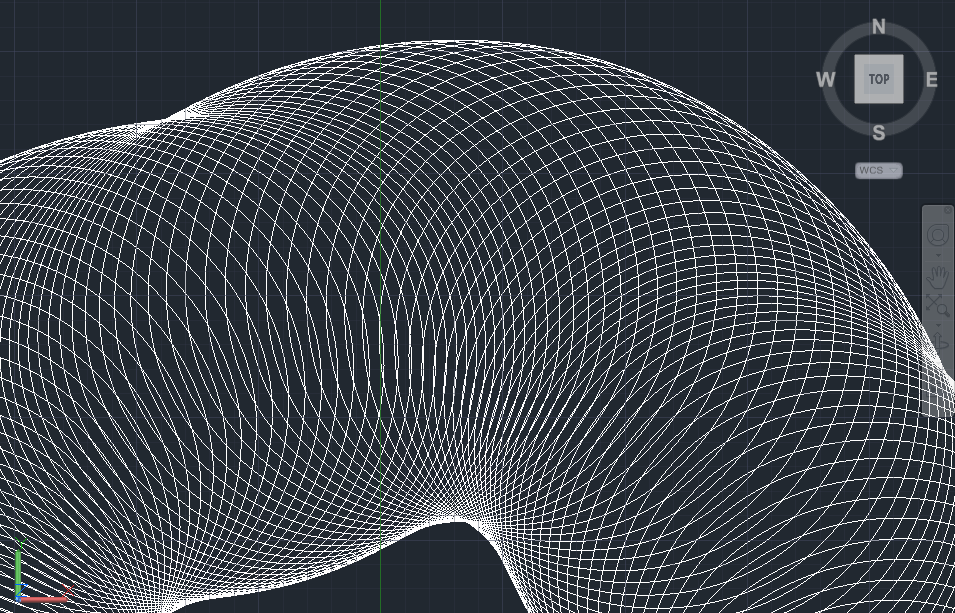
I did make a few changes to the approach, this time around: rather than creating a jig, I opted for prompting the user via the command-line (and not even updating the defaults to reflect the previous choices). I also decided to create a Spline rather than a Polyline, as that would reduce the size (on disk) of the resulting geometry and lead to a smoother fit (as the intention is actually to plot these, after all).
Here's the F# code. It'll be straightforward to convert to C#, in case (let me know if anyone has an interest in a C# version and I'll crank one out):
module Guillocher.Commands
open Autodesk.AutoCAD.ApplicationServices.Core
open Autodesk.AutoCAD.Runtime
open Autodesk.AutoCAD.DatabaseServices
open Autodesk.AutoCAD.EditorInput
open Autodesk.AutoCAD.Geometry
open System
// User prompting helper functions
let getIntegerWithDefault (ed : Editor) msg min max def =
let pio = new PromptIntegerOptions(msg)
pio.LowerLimit <- min
pio.UpperLimit <- max
pio.DefaultValue <- def
pio.UseDefaultValue <- true
let pir = ed.GetInteger(pio)
if pir.Status = PromptStatus.OK then
Some(pir.Value)
else
None
let getDoubleWithDefault (ed : Editor) msg neg zero def =
let pdo = new PromptDoubleOptions(msg)
pdo.AllowNegative <- neg
pdo.AllowZero <- zero
pdo.DefaultValue <- def
pdo.UseDefaultValue <- true
let pdr = ed.GetDouble(pdo)
if pdr.Status = PromptStatus.OK then
Some(pdr.Value)
else
None
// Get the various values we need from the user for this command
let getGuillocheInput ed =
let R = getDoubleWithDefault ed "\nR" true false 50.0
if R = None then
None
else
let r = getDoubleWithDefault ed "\nr" true false -0.2
if r = None then
None
else
let p = getDoubleWithDefault ed "\np" true false 25.0
if p = None then
None
else
let Q = getDoubleWithDefault ed "\nQ" true true 3.0
if Q = None then
None
else
let m = getDoubleWithDefault ed "\nm" true false 1.0
if m = None then
None
else
let n = getDoubleWithDefault ed "\nn" true false 6.0
if n = None then
None
else
let segs =
getIntegerWithDef
ault
ed "\nNumber of control points" 500 32767 3000
if segs = None then
None
else
let ppr = ed.GetPoint("\nSelect center point")
if ppr.Status = PromptStatus.OK then
Some(R, r, p, Q, m, n, segs, ppr.Value)
else
None
let pointsOnGuilloche R r p Q m n segs =
[|
let period = Math.PI * 2.0;
for theta in 0.0..period/(float segs)..period do
let rr = R + r
let rp = r + p
let rror = rr / r
let mth = m * theta
let nth = n * theta
let k = rror * mth
let x =
rr * Math.Cos(mth) + rp * Math.Cos(k) + Q * Math.Cos(nth)
let y =
rr * Math.Sin(mth) - rp * Math.Sin(k) + Q * Math.Sin(nth)
yield new Point3d(x, y, 0.0)
|]
[<CommandMethod("GUILLOCHE")>]
let guilloche() =
// Let's get the usual helpful AutoCAD objects
let doc =
Application.DocumentManager.MdiActiveDocument
let ed = doc.Editor
let db = doc.Database
// First we need some user input
match getGuillocheInput ed with
| None -> ()
| Some(R, r, p, Q, m, n, segs, cen) ->
// Next we get a sampling of points along the Guilloche geometry
&#
160; let pts =
pointsOnGuilloche
R.Value r.Value p.Value Q.Value m.Value n.Value segs.Value
// Use the points as control points on a spline
let sp = new Spline(new Point3dCollection(pts), 1, 0.0)
// Move the geometry to the selected point
sp.TransformBy(Matrix3d.Displacement(cen.GetAsVector()))
// Use a transaction to add our polyline to the model-space
use tr = db.TransactionManager.StartTransaction()
// Get appropriately-typed BlockTableRecord
let btr =
tr.GetObject(db.CurrentSpaceId, OpenMode.ForWrite)
:?> BlockTableRecord
// Add our curve to the model-space
let id = btr.AppendEntity(sp)
tr.AddNewlyCreatedDBObject(sp, true)
// Commit the transaction
tr.Commit()
For further fun, I went ahead and created an equivalent version in DesignScript, for anyone using that (there's an updated version of the tech preview on Labs, still AutoCAD 2013-based).
import("ProtoGeometry.dll");
import("Math.dll");
R = 50;
r = -0.2;
p = 25;
Q = 3;
m = 1;
n = 6;
segs = 3000;
theta = 0..360..360/segs;
def guilloche(th)
{
rr = R + r;
rp = r + p;
rror = rr / r;
mth = m * th;
nth = n * th;
k = rror * mth;
x = rr * Math.Cos(mth) + rp * Math.Cos(k) + Q * Math.Cos(nth);
y = rr * Math.Sin(mth) - rp * Math.Sin(k) + Q * Math.Sin(nth);
pt = Point.ByCoordinates(x, y, 0);
return = pt;
}
spline = BSplineCurve.ByPoints(guilloche(theta));
Here it is inside the DesignScript editor:
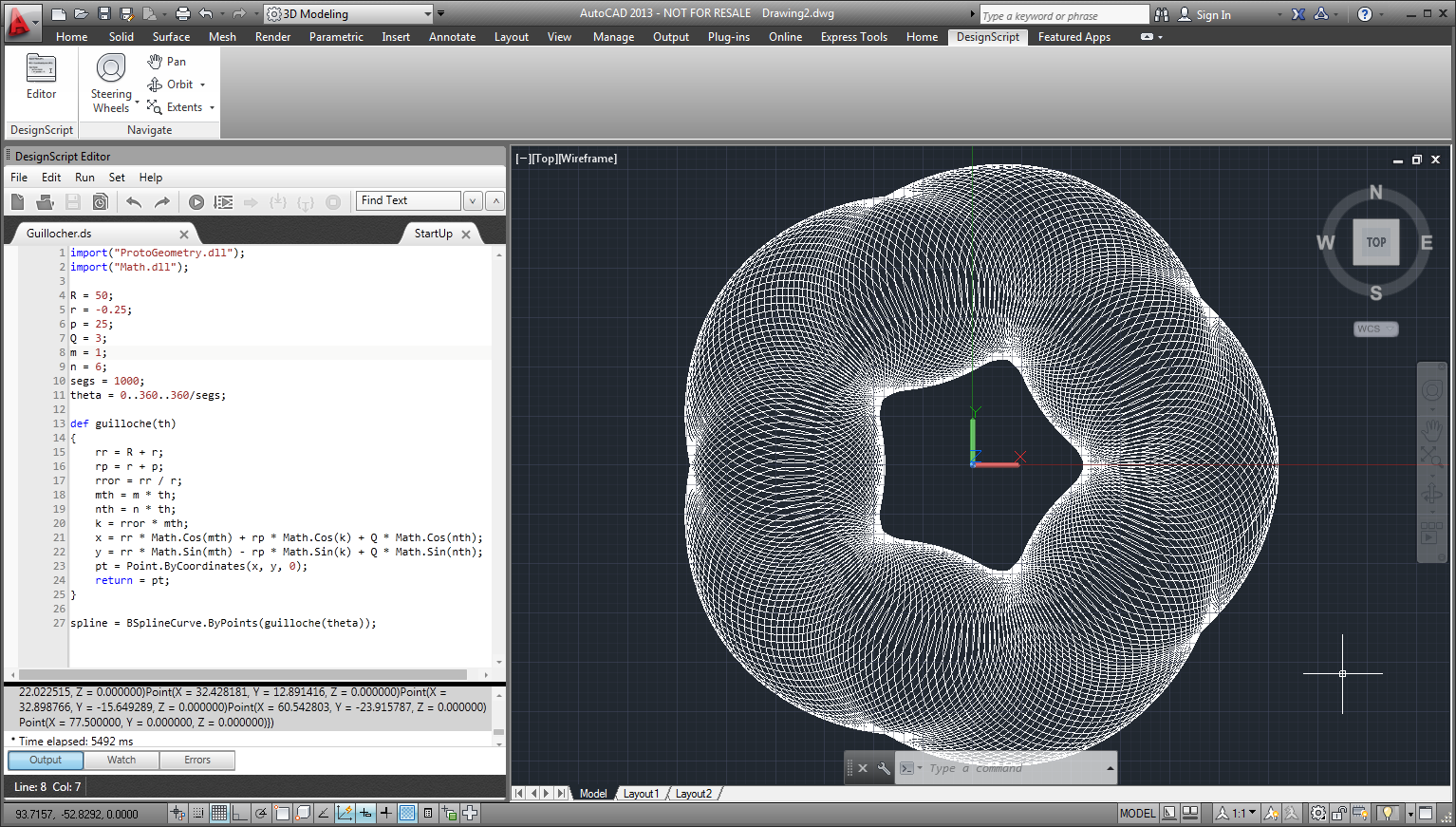
So that's about it – in case you're interested, here's the resultant DWG with this part
icular pattern (the one created via the F# code using the default arguments).


Leave a Reply