We sometimes receive questions on how best to automate the printing of DWF files. Autodesk Design Review 2008 now has a new Batch Print Plug-in enabling just this.
Once you've installed the plug-in, you'll be able to use the Batch Print Wizard in Design Review (on the file menu, once a DWF has been loaded). This Wizard allows you to configure a batch job for Design Review to process and save it to a BPJ (Batch Print Job) file. This BPJ (which is basically a very simple XML file) can then be used to drive the batch print process automatically.
The next logical step is clearly to create the BPJ programmatically, which can be done using a number of XML libraries (MS XML etc.) or simply by writing out a text file using your favourite string output routines.
So let's look at creating the BPJ file "manually" using the Batch Print Wizard.
Here's the second screen you'll see, once you've skipped the welcome:
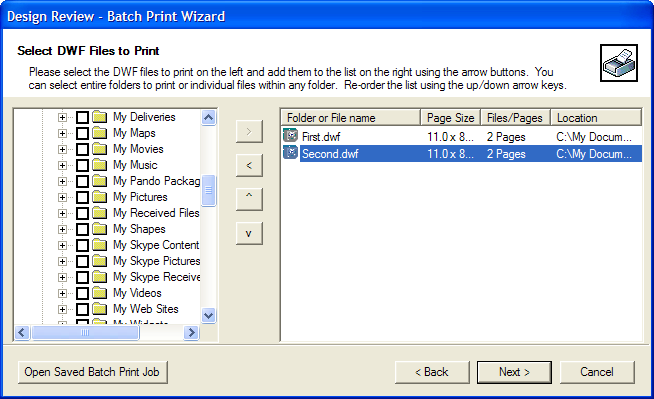
When you've selected the files you wish to print and added them to the right-hand side using the ">" button, you can move on to the next page:
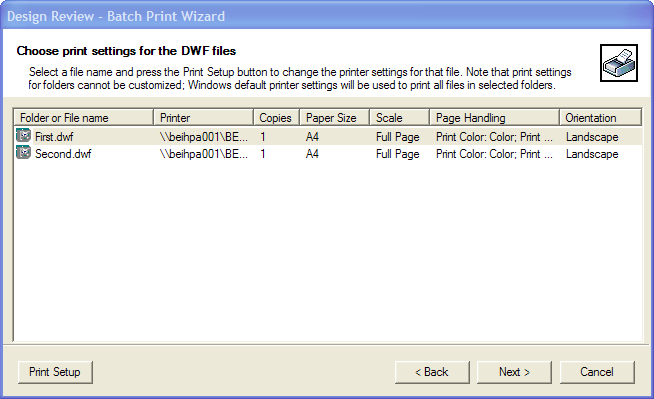
This is where you modify the print setup for each of your DWFs, by clicking on the item and hitting "Print Setup", or just double-clicking the item.
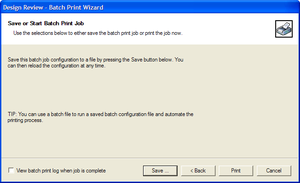
And then you're ready to save the BPJ file (or just "Print" directly).
I saved mine as "c:\My Documents\MyFiles.bpj", and here are its contents, with additional whitespace added for readability:
<configuration_file>
<DWF_File
FileName="C:\My Documents\\First.dwf"
PageSize="11.0 x 8.5 in"
NoOfSections="2"
Print_to_scale="100"
User_defined_Zoom_Factor="100"
Print_Style="0"
Print_What="0"
Fit_To_Paper="1"
Paper_Size="9"
Paper_Size_Width="2100"
Paper_Size_Height="2970"
Orientation="2"
Number_of_copies="1"
PrinterName="\\beihpa001\BEIPRN003"
Page_Range="1"
Print_Range_Str=""
Reverse_Order="0"
Collate="0"
printColor="0"
printAlignment="4"
Use_DWF_Paper_Size="0"
PaperName="A4"
useHPIP="0"
HPIPMediaID="-1"
HPIPExcludeEModel="1"
HPIPPaperName=""/>
<DWF_File
FileName="C:\My Documents\\Second.dwf"
PageSize="11.0 x 8.5 in"
NoOfSections="2"
Print_to_scale="100"
User_defined_Zoom_Factor="100"
Print_Style="0"
Print_What="0"
Fit_To_Paper="1"
Paper_Size="9"
Paper_Size_Width="2100"
Paper_Size_Height="2970"
Orientation="2"
Number_of_copies="1"
PrinterName="\\beihpa001\BEIPRN003"
Page_Range="1"
Print_Range_Str=""
Reverse_Order="0"
Collate="0"
printColor="0"
printAlignment="4"
Use_DWF_Paper_Size="0"
PaperName="A4"
useHPIP="0"
HPIPMediaID="-1"
HPIPExcludeEModel="1"
HPIPPaperName=""/>
</configuration_file>
This is clearly straightforward to create programmatically from your application. The next question is how best to automate the print process, now we have our BPJ.
The simplest way is to call the Design Review executable with the BPJ file as a command-line argument:
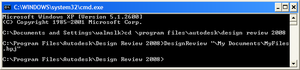
The executable returns straight away, and you'll see a log file created in the same location as the BPJ (in my case "c:\My Documents\MyFiles.log"), detailing the results of the print job:
Batch Printing initiated with Configuration file: "\My Documents\MyFiles.bpj". Start Time: Thu May 10 17:16:35 2007
Opening DWF file : "C:\My Documents\\First.dwf". Start Time: Thu May 10 17:16:35 2007
DWF file: "C:\My Documents\\First.dwf" Opened successfully. End Time: Thu May 10 17:16:37 2007
Status:DWF Open Successful
Started Printing DWF File: "C:\My Documents\\First.dwf". Start Time: Thu May 10 17:16:39 2007
Printing To : \\beihpa001\BEIPRN003
HPIP set to : False
Paper Size : 2100 X 2970
Print Range : Current Page
No Of Copies : 1
Scale : 100 %, Tile Pages (Not Applicable For 3D Sections)
Print Alignment: LowerLeft (Not Applicable For 3D Sections)
Orientation : Landscape
Print Color : Color
Started Printing Section Number : 0. Start Time: Thu May 10 17:16:39 2007
Finished Printing Section Number: 0. End Time : Thu May 10 17:16:42 2007
Started Printing Section Number : 1. Start Time: Thu May 10 17:16:43 2007
Finished Printing Section Number: 1. End Time : Thu May 10 17:16:43 2007
Finished Printing DWF file: "C:\My Documents\\First.dwf" . End Time: Thu May 10 17:16:43 2007
Opening DWF file : "C:\My Documents\\Second.dwf". Start Time: Thu May 10 17:16:43 2007
DWF file: "C:\My Documents\\Second.dwf" Opened successfully. End Time: Thu May 10 17:16:45 2007
Status:DWF Open Successful
Started Printing DWF File: "C:\My Documents\\Second.dwf". Start Time: Thu May 10 17:16:46 2007
Printing To : \\beihpa001\BEIPRN003
HPIP set to : False
Paper Size : 2100 X 2970
Print Range : Current Page
No Of Copies : 1
Scale : 100 %, Tile Pages (Not Applicable For 3D Sections)
Print Alignment: LowerLeft (Not Applicable For 3D Sections)
Orientation : Landscape
Print Color : Color
Started Printing Section Number : 0. Start Time: Thu May 10 17:16:46 2007
Finished Printing Section Number: 0. End Time : Thu May 10 17:16:49 2007
Started Printing Section Number : 1. Start Time: Thu May 10 17:16:49 2007
Finished Printing Section Number: 1. End Time : Thu May 10 17:16:50 2007
Finished Printing DWF file: "C:\My Documents\\Second.dwf" . End Time: Thu May 10 17:16:50 2007
Batch Printing Finished with Configuration file: "\My Documents\MyFiles.bpj". End Time: Thu May 10 17:16:50 2007
Total Time Taken to complete Batch Print Process: 0 hr: 0 Min: 15 Sec.
This log file can be parsed programmatically if it's important for your application to know whether any pages had difficulty printing.


Leave a Reply to Printing Australia- flyers, br Cancel reply