[This post continues from part 1 of this series. The source for the below applications is available here: DWF Toolkit application source, Design Review application source & Freewheel application source.]
Mining the data with the DWF Toolkit
Now we're going to look at using the DWF Toolkit – the freely available, cross platform toolkit for creating and reading DWF files – to extract the "identity" and "material" metadata associated with our geometry.
The DWF Toolkit is a C++ toolkit, so we have two components to our project:
- A C++ DLL that uses the DWF Toolkit to read a DWF, storing the data we care about in XML
- A VB.NET module that implements a user interface for viewing the XML content.
By its nature, DWF Toolkit client code tends to be somewhat complex, as it closely follows the internal structure of the DWF format, so I'm not going to go into the code. I will just say that you need to be a competent C++ programmer to work with the DWF Toolkit – it is not for the casual developer to dip into. There are clearly cases where using the DWF Toolkit makes a lot of sense – such as using it to modify or post-process DWFs non-graphically - but where possible I would recommend using a "higher level" API such as the API to Design Review or the publishing APIs within AutoCAD (just as we saw earlier).
The full source code for the project is posted to my blog, and here is what the application looks like:
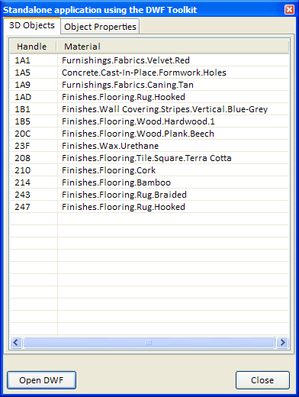
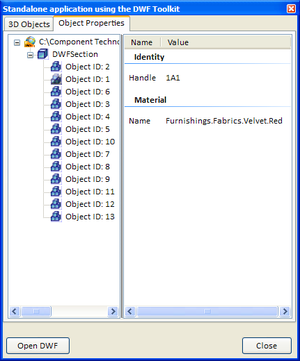
Figure 12 – a DWF Toolkit application to extract our metadata
Linking 2D with 3D DWF data in an application embedding Design Review
In the next part of our demo, we're going to make use of the metadata embedded in our DWF file to link the 2D and 3D sheets of our DWF.
Emedded 2D and 3D view onto DWF data actually have quite different API capabilities: 2D views have a set of events that you can respond to, to determine when objects are hovered over or selected (which you cannot receive for objects in 3D views), while 3D views allow you to manipulate object visibility and transparency (something you cannot control for objects in 2D views).
So we're actually going to play to the strengths of the two API sets: we're going to respond to an event when objects are hovered over in the 2D view, and during that callback we're going to manipulate the 3D view to "isolate" the object in that view. And the way we're going to link the two views is via the metadata that's attached to our objects.
The HTML code is too long to include in its entirety here, so I'm going to describe the overall functionality and leave it to the reader to work through the code at their own pace. I will post the full source in a blog entry, though (as well as making it available for download there).
One of the key things is that in our "OnOverObject" callback (which we respond to with JavaScript code in our HTML), is that we receive a geometry index (a node ID) for the object that's being hovered over. This, in itself, isn't directly useful, so we need to find a way to map it to the objects in question. I managed to do this by hosting the object identity (handle) metadata in a combobox, populated in the same order as the geometry IDs we receive. So it's very important that we populate the combobox appropriately, even if it's hidden (which in our case it isn't – we also make it available for the user to select objects by their handle).
Let's look at how we embed our two views – both onto the same DWF file. Here's the object tag for the 3D view:
<object
id="ObjectView"
width="100%"
height="100%"
classid="clsid:A662DA7E-CCB7-4743-B71A-D817F6D575DF"
codebase= "http://www.autodesk.com/global/dwfviewer/installer/DwfViewerSetup.cab#version=7,0,0,928"
VIEWASTEXT
>
<param name="src" value="solids.dwf?section=1">
</object>
We have used the src property to set the appropriate section by using "?section=1" to specify the first one.
With the 2D sheet we've taken a slightly different approach:
<object
id="Canvas"
width="100%"
height="100%"
classid="clsid:A662DA7E-CCB7-4743-B71A-D817F6D575DF"
codebase= "http://www.autodesk.com/global/dwfviewer/installer/DwfViewerSetup.cab#version=7,0,0,928"
VIEWASTEXT
>
<param name="src" value="solids.dwf">
</object>
We have not selected the sheet here – to avoid timing issues we've done so in the EndLoadItem JavaScript callback of the 2D view's document:
if (Canvas.SourcePath != "solids.dwf?section=2")
{
Canvas.SourcePath = "solids.dwf?section=2";
}
Much of the rest of the code is around user interface tweaks, such as forcing the "Orbit" mode by default in the 3D view, and the "Select Object" mode in the 2D view. We also disable the toolbars etc., to reduce dialog clutter.
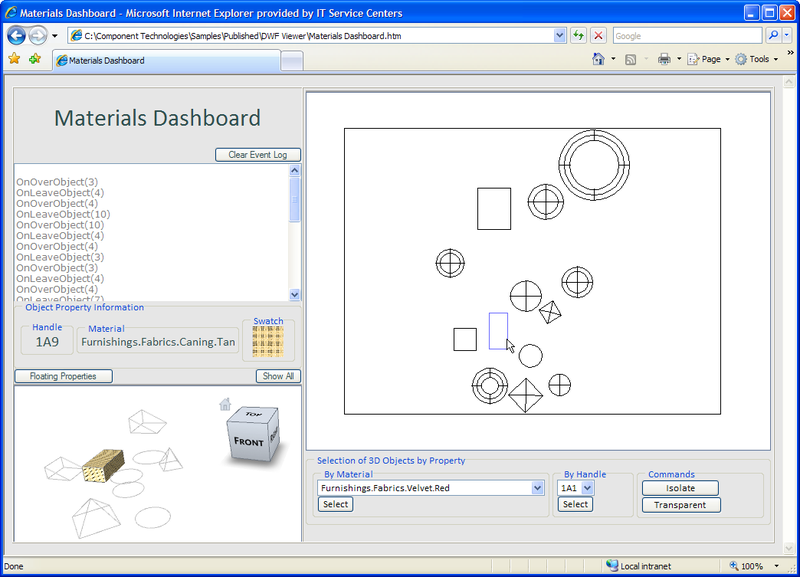
Figure 13 - embedding and linking multiple Design Review windows in an HTML application
Hosting an embedded Freewheel view in a custom web-page
Freewheel – and its Labs sibling, Project Freewheel – is a zero-client AJAX (Asynchronous JavaScript and XML) technology for working with both 2D & 3D DWF content. The DWF file resides on a server – whether uploaded securely by the user or hosted on a publicly-accessible web-page – and the graphics for the current view on the DWF content are piped down to the HTML client via raster. It's impressively responsive, even when orbiting in 3D.
We don't get the same ability to view and work with metadata (at least not right now), but it is still a compelling experience if you want to embed lightweight navigation for DWF without forcing an install of Design Review on the client machine. It's also getting some very cool collaborative review capabilities, to allow multiple people to mark 2D or 3D designs up in real-time. Very cool stuff, but not today's subject, I'm afraid.
The first thing is to get our design into Freewheel. One option is to use the "Share Now" utility available from Autodesk Labs, which publishes to DWF and uploads to Freewheel, or we could upload it via the Freewheel user-interface, as we have a DWF file ready-to-go.
In our case, however, I've already posted a version of the DWF file to a publicly-accessible internet location, so we're going to use that:
http:/wp-content/uploads/presentations/DWF/solids.dwf
A quick note on using Autodesk Freewheel vs. Project Freewheel. Autodesk Freewheel (http://freewheel.autodesk.com) is the production environment for Freewheel, and is hosted on a high-availability, load-balanced server farm. Project Freewheel (http://freewheel.labs.autodesk.com) is hosted on a PC under someone's desk (OK, that's an exaggeration :-), but contains the latest & greatest functionality. I've found that the DWF files I've been creating for this demo are best viewed with the Project Freewheel server, so I'm using that, today, but I recommend you first try with the production system when implementing your own Freewheel-powered sites.
The two basic approaches for including a Freewheel view in your website are to link or to embed. Linking is simple: you create a standard HTML link with a URL pointing Freewheel to your DWF file:
<a href="http://freewheel.labs.autodesk.com/dwf.aspx?dwf=http:/wp-content/uploads/presentations/DWF/solids.dwf">My link</a>
This creates a straight link to the Freewheel view. As with any HTML link, you can choose to launch this in a new window using the target property. You might also want to show a different page – you do this using the "sec" argument, which is the page/sheet number starting from 1:
<a href="http://freewheel.labs.autodesk.com/dwf.aspx?sec=2&dwf=http:/wp-content/uploads/presentations/DWF/solids.dwf">My link</a>
Next we're going to embed a view. We do this using an HTML iframe:
<iframe
frameborder="0"
height="300"
width="400"
scrolling="no"
src="http://freewheel.labs.autodesk.com/dwf.aspx?sec=2&dwf=http:/wp-content/uploads/presentations/DWF/solids.dwf">
</iframe>
Once again, you can use the "sec" parameter to select a particular sheet. This creates a navigable view on your DWF file.
Aside from linking or embedding, Freewheel exposes an ever-growing set of web services APIs, to allow you to render a particular view of a DWF to raster or to get information about a DWF, such as the number of pages, etc.
We can use the dwfImage web service to get an image of a DWF to use as a thumbnail:
<img
frameborder="0"
height="150"
width="200"
scrolling="no"
src=
"http://freewheel.labs.autodesk.com/dwfImage.aspx?page=1&width=200&height=150&path=http:/wp-content/uploads/presentations/DWF/solids.dwf" /
>
We can throw these together and create a web-page that links from the sheet thumbnails to full instances of Freewheel, as well as embedding interactive views of the same sheets. (The HTML source for this page is posted on my blog – it's not complicated, but too long to include here.)
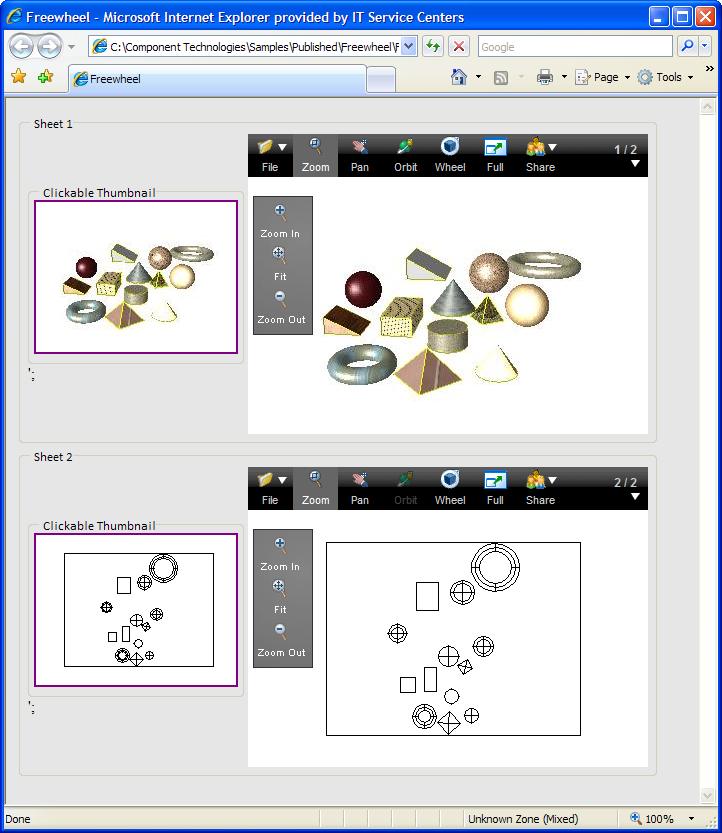
Figure 14 – embedding and linking to Freewheel in a custom web-page
The code that defines the above page could actually be generated manually – and that's the next bit of fun… 🙂
Using AJAX you can call web services from your client code: there are limitations as to what you can do (especially with regards to security limitations accessing web services across domains - which will make a great advanced topic for my blog), but this should give you a rough idea of what's possible. In the below sample we query the number of sheets for a particular DWF, and use DHTML to generate the tags that allow us to view the content, as in the above hard-coded sample:
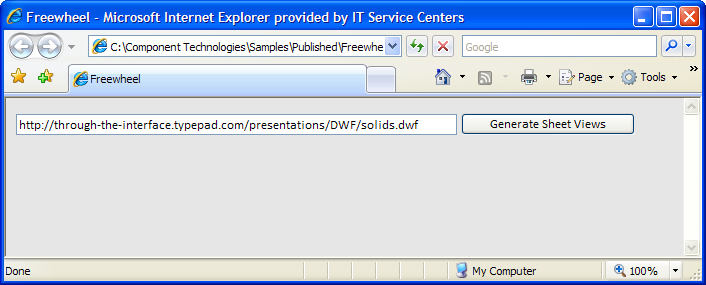
Figure 15 – our Freewheel generator on load
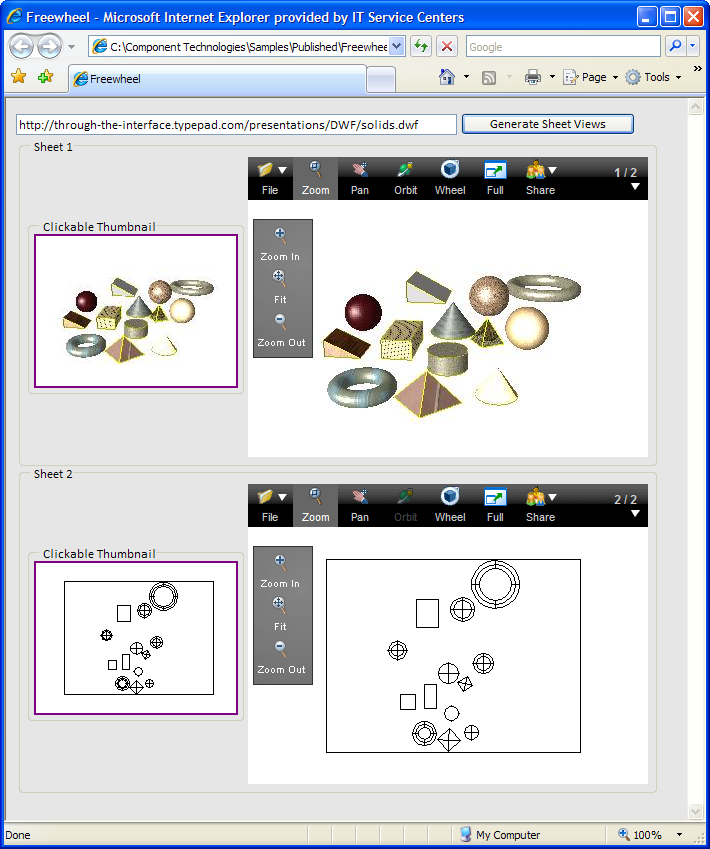
Figure 16 – our completed Freewheel generator


Leave a Reply to Ema Ceballos Cancel reply