After introducing the new JavaScript API as one of the new features in AutoCAD 2014, in the last post we looked at a simple command defined using JavaScript. In this post, we're going to implement a simple, palette-based UI inside AutoCAD using HTML5 and JavaScript.
Let's start by looking at the HTML code (with the JavaScript embedded, for simplicity):
<html>
<head>
<title>Draw a transient circle or rectangle</title>
<script
type="text/javascript"
src="http://www.autocadws.com/jsapi/v1/Autodesk.AutoCAD.js">
</script>
<script type="text/javascript">
// Some global variables
// The cursor for "OnMouseOver", as specified in the UI
var cursor = ' ';
// Colors for our transient definition, as they are
// presented to the user in the UI
var colors = new Array();
colors['Red'] = "#ff0000";
colors['Yellow'] = "#ffff00";
colors['Green'] = "#00ff00";
colors['Cyan'] = "#00ffff";
colors['Blue'] = "#0000ff";
colors['Magenta'] = "#ff00ff";
colors['White'] = "#ffffff";
// Some point information, as populated by user prompting
var pt0 = new Array();
var pt1 = new Array();
var pt2 = new Array();
var pt3 = new Array();
// A function to create the XML definition for the
// transient rectangular polyline we want to create
function createPolyline() {
// Get some parameters from the page
var color = document.getElementById('ColCB').value;
var linetype = document.getElementById('LTCB').value;
var lineweight = document.getElementById('LWCB').value;
var filled = document.getElementById('Filled').checked;
var cursorType = document.getElementById('Cursor').value;
if (cursorType == 'None')
cursor = ' ';
else
cursor = ' cursor="' + cursorType + '"';
// Set other rectangle corners based on the picked corners
pt1[0] = pt0[0];
pt1[1] = pt2[1];
pt1[2] = pt0[2];
pt3[0] = pt2[0];
pt3[1] = pt0[1];
pt3[2] = pt0[2];
var drawable =
'<?xml version="1.0" encoding="utf-8"?> \
<!-- the event handler will receive the id--> \
<drawable \
xmlns="http://www.autodesk.com/AutoCAD/drawstream.xsd"\
xmlns:t="http://www.autodesk.com/AutoCAD/transient.xsd"\
t:onmouseover ="onmouseover"'
+
cursor
+
'>\
<graphics color="' + colors[color] +
'" id="id1" lineweight="' + lineweight +
'" linetype="' + linetype +
'" filled="' + filled + '">\
<polyline isClosed="true">\
<vertices>\
<vertex>' + pt0.toString() + '</vertex>\
<vertex>' + pt1.toString() + '</vertex>\
<vertex>' + pt2.toString() + '</vertex>\
<vertex>' + pt3.toString() + '</vertex>\
</vertices>\
</polyline>\
</graphics>\
</drawable>';
return drawable;
}
// A function to create the XML definition for the
// transient circle we want to create
function createCircle() {
// Get some parameters from the page
var color = document.getElementById('ColCB').value;
var linetype = document.getElementById('LTCB').value;
var lineweight = document.getElementById('LWCB').value;
var filled = document.getElementById('Filled').checked;
var cursorType = document.getElementById('Cursor').value;
if (cursorType == 'None')
cursor = ' ';
else
cursor = ' cursor="' + cursorType + '"';
// Use Pythagoras' theorem to get the radius of the circle
// based on the points selected
var radius =
Math.sqrt(
Math.pow(pt2[0] - pt0[0], 2) +
Math.pow(pt2[1] - pt0[1], 2)
);
var drawable =
'<?xml version="1.0" encoding="utf-8"?> \
<!-- the event handler will receive the id--> \
<drawable \
xmlns="http://www.autodesk.com/AutoCAD/drawstream.xsd"\
xmlns:t="http://www.autodesk.com/AutoCAD/transient.xsd"\
t:onmouseover ="onmouseover"'
+
cursor
+
'>\
<graphics color="' + colors[color] +
'" id="id1" lineweight="' + lineweight +
'" linetype="' + linetype +
'" filled="' + filled + '">\
<circle center ="' + pt0.toString() +
'" radius ="' + radius.toString() + '"/>\
</graphics>\
</drawable>';
return drawable;
}
// "Command" to draw a rectangular transient
function drawRectangularTransient() {
function on1stComplete(args) {
var res = JSON.parse(args);
if (res && res.value) {
pt0[0] = res.value.x;
pt0[1] = res.value.y;
pt0[2] = res.value.z;
// Once we have the first point, get the other corner
var pco =
new Acad.PromptCornerOptions(
'Pick second corner point',
new Acad.Point3d(pt0[0], pt0[1], pt0[2])
);
Acad.Editor.getCorner(pco).then(on2ndComplete, onError);
}
}
function on2ndComplete(args) {
var res = JSON.parse(args);
if (res && res.value) {
pt2[0] = res.value.x;
pt2[1] = res.value.y;
pt2[2] = res.value.z;
// And when we have both first and second,
// we can generate the XML for the transient
// and ask for it to be drawn
var doc = Acad.Application.activedocument;
var drawable = createPolyline();
var tran = new Acad.Transient();
doc.transientManager.addTransient(tran, drawable);
}
}
function onError(args) {
alert('Unable to create rectangular transient: ' + args);
}
// The body of our function, where we get the first point
var ppo =
new Acad.PromptPointOptions(
'Pick first corner point',
new Acad.Point3d(0, 0, 0)
);
Acad.Editor.getPoint(ppo).then(on1stComplete, onError);
}
// "Command" to draw a circular transient
function drawCircularTransient() {
function on1stComplete(args) {
var res = JSON.parse(args);
if (res && res.value) {
pt0[0] = res.value.x;
pt0[1] = res.value.y;
pt0[2] = res.value.z;
// Once we have the center point, get one on the
// circumference
var ppo =
new Acad.PromptPointOptions('Pick point on circle');
ppo.useBasePoint = true;
ppo.basePoint =
new Acad.Point3d(pt0[0], pt0[1], pt0[2]);
Acad.Editor.getPoint(ppo).then(on2ndComplete, onError);
}
}
function on2ndComplete(args) {
var res = JSON.parse(args);
if (res && res.value) {
pt2[0] = res.value.x;
pt2[1] = res.value.y;
pt2[2] = res.value.z;
// And when we have both first and second,
// we can generate the XML for the transient
// and ask for it to be drawn
var doc = Acad.Application.activedocument;
var drawable = createCircle();
var tran = new Acad.Transient();
doc.transientManager.addTransient(tran, drawable);
}
}
function onError(args) {
alert('Unable to create circle transient: ' + args);
}
// The body of our function, where we get the first point
var ppo =
new Acad.PromptPointOptions(
'Pick center point',
new Acad.Point3d(0, 0, 0)
);
Acad.Editor.getPoint(ppo).then(on1stComplete, onError);
}
</script>
<style type="text/css">
td, body
{ font-family: sans-serif; font-size: 10pt; }
body
{ background-color: #686868;
padding:0;
margin:5px 5px 5px 5px;
color:#FFF; }
textarea
{ font-family: Consolas; font-size: 8pt; }
</style>
</head>
<body>
<!-- Create a tabular UI with headings and comboboxes -->
<h3>Transient circle or rectangle</h3>
<table border="0">
<tr>
<td align='right'>Color</td>
<td>
<select id='ColCB'>
<option selected="selected">Red</option>
<option>Yellow</option>
<option>Green</option>
<option>Cyan</option>
<option>Blue</option>
<option>Magenta</option>
<option>White</option>
</select>
</td>
</tr>
<tr>
<td align='right'>LineType</td>
<td>
<select id='LTCB'>
<option selected="selected">LineTypeSolid</option>
<option>Dashed</option>
<option>Dotted</option>
<option>Dash_Dot</option>
<option>Short_Dash</option>
<option>Medium_Dash</option>
<option>Long_Dash</option>
<option>Short_Dash_X2</option>
<option>Medium_Dash_X2</option>
<option>Long_Dash_X2</option>
<option>Medium_Long_Dash</option>
<option>Medium_Dash_Short_Dash_Short_Dash</option>
<option>Long_Dash_Short_Dash</option>
<option>Long_Dash_Dot_Dot</option>
<option>Long_Dash_Dot</option>
<option>Medium_Dash_Dot_Short_Dash_Dot</option>
<option>Sparse_Dot</option>
<option>Solid_6_Pixels_Blank_6_Pixels</option>
</select>
</td>
</tr>
<tr>
<td align='right'>LineWeight</td>
<td>
<select id='LWCB'>
<option>0</option>
<option>5</option>
<option>9</option>
<option>13</option>
<option>15</option>
<option>18</option>
<option>20</option>
<option>25</option>
<option selected="selected">30</option>
<option>35</option>
<option>40</option>
<option>50</option>
<option>53</option>
<option>60</option>
<option>70</option>
<option>80</option>
<option>90</option>
<option>100</option>
<option>106</option>
<option>120</option>
<option>140</option>
<option>158</option>
<option>200</option>
<option>211</option>
</select>
</td>
</tr>
<tr>
<td align='right'>Filled</td>
<td><input type='checkbox' id='Filled'/></td>
</tr>
<tr>
<td align='right'>Cursor</td>
<td>
<select
id='Cursor'
title='Cursor to be displayed on hover'>
<option selected="selected">None</option>
<option>None</option>
<option>Arrow</option>
<option>Ibeam</option>
<option>Wait</option>
<option>Cross</option>
<option>UpArrow</option>
<option>SizeNWSE</option>
<option>SizeNESW</option>
<option>SizeWE</option>
<option>SizeNS</option>
<option>SizeAll</option>
<option>No</option>
<option>Hand</option>
<option>AppStarting</option>
<option>Help</option>
</select>
</td>
</tr>
<tr>
<th> </th>
<td>
<input
type='button'
style="width: 220px"
onclick='drawRectangularTransient()'
value='Draw Rectangle Transient' />
</td>
</tr>
<tr>
<th> </th>
<td>
<input
type='button'
style="width: 220px"
onclick='drawCircularTransient()'
value='Draw Circle Transient' />
</td>
</tr>
</table>
</body>
</html>
Some notes on the implementation…
- As mentioned last time, we use callbacks to deal with code continuation on completion of selection events.
- The two "commands" (they're not really commands in the AutoCAD sense – they're functions called when buttons are clicked on the palette) each have two selection events: for circle creation to pick the center and a point at the radius, and for rectangle creation to pick the two corners. You can already see the code starts to look a lot less linear because of this, but there you go: that's JavaScript for you.
- The various selection methods set global state with the results.
- There may well be a better way of doing this – I picked up much of this part of the implementation from some internal unit test samples – but this way works, at least.
- You'll notice we create XML fragments to generate transient graphics, essentially via a declarative API that allows us to (among other things) assign HTML DOM-like event handlers such as onmouseover.
As mentioned when we first looked at the JavaScript API, we need to have a simple loader module that adds this palette into an AutoCAD-resident PaletteSet. Here's as simple piece of C# code for this:
using Autodesk.AutoCAD.Runtime;
using Autodesk.AutoCAD.Windows;
using System;
namespace JavaScriptLoader
{
public class Commands
{
static PaletteSet _ps = null;
[CommandMethod("JSP")]
public void JavaScriptPalette()
{
if (_ps == null)
{
_ps = new PaletteSet(
"JavaScript Demo",
new Guid("61135FFD-EE9A-4A5D-B3E1-993AB17E93BD")
);
}
if (_ps.Count != 0)
{
_ps[0].PaletteSet.Remove(0);
}
var p =
_ps.Add(
"JavaScript Test",
new Uri(
"/wp-content/uploads/files/" +
"TransientPalette.html"
)
);
_ps.Visible = true;
}
}
}
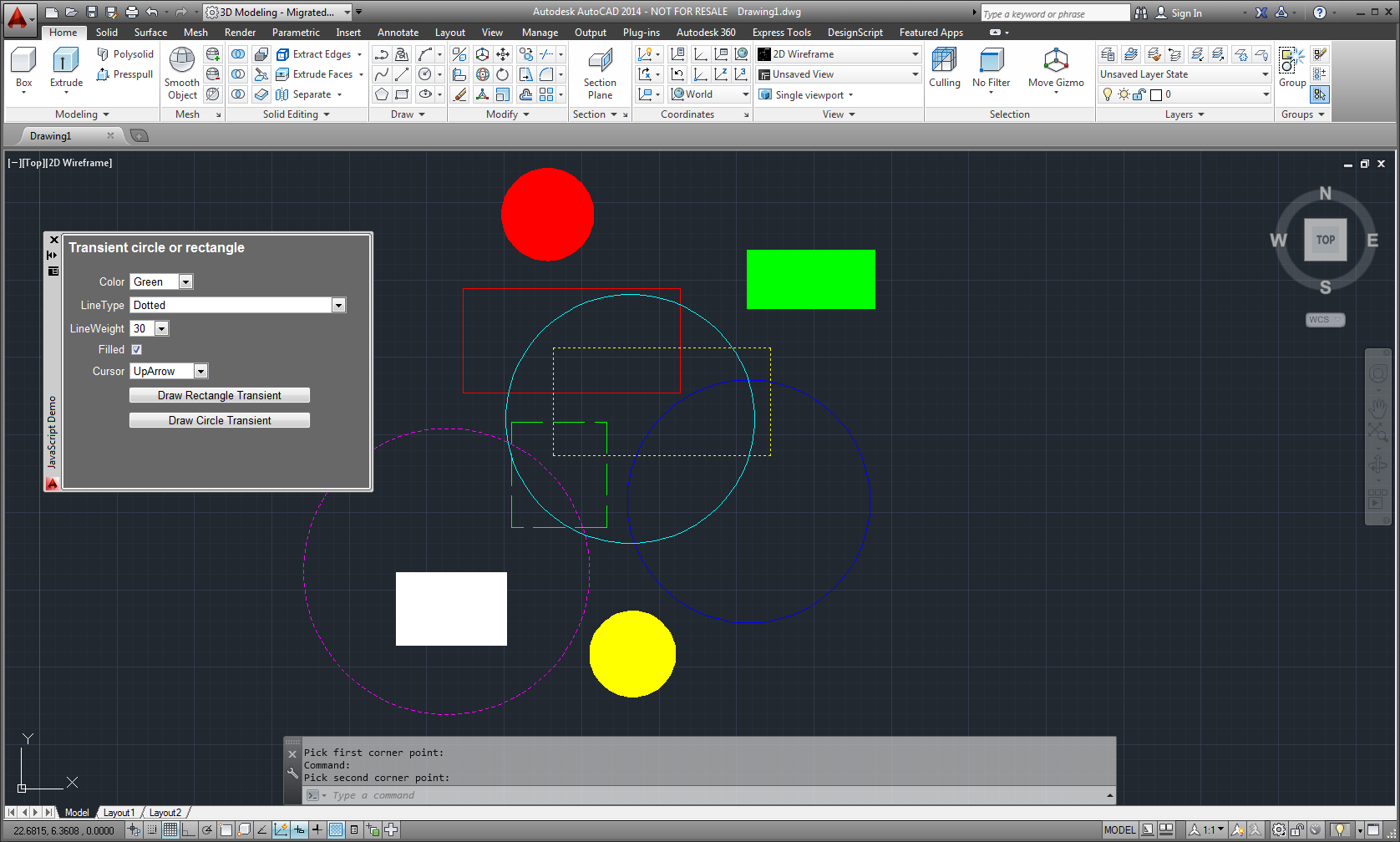
Here's a screenshot of the palette (that I've gone ahead and undocked) with the results of clicking on the "Draw Circle/Rectangle Transient" buttons a few times with various options set, selecting various points.
Some good news: I did find a way to invalidate the internal browser cache between AutoCAD sessions, to force a reload from the web-site when loading a page (whether WEBLOADing a .js file or using PaletteSet.Add() or one of the other new methods to load an HTML file). I deleted the contents of the following folder, which seemed to do the trick (and should be safe as they're stored beneath the temp folder): "C:\Users\username\AppData\Local\Temp\cache"
I still need to check in on the situation with UNDO: for now the transient graphics you create can either be removed programmatically (something I've kindly omitted from this sample 😉 or you can close the current drawing.
I expect my next post on the JavaScript API is going to focus more on some of the implementation details (such as the choice of browser control, the out-of-process architecture, etc.). I've so far avoided such details as I wanted to show some concrete examples beforehand.
I'm now going offline for the long Easter weekend (both Friday and Monday are holidays, here in Switzerland). I have a post queued up already for Monday, though, so do check back then.


Leave a Reply to Loic Cancel reply