Here's the thing. While it's nice to be able to capture interesting-looking models with Autodesk ReCap Photo, what we really want is an output format that's useable in other products.
In my case, what I personally wanted to do was first hinted at in this post: display a model of the Morgan 3 Wheeler in a virtual wind tunnel using Project Falcon (a project on Autodesk Labs which is – at the time of writing – scheduled to run until August 30, 2013).
So let's take a look at the output formats of the ReCap Photo service and see how we might use them.
To start with, the main "output" of the ReCap Photo service is the .rcp file, which contains the project information but also some visualization information to allow it to be viewed (or previewed) via the WebGL control inside Autodesk 360. This is typically a proxy mesh with reduced resolution, as you're notified of when you view the .rcp: The .3dp file – which can be loaded in 123D Catch – is actually there but hidden, in case you want to transfer the project across (although I'm not sure whether mesh generation would then be performed with the full resolution imagery, or not, in 123D Catch – presumably not).
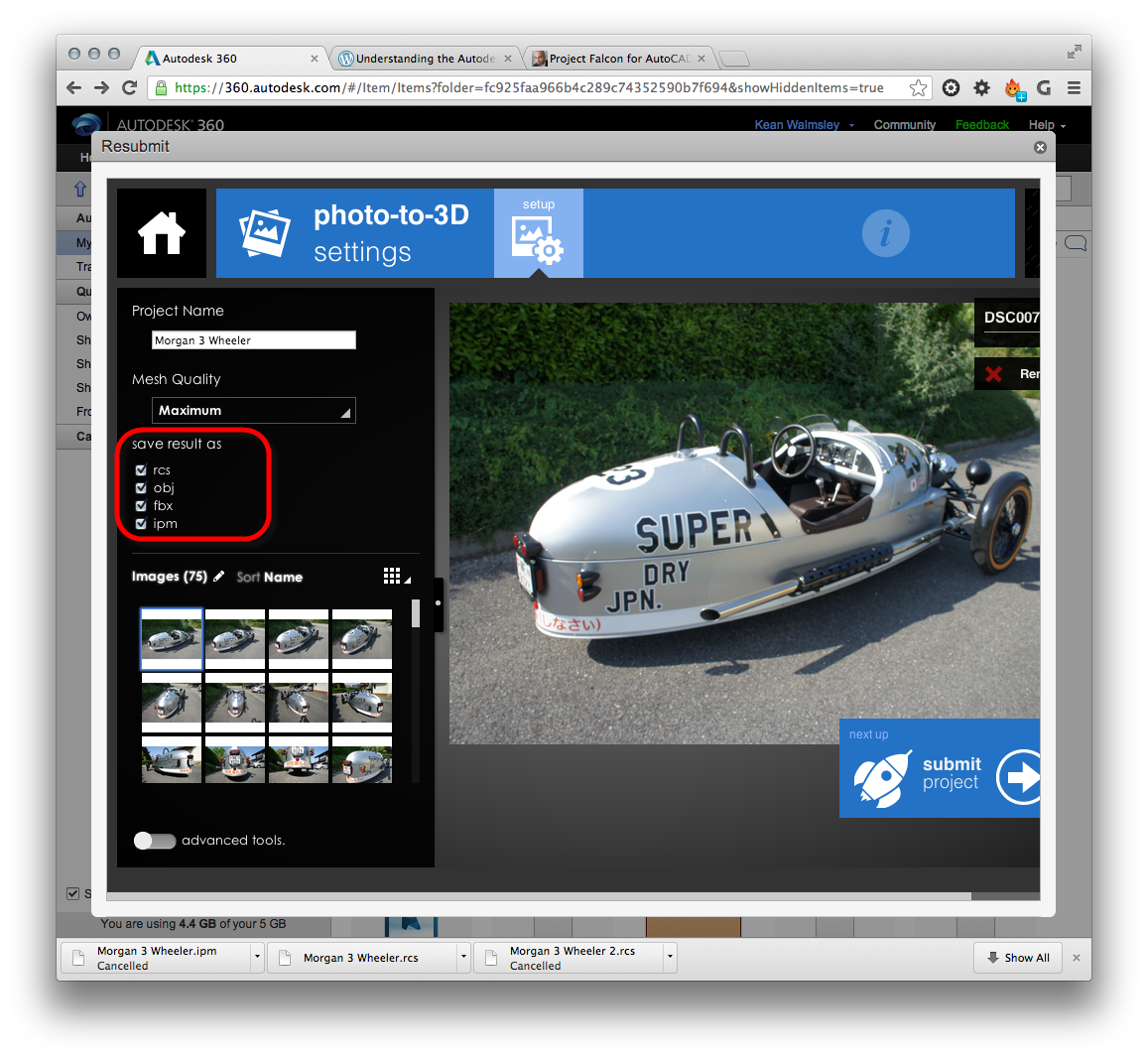
If you're working with either Standard or Maximum (rather than Draft) mesh quality in ReCap Photo, you can generate .rcs, .obj, .fbx and .ipm files.
 RCS (for Reality Capture Scan) is the new PCG, in that it's an optimized format for storing point cloud data. You can use it in Autodesk ReCap Studio or in AutoCAD 2014. Here's the 600MB scan file attached as a point cloud in AutoCAD:
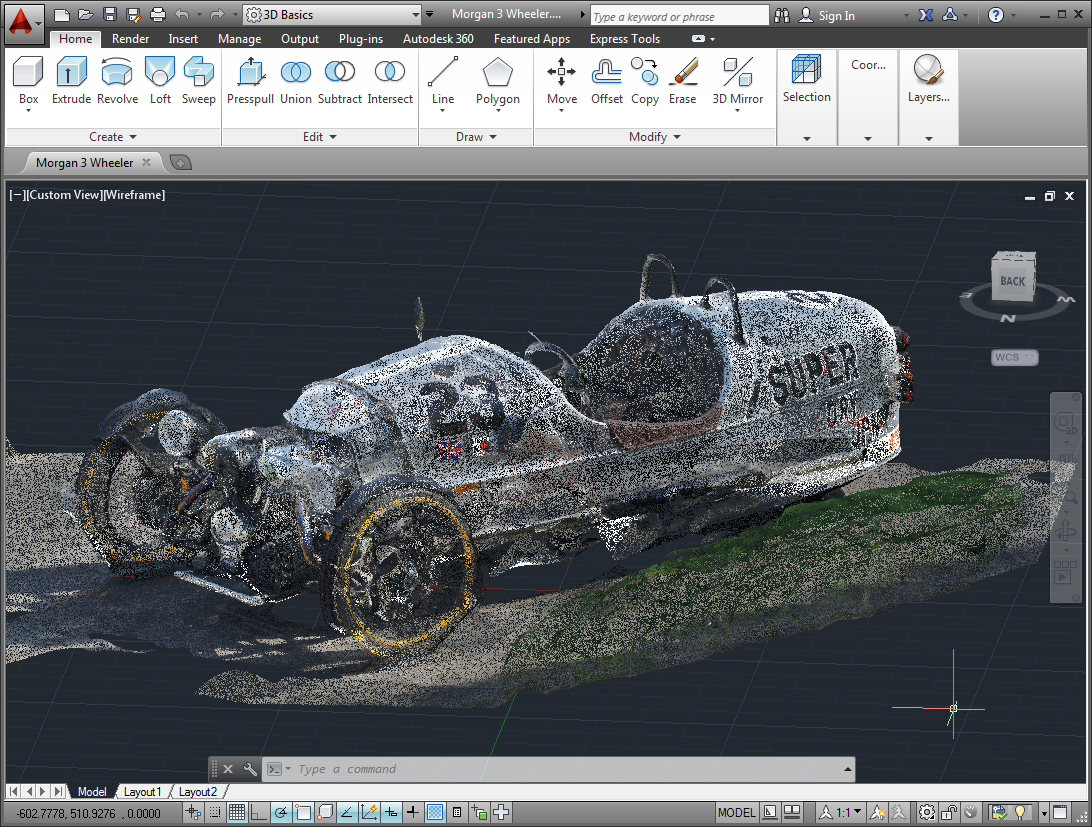
Which looks great, but doesn't get us closer to our goal of performing a wind tunnel simulation. I have the feeling that wind tunnels and point clouds don't mix well. 😉
Two of the other formats, .fbx and .obj, are mesh data formats (among other things: FBX also stores animation information, for instance), which should prove more useful for this particular situation.
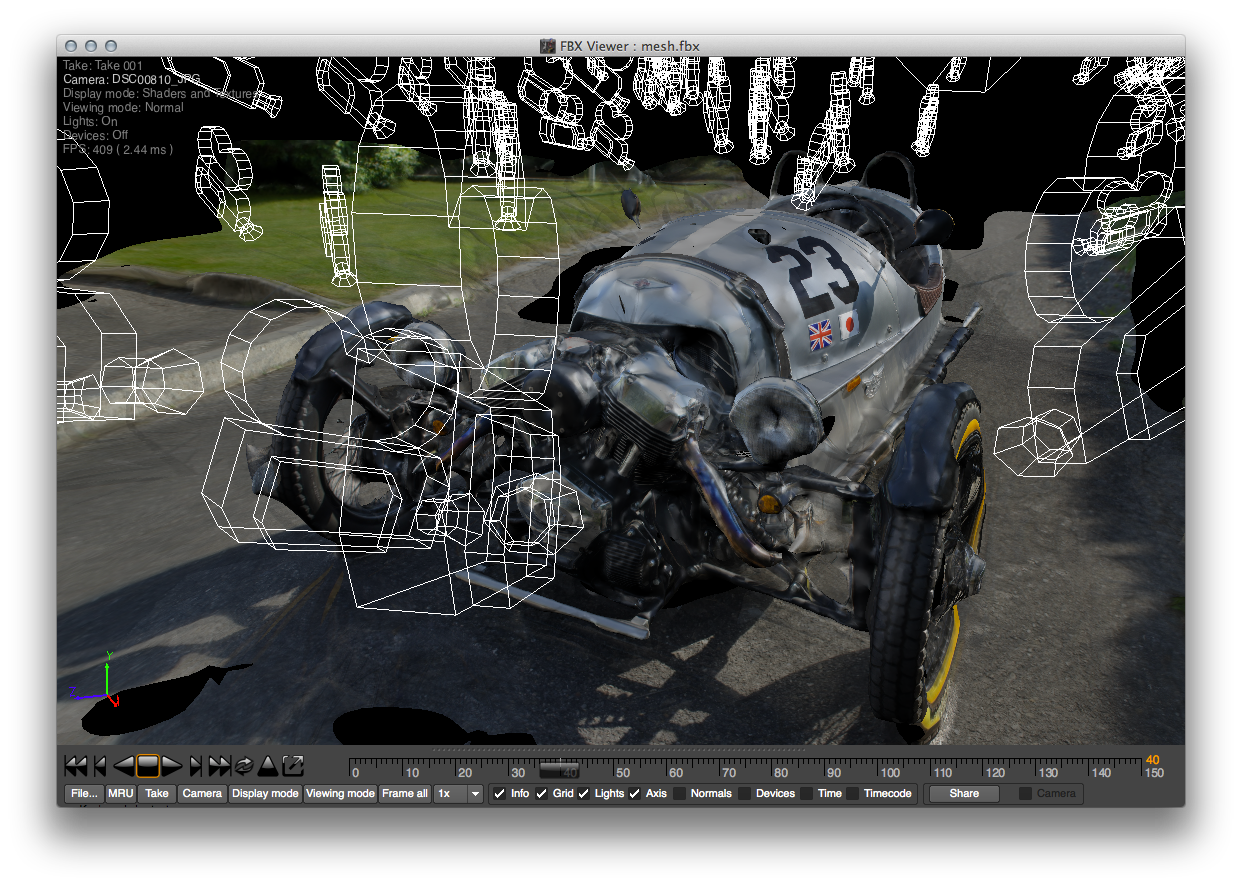
Here's the Standard quality mesh in the viewer provided with the FBX Convertor tool (this version of the mesh was 35MB – with about the same amount of texture data – rather than 110MB for the Maximum quality version [ditto for the textures]):
But the format I ended up finding most useful, for this particular workflow, was OBJ.
I started by importing the 125MB .obj (which came with about 30MB of textures) into meshmixer (which can be downloaded from here), with the idea of performing some basic cropping and healing operations on the mesh.
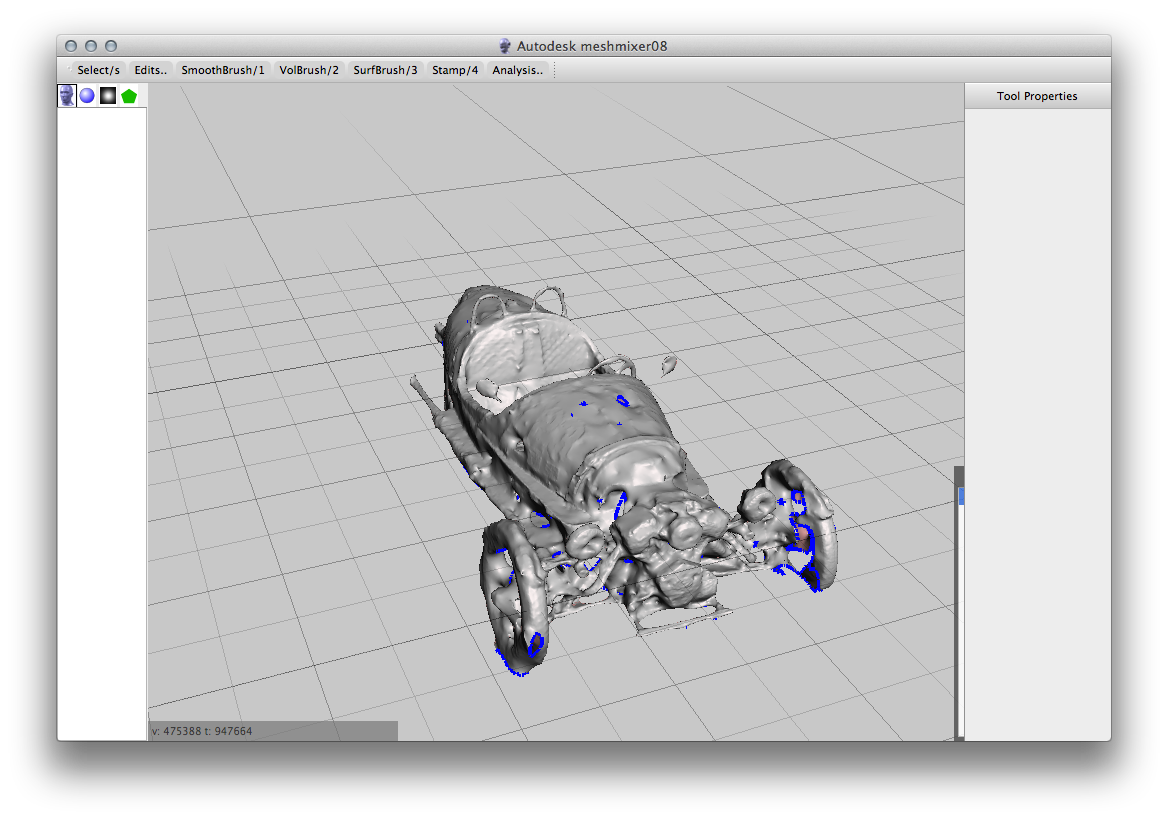
After making some simple modifications, I exported the model once again to .obj and brought it into the standalone version of Project Falcon. Even with the reduced file footprint of 75MB, the analysis took several minutes to complete.
For this post, I chose to use the standalone version of Project Falcon, as AutoCAD doesn't have native .obj import (and FBXIMPORT ground to a halt with the unedited .fbx file created by ReCap Photo). In the next post we'll take a look at options for using Project Falcon for AutoCAD, instead.
In any case, the standalone app is pretty neat, too, although you have to pay attention to the orientation of your model. 🙂
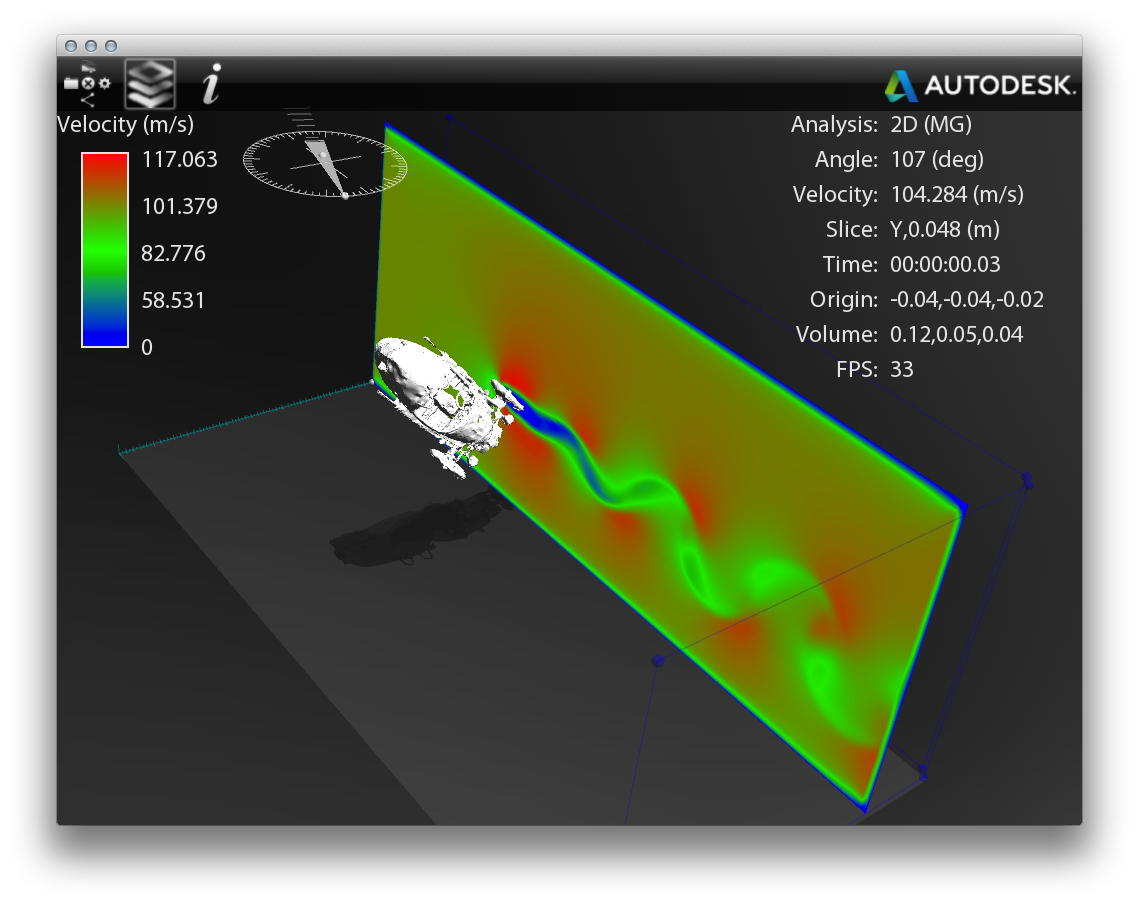
This attempt was better:
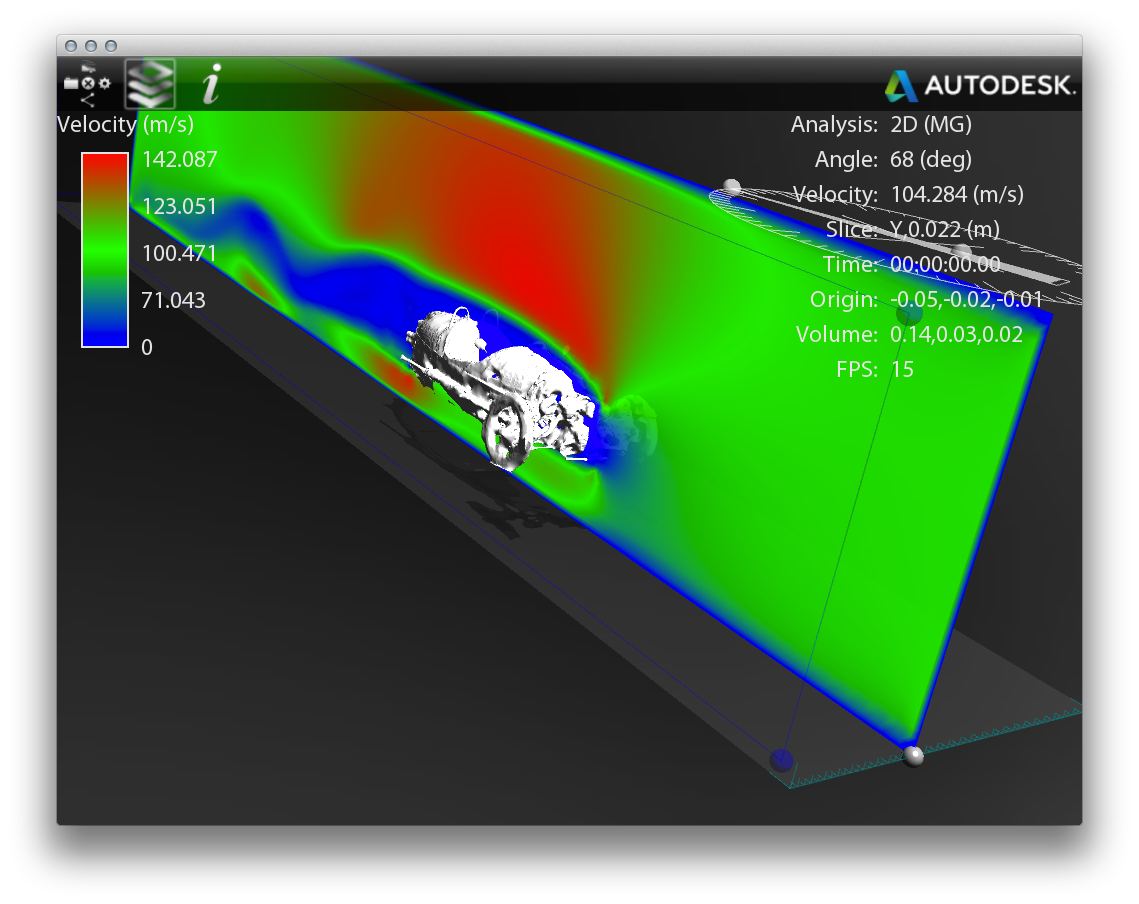
And you can, of course, perform some more detailed pressure analysis and apply different flow visualizations:
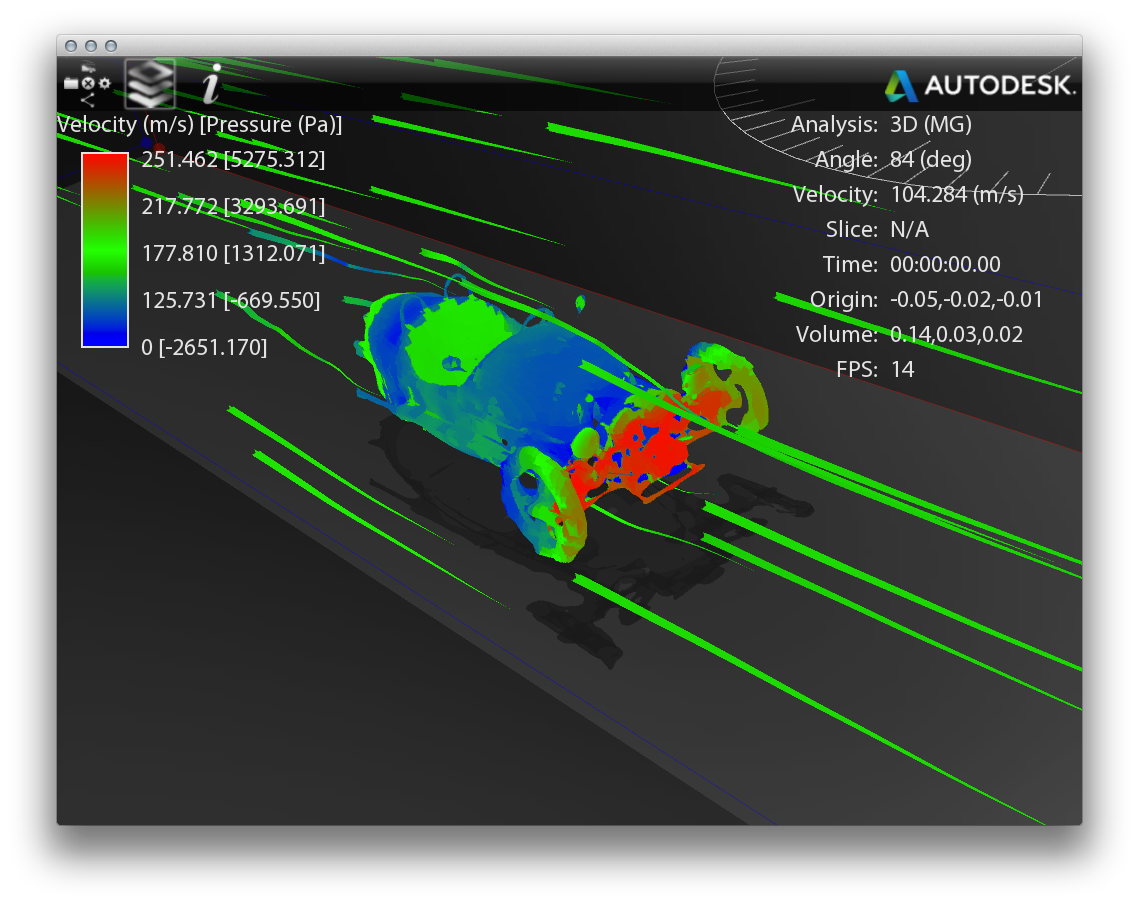
Now CFD isn't my specialist field, by any stretch of the imagination, so I can't say whether the results are either beneficial or of great interest. But it certainly looks cool!
Next time we'll take a look at using ReCap Photo data in Project Falcon for AutoCAD.


Leave a Reply to lesurfeur Cancel reply