Adding a cursor badge in AutoCAD 2015 using .NET

I have to say that I'm having an absolute blast getting to know the new API features in AutoCAD 2015. It turns out I'd barely scratched the surface with my original post about the impact for developers. It's a release that just keeps on giving. ๐Ÿ™‚

One new feature that I've had a lot of fun playing with is the "cursor badge" capability, something you may have seen blogged about from a user's perspective. The good news is that the ability to add your own cursor badges is provided in the public API (although I did end up using an internal โ€“ but publicly accessible โ€“ method to convert to the required image format for the badge itself).

Rather than loading and using a bitmap resource โ€“ and yes, I could have added my head to the AutoCAD cursor, but that would have been a bit much now that my blog is there inside the AutoCAD frame โ€“ I decided to generate a bitmap programmatically and convert that into the format needed for a cursor badge. If you do end up loading your own bitmap resource for this and find that it's flipped, you might also try using ConvertBitmapToAcGiImageBGRA32Ex() (instead of ConvertBitmapToAcGiImageBGRA32() that I used), to see if that helps.

I discovered a few useful tricks while putting this together: to draw a transparent background for your badge โ€“ and you will want to โ€“ it needs to be magenta (R=255, G=0, B=255). I think I knew this before, but then I'd gotten used to thinking about the colour needed for transparent pixels in ribbon icons โ€“ R=192, G=192, B=192 โ€“ and so had to relearn it. I also found that you need to set a cursor badge's priority to a value such as 1 or 2 if you want your badge to be replaced by system badges (at least the window selection-related ones) or 3 if you want it to take precedence. There may be other priority values to take into consideration, but that's what I've found out for now.

I decided to add the cursor badge in one command and remove it in another โ€“ as much to see the way things work when you start a window selection, as anything โ€“ but it would be more typical to add the badge just before starting a jig (say) and remove it immediately afterwards. You'd also probably want to add a smaller cursor badge than the one shown below, of course. ๐Ÿ™‚

Here's the C# code:

using Autodesk.AutoCAD.EditorInput;

using Autodesk.AutoCAD.GraphicsInterface;

using Autodesk.AutoCAD.Internal;

using Autodesk.AutoCAD.Runtime;

using System.Drawing;


namespace CursorBadges

{

  public class Commands

  {

    private ImageBGRA32 _img = null;


    [CommandMethod("ACB")]

    public void AddCursorBadge()

    {

      if (_img == null)

      {

        using (var bmp = new Bitmap(85, 85))

        {

          using (var g = Graphics.FromImage(bmp))

          {

            // The transparent colour used for these badges is

            // Magenta, I've found. Let's use that as a background

            // and then draw three concentric, filled circles

            // (looking a bit like the RAF logo)


            g.Clear(Color.Magenta);

            g.FillEllipse(Brushes.Blue, 5, 5, 60, 60);

            g.FillEllipse(Brushes.White, 15, 15, 40, 40);

            g.FillEllipse(Brushes.Red, 25, 25, 20, 20);

          }

          _img = Utils.ConvertBitmapToAcGiImageBGRA32(bmp);

        }

      }


      // Adding the badge with a priority of 1 means that it

      // will get replaced by selection-related badges. Changing

      // this to 3 is enough to give it precedence over these

      // (a higher number still will increase the chances

      // of it staying shown)


      var cbu = new CursorBadgeUtilities();

      cbu.AddSupplementalCursorImage(_img, 1);

    }


    [CommandMethod("RCB")]

    public void RemoveCursorBadge()

    {

      var cbu = new CursorBadgeUtilities();

      if (cbu.HasSupplementalCursorImage() && _img != null)

        cbu.RemoveSupplementalCursorImage(_img);

    }

  }

}

When you run the ACB command you'll find a badge that looks somewhat like the RAF roundel added to the cursor. Selecting the drawing background will cause it to be replaced by the window selection cursor badges, and you can use the RCB command to remove it completely.
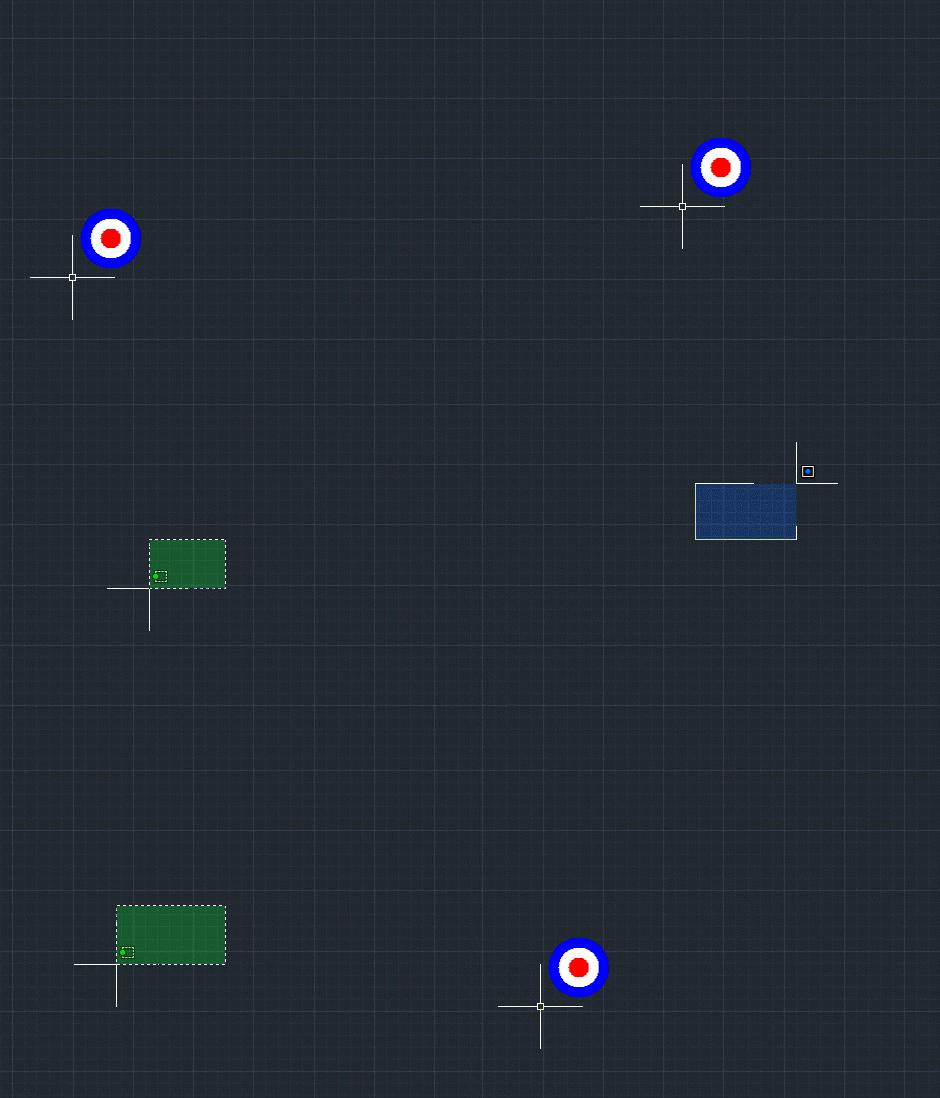
RAF cursor badge

13 responses to “Adding a cursor badge in AutoCAD 2015 using .NET”

  1. Hey Kean,
    Just wondering what program you use to create your GIFs?

    1. Kean Walmsley Avatar
      Kean Walmsley

      It depends: for full animations I use Camtasia, for slideshow-style ones I hand hack with OS X image preview + GIMP to adjust the transition timing.

      Kean

  2. James Maeding Avatar
    James Maeding

    wow, very interesting feature, thanks for all the time you put into your posts.
    I was wondering, do the changes to the cursor play into the whole virtual desktop issue where the cursor is jumpy? I have followed this and some outfits like USCAD have a cloud system that replaces the cursor and tries to stay in synch with the real cursor, all to smooth out the jumping cursor. I heard Autodesk was redoing the cursor so is this that redo?
    thx

    1. Kean Walmsley Avatar
      Kean Walmsley

      Good question - not sure how that would work with the increase in visual data around the cursor. Although as the graphics are probably just blitted onto the drawing canvas, it shouldn't really change things (it's a relatively small area compared with larger areas such as the window selection box, etc.).

      Kean

  3. R.K. McSwain Avatar

    I've seen a few posts in various forums of people wanting to permanently disable/turn off the cursor badges period. Until that option is added to the UI, Is that something possible with some add-on code?

    1. Kean Walmsley Avatar
      Kean Walmsley

      Really? I'm curious why... whether they're found to be distracting or whether they cause some kind of performance issue on older systems.

      But anyway, I'm not aware of any central disabling method or sysvar, unfortunately.

      Kean

  4. Andrey Bushman Avatar
    Andrey Bushman

    Hi Kean. I think it is a more useful and flexible sample (look the video): 1 . Also it works not with AutoCAD 2015 only.

    1. Kean Walmsley Avatar

      Hi Andrey,

      Thanks for sharing this. It's an interesting approach, moving your own window around as the cursor moves.

      One thing to watch out for, longer term: as the base product evolves other in-place input mechanisms you'll need to adjust (or adopt the base implementation). But for now it seems to work well.

      Kean

  5. James Maeding Avatar

    You should add in "Free access to theswamp.org" as well as "free access to Kean and Preston's blog". Both are more useful than the kb in my experience.

    Autodesk has always had the option to participate more in the DG's, and they would have to to make up for the experienced users that stopped following posts when NNTP was cut. Exposing the kb is useful, but you really feel this qualifies as a new ADN mebership level? I was thinking the personal help, and access to seats of acad for dev use, were the main things that made ADN ADN. Sorry for the downer post, but the people who develop on acad are not that interested in the marketing of things we kind of already have.

    1. Kean Walmsley Avatar

      James,

      I also see that it can only be set to 1 or 2. Are you assuming there must have been a value of 0, or did you try some kind of pre-release SP that supported it?

      Regards,

      Kean

      1. James Maeding Avatar

        no inside knowledge, just guessing there was a 0 value. A few people asked me about it so I wondered. Note that Bricscad has had this cursor badge thing for a while, and I asked if it could be turned off and it can't. Funny that Autodesk added it, then quickly allowed turning it off. You have to ask, how much investigation was done on this feature before adding to acad? If they just watched my posts on the adesk DG, Theswamp, and the bricscad forum, so many issues could be caught. There are others too they should be tracking. Some intern could be a star for doing such an activity.

        1. Kean Walmsley Avatar

          We have a user research team that works very hard at this. Forums are clearly one source of information they use.

          Kean

  6. CHRISTOPHER FUGITT Avatar
    CHRISTOPHER FUGITT

    A great follow up to this article would be how to show the cursor badge as the cursor is above an object and then turn off as the cursor moves away from the object. Kind of like the AutoCAD URL cursor badge works.

Leave a Reply to James Maeding Cancel reply

Your email address will not be published. Required fields are marked *