AutoCAD 2016: Calling commands from external events using .NET

Last week we introduced the ExecuteInCommandContextAsync() method and saw it in action from a context menu click event. In today's post we're going to see how it can be used for a lot more: we're going to use it to respond to external, operating system-level events (although admittedly we're handling the event in-process to AutoCAD via .NET).

What we're actually going to do is fire off a command inside AutoCAD – in our case we're going to use RECTANG to create square polylines – each time we find that a file has been placed in a particular folder (in our case "c:\temp\files", although the actually location isn't particularly important).

Here's what we're aiming for – this recording shows AutoCAD on the left and an Explorer window pointed at "c:\temp\files" on the right.
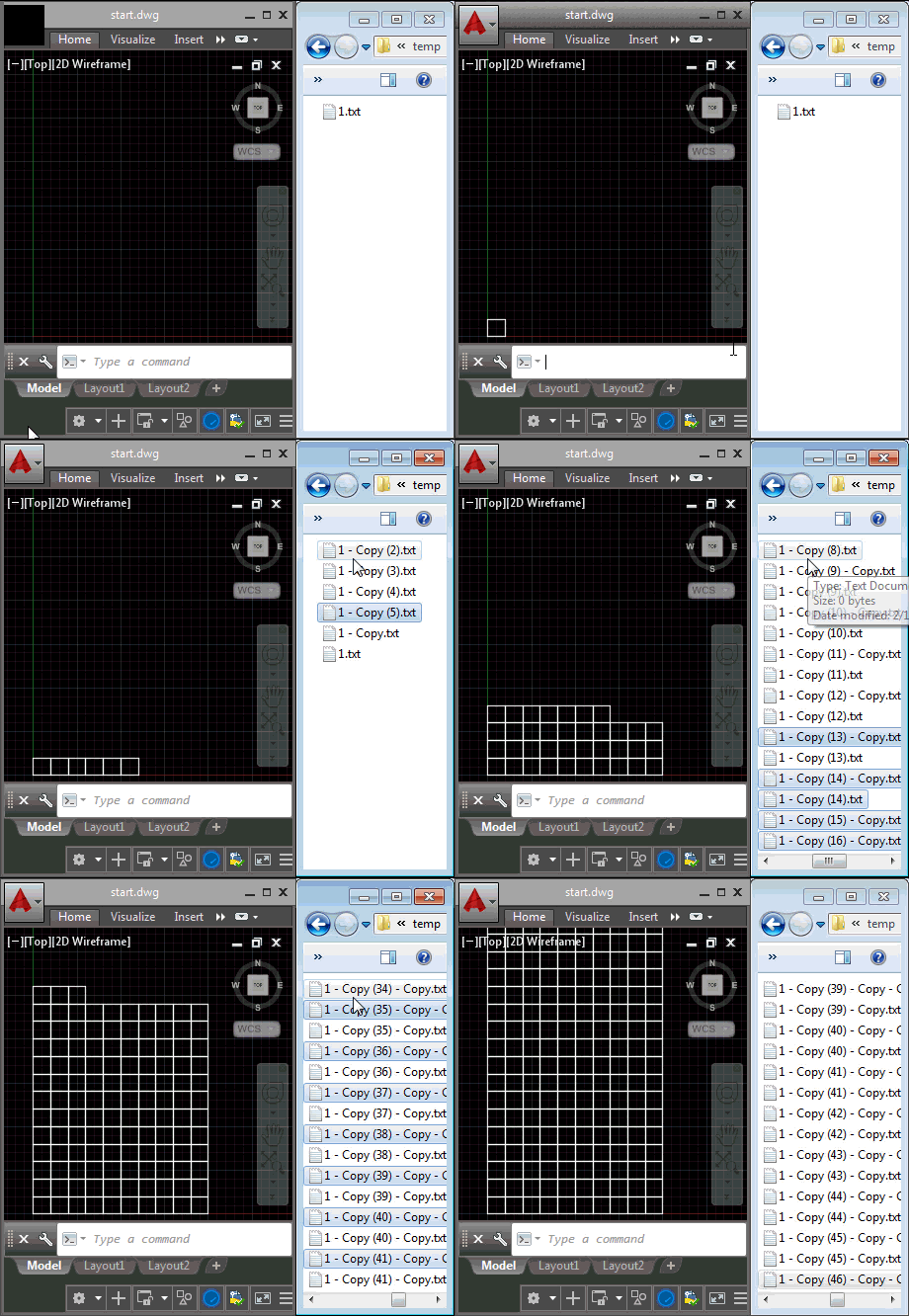
A FileSystemWatcher feeding AutoCAD

Of course the specific event we're responding to – in our case the Changed event  on a FileSystemWatcher – isn't really the point. The point is that this mechanism allows you to react to things happening outside AutoCAD, calling AutoCAD commands in reaction.

Here's the C# code, to show how it's working. Something to bear in mind… we're only adding squares until there are as many as files in the tracked folder: more work would be needed to remove squares as files get deleted or moved away. But this is simply an example of hooking such an event into AutoCAD – I didn't see much point in adding that kind of complexity to the code.

using Autodesk.AutoCAD.ApplicationServices;

using Autodesk.AutoCAD.EditorInput;

using Autodesk.AutoCAD.Runtime;

using System;

using System.IO;


namespace CommandFromAppContext

{

  public class Commands

  {

    const int columns = 10;

    const string path = "c:\\temp\\files";


    private FileSystemWatcher _fsw = null;

    private int _fileNum = 0;

    private int _filesTotal = 0;

    private bool _drawing = false;


    [CommandMethod("EC")]

    public void EventCommand()

    {

      var dm = Application.DocumentManager;

      var doc = dm.MdiActiveDocument;

      if (doc == null)

        return;


      var ed = doc.Editor;


      // We'll start by creating one square for each file in the

      // specified location. The nSquares() function uses some

      // global state for the index and the total count


      _fileNum = 0;

      _filesTotal = Directory.GetFiles(path).Length;


      nSquares(ed);


      // Create a FileSystemWatcher for the path, looking for

      // write changes and drawing more squares as needed


      if (_fsw == null)

      {

        _fsw = new FileSystemWatcher(path, "*.*");

        _fsw.Changed += (o, s) => nSquaresInContext(dm, ed, path);

        _fsw.NotifyFilter = NotifyFilters.LastWrite;

        _fsw.EnableRaisingEvents = true;


        ed.WriteMessage("\nWatching \"{0}\" for changes.", path);

      }

    }


    [CommandMethod("ECX")]

    public void StopEventCommand()

    {

      var dm = Application.DocumentManager;

      var d
oc = dm.MdiActiveDocument;

      if (doc == null)

        return;


      var ed = doc.Editor;


      if (_fsw != null)

      {

        _fsw.Dispose();

        _fsw = null;

      }


      ed.WriteMessage("\nNo longer watching folder.");

    }


#pragma warning disable 1998


    private async void nSquaresInContext(

      DocumentCollection dc, Editor ed, string path

    )

    {

      // We'll set the total as it may well have changed (hence the

      // need for global state rather than using an argument)


      _filesTotal = Directory.GetFiles(path).Length;


      // Protect the command-calling function with a flag to avoid

      // eInvalidInput failures


      if (!_drawing)

      {

        _drawing = true;


        // Call our square creation function asynchronously


        await dc.ExecuteInCommandContextAsync(

          async (o) => nSquares(ed),

          null

        );


        _drawing = false;

      }

    }


#pragma warning restore 1998


    private void nSquares(Editor ed)

    {

      // Draw squares until we have enough (the total might

      // change, hence the need for global state)


      for (; _fileNum < _filesTotal; _fileNum++)

      {

        // Determine the position in our grid


        int xoff = _fileNum % columns,

            yoff = _fileNum / columns;


        // Create our polyline via the RECTANG command


        ed.Command(

          "._rectang",

          String.Format("{0},{1}", xoff, yoff),

          String.Format("{0},{1}", xoff + 1, yoff + 1),

          "_regen"

        );

      }

    }

  }

}

I think this is a really powerful mechanism. I'd be very curious to hear how people anticipate using it with AutoCAD 2016.

6 responses to “AutoCAD 2016: Calling commands from external events using .NET”

  1. This is very cool. Unfortunately many of us are stuck on older versions of AutoCAD (i.e.: 2012) and don't get access to this API. What would happen if this were attempted in 2012? I know async isn't available on the .NET version 2012 supports, but what about the concept it self?

    Can a 2012 plugin's command kick off a FileSystemMonitor and process the changed files --synchronously-- ?

    1. Kean Walmsley Avatar

      You might want to check on the availability of the underlying ObjectARX API in 2012, to see if you can use that from C++. Otherwise you may be able to find another way to emulate this behaviour, perhaps polling for changes intermittently.

      Kean

  2. I would like to make a use of FileSystemWatcher to monitor a folder ,in which when the DWG file changes I will Open It and do somthing.

    but when I test,I got a FATAL ERROR.

    Part of the code is as follows:

    [CommandMethod("ShowTheWatcher", CommandFlags.Transparent)]

    public void ShowTheWatcher()

    {

    FileSystemWatcher watcher = new FileSystemWatcher();

    watcher.Path = strPath;

    watcher.Filter = "*.dwg";

    watcher.Changed += new FileSystemEventHandler(OnProcess);

    watcher.Created += new FileSystemEventHandler(OnProcess);

    watcher.Deleted += new FileSystemEventHandler(OnProcess);

    watcher.Renamed += new RenamedEventHandler(OnRenamed);

    watcher.EnableRaisingEvents = true;

    }

    private void OnProcess(object source, FileSystemEventArgs e)

    {

    if (e.ChangeType == WatcherChangeTypes.Created)

    {

    OnCreated(source, e);

    }

    else if (e.ChangeType == WatcherChangeTypes.Changed)

    {

    OnChanged(source, e);

    }

    else if (e.ChangeType == WatcherChangeTypes.Deleted)

    {

    OnDeleted(source, e);

    }

    }

    //When I test , I delete one file (not the one I try to open ) and in to the OnDeleted Handler.

    private void OnDeleted(object source, FileSystemEventArgs e)

    {

    try

    {

    Document dcOpeating = Application.DocumentManager.Open(@"E:\Workpath\asd.dwg", false);

    Database dbOperating = dcOpeating.Database;

    DocumentLock dlock = dcOpeating.LockDocument();

    Transaction transOperating = dbOperating.TransactionManager.StartTransaction();

    Editor edOperating = dcOpeating.Editor;

    }

    catch (System.Exception exx)

    {

    }

    }

    if I use

    Document dcOpeating = Application.DocumentManager.Open(@"E:\Workpath\asd.dwg", false);

    in another command directly ,It works fine.something like this:

    [CommandMethod("TestOpen", CommandFlags.Transparent)]

    public void TestOpen()

    {

    Document dcOpeating = Application.DocumentManager.Open(@"E:\Workpath\asd.dwg", false);

    }

    Look into the references and find nothing to do .

    please Help me .

    thanks!

    1. Kean Walmsley Avatar
      Kean Walmsley

      I don't have time to debug your code, I'm afraid. Please post it to the relevant online forum.

      Regards,

      Kean

      1. thanks a lot!

  3. This looks very interesting. thx for the post. I wonder what applications of this there will be?

Leave a Reply to 李慢慢 Cancel reply

Your email address will not be published. Required fields are marked *