Creating a table of AutoCAD blocks using .NET

This post – and the one to follow it – were inspired by a comment on this old post (which in many ways is quite similar to this one, just using an older syntax and starting with a static array of table data). We're creating a table with information about the various blocks in the block table of the current drawing: in this post we create the basic table containing the table name and its thumbnail, while in the next post we're going add some additional (and as-yet-to-be-determined) information. The basic point is to show how to manipulate an existing table by adding to it.

Here's what gets created by our CBT command when run in the drawing seen recently in these two posts:

Our block table

When we switch viewpoints, we can actually see the table contains 3D thumbnails. Pretty interesting, especially seeing how the various "thumbnails" have been scaled so their 2D extents fit the cell, leading to drastically differing sizes of 3D object.
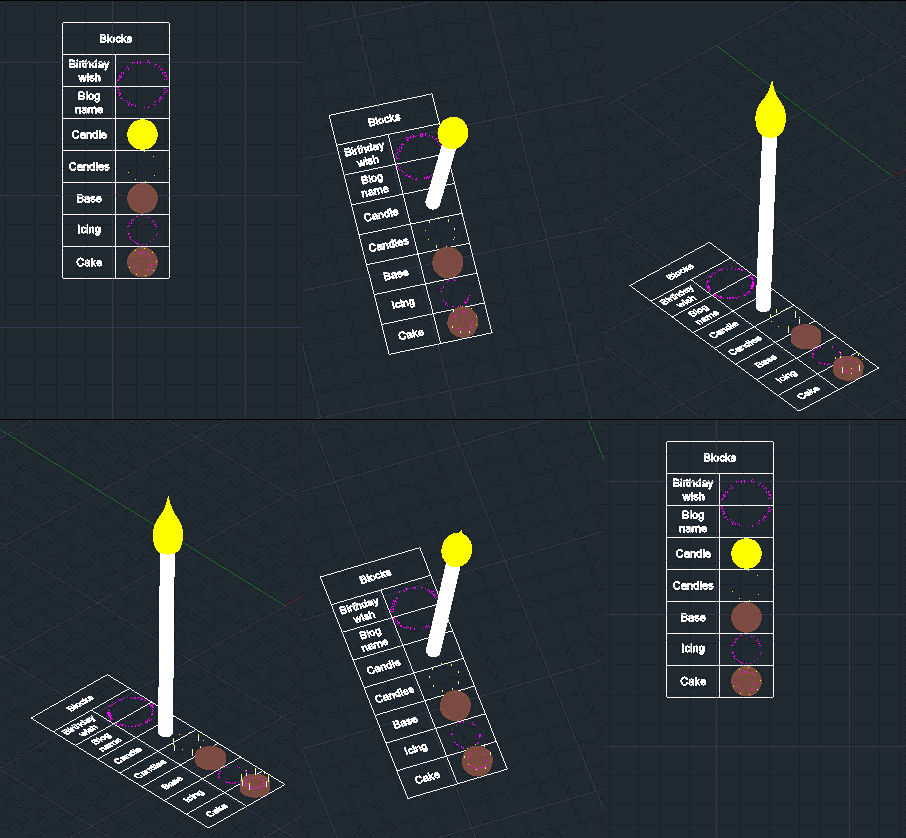
Table of 3D blocks

Here's the C# code defining our CBT command:

using Autodesk.AutoCAD.ApplicationServices;

using Autodesk.AutoCAD.DatabaseServices;

using Autodesk.AutoCAD.EditorInput;

using Autodesk.AutoCAD.Runtime;


namespace TableCreation

{

  public class Commands

  {

    const double rowHeight = 3.0, colWidth = 5.0;

    const double textHeight = rowHeight * 0.25;


    [CommandMethod("CBT")]

    static public void CreateBlockTable()

    {

      var doc = Application.DocumentManager.MdiActiveDocument;

      if (doc == null)

        return;


      var db = doc.Database;

      var ed = doc.Editor;


      var pr = ed.GetPoint("\nEnter table insertion point");

      if (pr.Status != PromptStatus.OK)

        return;


      using (var tr = doc.TransactionManager.StartTransaction())

      {

        var bt = (BlockTable)tr.GetObject(db.BlockTableId, OpenMode.ForRead);


        // Create the table, set its style and default row/column size


        var tb = new Table();

        tb.TableStyle = db.Tablestyle;

        tb.SetRowHeight(rowHeight);

        tb.SetColumnWidth(colWidth);

        tb.Position = pr.Value;


        // Set the header cell


        var head = tb.Cells[0, 0];

        head.Value = "Blocks";

        head.Alignment = CellAlignment.MiddleCenter;

        head.TextHeight = textHeight;


        // Insert an additional column


        tb.InsertColumns(0, colWidth, 1);


        // Loop through the blocks in the drawing, creating rows


        foreach (var id in bt)

        {

       
   var btr = (BlockTableRecord)tr.GetObject(id, OpenMode.ForRead);


          // Only care about user-insertable blocks


          if (!btr.IsLayout && !btr.IsAnonymous)

          {

            // Add a row


            tb.InsertRows(tb.Rows.Count, rowHeight, 1);


            var rowIdx = tb.Rows.Count - 1;


            // The first cell will hold the block name


            var first = tb.Cells[rowIdx, 0];

            first.Value = btr.Name;

            first.Alignment = CellAlignment.MiddleCenter;

            first.TextHeight = textHeight;


            // The second will contain a thumbnail of the block


            var second = tb.Cells[rowIdx, 1];

            second.BlockTableRecordId = id;

          }

        }


        // Now we add the table to the current space


        var sp =

          (BlockTableRecord)tr.GetObject(db.CurrentSpaceId, OpenMode.ForWrite);

        sp.AppendEntity(tb);


        // And to the transaction, which we then commit


        tr.AddNewlyCreatedDBObject(tb, true);

        tr.Commit();

      }

    }

  }

}

8 responses to “Creating a table of AutoCAD blocks using .NET”

  1. Danilo Knezevic Avatar

    Works fine, only thing is that I needed to add "cell.Contents[0].IsAutoScale = true;" after assigning Id.

    Any ideas about that?

  2. Danilo Knezevic Avatar

    Disregard that one... my mistake...

  3. Gerrit van Diepen Avatar
    Gerrit van Diepen

    Hi Kean,

    Your example for creating a table I have used for showing AreaInformation of Polylines.

    At each data row a handle and area info of each selected polyline is displayed.

    The area is displayed correctly and the added 'Total' row has the correct formule to show the results.

    The formula for totalising a column is NOT "=sum(B3:B6)" , this did'nt work, but it is: "=B3+B4+B5+B6"

    The crazy thing is dat I have to edit the area cells without changing the values to get the totals displayed correctly (instead of "####")

    If I use "=sum(B3:B6)" then it is never displayed correct.

    Do you know a solution for this problem?

    Best Regards,

    Gerrit

    1. Hi Gerrit,

      Not off the top of my head. Please post your question to the appropriate discussion forum - someone there will be able to help.

      Best regards,

      Kean

      1. Gerrit van Diepen Avatar
        Gerrit van Diepen

        Hi Kean,

        In your blog you mentioned that if you want to sum length or area info (with fields) you have to use the value as a string.
        I have played a while with tables and now I see a solution to calculate with area- or lengthvalues.

        In a table you only may use straight area and length info, without further formatting!

        As a short sample:

        Function FieldInfo(acObjId as objectid, Suffix as string) as string
        Dim sObjIdString As String = acObjId.ToString
        sObjIdString = Mid(sObjIdString, 2, sObjIdString.Length - 2)

        Dim sObjPrefix As String = "%<\AcObjProp Object(%<\_ObjId "
        return sObjPrefix & sObjIdString & ">%)." & Suffix & ">%"
        End Function

        Dim AreaDecimals as integer = 2
        Dim LengthDecimals as integer = 3

        '' In a area-cell:
        Dim sInfo as string = FieldInfo(acPlineObjId, "Area") '' returns: "%<\AcObjProp Object(%<\_ObjId 8796087811072>%).Area>%"
        tbl.Cells(CurRow, CurCol).TextString = sInfo

        '' format the text for decimals
        tbl.Cells(rows + 1, iCol).DataFormat = "%lu2%pr" & AreaDecimals.ToString & "%"

        '' In a Length-cell:
        Dim sInfo as string = FieldInfo(acPlineObjId, "Length") '' returns: "%<\AcObjProp Object(%<\_ObjId 8796087811072>%).Length>%"
        tbl.Cells(CurRow, CurCol).TextString = sInfo
        tbl.Cells(rows + 1, iCol).DataFormat = "%lu2%pr" & LengthDecimals.ToString & "%"

        '' In the Total-cell:
        Dim ColChar As String = CStr(Chr(65 + iCol))
        Dim Formule As String = "=SUM(" + ColChar + TopRow + ":" + ColChar + BotRow + ")"
        tbl.Cells(rows + 1, iCol).TextString = Formule

        '' use the same dataformat for decimals depending area or length

        Another question:

        In my informationtable I use the values for: Handle, LayerName, Area , Length

        It is possible to use a handle field by using: "%<\AcObjProp Object(%<\_ObjId 8796087811072>%).Handle>%"
        If you change the layer of a object in the table or scale it, then after a regen the table is updated.

        But if you save and reopen the drawing the handle-info column is empty.
        Strange, because the handle is the same after reopen and the objectid not

        Why is there a ObjectID and a Handle anyway?

        Regards,

        Gerrit

        1. Hi Gerrit,

          This has gone a long way off topic. But I will answer the question, briefly: Handles are intended as persistent identifiers that can be used to link data in a drawing with data outside (you can use Handles in an external database, for instance). ObjectIds are little more than the memory location of objects (not strictly true - there's paging and stuff going on, too, but it's certainly indicative of the truth). You can store them in a drawing, but they will be remapped when the drawing loads (as the memory locations will have changed). You can use these to refer to objects within a drawing, but not outside: you couldn't use them in a database, for instance.

          if you have follow-up questions that don't relate exactly to this post, please do use the relevant discussion group.

          Regards,

          Kean

  4. Hello Mr. Kean,
    A great post again.
    is it possible to insert the tumbnails to excel cells instead of autocad cells ?
    if it is, it would be great if you could guide me to a direction.

    1. Hi kenan,

      I'm sure it's possible, but beyond the scope of this blog (which focuses on AutoCAD-centric problems rather than showing you how to automate office products).

      Kean

Leave a Reply to kenan bilen Cancel reply

Your email address will not be published. Required fields are marked *